Large Model Algorithm Management
Perimeter Detection Large Model
Feature Description
Definition
- Perimeter detection large model: real-time detection on the device and alarm recheck based on the large model on the edge, increasing the number of perimeter detection channels and the analysis accuracy
Intelligent analysis scenarios: tripwire crossing detection, intrusion detection, loitering detection, area exit detection, fast movement detection, area entry detection, and parking detection
- False positive library: filters out false positives based on false positive libraries. In the real-time alarm list or historical alarm list, users can click the false positive button to add alarm images to a false positive library for a camera. Then algorithms will compare the similarity between the features in the alarm images reported by the camera against those in the false positive library. If the similarity exceeds the false positive similarity threshold configured for the algorithms, the images will be filtered out and no alarm will be generated.
Customer Benefits
- Device-edge synergy, increasing the number of perimeter analysis channels
- Real-time detection on the device and alarm recheck based on the large model on the edge, reducing the false positive rate, reducing the manpower required for checking false positives, and improving alarm handling efficiency
Application Scenario
Perimeter detection large model algorithms can meet customers' requirements for high algorithm precision in campus, city governance, and fragmented intelligence scenarios. Applicable intelligent analysis functions vary depending on application scenarios.
Requirements
NE |
Version Requirement |
License Requirement |
Function |
|---|---|---|---|
iClient S100 |
12.1.0 and later versions |
N/A |
Algorithm configuration and alarm display |
V7000-08A-LLM-P AI Pro |
12.0.0.SPC10 and later versions |
N/A |
Large model algorithm running, camera access, and storage management |
Application Limitations
- This feature is applicable only to V7000-08A-LLM-P AI Pro devices.
For details about how to update or install a large model algorithm package, see How Do I Install a Large Model Algorithm Package?
- The false positive library supports a maximum of 100 images per channel, and supports the following object types: railing, beach, leaf, robotic arm, and shadow. When an object similar to a person is detected, the interception mechanism is triggered. The user needs to confirm whether to add the image to the false positive library.
- After parking detection is enabled, you are advised to disable the setting of sending only the first alarm for the same object so that alarms can be continuously generated for a static object.
Feature Configuration
Scenario Description
Table 4-284 describes the support for this feature in different client scenarios.
Precautions
- Before creating a perimeter analysis task, ensure that no other intelligent analysis tasks are enabled for the camera. Otherwise, the perimeter analysis task will fail to be created.
- After creating a perimeter analysis task, do not modify the intelligent analysis task configuration of the camera. Otherwise, the perimeter analysis task will fail.
- If you create multiple analysis tasks for the same channel, ensure that the alert deployment time of these tasks does not overlap.
Procedure
- On the iClient S100 home page, choose .
- Right-click an HWT-IVS1800 and choose Task Management from the shortcut menu.
- Create an analysis task.
- Click New Task. The New Task dialog box is displayed.
- Choose Global Configuration in the navigation tree on the left, select a camera on the right, and set the algorithm, video type, and schedule parameters as required.Figure 4-324 Setting global parameters
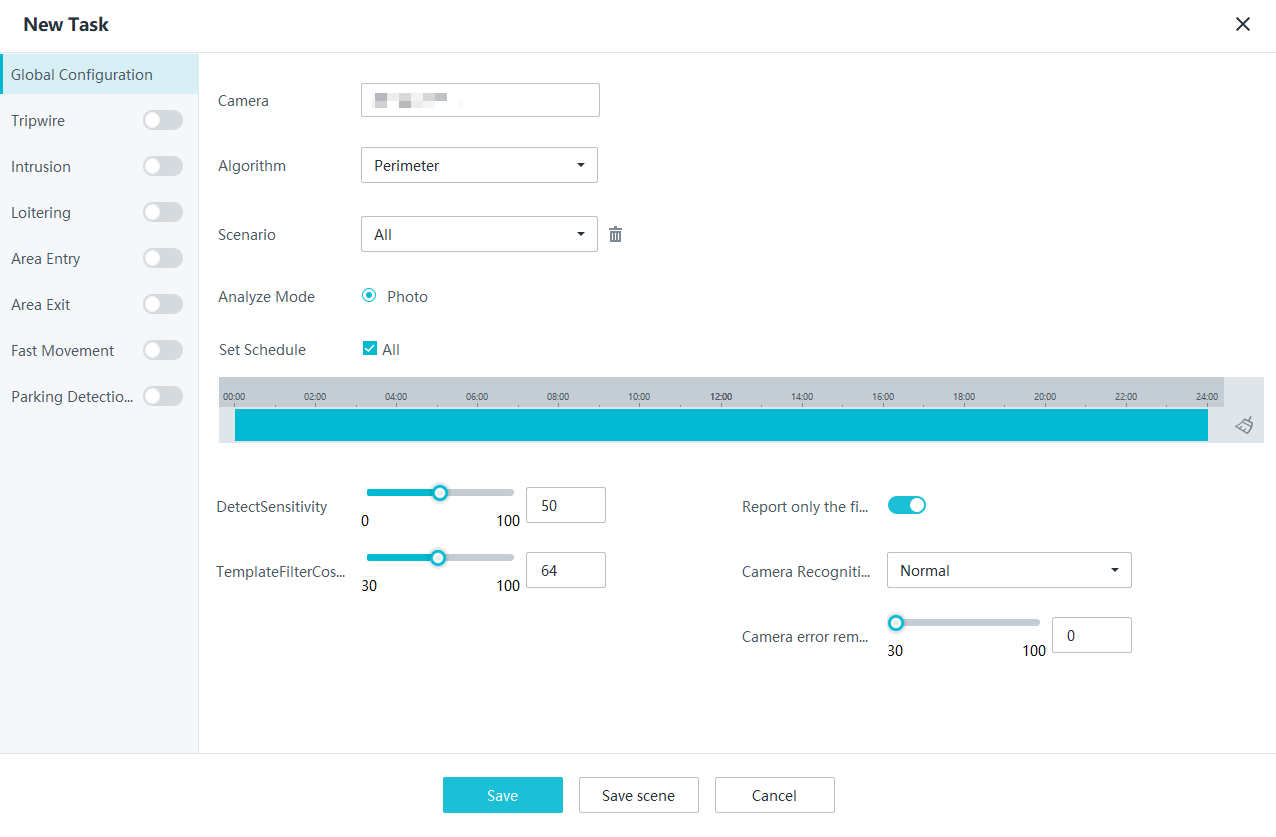 Table 4-285 Parameter/Button description
Parameter/Button
Description
Camera
Select the camera for which you want to create an analysis task.
Algorithm
The default value is Perimeter.
Scenario
Select a scenario as required. The default value is All.
You can click Save scene to save an enabled analysis task as a customized scenario. Then the scenario is available in the drop-down list box of this parameter.
Analyze Mode
The default value is Photo.
Set Schedule
Set the time segment for executing the analysis task as required.
DetectSensitivity
The value ranges from 0 to 100.
- Higher sensitivity indicates a higher possibility of triggering alarms, which may lead to false positives.
- Lower sensitivity indicates a lower possibility of triggering alarms, which may lead to false negatives.
Report only the first alarm for the same target
Indicates whether to allow the camera to send the alarm only once for the same alarm event.
NOTE:After parking detection is enabled, you are advised to disable the setting of sending only the first alarm for the same object so that alarms can be continuously generated for a static object.
Camera Recognition Sensitivity
The options are Lowest, lower, Normal, Higher, and Highest.
- Higher sensitivity indicates a higher possibility of triggering alarms, which may lead to false positives.
- Lower sensitivity indicates a lower possibility of triggering alarms, which may lead to false negatives.
Large model false positive interception threshold
The value ranges from 30 to 100.
- A higher threshold indicates a lower false positive rate, which may result in false negatives.
- A lower threshold indicates a lower false negative rate, which may result in false positives.
Camera error removal threshold
Save scene
Saves an enabled analysis task as a scenario. The scenario name can be customized.
- Choose a perimeter analysis task in the navigation tree on the left, draw detection areas and set parameters on the right, and toggle on Enable to enable the intelligent analysis task.
- Click Save.Figure 4-325 Setting perimeter analysis parameters
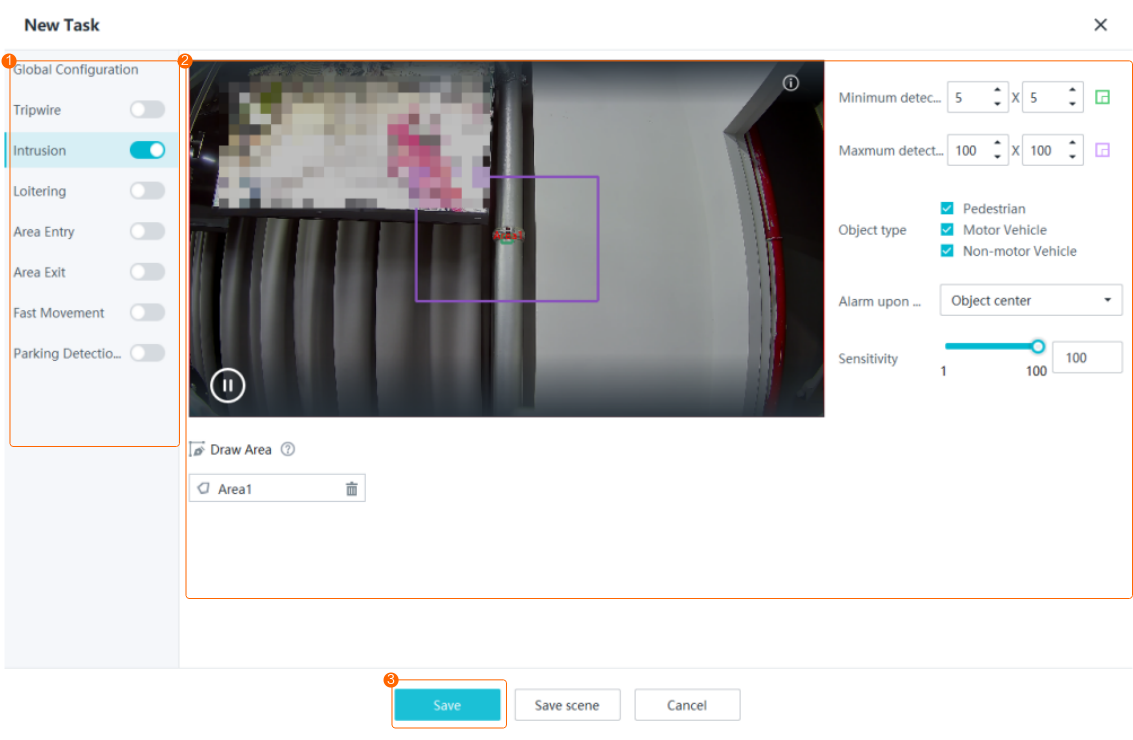
Table 4-286 General parametersParameter
Description

Indicates whether to enable a perimeter analysis task.
Object type
Detection object.
- Pedestrian
- Motor Vehicle
- Non-motor Vehicle
Alarm upon detecting
Part of an object based on which detection is performed. The options are as follows:
- Object center: An object can be detected only when its central part enters the detection area.
- Object bottom: An object can be detected only when its bottom part enters the detection area.
- Object top: An object can be detected only when its top part enters the detection area.
Sensitivity
Detection sensitivity.
The value ranges from 1 to 100. A larger value indicates higher sensitivity.
Dwell (s)
Time during which an object can loiter in the detection area. If an object loiters in the detection area for a period longer than the specified time, an alarm is generated.
This parameter is available only when you choose Loitering or Parking Detection in the navigation tree.
- The value ranges from 1 to 180 for loitering detection.
- The value ranges from 10 to 1800 for parking detection.
Minimum detection target
Minimum resolution of an object that can be detected, in pixels.
Maximum detection target
Maximum resolution of an object that can be detected, in pixels.
Draw Area
Button for drawing a detection area. You can double-click the left mouse button to complete drawing.
You can draw detection areas based on the following rules:
- You are advised to draw lines clockwise. The lines you draw cannot cross each other or form a sharp acute angle. Otherwise, detection areas may fail to be drawn.
- Do not draw polygonal areas that overlap with each other. Otherwise, false negatives may occur.
Save scene
Saves an enabled analysis task as a scenario. The scenario name can be customized.
- Modify analysis task parameters.
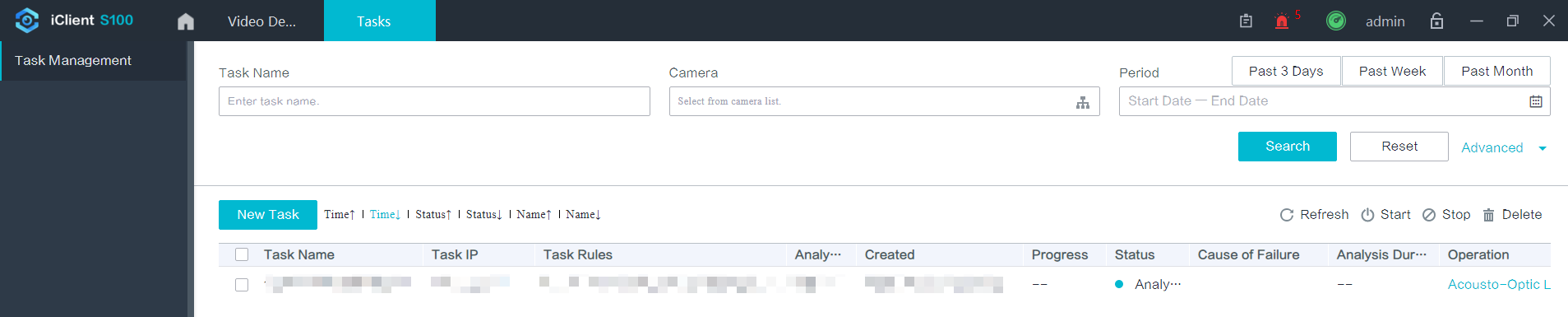
On the Tasks page, click Edit to modify analysis task parameters, as shown in the following figure.
Feature Verification
Viewing Alarms

In device-edge synergy mode, the camera reports an alarm at an interval of 2s.
- On the iClient S100 home page, choose .
- Select one or more main devices in the Cameras area.
- Select desired alarm subtypes from the Type drop-down list box as required and click Search. All alarms of these subtypes reported by the selected main devices are automatically displayed on the page.
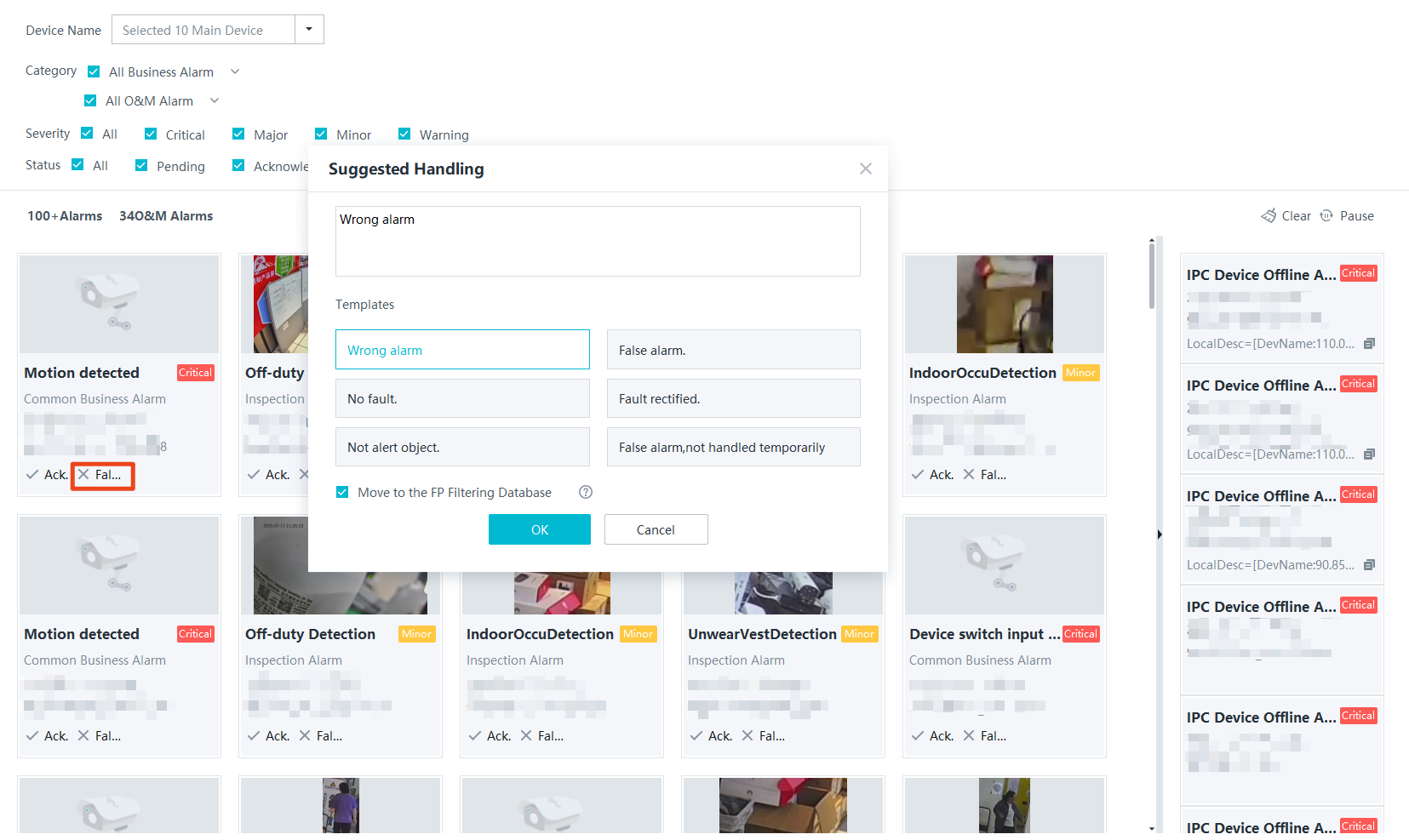
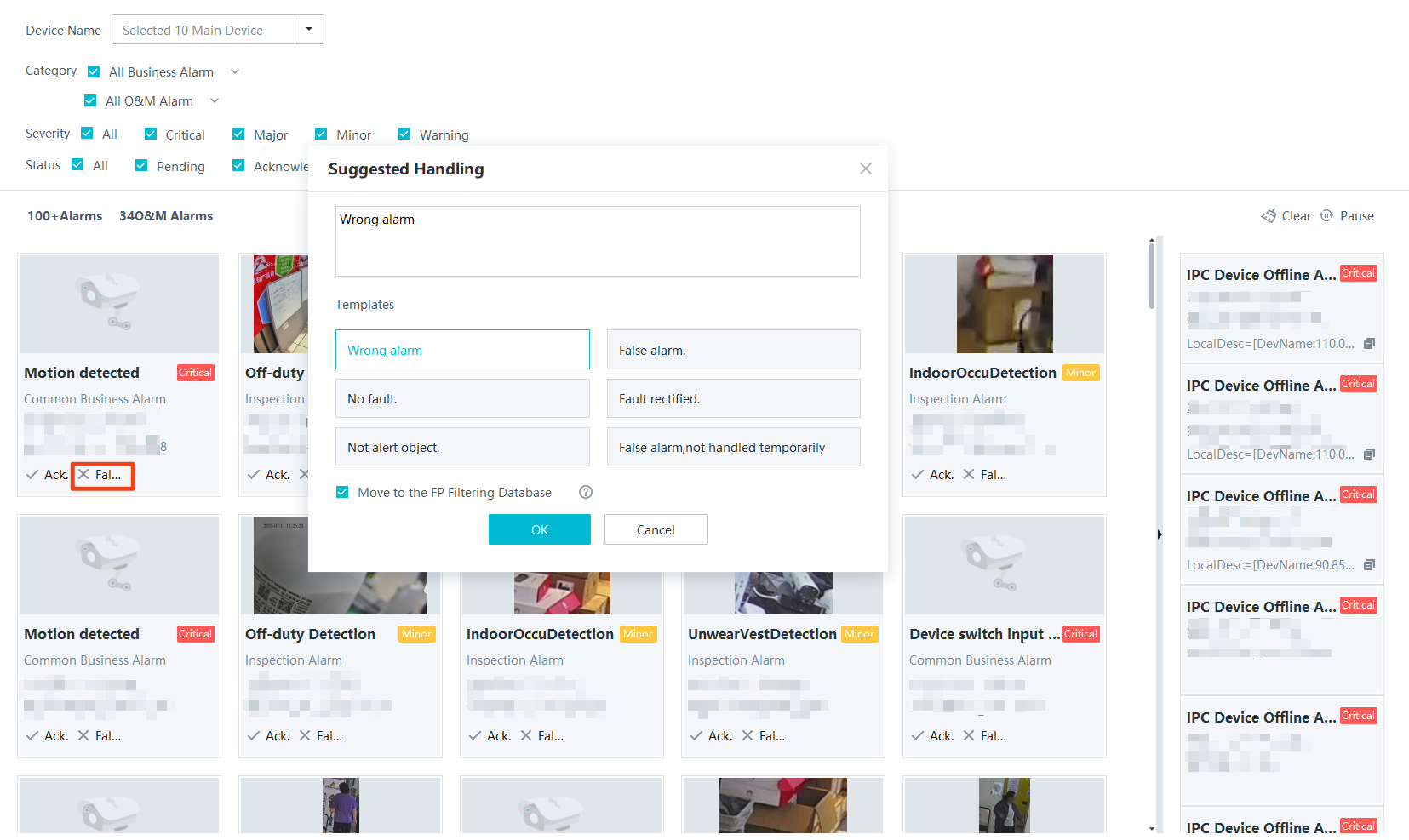
- View and check the alarm result. Click Ack. or False Positive as required, as shown in Figure 4-326.
- If you click Ack., enter alarm handling suggestions, and click OK, the alarm status changes to acknowledged.
- If you click False Positive, enter alarm handling suggestions, select Move to the FP Filtering Database, and click OK, the alarm is added to the false positive library and will not be reported in the same scenario.
- The alarms reported by the HWT-IVS1800 are saved to the database every 10s. Do not click False Positive immediately after the latest alarm is reported. Otherwise, a message is displayed, indicating that no alarm information is found.
- When an object similar to a person is detected, the interception mechanism is triggered. The user needs to confirm whether to add the image to the false positive library.
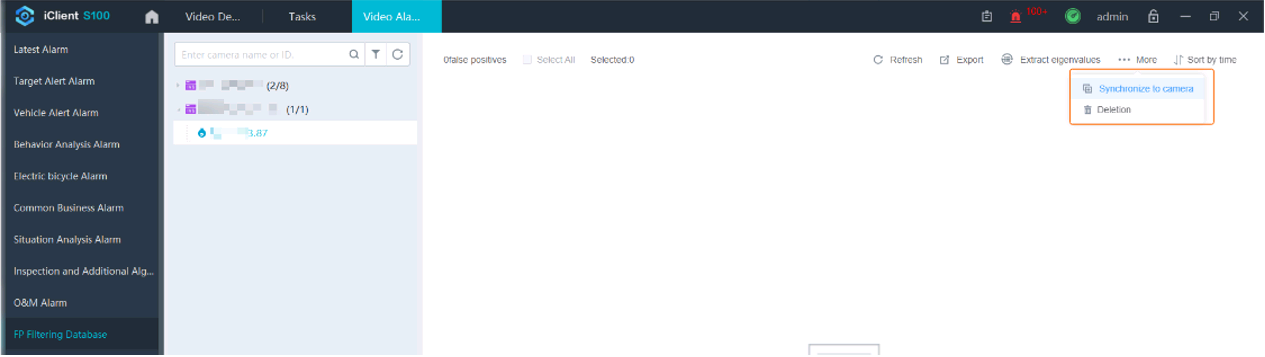
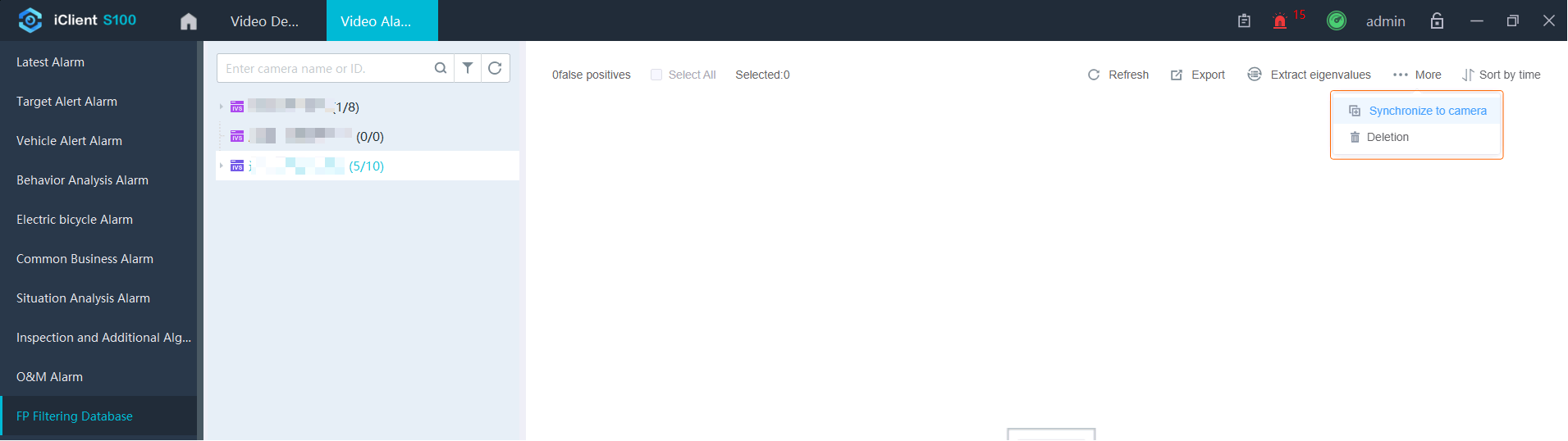
- Choose FP Filtering Database in the navigation tree on the left, view the alarms that have been added to the false positive library, and perform operations such as exporting, deleting, and synchronizing alarms to cameras, as shown in Figure 4-327.
Inspection Large Model
Feature Description
Definition
- N-in-1 inspection large model: campus inspection based on the large model, supporting concurrent running of multiple algorithms per channel
Intelligent analysis scenarios: cell phone use detection, smoking detection, hard hat detection, workwear detection, on-duty sleeping detection, falling detection, garbage overflow detection, fire route obstruction detection, goods obstruction detection, absence detection, smoke and fire detection, and fight detection.
- False positive library: filters out false positives based on false positive libraries. In the real-time alarm list or historical alarm list, users can click the false positive button to add alarm images to a false positive library for a camera. Then algorithms will compare the similarity between the features in the alarm images reported by the camera against those in the false positive library. If the similarity exceeds the false positive similarity threshold configured for the algorithms, the images will be filtered out and no alarm will be generated.
Customer Benefits
- N-in-1 algorithm package, supporting more algorithms compared with traditional models and third-party algorithms
- Higher precision and generalization capability, supporting more channels
Application Scenario
Inspection detection large model algorithms can meet customers' requirements for high algorithm precision in campus, city governance, and fragmented intelligence scenarios. Applicable intelligent analysis functions vary depending on application scenarios.
Requirements
NE |
Version Requirement |
License Requirement |
Function |
|---|---|---|---|
iClient S100 |
12.1.0 and later versions |
N/A |
Algorithm configuration and alarm display |
V7000-08A-LLM-I AI Pro |
12.0.0.SPC10 and later versions |
N/A |
Large model algorithm running, camera access, and storage management |
Application Limitations
- This feature is applicable only to V7000-08A-LLM-I AI Pro devices.
For details about how to update or install a large model algorithm package, see How Do I Install a Large Model Algorithm Package?
- The following table lists the illuminance requirements.
Illuminance Requirement
Intelligent Analysis Task Name
In night mode, visible light compensation is required. Infrared light compensation is not supported.
On-duty sleeping detection, fire route obstruction detection, goods obstruction detection, garbage overflow detection, hard hat detection, workwear detection, cell phone use detection, fight detection, smoking detection, absence detection, and falling detection
Not supported at night
Smoke and fire detection
- The false positive library supports a maximum of 200 images per channel, and supports the following object types: vase, flower bed, poster, round stone block, and office chair. When an object similar to a person is detected, the interception mechanism is triggered. The user needs to confirm whether to add the image to the false positive library.
- The fight detection algorithm is not for commercial use currently and is mutually exclusive with other inspection algorithms. The application scenarios and specifications are as follows:
- Supported scenario: education campus (campus checkpoints, corridors, and classrooms), with no more than five people fighting
- Algorithm specifications: At least one of the following actions lasts for 30s or longer:
- Hair pulling: One person pulls the hair of another person, or two persons pull each other's hair.
- Continuous punching: One person punches another person, or two persons punch each other.
- The smoke and fire detection algorithm does not support the detection of smoke only. The scenario restrictions are as follows:
- Scenario 1: no obvious obstacles or outdoor places with strong backlight in the campus, clear fires
- Scenario 2: fires in suburban woods, fires on the road side, or smoke and fires from barbecues
Feature Configuration
Scenario Description
Table 4-287 describes the support for this feature in different client scenarios.
Prerequisites
- If you create multiple analysis tasks for the same channel, ensure that the alert deployment time of these tasks does not overlap.
Procedure
- On the iClient S100 home page, choose .
- Right-click an HWT-IVS1800 and choose Task Management from the shortcut menu.
- Create an analysis task.
- Click New Task. The New Task dialog box is displayed.
- Choose Global Configuration in the navigation tree on the left, select a camera on the right, and set the algorithm, video type, and schedule parameters as required.Figure 4-328 Setting global parameters
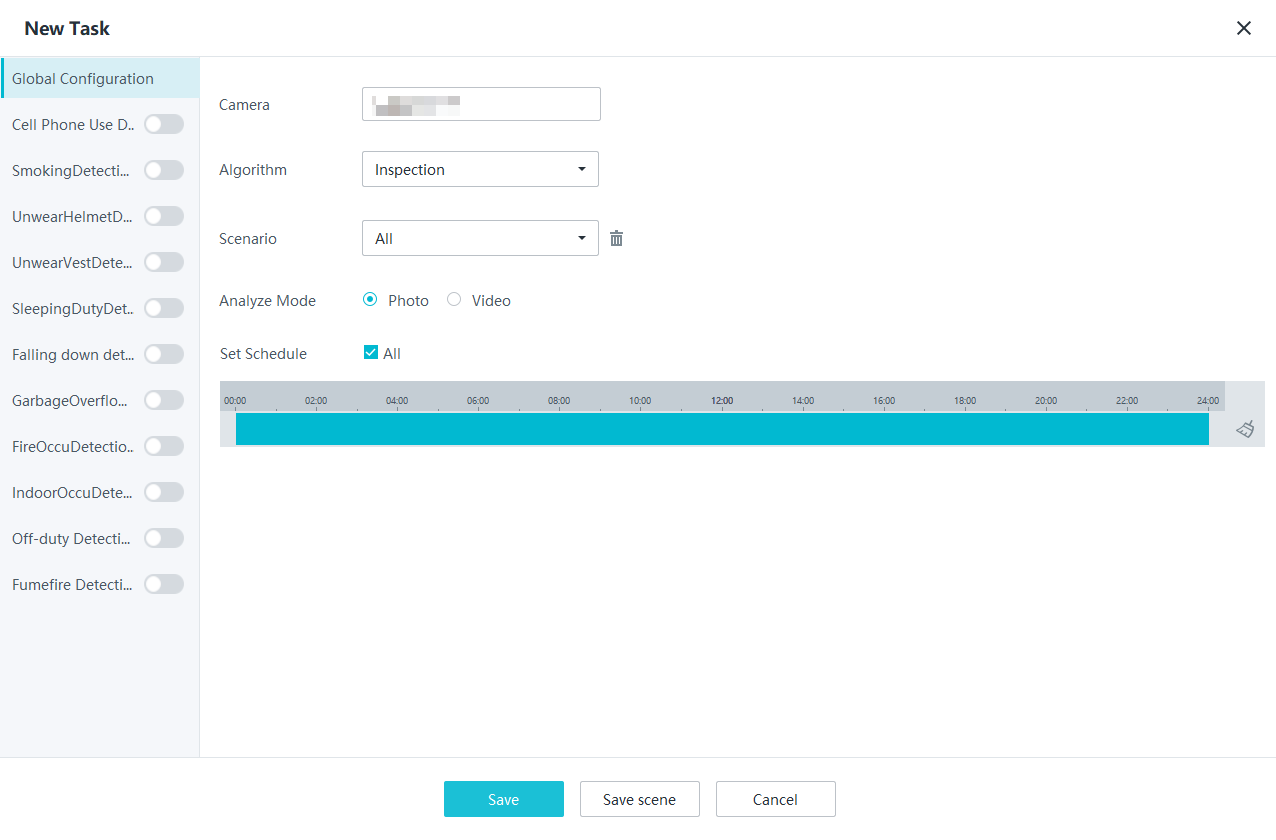 Table 4-288 Parameter description
Parameter
Description
Camera
Select the camera for which you want to create an analysis task.
Algorithm
The default value is Inspection.
Scenario
Select a scenario as required. The default value is All.
You can click Save scene to save an enabled analysis task as a customized scenario. Then the scenario is available in the drop-down list box of this parameter.
Analyze Mode
Select an analysis mode as required.
Set Schedule
Set the time segment for executing the analysis task as required.
Save scene
Saves an enabled analysis task as a scenario. The scenario name can be customized.
- Choose an inspection analysis task in the navigation tree on the left, draw detection areas and set parameters on the right, and toggle on Enable to enable the inspection analysis task.
- Click Save.Figure 4-329 Setting inspection analysis parameters
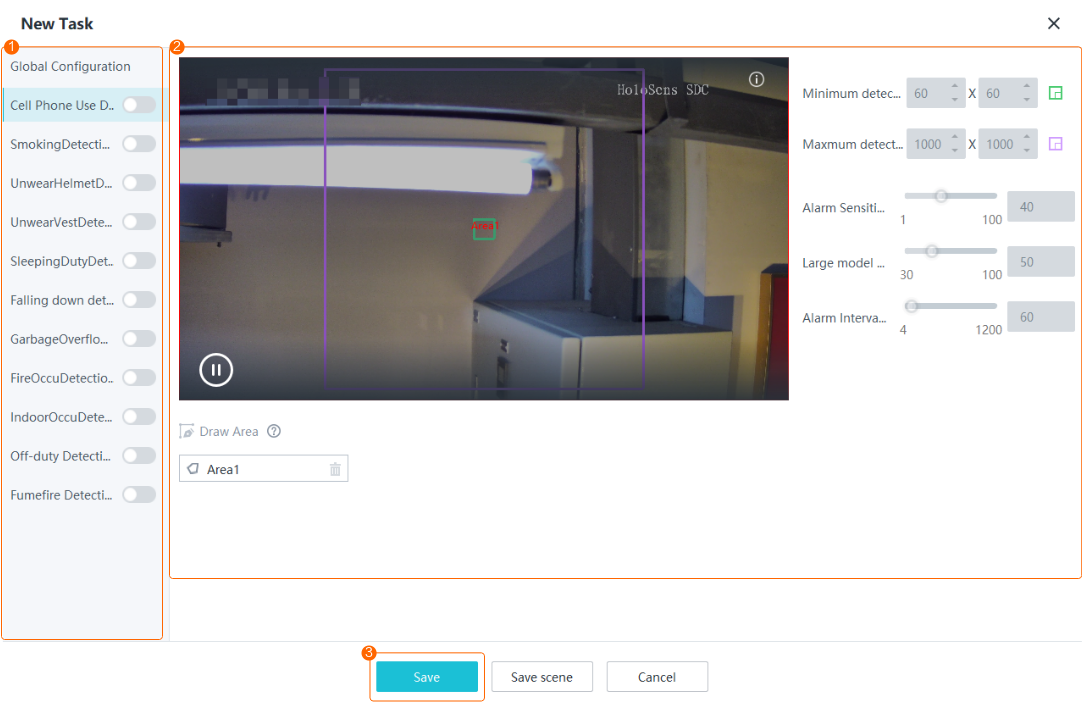
Table 4-289 describes the parameters. Table 4-290 describes the recommended deployment scenarios and settings.
Table 4-289 Parameter descriptionParameter
Description

Indicates whether to enable an inspection analysis task.
Alarm Sensitivity
Sensitivity for triggering alarms. Set this parameter based on the site requirements.
- Higher sensitivity indicates a higher detection rate and a higher false positive rate.
- Lower sensitivity indicates a lower detection rate, higher accuracy, and a lower false positive rate.
The value ranges from 1 to 100.
Large model false positive interception threshold
The value ranges from 30 to 100.
- A higher threshold indicates a weaker filtering effect of the false positive library. In this case, duplicate false positives may fail to be blocked.
- A lower threshold indicates a stronger filtering effect of the false positive library. In this case, correct alarms similar to those in the false positive library may be blocked.
Alarm Interval(sec)
Interval at which the system checks for new alarms.
To prevent a flood of alarms, the system reports only one alarm even if it detects multiple alarms within the specified interval.
NOTE:The alarm suppression function is applicable only to frequently reported alarms of static targets. The algorithm suppresses alarms of the same type at the same coordinates in the same channel. For alarms of moving targets in the same channel and of the same type, the alarm suppression function does not take effect.
Minimum detection target
Minimum resolution of an object that can be detected, in pixels. Set this parameter based on the site requirements.
Maximum detection target
Maximum resolution of an object that can be detected, in pixels.
Draw Area
Button for drawing a detection area. You can double-click the left mouse button to complete drawing.
You can draw detection areas based on the following rules:
- You are advised to draw lines clockwise. The lines you draw cannot cross each other or form a sharp acute angle. Otherwise, detection areas may fail to be drawn.
- Do not draw polygonal areas that overlap with each other. Otherwise, false negatives may occur.
Sleeping duty time threshold(sec)
Alarm threshold of on-duty sleeping time in the detection area, in seconds.
The value ranges from 180 to 7200.
This parameter is available only when you choose SleepingDutyDetection in the navigation tree.
Overflow time threshold(sec)
Alarm threshold of garbage overflow time in the detection area, in seconds.
The value ranges from 300 to 7200.
This parameter is available only when you choose GarbageOverflowingDetection in the navigation tree.
Occupied time threshold(sec)
Alarm threshold of fire route obstruction time in the detection area, in seconds.
The value ranges from 300 to 7200.
This parameter is available only when you choose FireOccuDetection in the navigation tree.
Accumulation time threshold(sec)
Alarm threshold of goods obstruction time in the detection area, in seconds.
The value ranges from 300 to 7200.
This parameter is available only when you choose IndoorOccuDetection in the navigation tree.
Onoff time threshold(sec)
Alarm threshold of absence time in the detection area, in seconds.
The value ranges from 120 to 7200.
This parameter is available only when you choose Off-duty Detection in the navigation tree.
Num. of people should be on duty
Number of people who should be on duty in the detection area.
When the number of on-duty persons is less than the value of Num. of people should be on duty and the absence time exceeds the value of Onoff time threshold(sec), an alarm is generated.
The value ranges from 1 to 20.
This parameter is available only when you choose Off-duty Detection in the navigation tree.
Save scene
Saves an enabled analysis task as a scenario. The scenario name can be customized.
Table 4-290 Deployment scenarios and settingsTask Name
Recommended Deployment Scenario
Recommended Settings
Alarm Sensitivity
Large Model False Positive Interception Threshold
Alarm Interval
Time Threshold
Minimum Detection Object
Maximum Detection Object
SmokingDetection
Indoor places, and outdoor places where smoking is prohibited
- 40 (when the background is clean or there is a small number of persons in the detection area)
- 20 (when the background is complex or there is a large number of persons in the detection area)
50
300
/
80 x 80 (or reduced to 60 x 60 if the camera is far away)
1000 x 1000
Cell Phone Use Detection
Special places (such as gas stations) where cell phone use is prohibited
UnwearHelmetDetection
Construction sites, factory workshops, and so on
UnwearVestDetection
Construction sites, and hazardous areas in industrial campuses
100 x 100
SleepingDutyDetection
Guard booths, factory patrol positions, and on-duty rooms
300
Falling down detection
Public areas where people may appear
/
FireOccuDetection
Fire access routes in campuses
- 80 (when the detection area is clean)
- 50 (when the background is complex or there is heavy traffic in the detection area)
300
IndoorOccuDetection
Passageways in production workshops and other areas
20 (or increased to 50 if false negatives occur)
80 x 80 (If the camera is far away, you can change the resolution to 60 x 60.)
GarbageOverflowingDetection
Large garbage bins that are periodically cleared at garbage stations
80 x 100 (If the camera is far away, you can change the resolution to 60 x 80.)
Off-duty Detection
Security posts, production lines, on-duty rooms, workstations, and so on
50 (or increased to 80 if false negatives occur)
/
80 x 80 (If the camera is far away, you can change the resolution to 60 x 60.)
Fumefire Detection
Infrastructure storage areas
20
50
- 60 x 60
- 120 x 120
Fight Detection
Campus, laboratory, and other public places
50
- If the background is clean, you can increase the value to 60.
- If the number of false positives is large, you are advised to set this parameter to 10.
/
/
/
/
- Modify analysis task parameters.
On the Tasks page, click Edit to modify analysis task parameters, as shown in the following figure.
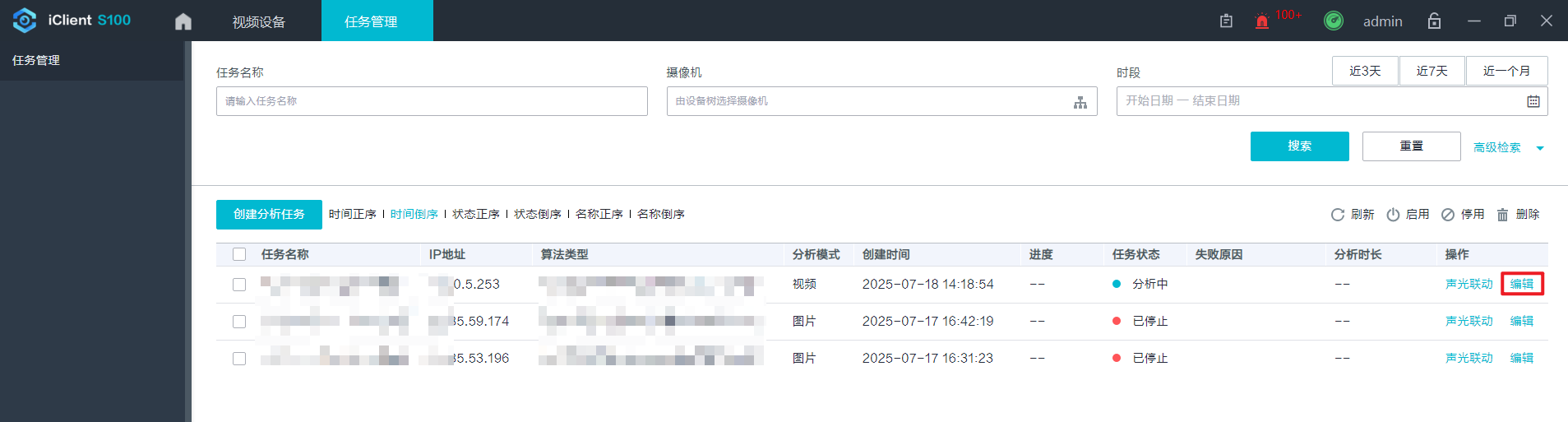
If fight detection is disabled, other types of analysis tasks cannot be enabled.
Feature Verification
Viewing Alarms
- On the iClient S100 home page, choose .
- Select one or more main devices in the Cameras area.
- Select desired alarm subtypes from the Type drop-down list box as required and click Search. All alarms of these subtypes reported by the selected main devices are automatically displayed on the page.
- View and check the alarm result. Click Ack. or False Positive as required, as shown in Figure 4-330.
- If you click Ack., enter alarm handling suggestions, and click OK, the alarm status changes to acknowledged.
- If you click False Positive, enter alarm handling suggestions, select Move to the FP Filtering Database, and click OK, the alarm is added to the false positive library and will not be reported in the same scenario.
- The alarms reported by the HWT-IVS1800 are saved to the database every 10s. Do not click False Positive immediately after the latest alarm is reported. Otherwise, a message is displayed, indicating that no alarm information is found.
- Fight and absence detection alarms cannot be added to the false positive library.
- When an object similar to a person is detected, the interception mechanism is triggered. The user needs to confirm whether to add the image to the false positive library.
- Choose FP Filtering Database in the navigation tree on the left, view the alarms that have been added to the false positive library, and perform operations such as exporting, deleting, and synchronizing alarms to cameras, as shown in Figure 4-331.