Logging In to a Camera
- Right-click the browser icon, choose Run as administrator from the shortcut menu, enter the camera IP address in the address box (The default IP address of a camera is 192.168.0.120. For an ITS camera with dual network ports, the default IP address of network port 0 is 192.168.0.120, and that of network port 1 is 192.168.1.120.), and press Enter.
The login page is displayed.

- If Internet Explorer displays the message "Incorrect Security Certificate", you can click Continue to this website (not recommended) to access the login page. You can install the root certificate to resolve this problem. For details, see related sections in the Configuration Guide in the camera product documentation.
- When a Dynamic Host Configuration Protocol (DHCP) server exists in the network, an IP address is automatically allocated to the camera. You can select Obtain IP address automatically to check the IP address.
- Enter the user name and password.
- If you log in to the camera for the first time, set the password as prompted. Then use the new password to log in.
- Select a language in the upper right corner of the page.
- By default, if you enter incorrect passwords for five consecutive times, your account will be locked for five minutes. You can set the number of consecutive incorrect password attempts and account lock duration as required. For details, see related sections in the Configuration Guide in the camera product documentation.
- Click Log In.
The web page of the camera is displayed.
- If no video is played on the page and you do not perform any operation on the page for more than 10 minutes, the system automatically logs you out.
- In the upper right corner of the home page, you can click
 to view the online help.
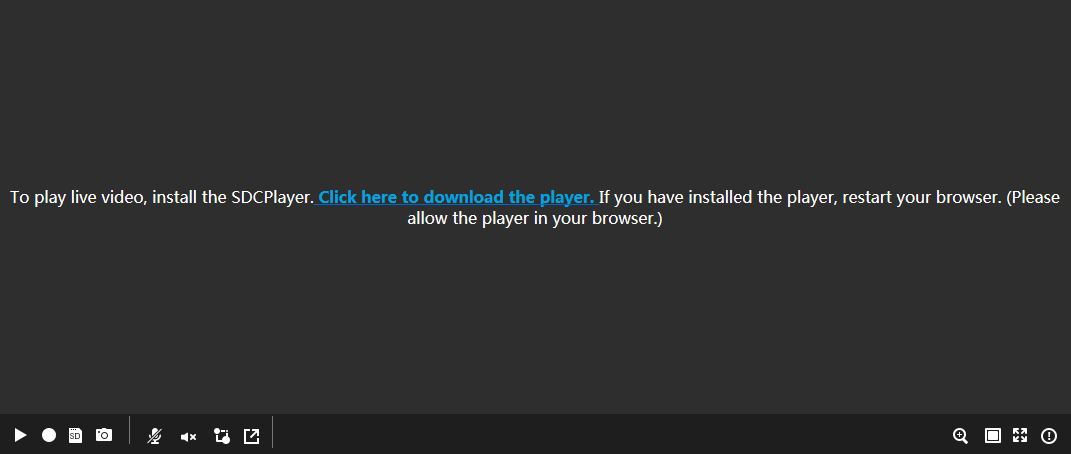
- Upon the first login, click Click here to download the player to download the player control and install it, as shown in Figure 4-2. After the installation is complete, you can check the live video. If the control is blocked by the browser, perform operations as prompted.
- (Optional) To log out of the web system, click
 next to the account name in the upper right corner of the web page, choose Log Out from the drop-down list box, and click OK in the dialog box that is displayed. Then, the login page is displayed.