Upgrading the Camera Version/Algorithms
Algorithm packages are different from the software upgrade package. An algorithm package is applicable only to the algorithm of a specific intelligent function. Algorithm packages and the software upgrade package are independent of each other. Generally, if the software version is upgraded, the algorithms also need to be upgraded. You must install the software upgrade package before the algorithm packages.
The ITS camera is delivered with the traffic detection algorithm package and can only load the algorithm package of the traffic detection functions. To upgrade the algorithm package, perform the following steps:
- Log in to the camera web system (https://Camera IP address).
- Choose Configuration > System > System Maintenance > Upgrade.The Upgrade file area shown in Figure 4-6 is displayed.

- Different camera models support different intelligent functions, which lead to differences in algorithm management pages.
- Click Browse and select the upgrade package.
- Select the .bin upgrade package and click Upgrade.
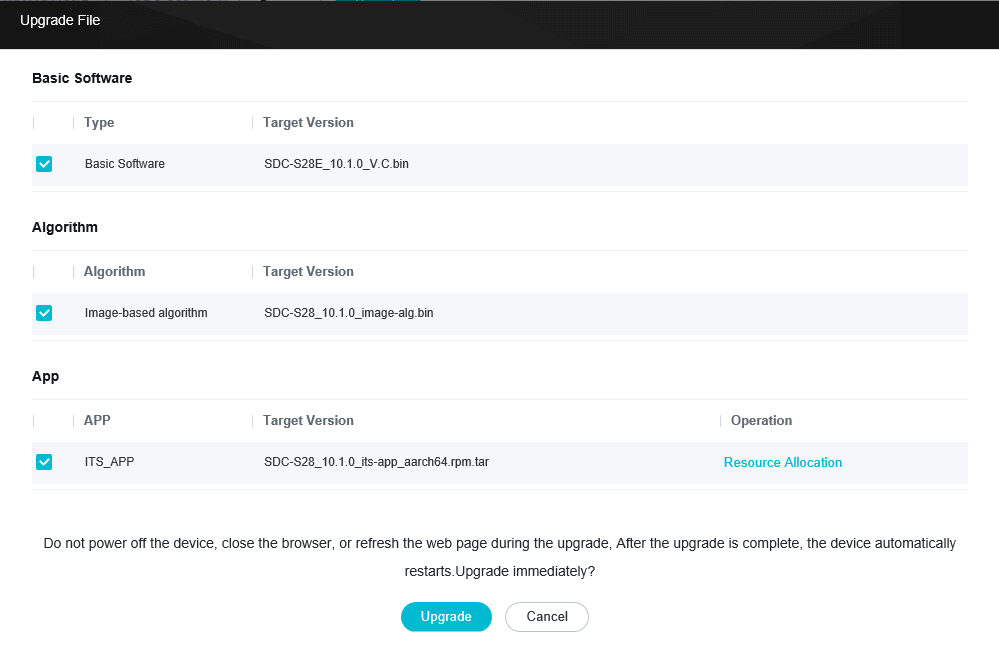
- Select the .zip full upgrade package of the required model and click Upgrade. The Upgrade File dialog box is displayed, as shown in Figure 4-7. Select the algorithm to be upgraded and click Upgrade.
- Select the .tar upgrade package and click Upgrade.
- The .zip packages can be installed only under the Internet Explorer. In addition, the path for storing the .zip packages can contain a maximum of 260 characters.
- You cannot install a .zip package for a camera on multiple tab pages under Internet Explorer at the same time.
- If a message is displayed during .zip package installation, perform operations as prompted.
- Before upgrading an algorithm, ensure that the algorithm package version is later than the installed version. Otherwise, the upgrade fails.
- Trustlisted version check is used to verify the current camera version. If the camera cannot be upgraded to the target version, the system displays a message indicating that the verification fails. This function is enabled by default. You are advised not to disable it.
- Click OK.
When the upgrade is complete, the system displays a message indicating that the upgrade is successful.