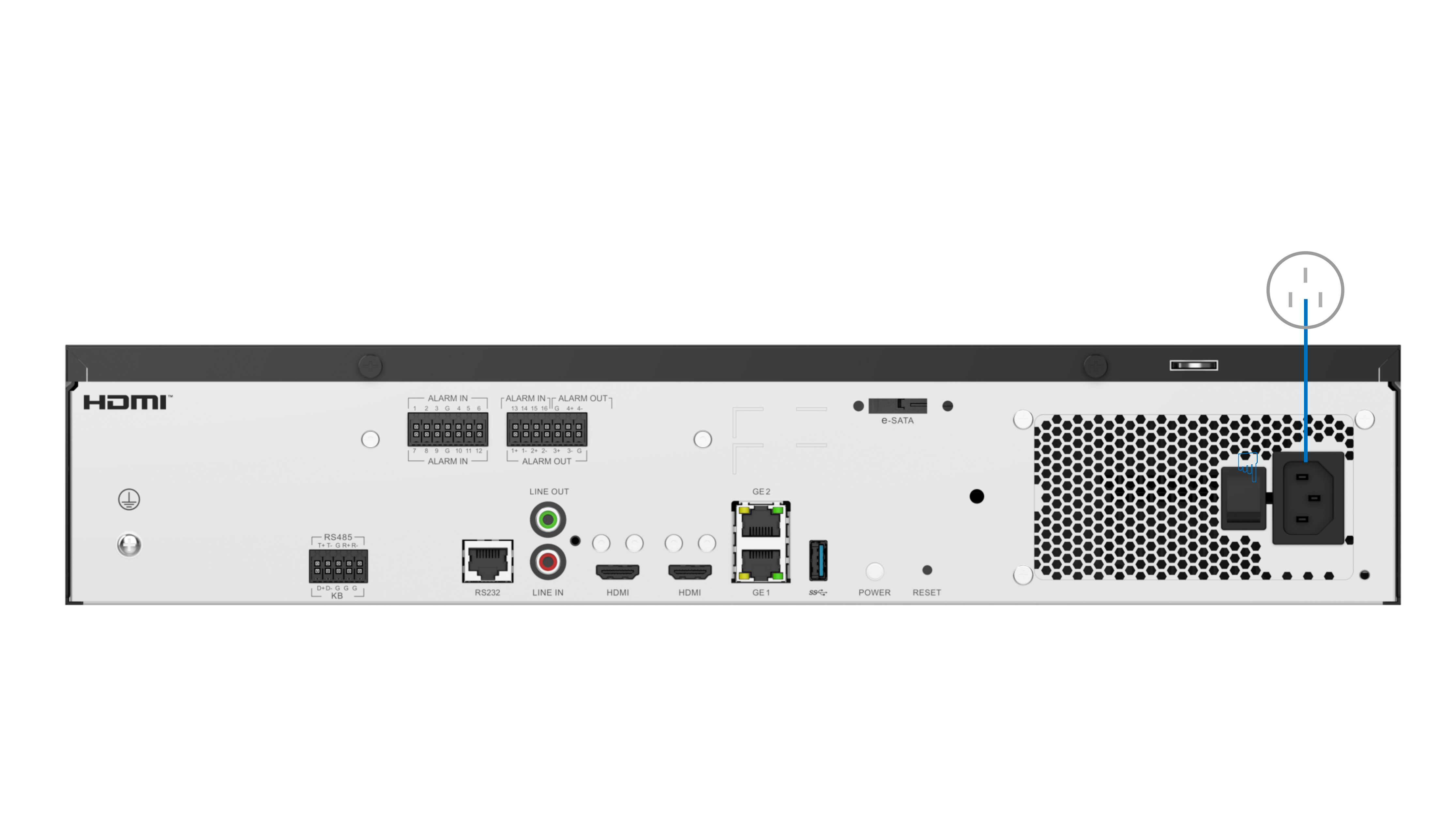
HWT-IVS1800-E08/V7000-08A-LLM-P AI Pro/V7000-08A-LLM-I AI Pro
Procedure
- Install disks.
- Put on an ESD wrist strap.
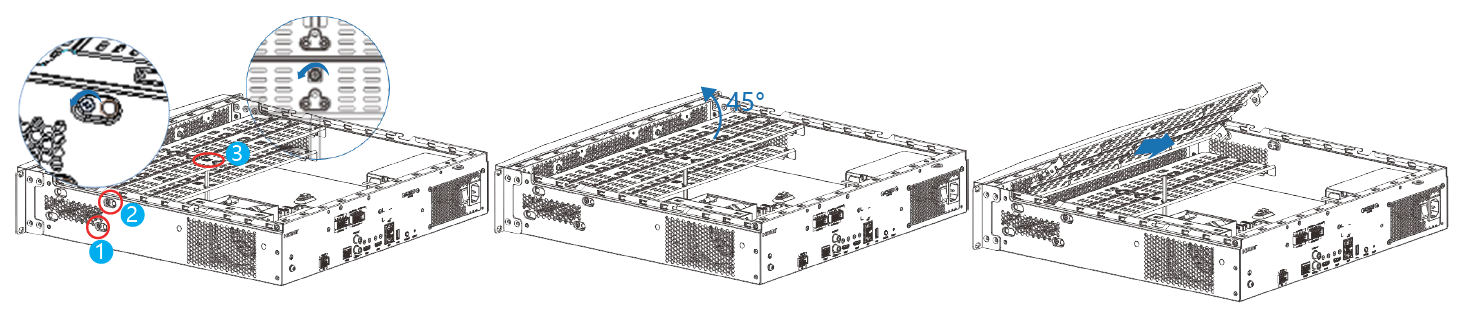
- Remove the two black screws on the rear of the chassis cover, and take off the chassis cover.

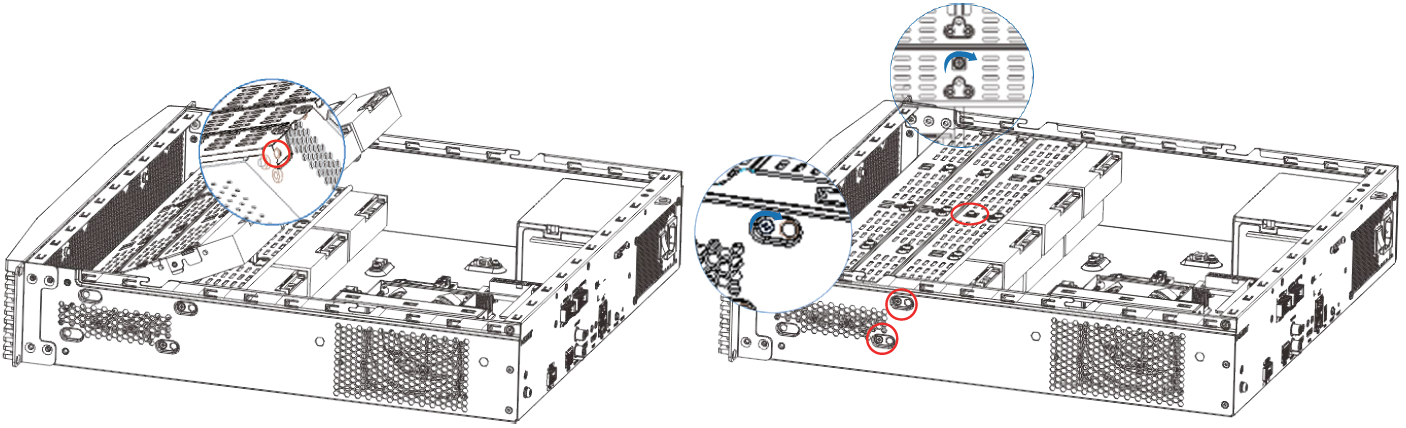
- Remove the two black screws respectively on the left and right sides of the chassis and the silver screw on top of the disk tray, raise the disk tray by 45 degrees, and take out the upper and then lower layers of the disk tray.
- Secure disks to the disk tray.
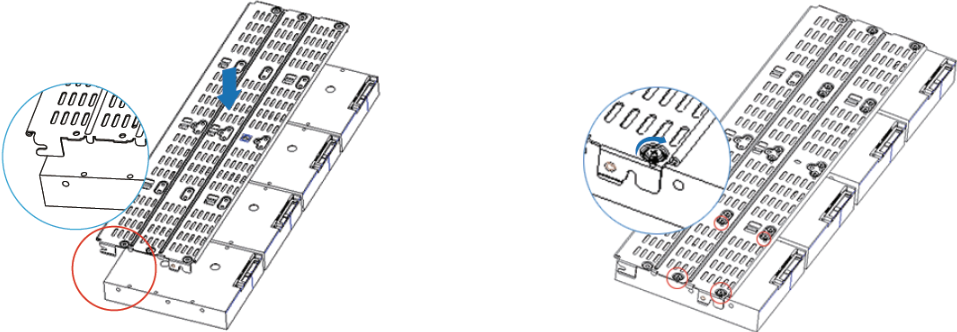
- (Applicable to V7000-08A-LLM-P AI Pro and V7000-08A-LLM-I AI Pro) Place the disks with ports facing upwards, align the screw holes on the disk tray with holes on the disks, and tighten the screws.
Before disk installation, ensure that the latch of the disk tray is on a different side from the disk port, as shown in the following figure.
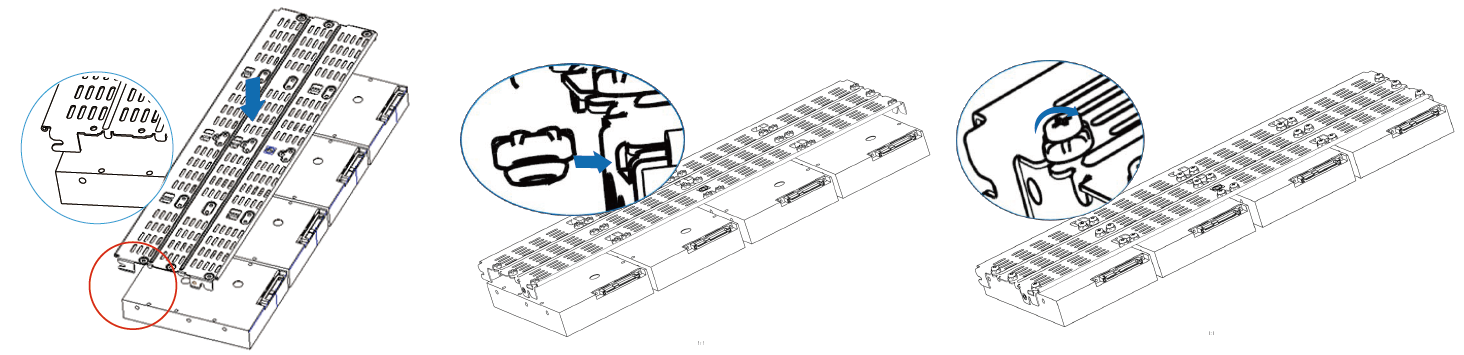
- (Applicable to HWT-IVS1800-E08) Place the disks with ports facing upwards, align the screw holes on the disk tray with those on the disks, insert rubber shock absorbers (with the small head facing downwards) into the holes from the side, and tighten the screws with a torque of 0.36–1 N·m.
Before disk installation, ensure that the latch of the disk tray is on a different side from the disk port, as shown in the following figure.

- If the number of disks is less than or equal to 4, you are advised to install the disks as follows:
- If there are two disks, insert the disks into trays 0 and 4.
- If there are 3 or 4 disks, insert two disks into trays 0 and 1, and the remaining disks into tray 4 and any tray after tray 4.
- (Applicable to V7000-08A-LLM-P AI Pro and V7000-08A-LLM-I AI Pro) Place the disks with ports facing upwards, align the screw holes on the disk tray with holes on the disks, and tighten the screws.
- Insert the disk tray back by 45 degrees with the opening of its latch facing downwards, hold the screw (marked in the red circle shown in the lower left figure) to lower the disk tray until it is level, and fasten the black screws on the left and right sides and the silver screw on the top.
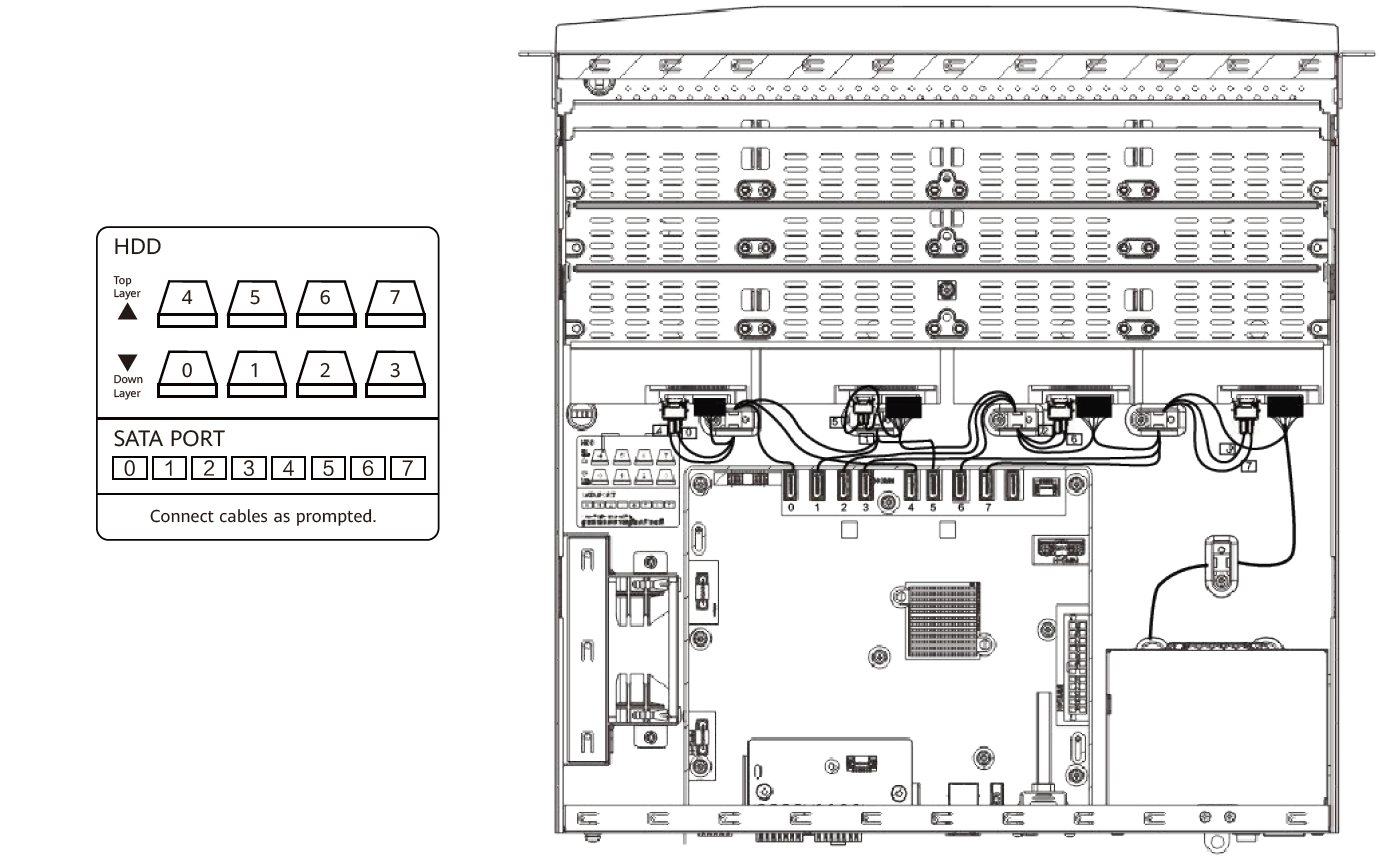
- Connect the data and power cables of disks.Connect disk ports 0–3 to disks on the lower-layer disk tray and ports 4–7 to disks on the upper-layer disk tray, as shown in the lower left figure.

- If a disk is to be reinstalled after removal, you are advised to attach a serial number (SN) label to the disk to prevent the system from running improperly due to misplaced disks.
- The internal structure of the HWT-IVS1800 varies depending on the device model.
- Close the chassis cover and fasten the rear screws.

- (Optional) Install the device in the cabinet. For details about how to install the cabinet, see Installing the HWT-IVS1800-D08/D16/E08/E16/LLM in a Cabinet.
- Connect the two monitors.
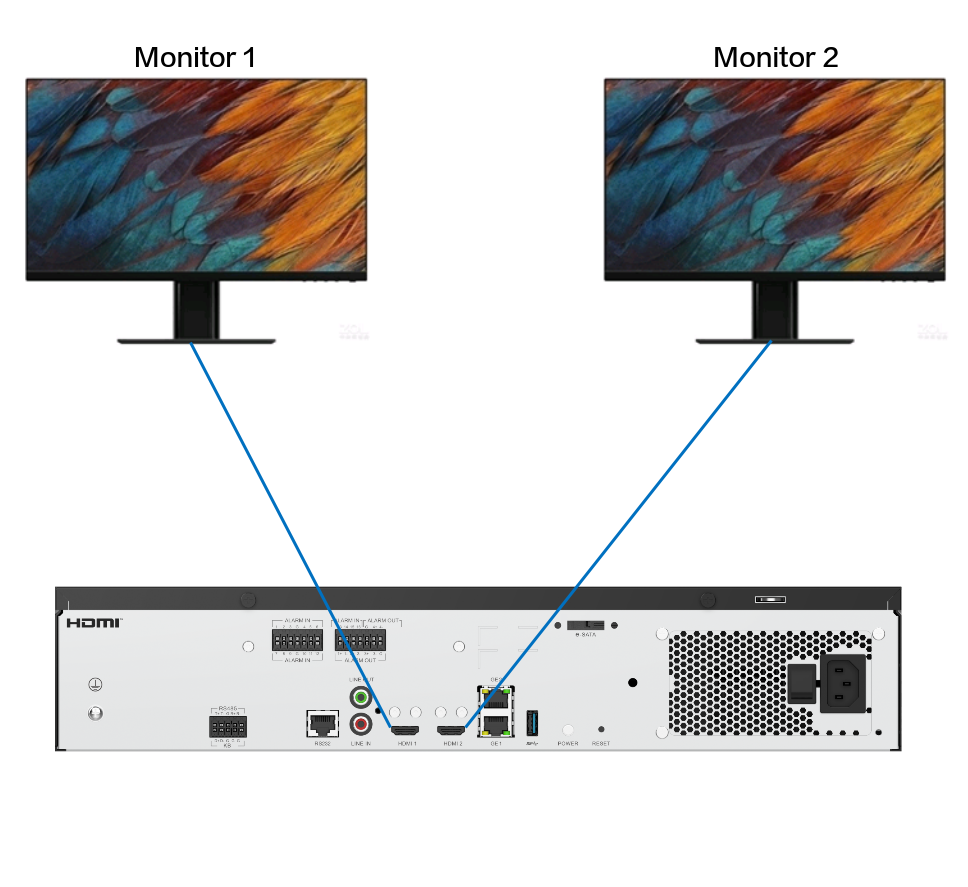
- The two HDMI ports support output from different sources.
- By default, the monitor (left) connected to the HDMI 1 port is the primary monitor, which can be used for live video viewing and other related operations. The monitor (right) connected to the HDMI 2 port is the secondary monitor, which can be used only for live video viewing.
- The LDU supports dual-monitor switchover, after which the two monitors' supported services are also swapped.
In dual-monitor mode, if you have not logged in to the LDU, only the monitor (left) connected to the HDMI 1 port displays the login page. After logging in to the LDU and accessing the live video viewing page, you can switch between the monitors.
- The monitor (left) connected to the HDMI 1 port supports at most 64 channels of live video while the monitor (right) connected to the HDMI 2 port supports at most 16 channels of live video.
The number of channels supported for live video viewing varies depending only on the type of the HDMI port a monitor is connected to.
- The HDMI-to-VGA port can be used to output signals to the monitor with a VGA port.
The HWT-IVS1800 is delivered with an HDMI-to-VGA cable.
- The two HDMI ports support output from different sources.
- Connect to the network.The device supports the following two network connection modes:
- Single-address mode: Two network adapters of the HWT-IVS1800 form a bond and are configured with the same IP address.
The single-address mode is applicable to the scenario where the cameras, HWT-IVS1800, iClient S100, and VMS platform are located on the same network.
To ensure high reliability of the device network or to forward a large amount of data on the network, you need to configure port aggregation for the ports of the switch.
- Dual-address mode: Two network adapters of the HWT-IVS1800 run independently and are configured with IP addresses in different network segments.The dual-address mode is applicable to the scenario where the cameras, HWT-IVS1800, iClient S100, and VMS platform are located on different networks.
- Cameras can connect to the HWT-IVS1800 only through the GE1 network port (southbound connection).
- The iClient S100 can connect to the HWT-IVS1800 through the GE2 network port (northbound connection) and GE1 network port (southbound connection) at the same time.
- Only one VMS platform can connect to the HWT-IVS1800, through either the GE1 (southbound connection) or GE2 network port (northbound connection).
- If a VMS platform has connected to the HWT-IVS1800 through the GE2 network port (northbound connection), the GE1 network port is unavailable for connecting other VMS platforms.
- If a VMS platform has connected to the HWT-IVS1800 through the GE1 network port (southbound connection), the GE2 network port is unavailable for connecting other VMS platforms.
Figure 3-7 Single-address mode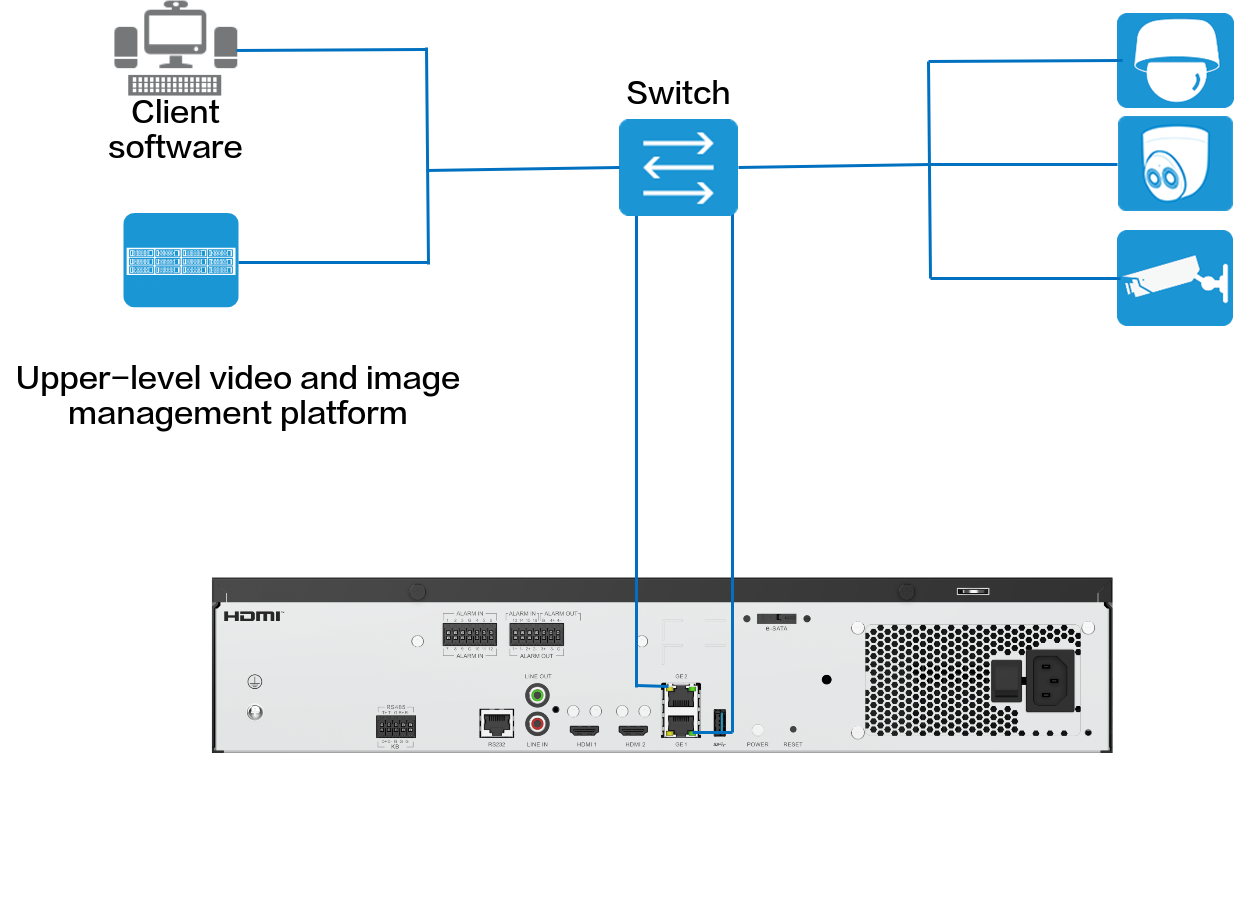 Figure 3-8 Dual-address mode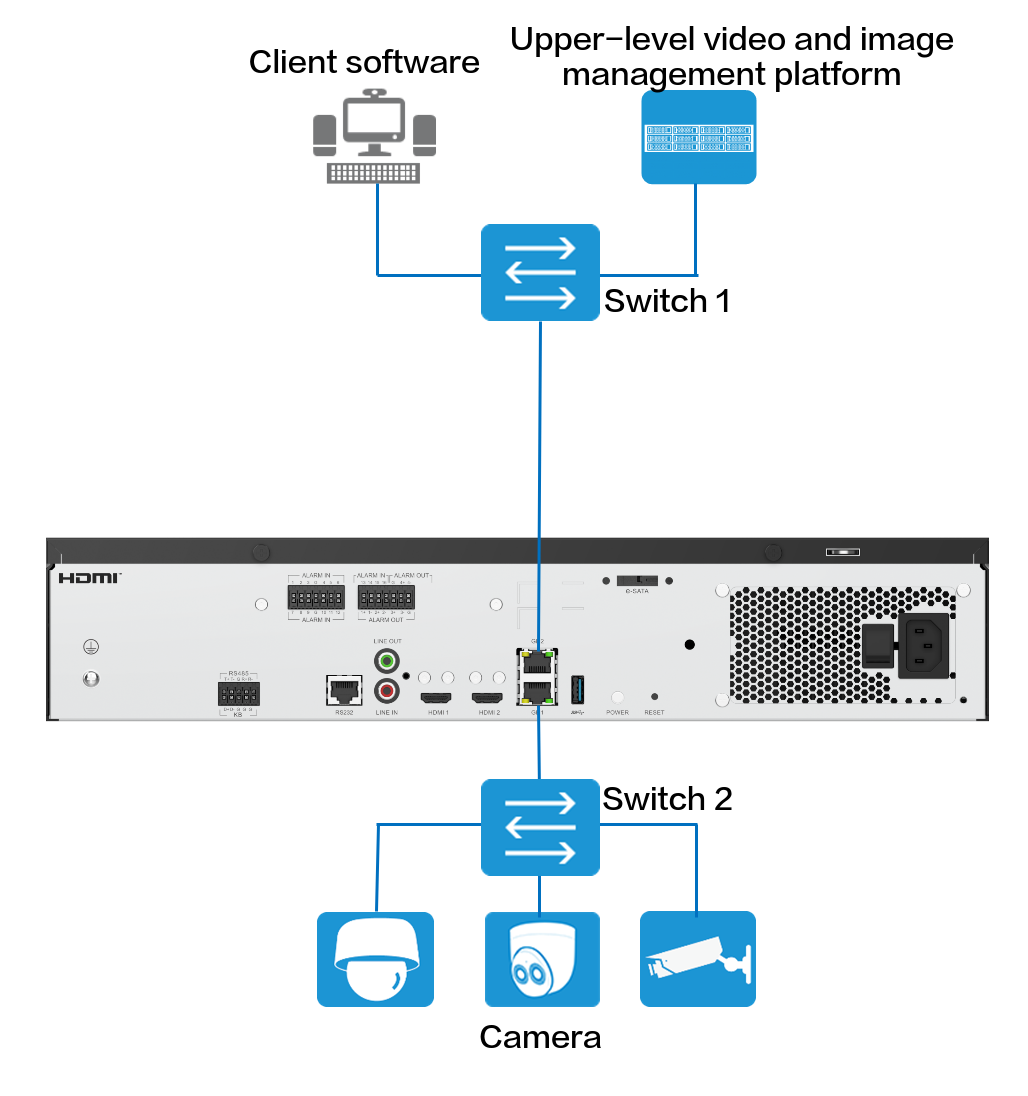
- Single-address mode: Two network adapters of the HWT-IVS1800 form a bond and are configured with the same IP address.
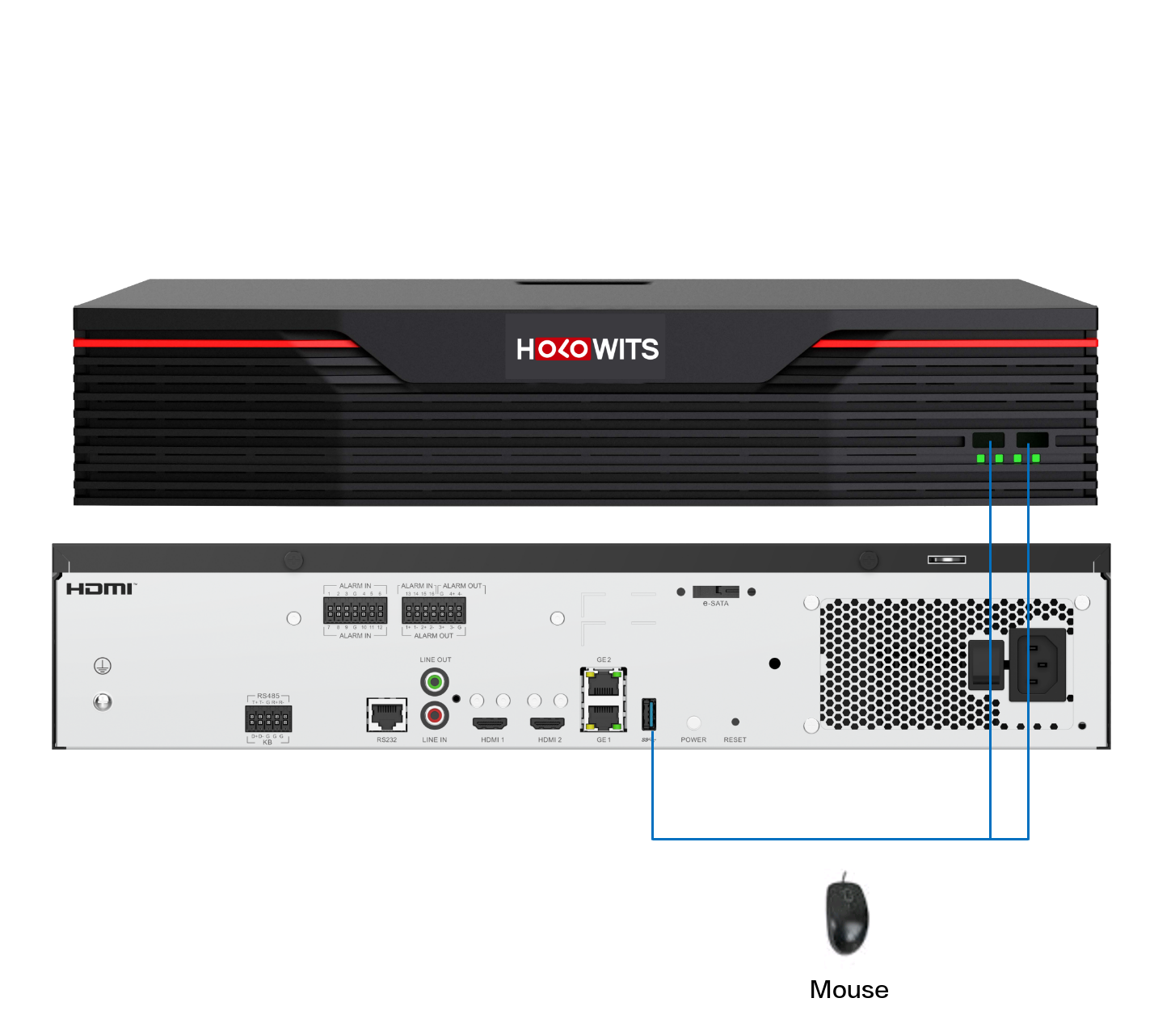
- Connect the mouse.Figure 3-9 Connecting the mouse
- Connect the power cable and power on the device.