Media Transmission
Bandwidth Adaptation
Feature Description
Definition
The device works with cameras to detect the network bandwidth. Based on this information, the cameras dynamically adjust the bit rate to ensure smooth video.
Customer Benefits
When the network bandwidth is unstable, this feature balances the bandwidth pressure and video effect to meet the core requirements of users.
Application Scenario
If a user has high requirements on video smoothness but the network bandwidth is unstable, cameras automatically degrade the image quality to ensure smooth video playing.
Requirements
NE |
Version Requirement |
License Requirement |
Function |
|---|---|---|---|
HWT-IVS1800 |
11.1.0 and later versions |
N/A |
Provides the bandwidth adaptation function. |
Application Limitations
- This feature is supported only when cameras are connected to the device but not in scenarios where cameras are directly connected to the client.
Feature Configuration
Context
With the adaptive bandwidth function enabled, the camera will use an appropriate bit rate that best suits the current network conditions to transfer video images. This approach ensures the image quality.
This function is valid only when the following conditions are met:
- The stream type is primary stream.
- The encoding protocol is set to H.264 or H.265.
- The bit rate type is set to Constant bit rate.
- The variable bit rate is disabled.
Scenario Description
Procedure
- Enable the adaptive bandwidth function on the camera.
- Log in to the camera web system as the admin user. (
 Logging in to the Camera Web System)
 - Choose Settings > Network > Intelligent Acceleration > Adaptive Bandwidth.
- Enable adaptive bandwidth, as shown in Figure 4-69.
- Log in to the camera web system as the admin user. (
- Set adaptive bandwidth parameters on the HWT-IVS1800 side.
- Log in to the LDU as the admin user. (
 Logging In to the LDU)
 - Right-click on the desktop and choose .
- Select the camera to be configured.
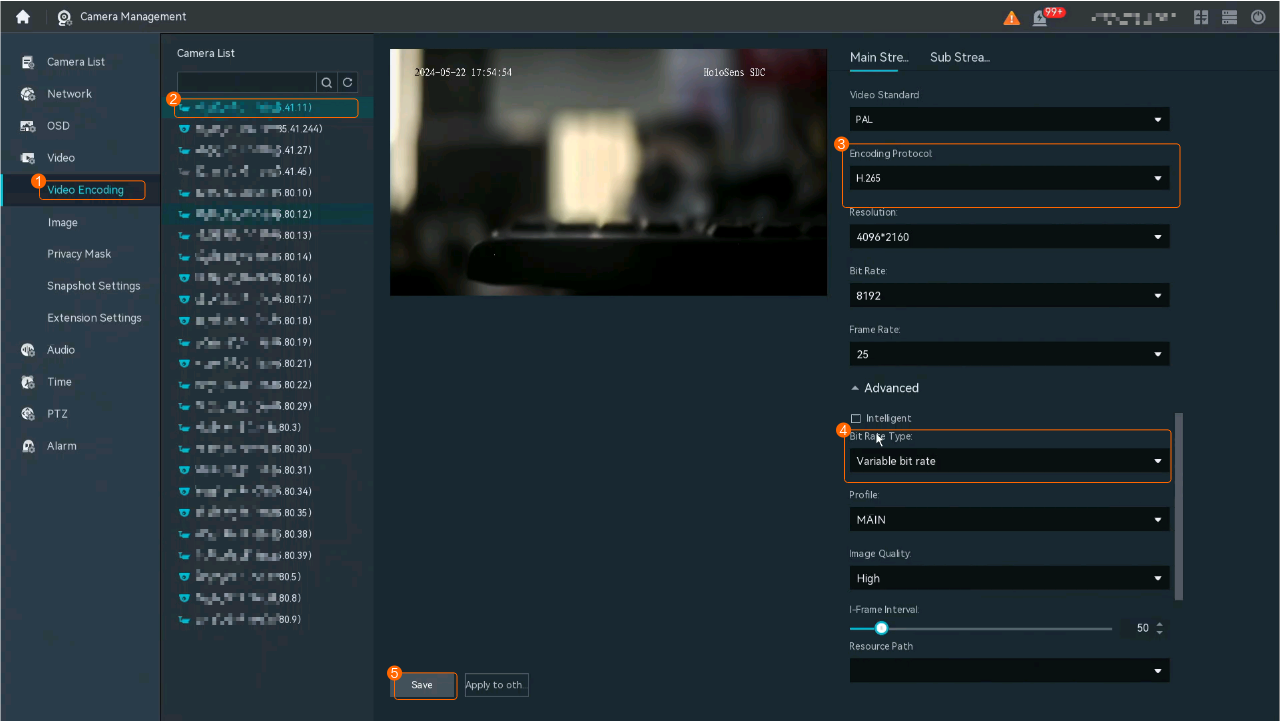
- Set Bit Rate Type to Variable bit rate and click Save, as shown in Figure 4-70.
- Click Apply to other to apply the current settings to other cameras in batches.Table 4-60 describes the parameters.Table 4-60 Parameter description
Parameter
Description
Stream Type
- Main Stream: primary stream
- Sub Stream 1: secondary stream 1
Click Main Stream.
Encoding Protocol
- H264
- H265
- MJPEG
Constant bit rate
Constant bit rate indicates that the rate at which a codec's output data should be consumed is stable. If the bit rate is incorrectly configured for images with fast encoding and compression speed but great dynamic changes, the images will be unclear.
Variable bit rate
The bit rate varies depending on the image complexity to ensure that large dynamic images are clear. However, the compression speed is low.
The bit rate is low if the image is simple or static.
- Log in to the LDU as the admin user. (

Feature Verification
Verification Scenario
- Verify that a camera is in a good network environment.
Click
 on the Live tab page and view the current video bit rate. The bit rate is high.
 - Verify that a camera is in an abnormal network environment (the network speed decreases).
Click
 on the Live tab page and view the current video bit rate. The bit rate is low.
FEC
Feature Description
Definition
FEC-enabled media transmission is supported, ensuring that the video is played smoothly even with up to 5% packet loss. The forward error correction (FEC) parameters are configurable.
Customer Benefits
When packet loss occurs on the network, this feature balances the bandwidth pressure and video effect to meet the core requirements of users.
Application Scenario
If a user has high requirements on video smoothness but packet loss occurs on the network, cameras automatically degrade the image quality to ensure smooth video playing.
Requirements
NE |
Version Requirement |
License Requirement |
Function |
|---|---|---|---|
HWT-IVS1800 |
11.1.0 and later versions |
N/A |
Provides the FEC function. |
Application Limitations
- FEC and media security cannot be enabled at the same time.
- This feature is supported only when cameras are connected to the HWT-IVS1800 but not in scenarios where cameras are directly connected to the client.
- This feature takes effect only when UDP is used for transmission.
Feature Configuration
Scenario Description
Procedure
- Log in to the LDU as the admin user. ( Logging In to the LDU)
- Click
 in the upper left corner to access the main menu.
 - Choose Camera Management.
- Select a specified camera and click
 next to the camera.
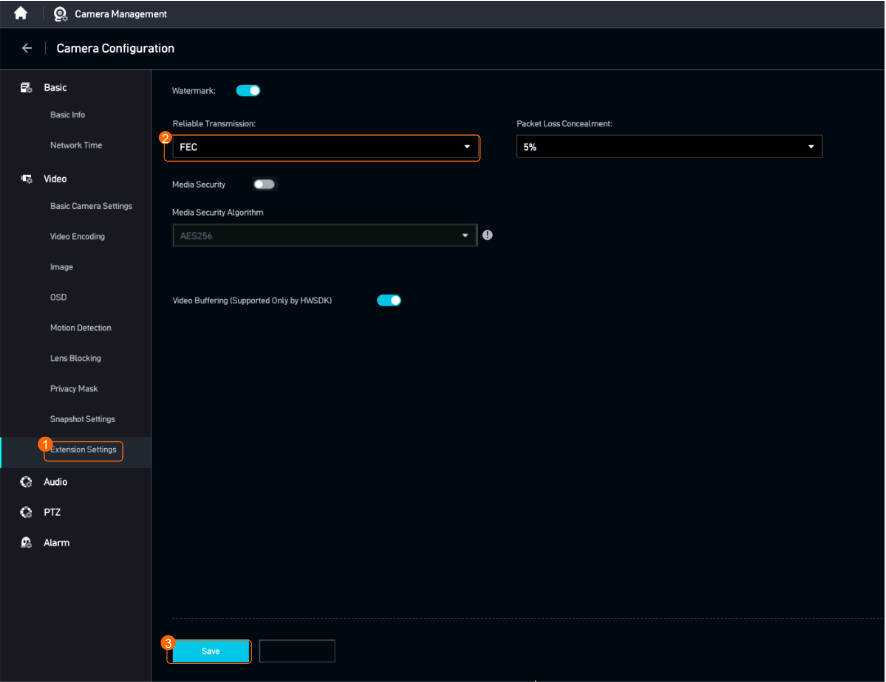
 - Set FEC parameters, as shown in Figure 4-71.
Table 4-62 describes the parameters.