Alarms
Alarm Linkage
Feature Description
Definition
Users can set linkage actions such as live video playing and recording based on linkage conditions, ensuring timely and effective alarm handling and reducing labor costs.
Customer Benefits
Target cameras are enabled to record video immediately when an alarm is generated. This provides evidence for later analysis and ensures timeliness and validity of video.
Application Scenario
When an alarm is generated, the system automatically performs alarm linkage actions, helping users handle the alarm promptly and effectively.
Requirements
NE |
Version Requirement |
License Requirement |
Function |
|---|---|---|---|
HWT-IVS1800 |
11.1.0 and later versions |
N/A |
Provides the alarm linkage function. |
iClient S100 |
V1.6.0 and later versions |
N/A |
Provides the alarm linkage function. |
Application Limitations
- The following actions can be performed when an alarm is triggered: record video, rotate to preset positions, display live video, take snapshots, generate Boolean value output, send emails, and stop recording.
- Alarm-triggered pre-recording supports pre-recording only in the current recording scene of the camera. Video clips of 1s to 2s between the pre-recorded video and post-alarm video may be lost.
- For details about the data storage period and clearance rules, see Data Clearance Rules.
Feature Configuration
Scenario Description
Client |
Feature Support |
Reference |
|---|---|---|
LDU (only HWT-IVS1800-D/HWT-IVS1800-E) |
Supported |
The LDU does not provide an independent alarm linkage page. However, you can configure alarm linkage when configuring intelligent analysis services. |
iClient S100 |
Supported |
The iClient S100 supports the following alarm linkage actions. For details, see Configuring Alarm Linkage.
NOTE:
If both snapshot taking and email sending are configured for alarm linkage, you can obtain both the alarm-triggered snapshot and the snapshot sent in the email. |
Configuring Alarm Linkage
- On the iClient S100 home page, choose .
- Right-click an HWT-IVS1800 and choose Alarm Management > Alarm Linkage.
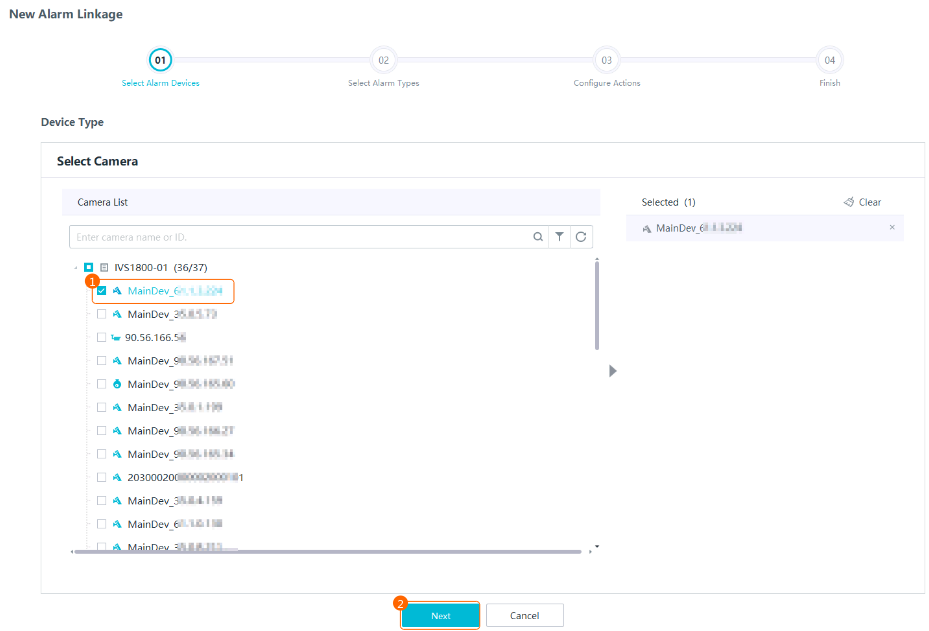
- Add an alarm linkage policy. The following uses the Camera List menu as an example. Table 4-40 lists the parameters for selecting alarm devices.Table 4-40 Parameters for selecting alarm devices
Parameter
Application Scenario
Camera List
You can configure alarm linkage for selected video devices.
Alarm Source List
You can configure alarm linkage for selected alarm devices such as alarm bells.
Protection Zone List
You can configure alarm linkage for configured protection zones.
- Select an alarm device, as shown in Figure 4-47.
- Select an alarm type, for example, video loss alarm.
For the alarm source list, you can select only I/O device alarm.
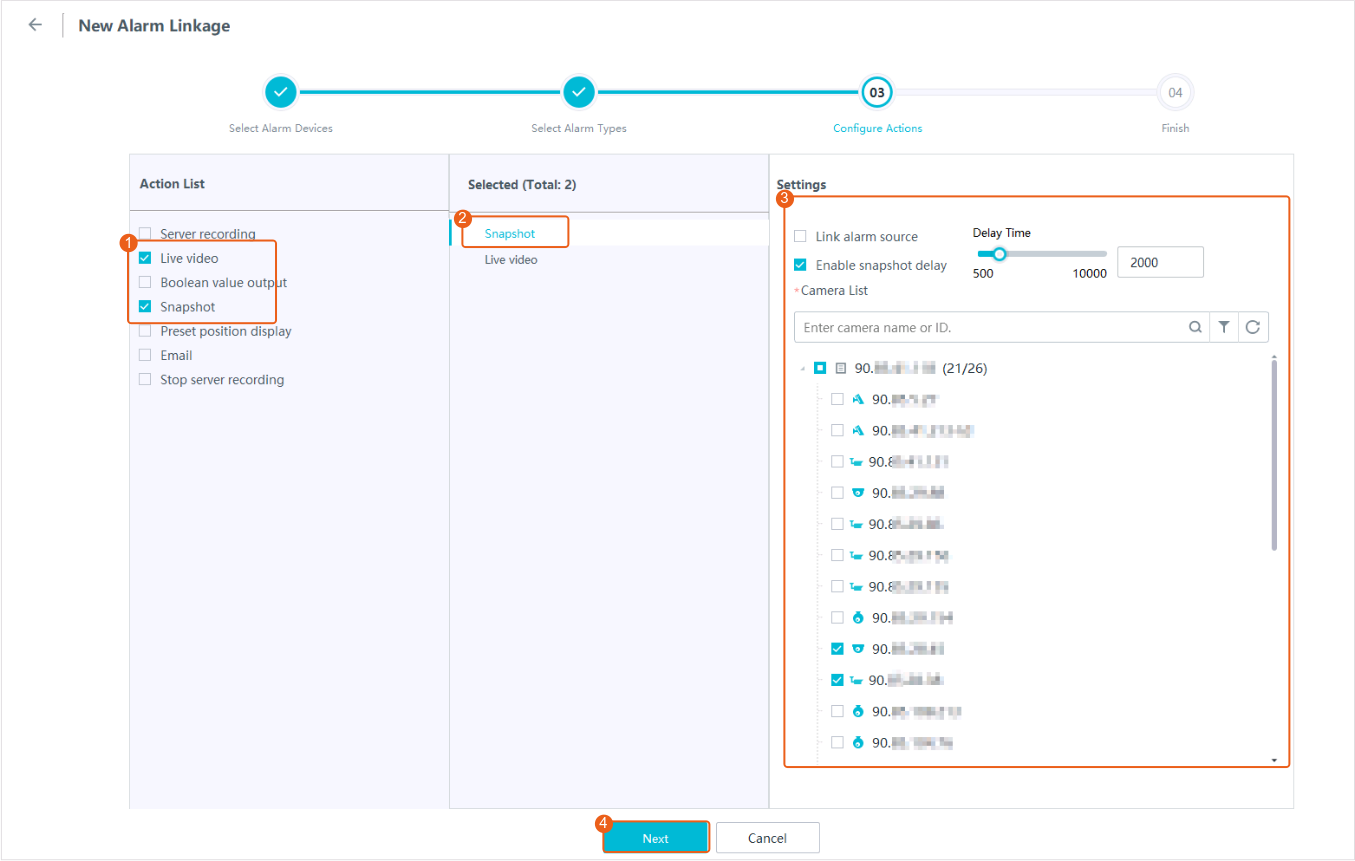
- Select an alarm action and configure the corresponding policy, as shown in Figure 4-48. Table 4-41 describes the alarm actions and corresponding policies.
Table 4-41 Parameters for configuring an alarm linkage policy
Alarm Action
Parameter
Description
Server recording/Snapshot
Camera List
You can select a maximum of eight cameras to be linked.
Link alarm source
If Link alarm source is selected, the camera selected in Step 4 is linked by default.
Live video
Camera List
- You can select a maximum of eight cameras to be linked.
- If you select multiple cameras, the user list displays all users who have permissions on the selected cameras.
User List
- Select users for which you want to enable live video linkage.
- After the configuration is complete, if a linked user is online when such an alarm is generated, the iClient S100 to which the user logs in automatically switches to the Live page and plays live video in the video pane from the specified camera.
I/O output
Alarm Output List
You can select a maximum of eight alarm output devices.
Preset position display
Camera List
- You can select a maximum of eight cameras to be linked.
- You must select cameras with preset positions. For details about how to configure a preset position, see sections about preset positions and home positions.
Preset position
Select a preset position to link for a camera. If multiple cameras are selected, you must select a preset position to link for each selected camera.
Email
Email Address
Enter users' email addresses.
Email Body
Enter the email content to be sent to the specified users after alarms are triggered.
Add snapshot/Select device
If you select this parameter, you need to select a camera. When an alarm is triggered, snapshots taken by the selected camera will be sent to the specified users.
Stop server recording
Camera List
You can select a maximum of eight cameras to be linked.

You can select multiple actions. You need to configure a policy for each action and click Next.
Only some of the GB/T 28181-compliant cameras support alarm-triggered snapshot taking. For details about compatible cameras, see the HWT-IVS1800 Compatibility List.
- Click Finish.
Feature Verification
- For details about how to view the target alert alarm linkage result, see Verification in Feature Configuration (Based on the HWT-IVS1800).
- For details about how to view the behavior analysis alarm linkage result, see Verification in Behavior Analysis.
- For details about how to view the situation analysis alarm linkage result, see Verification in Situation Analysis.
Viewing Alarms (on the iClient S100)
- On the iClient S100 home page, choose Complex Applications > Video Alarm.
- Click an alarm tab mapping the required service. Table 4-42 describes the parameters.Table 4-42 Alarm types
Alarm Type
Description
Latest Alarm
Displays the latest alarms of each service. On this page, alarms are displayed and updated in real time. The alarm subtypes of the latest alarms are the same as those of historical ones.
Target Alert Alarm
- Target recognition
- Target detection
- Mask detection
- Person detection
Displays historical alarms of each service.
Vehicle Alert Alarm
- Vehicle recognition (for motor vehicles only)
- Vehicle detection (for motor vehicles only)
- Parking violation (for motor vehicles only)
- Non-motorized vehicle detection
Behavior Analysis Alarm
- Tripwire crossing detection
- Intrusion detection
- Abandoned object detection
- Removed object detection
- Loitering detection
- Area entry detection
- Area exit detection
- Fast movement detection
- Fire detection
- Electric bike detection
Common Business Alarm
- Motion detection
- Lens blocking detection
- Sudden volume increase detection
- Sudden volume decrease detection
- Video loss detection
- I/O alarm of the Micro Cloud device
- I/O device alarm
Situation Analysis Alarm
- Head counting
- Queue length detection
- Crowd density detection
- Crowd gathering detection
- Absence detection
Additional Algorithm Alarm
- Select the cameras to be queried, set alarm search criteria, and click Search. The found alarms are displayed in the alarm list.
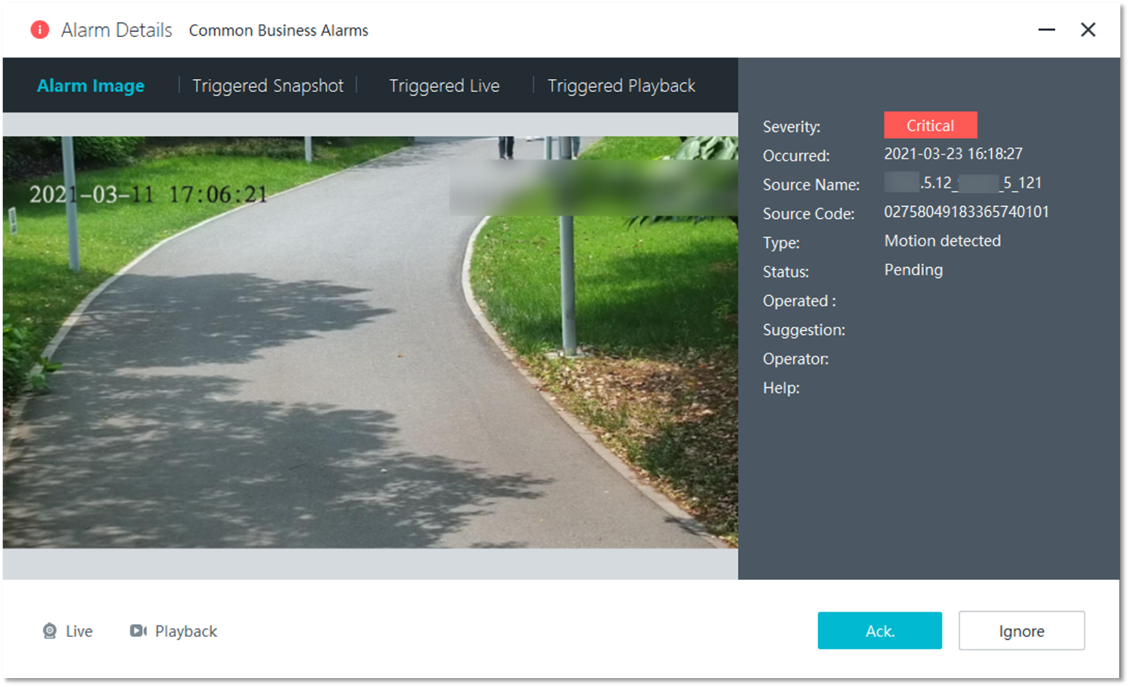
- Click an alarm in the search result. The alarm details are displayed. You can view information on tab pages such as Triggered Live and Triggered Playback, and click Ack. or Ignore for alarm information as required, as shown in Figure 4-49.
Alarm Management
Feature Description
Definition
Users can set alarm handling methods by alarm type, improving alarm handling efficiency.
Customer Benefits
Users can view or subscribe to one or more types of alarms from specified cameras. This improves alarm handling accuracy.
An interface is provided for centralized alarm management and viewing, and alarms are rechecked against false positive libraries of large models, reducing the false positive rate, reducing the manpower required for checking false positives, and improving alarm handling efficiency.
Application Scenario
When an operator detects an exception during alarm viewing, the operator takes measures in a timely manner.
Requirements
NE |
Version Requirement |
License Requirement |
Function |
|---|---|---|---|
HWT-IVS1800 |
11.1.0 and later versions |
N/A |
Provides the alarm management function. |
iClient S100 |
V1.6.0 and later versions |
N/A |
Provides the alarm management function. |
Application Limitations
- A device can receive and handle a maximum of eight alarms per second.
- The system does not support access to alarms from third-party systems such as the Conwin alarm system and Siemens access control system.
- False positive library
- The false positive library of the inspection large model supports the following object types: vase, flower bed, poster, round stone block, and office chair. The false positive library supports a maximum of 200 images per channel.
- The false positive library of the perimeter detection large model supports the following object types: railing, beach, leaf, robotic arm, and shadow. The false positive library supports a maximum of 100 images per channel.
Feature Configuration
Scenario Description
Client |
Feature Support |
Reference Document |
|
|---|---|---|---|
LDU (only HWT-IVS1800-D/HWT-IVS1800-E) |
Supported |
For details, see Intelligence. |
|
iClient S100 |
Supported |
For details, see Setting Alarm Parameters. |
|
Setting Alarm Parameters
- On the iClient S100 home page, choose Maintenance Management > Personal Settings.
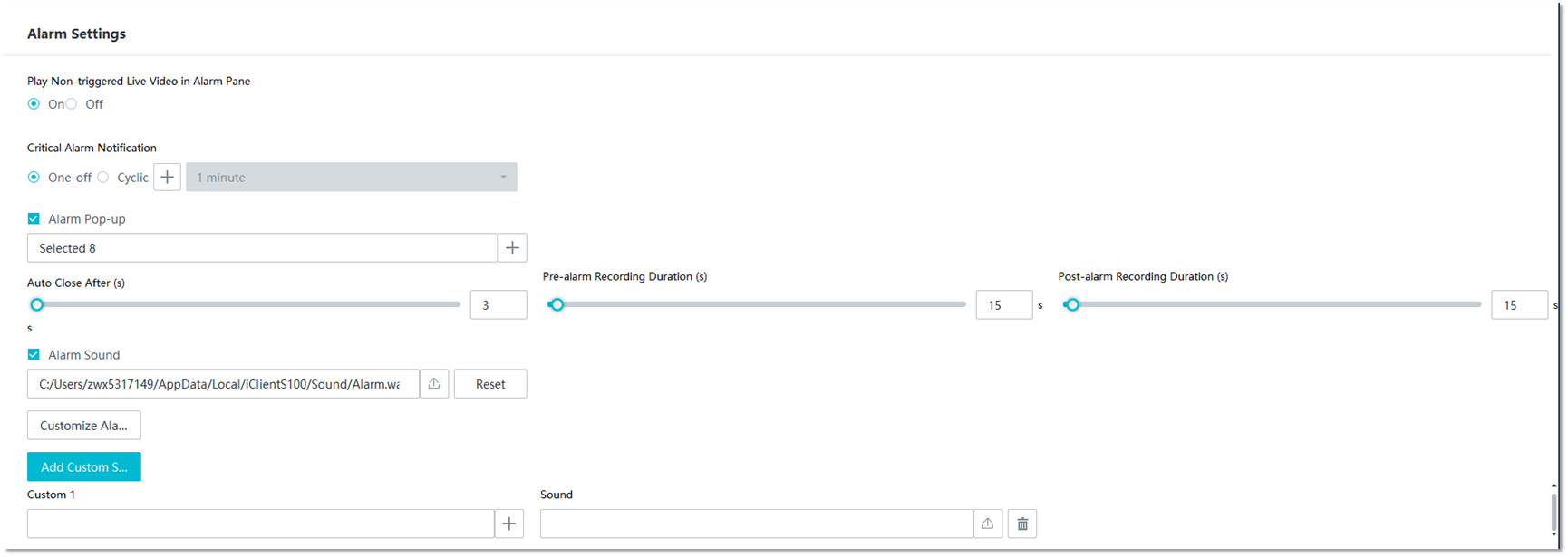
- Set alarm parameters, as shown in Figure 4-50. Table 4-44 describes the parameters.
Table 4-44 Parameter description
Parameter
Description
Play Non-triggered Live Video in Alarm Pane
Indicates whether an alarm pane can play common live video.
The options are as follows:
- On: yes
- Off: no
Auto Close After (s)
Display duration of a service alarm notification or an NMS alarm notification.
Pre-alarm Recording Duration (s)
Video recording duration before an alarm is generated if the video recording linkage action is configured.
Post-alarm Recording Duration (s)
Video recording duration after an alarm is generated if the video recording linkage action is configured.
Critical Alarm Notification
Indicates whether to pop up notifications for critical alarms. You can select required alarm types as critical alarms. The notification frequency of critical alarms is as follows:
- One-off
- Cyclic: cyclic notification. The interval can be set to 1 minute, 5 minutes, or 10 minutes. To set cyclic notification for critical alarms, perform the following steps:
- Click
 .
. - Select Select Alarm Type and select an alarm type.
- Click OK.
- Click
Alarm Pop-up
Indicates whether to pop up notifications when the client receives alarms of specified alarm types or severity.
To enable this function, perform the following steps:
- Select Alarm Pop-up.
- Select alarms types and an alarm severity.
- Click OK.NOTE:
Optional operations:
- Click
 in the lower right corner of an alarm notification dialog box. Alarms will not pop up within 30 minutes.
 - Click
 in the upper right corner on the iClient S100 and click
  in the upper right corner of the alarm page. Alarms will pop up.
- Click
Alarm Sound
Indicates whether to play an audio file when the client detects a service alarm. By default, this function is disabled.
You can click and select an audio file stored in a local directory.NOTE:
- Only audio files in .wav format are supported.
- Click Reset to restore the system's default alarm sound. The default audio file is Alarm.wav.
Customize Alarm Sound
Button for adding custom sounds for different alarm types. Before setting this parameter, select Alarm Sound.
To configure a custom sound, click Add Custom Sound, set the alarm type and severity, and click OK. You can add different custom sounds for multiple alarm types.
- Click Save.
Feature Verification
Context
On the LDU:
- To query camera alarms, click
 in the upper right corner or choose Retrieval > Event Retrieval or Image Retrieval.
 - To query server alarms (such as disk and fan alarms), click
 in the upper right corner or choose System Management > System Maintenance > Abnormal Alarm Information.
 - To query I/O alarms, refer to How Do I Connect Cables and Configure Alarm Input and Output Ports?.
Viewing Alarms (on the LDU)
- Viewing camera alarms
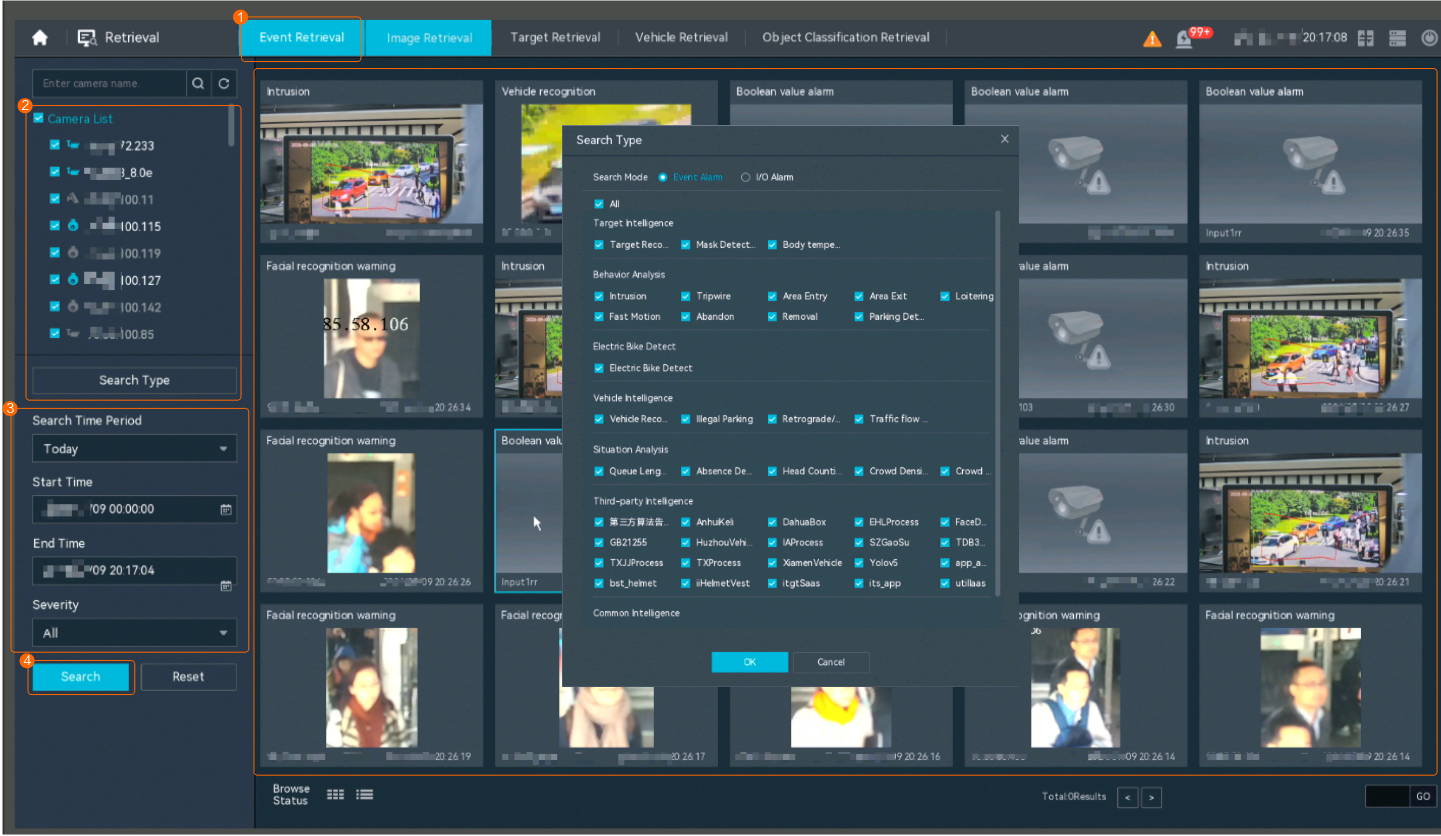
- Viewing camera alarms on the Event Retrieval tab page
- Log in to the LDU as the admin user. (
 Logging In to the LDU)
 - Right-click on the desktop and choose .
- Search for camera alarms, as shown in Figure 4-51.
Table 4-45 describes the parameters and icons.Table 4-45 Parameter/Icon description
Parameter/Icon
Setting
Search Type
Select an alarm type depending on your needs. For example, select Intrusion under Behavior Analysis.
NOTE:To view manual snapshots, set Search Mode to Manual Snapshot on the Image Retrieval tab page.
Severity
Set this parameter as required.
- All
- Critical
- Minor
- Major
- Warning
Search Time Period
Set the time segment for searching for camera alarms as required.
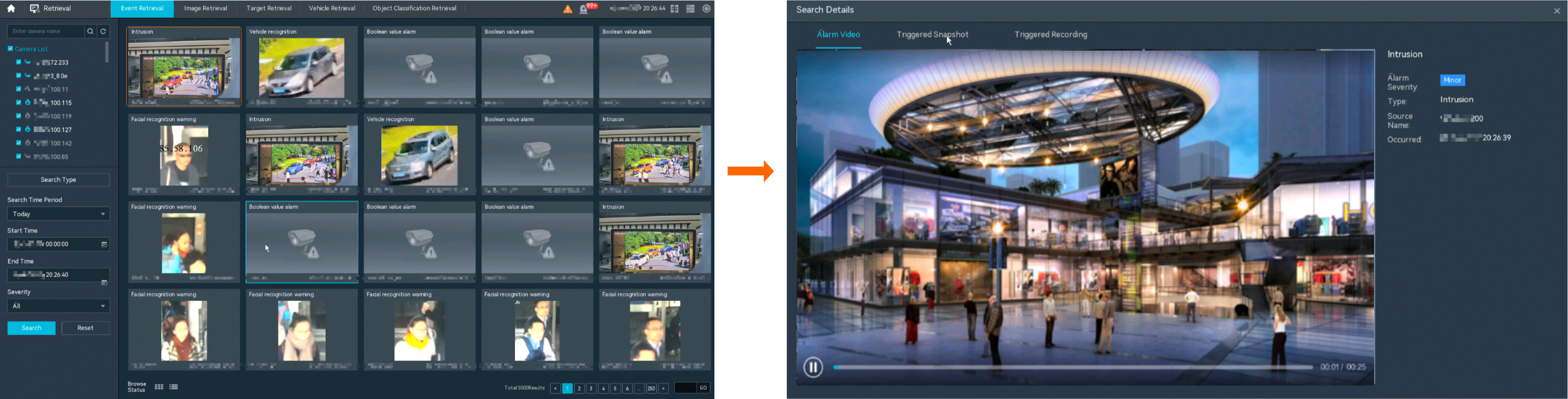
- Double-click a search result card to play the alarm-triggered video, as shown in Figure 4-52.
- Log in to the LDU as the admin user. (
- Viewing camera alarms on the Image Retrieval tab page
- Log in to the LDU as the admin user. (
 Logging In to the LDU)
 - Right-click on the desktop and choose .
- Search for camera alarms, as shown in Figure 4-51.Figure 4-53 Searching for camera alarms
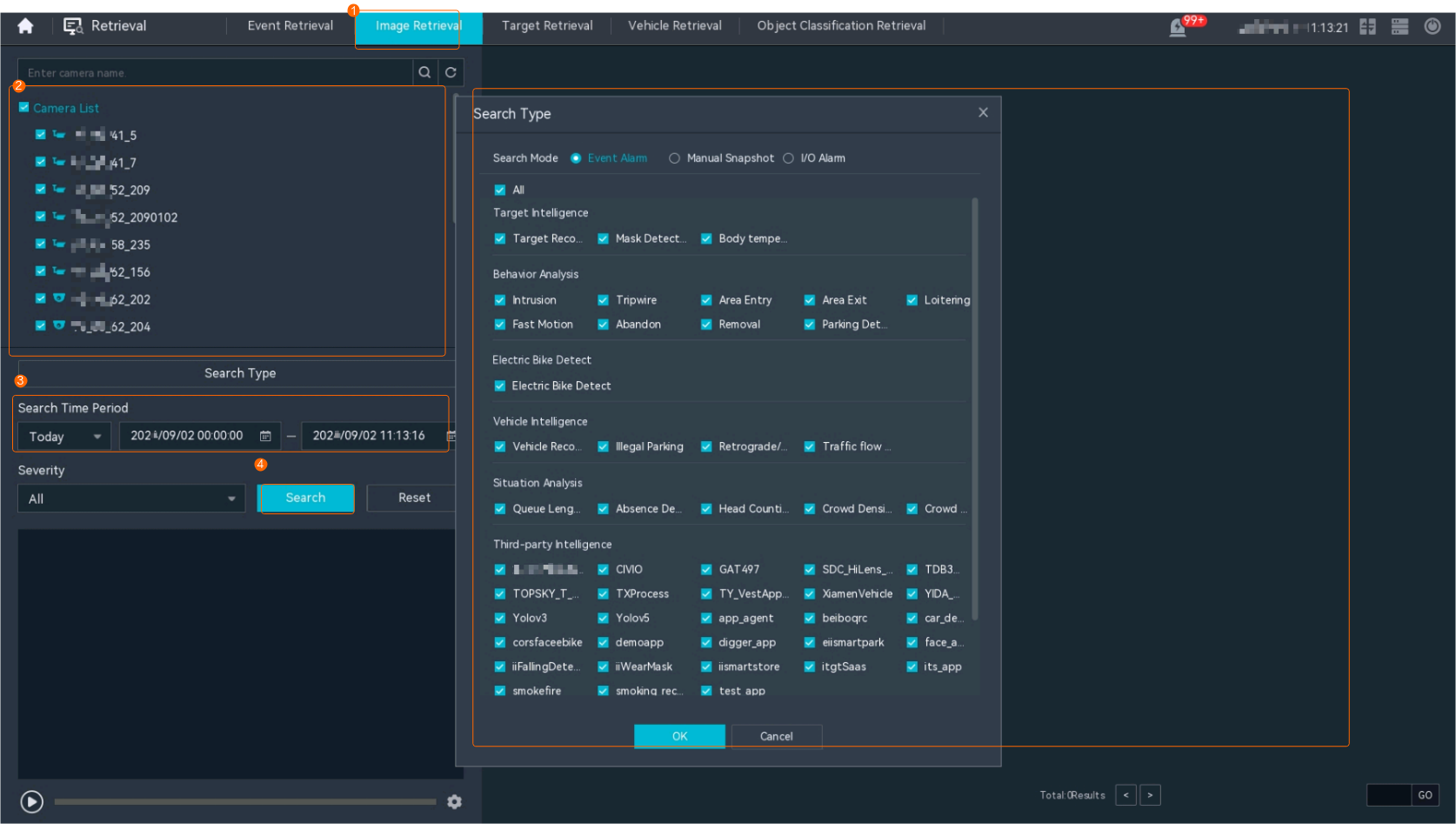 Table 4-45 describes the parameters and icons.Table 4-46 Parameter/Icon description
Parameter/Icon
Setting
Search Type
Select an alarm type depending on your needs. For example, select Intrusion under Behavior Analysis.
Severity
Set this parameter as required.
- All
- Critical
- Minor
- Major
- Warning
Search Time Period
Set the time segment for searching for camera alarms as required.
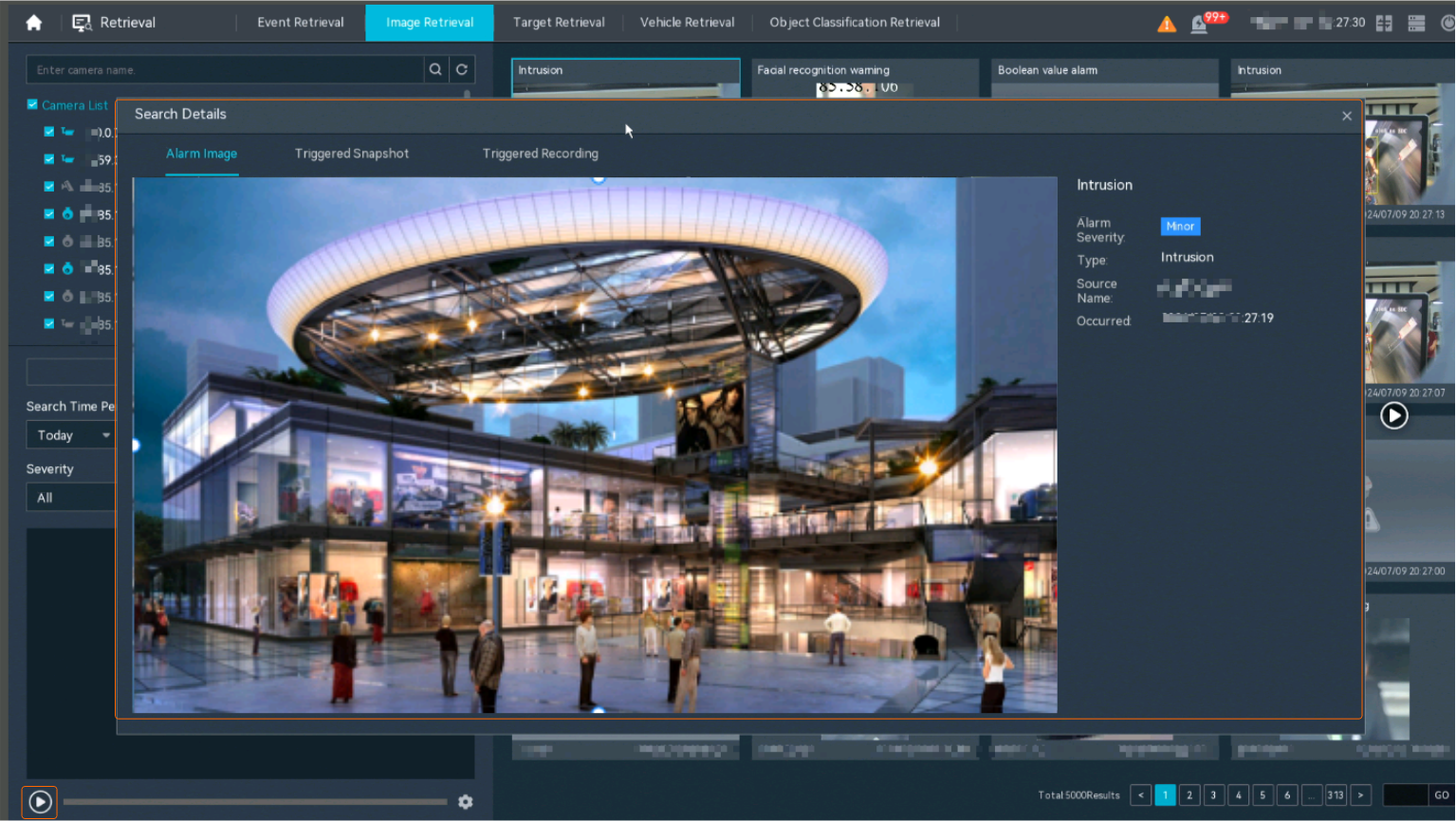
- Select a search result card and click
 in the lower right corner to play alarm-triggered video. Double-click the search result card to view the alarm-triggered image, as shown in Figure 4-54.
- Log in to the LDU as the admin user. (
- Viewing camera alarms on the Event Retrieval tab page
- Viewing system exception alarms
- Viewing historical system exception alarms
- Log in to the LDU as the admin user. (
 Logging In to the LDU)
 - Right-click on the desktop and choose .
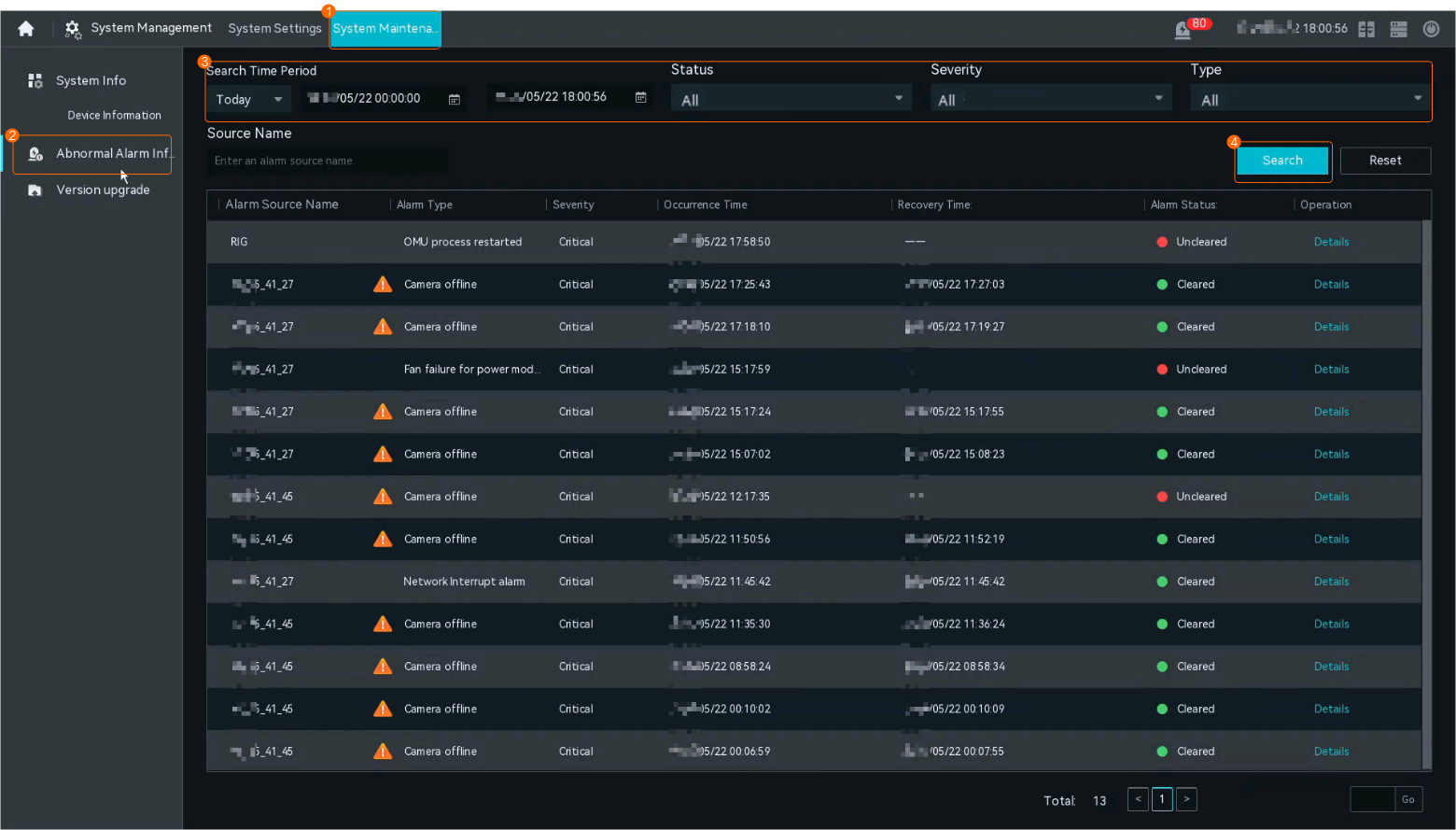
- Search for system exception alarms, as shown in Figure 4-55.
You can click Details in the Operation column to view alarm details.
- Log in to the LDU as the admin user. (
- Viewing the latest system exception alarms
- Log in to the LDU as the admin user. (
 Logging In to the LDU)
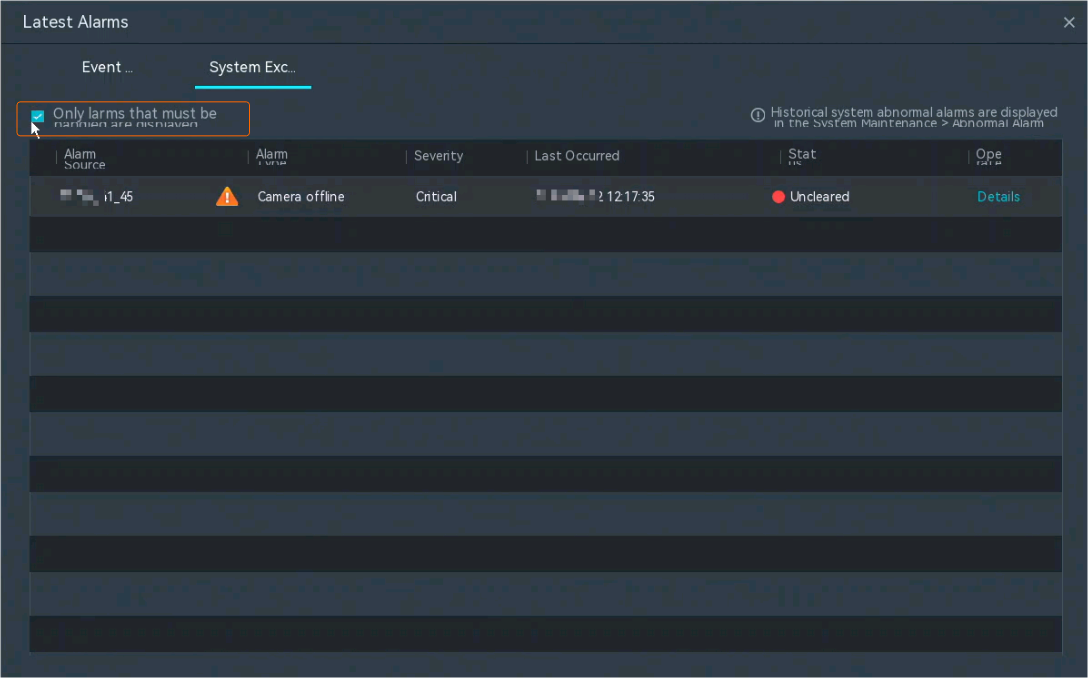
 - Click
 in the upper right corner of the page.
 - Select Only alarms that must be handled are displayed, as shown in Figure 4-56.
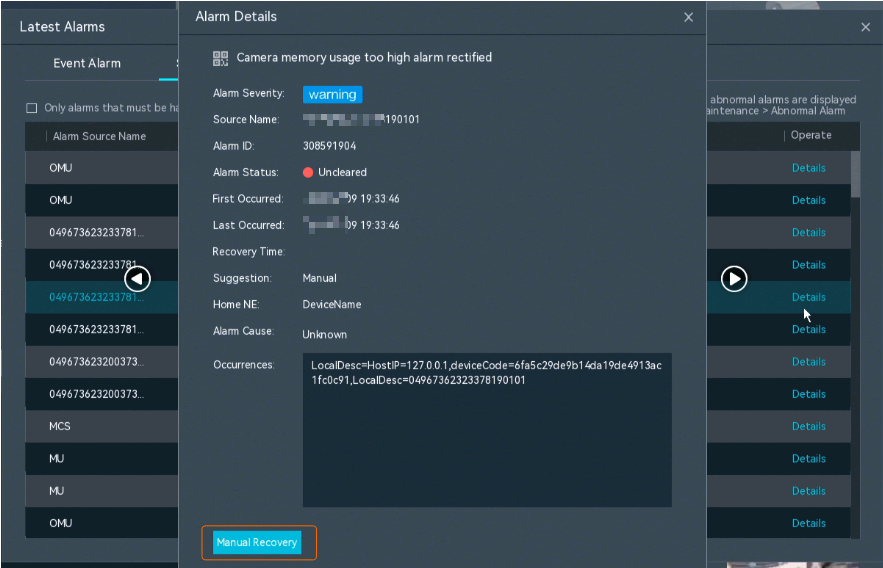
- Click Details in the Operate column to view alarm details. In the Alarm Details dialog box that is displayed, click Manual Recovery, as shown in Figure 4-57.
Table 4-47 Parameter/Icon descriptionParameter/Icon
Setting
Status
Set this parameter based on actual alarm states.
- All
- Uncleared
- Cleared
Search Time Period
Set the time segment for searching for system exception alarms as required.
Details
Click Details in the Operation column to view alarm details.
- Log in to the LDU as the admin user. (
- Viewing historical system exception alarms
Viewing Alarms (on the iClient S100)
- If more than eight device alarms are generated per second, the iClient S100 reports the alarm type as the O&M alarms about flow control faults during device connection to gateways. In this case, the system starts alarm filtering and pushes only the first eight alarms per second. You can view O&M alarms under .
- If a common intelligent alarm is generated multiple times within 30s, the alarm is reported only once.
- Latest alarms
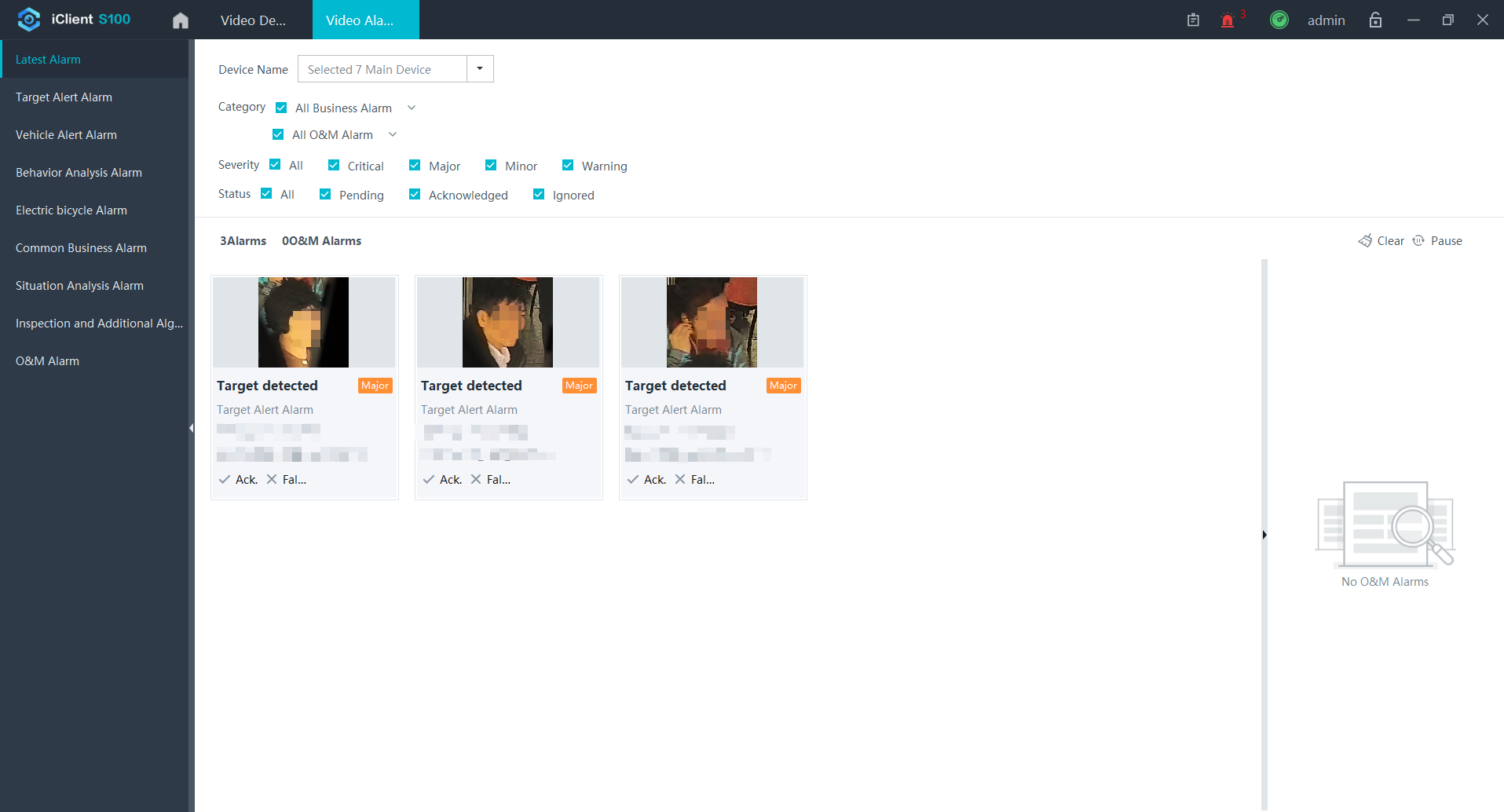
- On the iClient S100 home page, choose , as shown in Figure 4-58.
Table 4-48 Operations on a single alarm window
Parameter
Description
Ack.
If you click Ack., enter alarm handling suggestions, and click OK, the alarm status changes to acknowledged.
False Positive
If you click False Positive, enter alarm handling suggestions, and click OK, the alarm is added to the false positive library and will not be reported in the same scenario.
NOTE:- The alarms reported by the HWT-IVS1800 are saved to the database every 10s. Do not click False Positive immediately after the latest alarm is reported. Otherwise, a message is displayed, indicating that no alarm information is found.
- Fight and absence detection alarms cannot be added to the false positive library.
- When an object similar to a person is detected, the interception mechanism is triggered. The user needs to confirm whether to add the image to the false positive library.
Clear alarm (available only for electric bike detection alarms)
Clear alarm for three minutes: To enable the system to generate an alarm again after a specified period of time (configurable; 3 minutes by default), you can click this button.
Clear this alarm: To disallow the system to generate an alarm when detecting the same electric bike, you can click this button.
- Select one or more devices from the Device Name drop-down list as required. Then, select desired alarms types in the Category area.
- Filter alarms by criteria such as the alarm type, alarm severity, and alarm status.
Table 4-49 describes instances of alarms of parent types.
Table 4-49 Alarm typesAlarm Type
Description
Latest Alarm
Displays the latest alarms of each service. On this page, alarms are displayed and updated in real time. The alarm subtypes of the latest alarms are the same as those of historical ones.
Target Alert Alarm
- Target recognition alarm
- Target detected
- Mask Alarm
- Target temperature
Displays historical alarms of each service.
Vehicle Alert Alarm
- Vehicle recognition
- Parking violation
Behavior Analysis Alarm
- Tripwire crossing
- Intrusion
- Object abandoned
- Object removal
- Loitering
- Enter
- Exit
- Fast movement
- Fire detected
- Parking detection
Electric bike Alarm
Electric Bike
Common Business Alarm
- Motion detected
- Lens blocking
- Sudden volume increase
- Sudden volume decrease
- Video loss
- Target recognition warning
- Bright Diagnosis
- Colorcast Diagnosis
- Stripenoise Diagnosis
- Snow Noise Diagnosis
- Frozen Diagnosis
- Shake Diagnosis
- Defocus
- Scene change
- Abnormal temperature
- Boolean value alarm
- Device switch input alarm
Situation Analysis Alarm
- Abnormal headcount
- Long queue
- Abnormal crowd density
- Crowd gathering
- Person LeaveDetect
Inspection and Additional Algorithm Alarm
The inspection algorithm alarms are as follows:
- Fight Detection
- FireOccuDetection
- Fumefire Detection
- GarbageOverflowingDetection
- IndoorOccuDetection
- Falling down detection
- Off-duty Detection
- Cell Phone Use Detection
- SleepingDutyDetection
- SmokingDetection
- UnwearHelmetDetection
- UnwearVestDetection
FP Filtering Database
/
You can view the alarms that have been added to the false positive library.
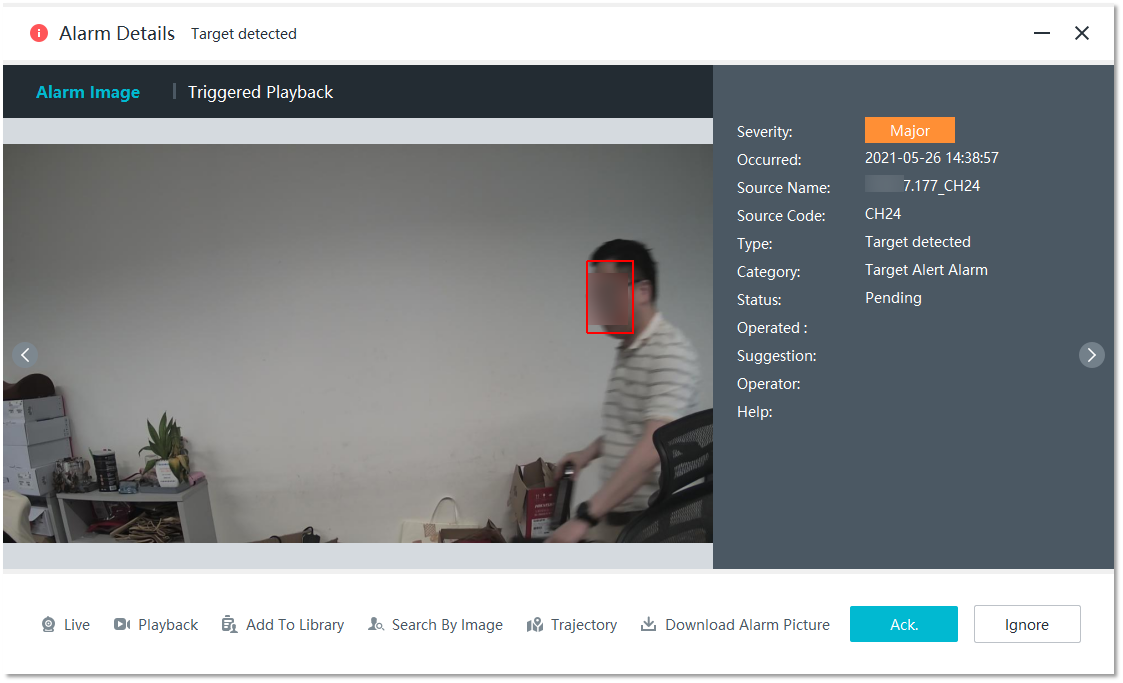
- Click an alarm. The Alarm Details page is displayed, as shown in Figure 4-59. Table 4-50 describes the parameters and buttons on this page.
Table 4-50 Parameters/Buttons on the Alarm Details page
Category
Parameter/Button
Description
Alarm linkage
Triggered Snapshot/Triggered Live/Triggered Playback
Tab pages that display the results linked to the selected alarm if alarm linkage is configured for the camera.
Common functions
Live
Button for going to the Live page where you can view live video from the camera that generates the alarm.
Playback
Button for going to the Playback page where you can play back video recorded when the alarm is generated.
Download Alarm Picture
Button for downloading snapshots taken when the alarm is generated.
Functions related to target recognition alarms
Add To Library
Button for going to the Target List page where you can enter list information and add the target to the target list.
Search By Image
Button for going to the Search By Image page where you can search for similar images captured by the current camera.
Trajectory
Button for going to the Map page where you can view target trajectories on the map.
Alarm handling
Ack./Ignore
Button for going to the page where you can enter alarm handling suggestions.
- On the iClient S100 home page, choose , as shown in Figure 4-58.
- Historical alarms (For example, you can view historical alarms generated by target alert tasks or mask detection on the Target Alert Alarm page.)
- On the iClient S100 home page, choose .
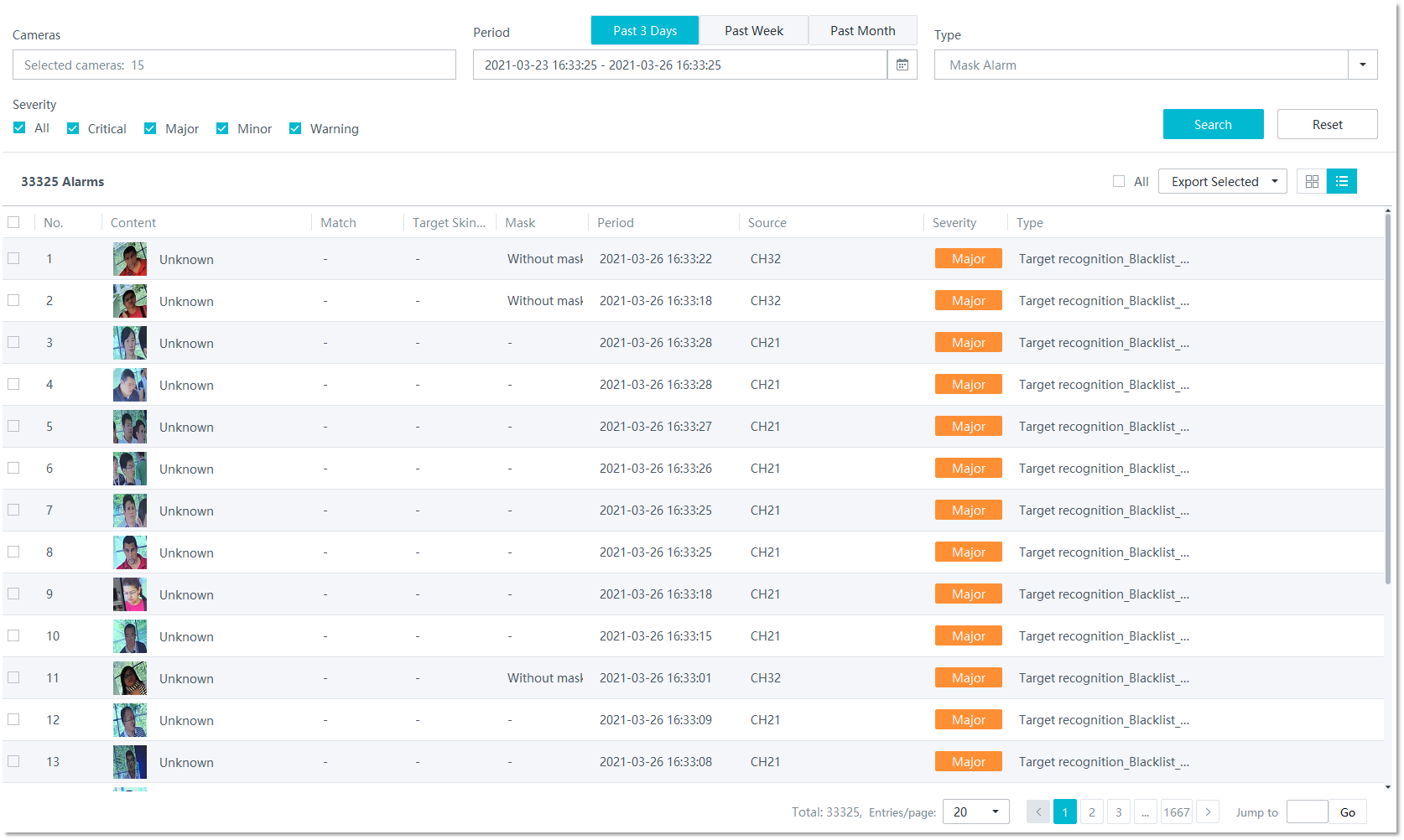
- Set alarm search criteria. Table 4-51 describes the parameters and buttons.
Table 4-51 Parameters/Buttons on the Target Alert Alarm page
Parameter/Button
Description
Cameras
Cameras from which alarms are to be searched for. You can select cameras connected to multiple HWT-IVS1800s of the same type.
Period
Time segment during which an alarm is generated.
Type
Alarm subtype supported by the selected cameras connected to the HWT-IVS1800. Only available subtypes are automatically displayed in the drop-down list.
Severity
Importance and urgency of an alert task. The Severity parameter corresponds to Alert Level of an alert task.
Search
Button for searching for alarms based on the specified criteria.
Reset
Button for restoring to initial search criteria.
All
Selects all alarms on the current page by one click.
Export Selected
Exports the selected alarms to an Excel file and saves the file to the local computer.
NOTE:You can enable the encrypted download function when exporting files. After this function is enabled, you need to enter the preset password when opening the file exported to the local computer.
The password must meet the following requirements:
- Contain 10 to 16 characters.
- Contain at least two types of the following: lowercase letters, uppercase letters, digits, and special characters.
- Be different from the user name or user name spelled backwards.
- Contain no spaces or Chinese characters.
- Be a strong password.
Export This Page
Exports the alarms on the current page to an Excel file and saves the file to the local computer.
Export All
Exports all alarms in the search result to the local computer in an Excel file.
 /
/
Switches between the tile and list display modes of the alarm search result.
- All export and import functions can be used only in the environments that meet the following requirements:
- The WPS Office software is used by default.
- Microsoft Office (later than 2007) has been installed properly and its valid license has been activated. The software is running properly.
- You are advised to use a professional video or image editing tool to shield irrelevant persons in downloaded or exported video or images and meet the HD requirements of the data subject. The recommended procedure is as follows:
- Download the required video to the local computer and decompress it to common video or export image data to the local computer.
- Use a video or an image editing tool to anonymize irrelevant targets and only retain the HD part of the data subject.
- Export the anonymized video or images to meet the data transfer requirements of the data subject.
- To ensure personal information security, delete the downloaded or exported images and recordings in a timely manner.
- Click Search. Figure 4-60 shows the search result.
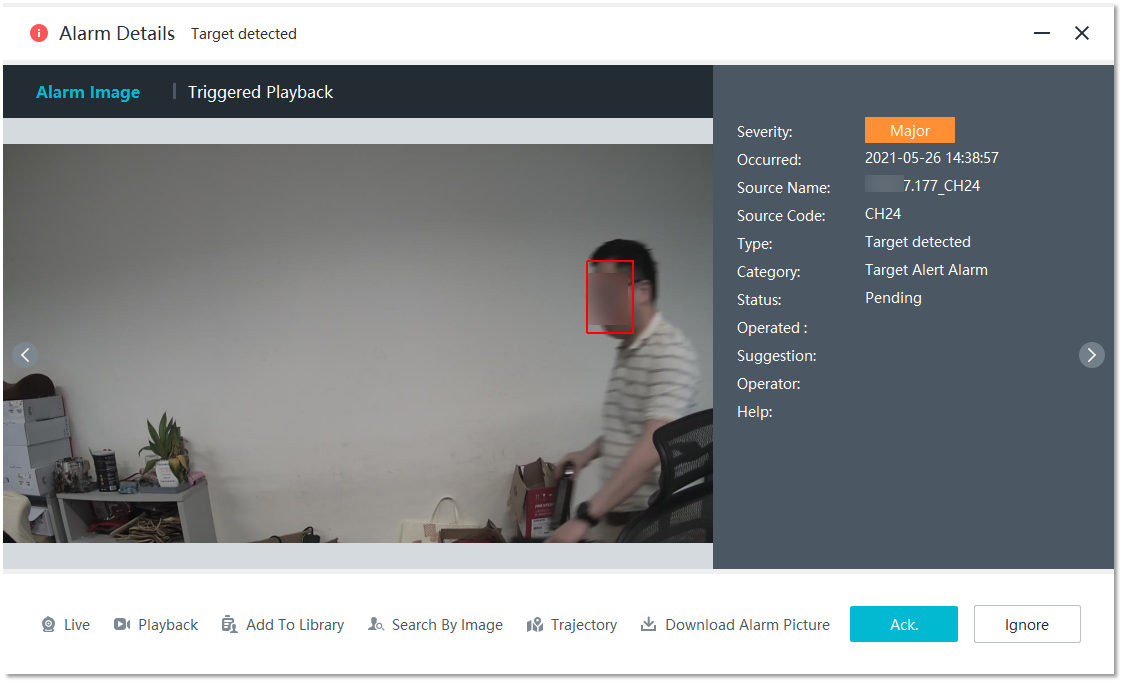
- Click an alarm. The Alarm Details page is displayed, as shown in Figure 4-61. Table 4-52 describes the parameters and buttons on this page.
Table 4-52 Parameters/Buttons on the Alarm Details page
Category
Parameter/Button
Description
Alarm linkage
Triggered Snapshot/Triggered Live/Triggered Playback
Tab pages that display the results linked to the selected alarm if alarm linkage is configured for the camera.
Common functions
Live
Button for going to the Live page where you can view live video from the camera that generates the alarm.
Playback
Button for going to the Playback page where you can play back video recorded when the alarm is generated.
Download Alarm Picture
Button for downloading snapshots taken when the alarm is generated.
Functions related to target recognition alarms
Add To Library
Button for going to the Target List page where you can enter list information and add the target to the target list.
Search By Image
Button for going to the Search By Image page where you can search for similar images captured by the current camera.
Trajectory
Button for going to the Map page where you can view target trajectories on the map.
Alarm handling
Ack./Ignore
Button for going to the page where you can enter alarm handling suggestions.