Audio
Voice Intercom
Feature Description
Definition
Users can perform voice intercom with onsite personnel through cameras that are playing live video.
Customer Benefits
- Users can communicate with onsite personnel in a timely manner, improving communication efficiency.
- Onsite personnel can communicate with video security personnel through the video and image management platform without using other devices, reducing user investment.
Application Scenario
When an incident occurs, a user can use cameras to communicate with onsite personnel in real time.
Requirements
NE |
Version Requirement |
License Requirement |
Function |
|---|---|---|---|
HWT-IVS1800 |
11.1.0 and later versions |
N/A |
Provides the voice intercom function. |
iClient S100 |
V1.6.0 and later versions |
N/A |
Provides the voice intercom function. |
Application Limitations
- A client supports only one channel of voice intercom.
- G.711U and G.711A are supported.
- A microphone and a speaker are required for each camera.
- This feature is applicable only to the cameras connected through the HWSDK, ONVIF, or GB/T 28181 protocol.
If a camera on an intranet is connected through GB/T 28181, and NAT is configured between the camera and the device, this feature is not supported.
If a Dahua camera is equipped with a microphone and connected through ONVIF, this feature is not supported on the LDU.
- The HWT-IVS1800 supports only the UDP protocol.
Feature Configuration
Scenario Description
Client |
Feature Support |
Reference |
|---|---|---|
LDU (only HWT-IVS1800-D/HWT-IVS1800-E) |
Supported |
Complete the configuration by referring to this section. |
iClient S100 |
Supported |
in the iClient S100 User Manual |
Feature Verification
Prerequisites
- A camera that supports the voice intercom function is available.
- A microphone and a speaker are available for the camera.
- The microphone and speaker have been configured on the LDU.
Procedure
- Connect the microphone and speaker to the camera and the device.
- Connect the microphone to the IN port of the camera, and connect the speaker to the OUT port of the camera.
The ports vary depending on the camera model.
- Connect the microphone to the LINE IN port on the rear panel of the device, and connect the speaker to the LINE OUT port on the rear panel of the device, as shown in Figure 4-62.
- LINE OUT: audio output port, which is used to receive audio from cameras.
- LINE IN: audio input port, which is used for voice broadcast or voice intercom with cameras with microphones.
- Connect the microphone to the IN port of the camera, and connect the speaker to the OUT port of the camera.
- Enable the voice intercom function of the device.
- Log in to the LDU as the admin user. (
 Logging In to the LDU)
 - Drag a camera from the camera list to a live video pane.
- Enable voice intercom, as shown in Figure 4-63.
- Log in to the LDU as the admin user. (
- Talk with personnel at the detection site.

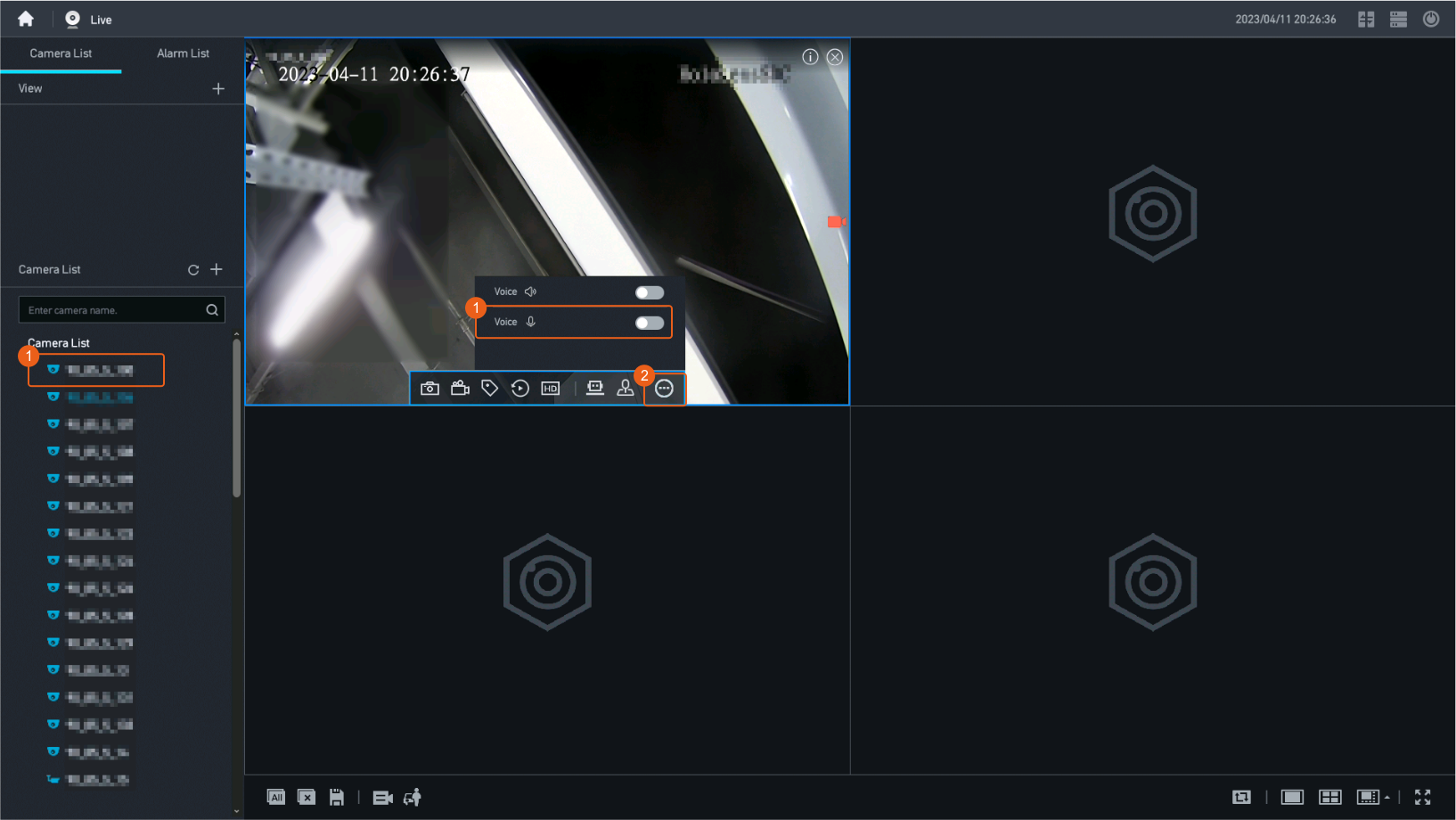
Channel-Associated Voice
Feature Description
Definition
When users view live video or play back recordings, they can hear the voice in the video or recordings.
Customer Benefits
The channel-associated voice is played during live video viewing or recording playback, providing more incident information.
Application Scenario
The video with voice helps users improve incident analysis efficiency.
Requirements
NE |
Version Requirement |
License Requirement |
Function |
|---|---|---|---|
HWT-IVS1800 |
11.1.0 and later versions |
N/A |
Provides the channel-associated voice function. |
iClient S100 |
V1.6.0 and later versions |
N/A |
Provides the channel-associated voice function. |
Application Limitations
- This feature is mainly applicable to indoor scenarios.
- To use this features, users need to configure a microphone for the camera.
- Audio can be encoded in G.711 and AAC format.
Feature Configuration
Scenario Description
Client |
Feature Support |
Reference Document |
|---|---|---|
LDU (only HWT-IVS1800-D/HWT-IVS1800-E) |
Supported |
Complete the configuration by referring to this section. |
Feature Verification
Prerequisites
- A microphone has been configured for the camera and the camera has been running properly.
- The live video or recording audio has been configured.
- Commission the live video service according to Configuring Live Video Viewing.
- Commission the recording service according to Configuring the Recording Function.
Procedure
The procedure for enabling channel-associated voice in a live video pane is similar to that in a recording playback pane. The following describes how to enable channel-associated voice in a live video pane.
- Connect the speaker.
- Connect the speaker to the LINE OUT port at the rear of the device, as shown in Figure 4-64.
- LINE OUT: audio output port, which is used to receive audio from cameras.
- Connect the speaker to the LINE OUT port at the rear of the device, as shown in Figure 4-64.
- Log in to the LDU as the admin user. ( Logging In to the LDU)
- Right-click the desktop and choose Live.
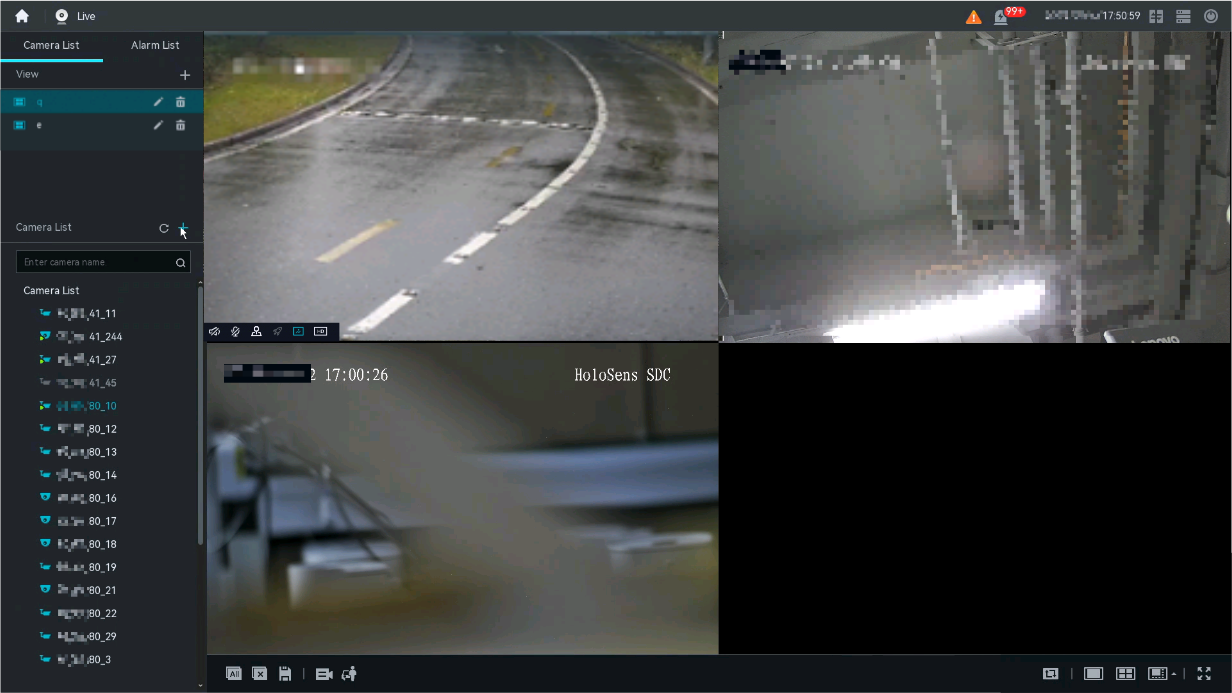
- In the camera list, double-click or drag an online camera to a live video pane, as shown in Figure 4-65.
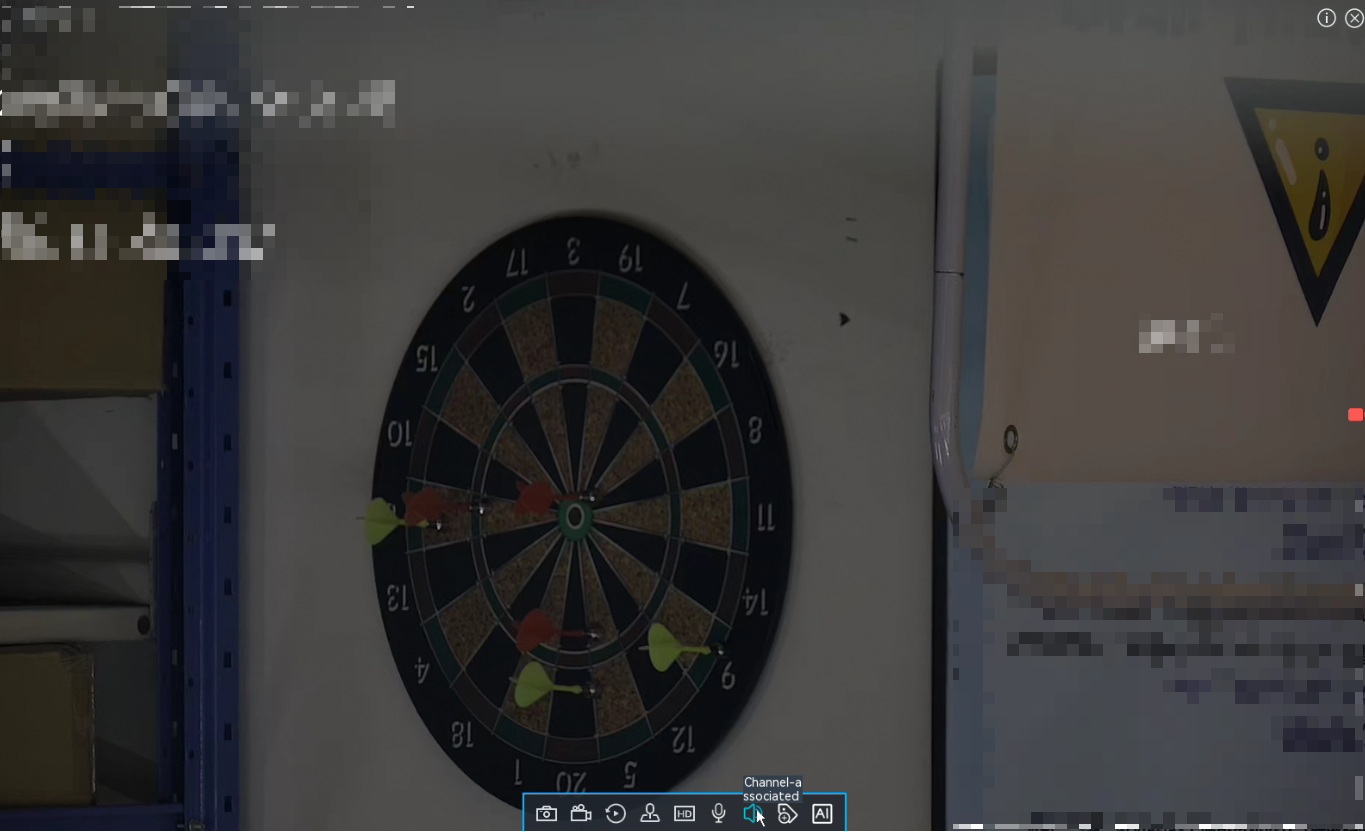
- Enable channel-associated voice, as shown in Figure 4-66. Video security personnel can hear the voice at the detection site.

Voice Broadcast
Feature Description
Definition
Users can broadcast voice to one or more cameras that are playing live video.
Customer Benefits
- Personnel in the video security room can broadcast warnings to video sites, improving the abnormal behavior handling effectiveness.
- Abnormal behavior occurring at video sites can be held back in a timely manner through voice broadcast.
- The emergency handling capability is enhanced, and the customer investment (investment in dedicated broadcast systems) is reduced.
Application Scenario
A user instructs onsite personnel to handle an incident through voice broadcast.
Requirements
NE |
Version Requirement |
License Requirement |
Function |
|---|---|---|---|
HWT-IVS1800 |
11.1.0 and later versions |
N/A |
Provides the voice broadcast function. |
iClient S100 |
V1.6.0 and later versions |
N/A |
Provides the voice broadcast function. |
Application Limitations
- To use this features, users need to configure a speaker for the camera.
- The G.711 audio encoding format is supported.
- Only the iClient S100 supports voice broadcast.