LDU

V7000-08A-LLM-P AI Pro, and V7000-08A-LLM-I AI Pro do not support the LDU.
Configuring the Startup Wizard
Context
- The startup wizard is displayed only when you log in to the device for the first time as a user who has not logged in to the OMU portal.
- Switching between screens is not supported during startup wizard-based settings.
Procedure
- Set the service system and operating system passwords upon the first login.
- The password is applied to the admin user of the service system, and the admin and root users of the operating system.
- For security purposes, you are advised to use a password with high complexity. For details about the password complexity requirements, see Suggestions on Password Maintenance.
Figure 3-13 Setting the password of the admin user of the service system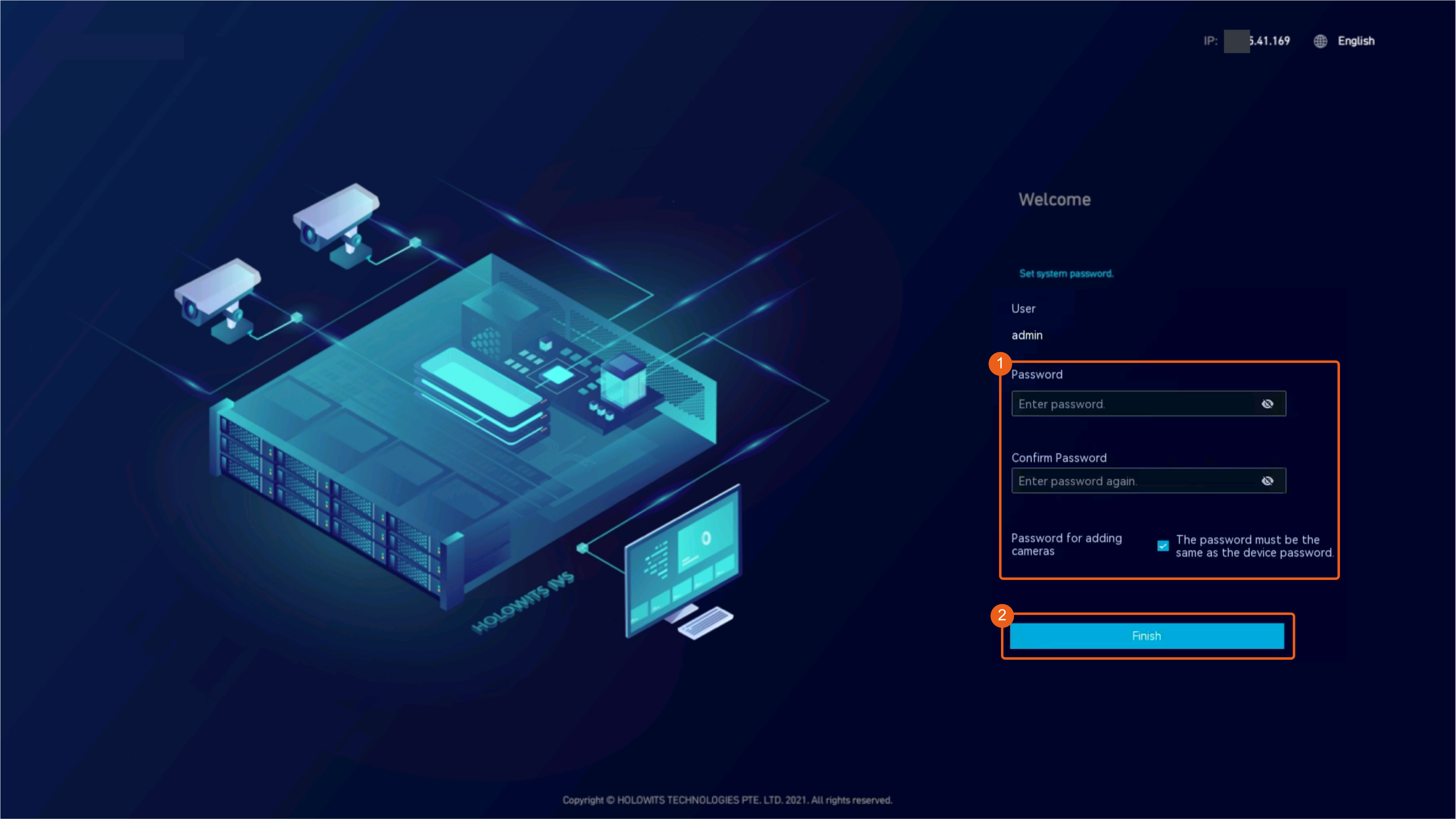 Table 3-5 describes the parameters of the admin user of the service system, and the admin and root users of the operating system.Table 3-5 Parameter description
Parameter
Application Scenario
Application Description
Service system
User Name: admin
- The admin user is a service system user and can log in to the OMU portal, LDU, and iClient S100.
The admin user is a predefined user with full permissions on the system. The permissions and name of the user are specified by default and unconfigurable.
Password/Confirm Password
Password for adding cameras
This password is used to verify cameras to be connected.
This password is required for camera connection verification.
For details about how to change the password for adding a camera, see How Do I Change the Password for Connecting a Camera?.
Operating system
User Name: admin
The admin user, an operating system user, can remotely and locally log in to the operating system and perform operations on some files, directories, or processes.
The password of the admin user needs to be changed upon the first login.
For details about how to change the password, see How Do I Log In to the Operating System Through a Network Port?.
Password/Confirm Password
User Name: root
The root user has all the permissions on the operating system and can perform operations on any file, directory, and process.
You must log in the operating system as the admin user first and then switch to the root user.
Password/Confirm Password
- After registration, use the configured service system password to log in to the LDU again.
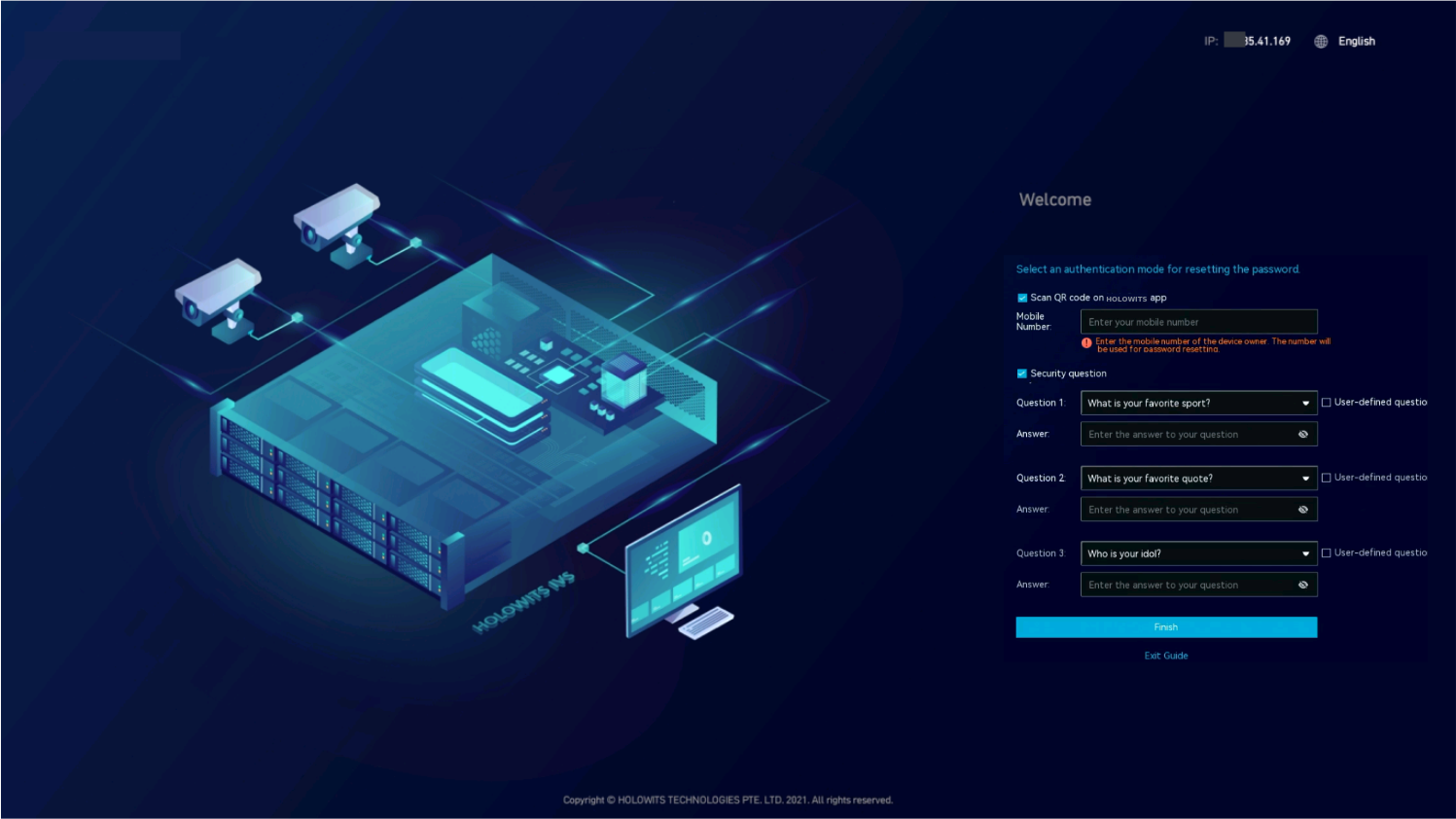
- Set password recovery parameters, as shown in Figure 3-14.
- Select a password recovery method and set related parameters.
- Select Security question and set security questions and answers.
- You can select preset questions or customize questions. A customized question must contain 1 to 80 bytes and cannot contain the following special characters: ~ ` ! ^ = { } | \ [ ] < > '
- For customized questions, their answers (excluding the space at the beginning) must contain 2 to 128 bytes.
- You need to set three security questions and their answers. All the security questions and their answers must be unique. The changed questions and answers can take effect only after you enter the correct password for the admin account.
Click Finish. The home page is displayed.
- Select Security question and set security questions and answers.
After the upgrade, the intelligent target analysis function is still available, and the page for signing the Target Recognition Service Agreement is automatically displayed when you log in to the system again. If you disagree with the agreement, the intelligent target analysis function will not be authorized. You can choose to select or deselect Authorize intelligent target analysis for connected cameras depending on your needs. By default, this parameter is not selected.
- Select a password recovery method and set related parameters.
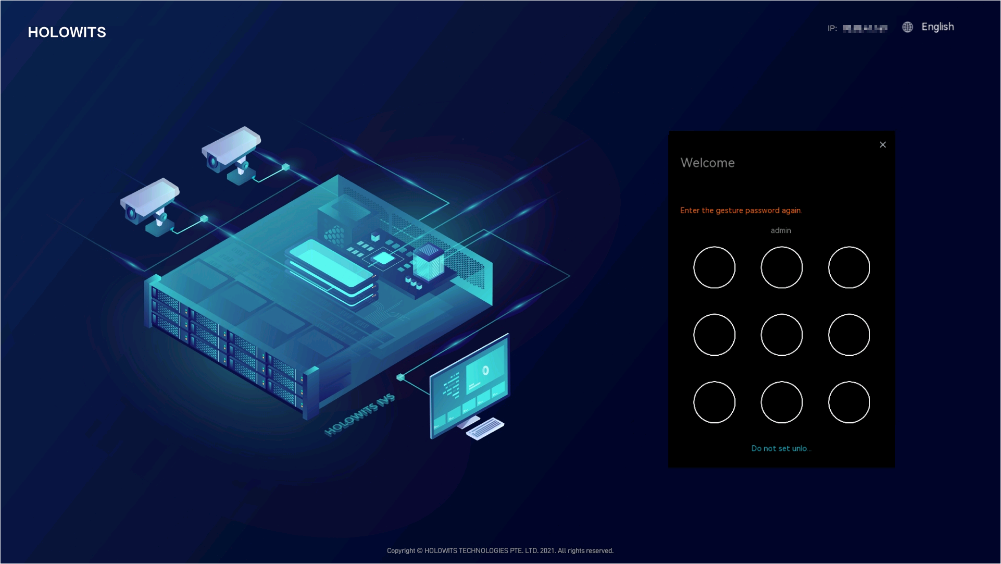
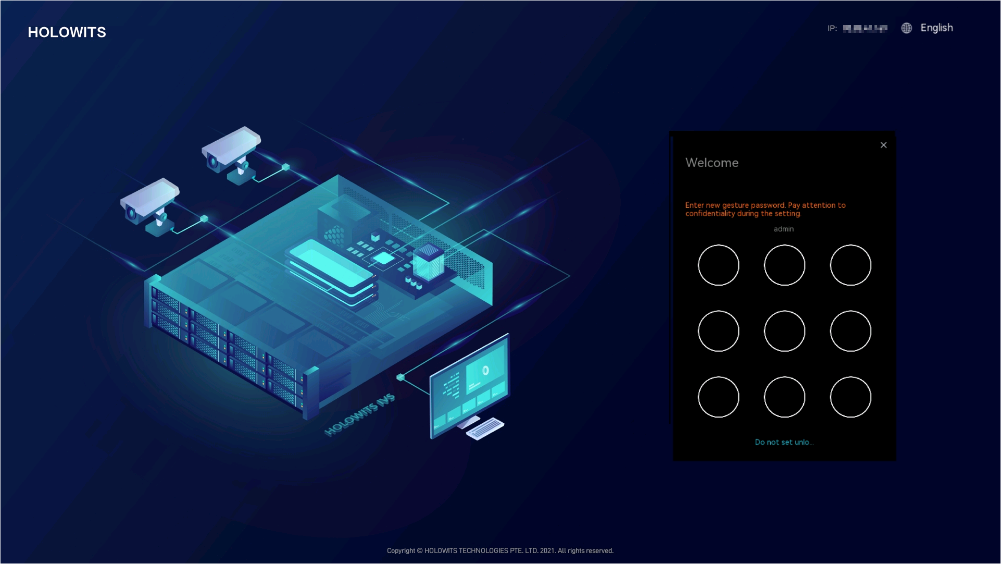
- Set the gesture password, as shown in Figure 3-15.
- Enter the gesture password.
- Confirm the gesture password.Figure 3-16 Confirming the gesture password
- (Optional) To restore the original disk data, click Recover data.
- After the disk data is restored, perform operations in 8 and subsequent operations to implement initial configuration.
- If you do not need to restore data temporarily, click Next. You can restore data later by referring to Restoring Data Using the Data Safe.
- If disk data does not need to be restored, perform operations in 6 and subsequent operations to implement initial configuration.
The system automatically restores data in the following way:
- The PWR indicator on the front panel turns from steady green to steady yellow, and the buzzer produces two beeps (for two seconds in total).
In this case, the device starts to restore data.
- About 10 minutes later, the PWR indicator on the front panel turns from steady yellow to steady green, and the buzzer produces three beeps (for 3 seconds in total).
In this case, the data restoration is complete.
In this case, ensure that the device versions before and after data restoration are the same.
IDs of the slots where a disk is removed and to be installed must be the same.
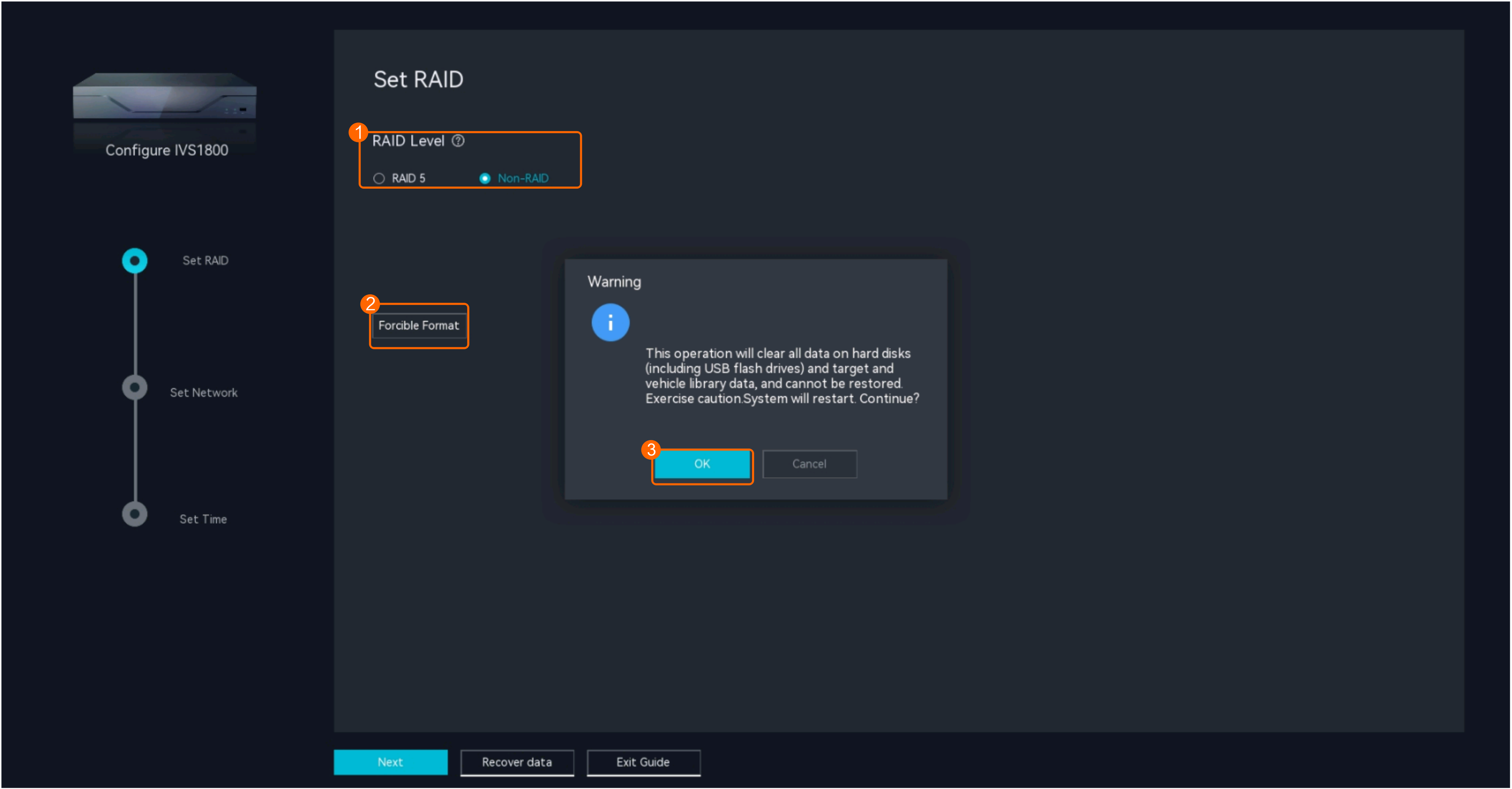
- Format disks.
- If the system determines that disk formatting is required, click Format to format the disks, as shown in Figure 3-17.
- If the system determines that disk formatting is not required, choose whether to format the disks based on the site requirements.
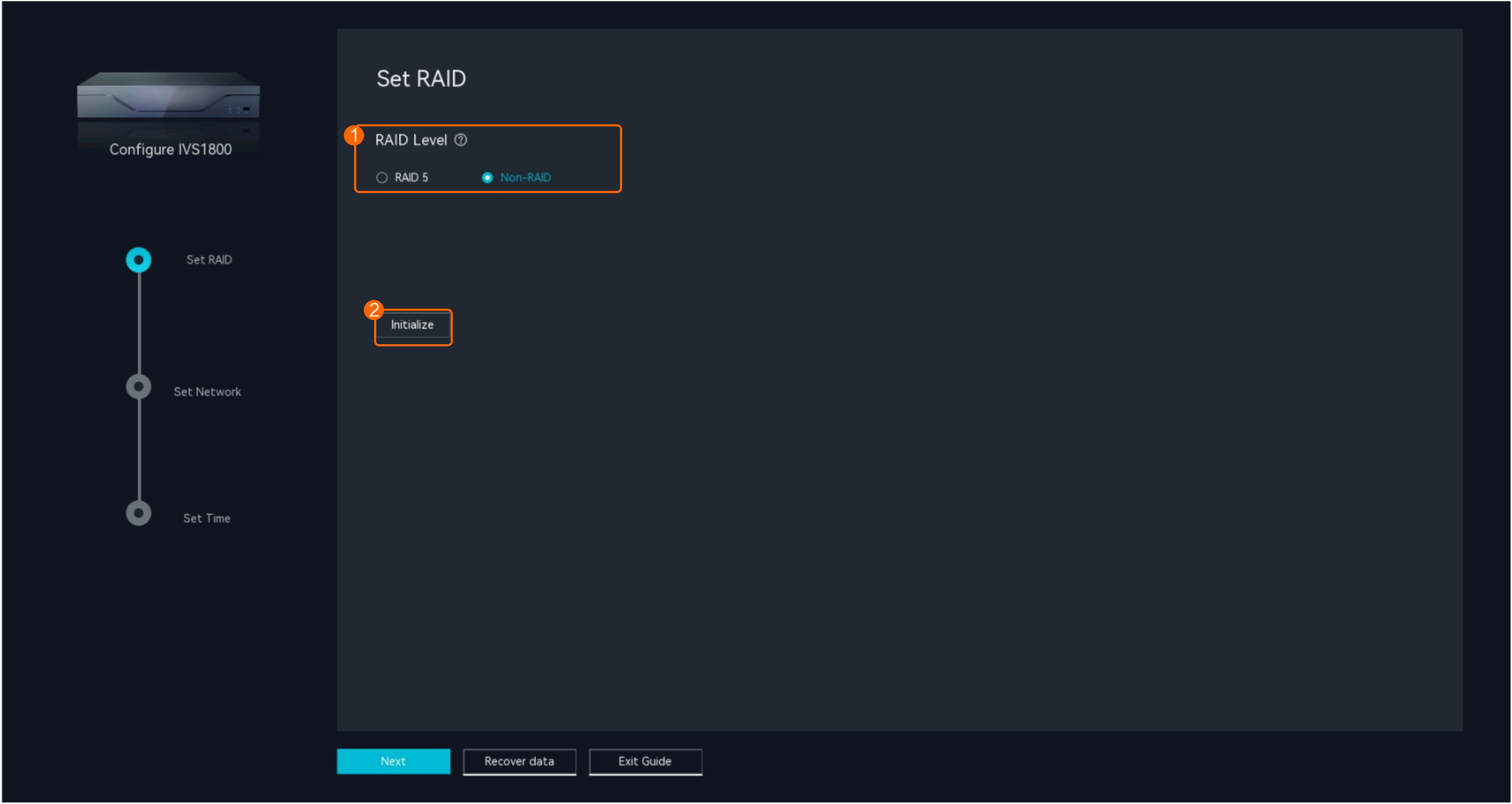
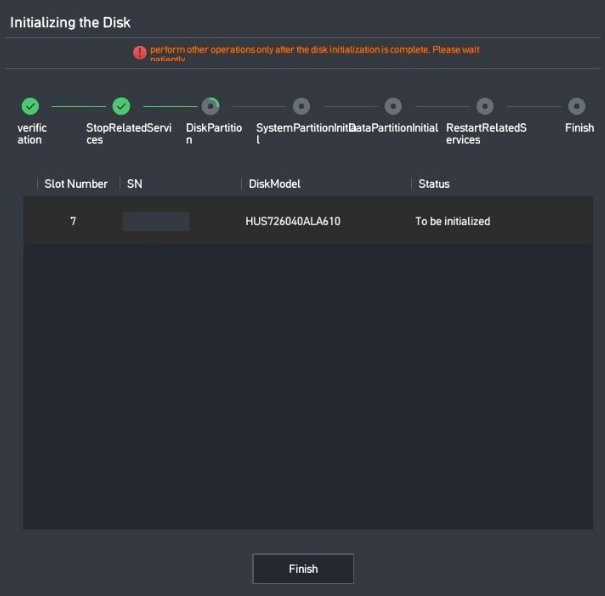
- Initialize disks. Set disk parameters, as shown in Figure 3-18.
- For new disks and disks from an old device of the same model, if the RAID mode is not set, the device cannot write data to disks.
- If the disks on the server cannot be correctly identified, replace the disks by referring to Replacing HWT-IVS1800-D08/D16/E08/E16/LLM Disks.
- Compatibility check will be performed on disks during disk initialization. If the system has a disk whose compatibility is not tested or verified, you are advised to replace it with a tested and verified one by referring to the HWT-IVS1800 Compatibility List. If you choose to use the disk with unknown compatibility, exceptions such as system instability and data loss may occur. In this case, no technical support may be provided.
- The RAID 5 mode supports only enterprise-level disks. Before the configuration, you are advised to contact technical support engineers or service providers to obtain the project BoQ from the sales manager, and confirm the disk type and storage mode.
Table 3-6 describes the RAID modes.
Table 3-6 RAID mode descriptionRAID Mode
Description
RAID 5
All hard disks form a RAID 5 group. Each recording file is stored on all hard disks. RAID 5 provides higher data storage reliability, but its disk usage is lower than that in non-RAID mode.RAID5 Recommended
- Four or more hard disks are required, and one of them is used as a hot spare disk.
- The hot spare disk does not store data. When a hard disk in the RAID group fails, the hot spare disk will replace the failed one and function as a member disk of the RAID group.
- Actual capacity = (Total number of disks - 2) x Minimum disk capacity
One hard disk is used as the hot spare disk. To ensure that the data in the RAID group can be restored, storage space must be reserved on each hard disk. The size of reserved space is equal to the size of a hard disk.
- If the device has seven or more hard disks, the system automatically uses the three hard disks (system partitions) with the smallest slot numbers to form a RAID 1 group, in which one hard disk functions as the hot spare disk.
- In this mode, the disk usage is lower than that in the economical configuration mode, but the data storage reliability is higher.
CAUTION:When a disk fails, the hot spare disk replaces the failed disk to join the RAID group, and the failed disk becomes the offline hot spare disk. In this scenario, a new disk needs to be inserted into the slot of the failed disk. Otherwise, capacity expansion will fail.
RAID5 Economical
- Three or more hard disks are required.
- No hot spare disk is configured.
- Actual capacity = (Total number of disks - 1) x Minimum disk capacity
To ensure that the data in the RAID group can be restored, storage space must be reserved on each hard disk. The size of reserved space is equal to the size of a hard disk.
- If the device has seven or more hard disks, the system automatically uses the three hard disks (system partitions) with the smallest slot numbers to form a RAID 1 group, in which one hard disk functions as the hot spare disk.
- The disk usage is higher than that in recommended configuration mode, but the data storage reliability is lower than that in recommended configuration mode.
CAUTION:- During initialization, data needs to be synchronized among disks in the RAID 1 group (system partition). Do not perform hot swapping on system disks during synchronization. Otherwise, system exceptions may occur.
- After disks are initialized, do not perform hot swapping on two or more system disks at the same time. Otherwise, system exceptions may occur.
- The RAID 5 mode supports only enterprise-level hard disks. Monitoring-level or desktop-level disks cannot meet the performance and reliability requirements in the RAID 5 mode, which may cause system data loss or damage.
Non-RAID
Each recording file is stored on only one hard disk. The disk usage is high, but the data storage reliability is lower than that in RAID 5 mode.
- If the device has only one hard disk, the system uses this disk to form a RAID 0 group (system partition). In this scenario, the system partition is always on this hard disk even if more hard disks are added for capacity expansion.
If the hard disk where the system partition is located is faulty, services cannot run properly.
- If the device has seven or more hard disks, the system automatically uses the three hard disks (system partitions) with the smallest slot numbers to form a RAID 1 group, in which one hard disk functions as the hot spare disk.
CAUTION:- For a device with two or more disks:
- During initialization, data needs to be synchronized among disks in the RAID 1 group (system partition). Do not perform hot swapping on system disks during synchronization. Otherwise, system exceptions may occur.
- After disks are initialized, do not perform hot swapping on two or more system disks at the same time. Otherwise, system exceptions may occur.
- For a device with only one disk:
Do not perform hot swapping on the disk at any time. Doing this may cause system exceptions.

- Disks of the same specifications from different vendors specified in the HWT-IVS1800 Compatibility List can be used together.
- Different types of disks from the same vendor cannot be used together. For example, monitoring-level disks and enterprise-level disks cannot be used together.
- If all system disks are removed, some services will be abnormal and the restart duration will increase by 10 minutes.
- When disks of the same type from the same vendor are used together (for example, 4 TB and 6 TB enterprise-level disks are used together):
- If the disks are configured in RAID 5 mode, the available capacity of each disk is bound by the disk of the smallest size in the group.
For example, if one 4 TB disk and two 6 TB disks are configured in RAID 5 economical mode, the actual available capacity of all disks is 8 TB.
- If the disks are configured in non-RAID mode, the actual available capacity of each disk is used for each disk.
For example, if one 4 TB disk and two 6 TB disks are configured in non-RAID mode, the actual available capacity of all disks is 16 TB.
- If the disks are configured in RAID 5 mode, the available capacity of each disk is bound by the disk of the smallest size in the group.
For details about the disk version mapping, see the HWT-IVS1800 Compatibility List.
During disk initialization or capacity expansion, compatibility check is performed on new disks. If the system has a disk whose compatibility is not tested or verified, you are advised to replace it with a tested and verified one by referring to the HWT-IVS1800 Compatibility List. If you choose to use the disk with unknown compatibility, exceptions such as system instability and data loss may occur. In this case, no technical support may be provided.
- Configure the cyber security mode, as shown in Table 3-7.Table 3-7 Cyber security mode parameters
Parameter
Description
Remarks
Advanced
Allows users to manually enable algorithms or protocols as required.
- The MD5 algorithm may cause cyber security risks and is disabled by default. If the device to be connected supports only the MD5 algorithm, disabling this algorithm will cause connection failures. Exercise caution with this configuration.NOTE:
If the MD5 algorithm configuration of the camera to be connected through GB/T 28181 changes, you need to manually restart the DCG under .
- The Basic authentication may cause cyber security risks and is disabled by default. If the RTSP protocol of a camera supports only Basic authentication, you need to enable the authentication on the device to enable media stream transmission through RTSP. Exercise caution with this configuration.
- HTTP may cause cyber security risks and is disabled by default. HTTPS is used by default. However, only a few cameras support snapshot upload through HTTPS. Exercise caution with this configuration.
- Contact the device vendor to check whether the device to be connected supports only the MD5 algorithm and Basic authentication, and whether the device supports HTTPS.
Secure
Disables insecure algorithms or protocols such as the MD5 algorithm and Basic authentication, which may affect the compatibility with other platforms or cameras.
Compatible
Enables insecure algorithms or protocols such as the MD5 algorithm and Basic authentication, which may pose cyber security risks.
- The MD5 algorithm may cause cyber security risks and is disabled by default. If the device to be connected supports only the MD5 algorithm, disabling this algorithm will cause connection failures. Exercise caution with this configuration.
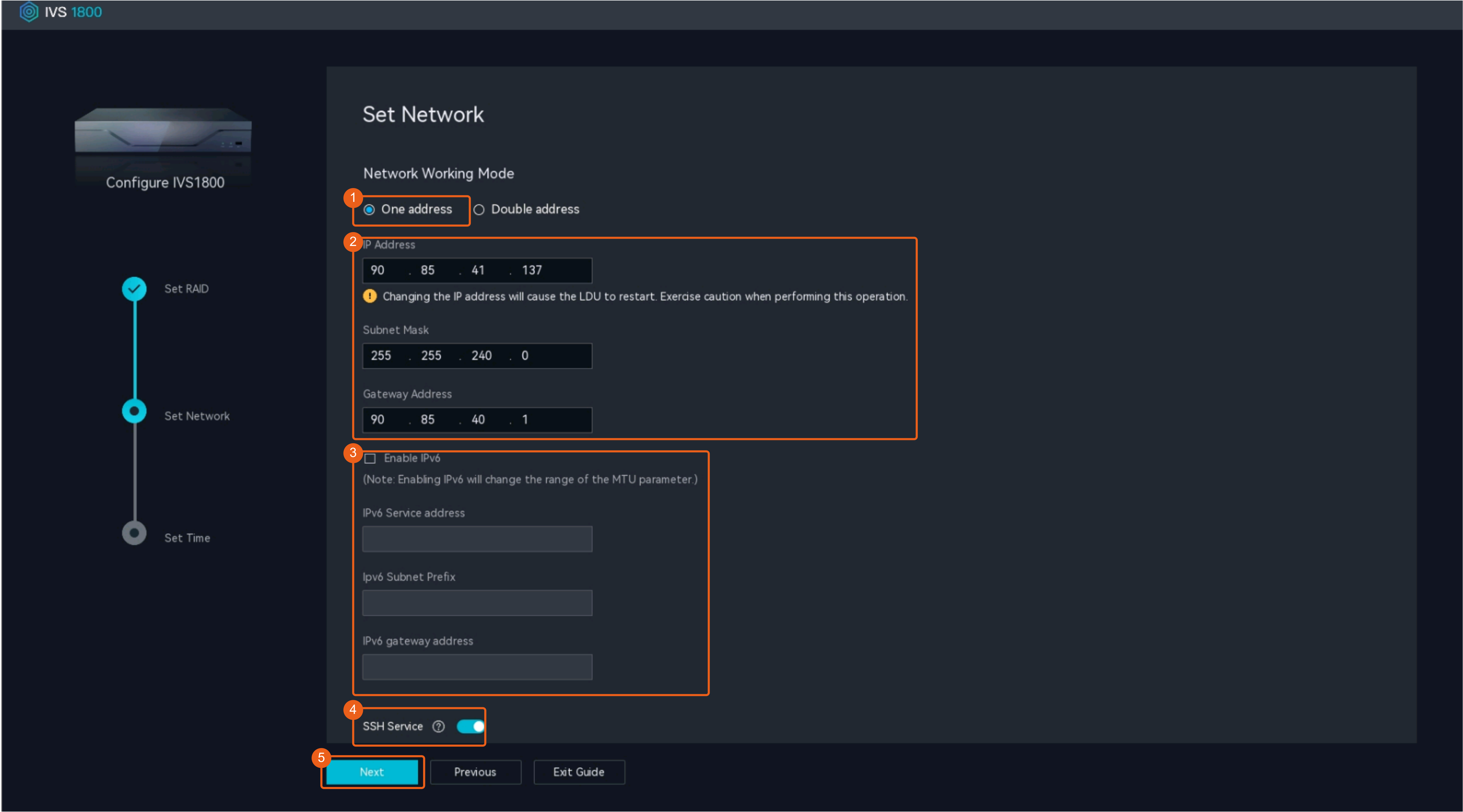
- Set network parameters and configure the SSH service.The SSH function is disabled by default before delivery. For security purposes, you are advised to disable the SSH function after using it.
- If the HWT-IVS1800, cameras, and video security client are on the same network, select the single-address mode.Set IP Address, Gateway Address, and Subnet Mask, as shown in Figure 3-19.Figure 3-19 Single-address mode
To ensure high reliability of the device network or to forward a large amount of data on the network, you need to configure port aggregation for the ports of the switch.

After the new IP address is set, the system automatically restarts the device after the startup wizard configuration is complete, which takes 2 minutes.
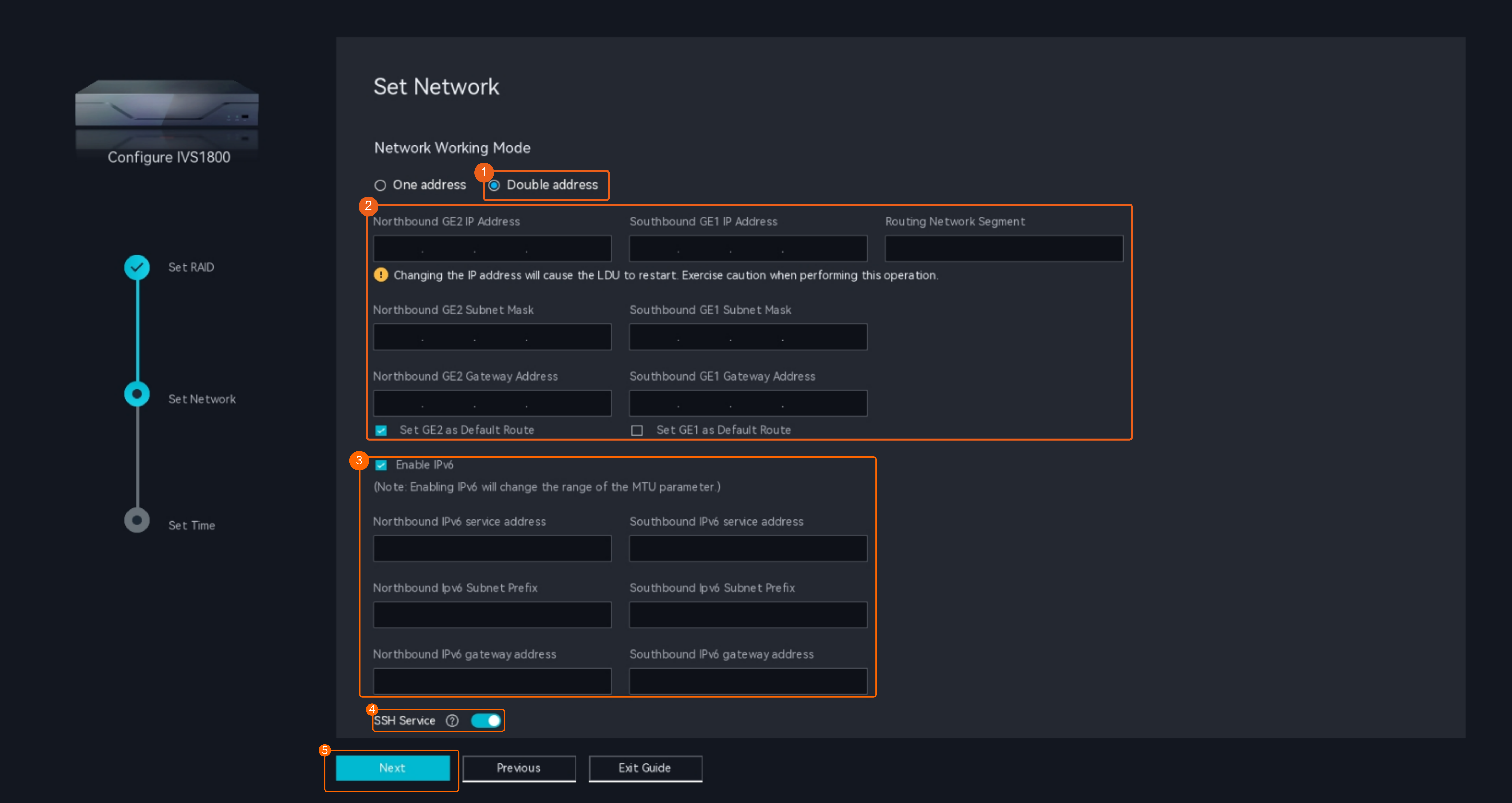
- If the HWT-IVS1800, cameras, and video security client are on different networks, select the dual-address mode.
- Cameras can connect to the HWT-IVS1800 only through the southbound connection network.
- The iClient S100 can connect to the HWT-IVS1800 through the northbound and southbound connection networks at the same time.
- The VMS platform can connect to the HWT-IVS1800 through either the northbound or southbound connection network.
Set GE1 IP Address and GE2 IP Address based on the site requirements, as shown in Figure 3-20.Table 3-8 Parameter descriptionParameter
Description
GE1
Southbound network adapter.
The southbound network adapter corresponds to the GE 1 port on the rear panel.
GE2
Northbound network adapter.
The northbound network adapter corresponds to the GE 2 port on the rear panel.
Southbound GE1 IP Address/Northbound GE2 IP Address
Network information of a network adapter.
NOTE:- The southbound and northbound service IP addresses must be on different network segments.
- After an IP address is changed, the system automatically restarts some modules, which takes 2 minutes. After the restart, use the new IP address to log in to the OMU portal.
Southbound GE1 Subnet Mask/Northbound GE2 Subnet Mask
Southbound GE1 Gateway Address/Northbound GE2 Gateway Address
Routing Network Segment
Network segment to which the southbound device belongs. If there are multiple network segments, separate them with semicolons (;).
Default Route
The rules for setting the default route vary depending on whether the IP addresses of the northbound device and northbound network adapter are in the same network segment.
- They are in the same network segment.
- If the IP addresses of the southbound device (for example, a camera) and southbound network adapter are in the same network segment, set the default route to the southbound or northbound network adapter.
- If the IP addresses of the southbound device (for example, a camera) and southbound network adapter are in different network segments, set the default route to the southbound network adapter.
- They are in different network segments.
- If the IP addresses of the southbound device (for example, a camera) and southbound network adapter are in the same network segment, set the default route to the northbound network adapter.
- If the IP addresses of the southbound device (for example, a camera) and southbound network adapter are in different network segments, you are advised to set the default route to the northbound network adapter. In this case, you also need to set the route network segment.
For details about how to set the specified route network segment, see How Do I Configure a Specified Route Network Segment?.
Enable IPv6
Indicates whether to enable IPv6. By default, this parameter is deselected.
NOTE:- IPv6 does not support TLS encryption.
- The RESTful interface for server recording playback does not support IPv6.
- IPv6 does not support NAT networking.
- Only IPv6 cameras connected through ONVIF are supported. You can request streams from such cameras.
- Cameras that comply with other protocols, such as HWSDK and GB/T 28181, cannot be connected.
- If the HWT-IVS1800 is connected to the upper-level video and image management platform through GB/T 28181-2016, the HWT-IVS1800 does not support both IPv4 and IPv6 addresses.
Northbound IPv6 service address/Southbound IPv6 service address
Network information of the northbound or southbound service. Set these parameters based on the site requirements.
NOTE:- The service IP address and gateway IP address must be in the same network segment.
- Changing the IP address will interrupt services. Exercise caution when performing this operation. The restart takes about 1 to 2 minutes.
Northbound IPv6 Subnet Prefix/Southbound IPv6 Subnet Prefix
Northbound IPv6 gateway address/Southbound IPv6 gateway address
IPv6 specified route network segment
Information about the IPv6 network segment where the northbound device is located.
If multiple network segments are involved, separate them with semicolons (;) and do not end with a semicolon (;). A maximum of 13 network segments can be configured, and a maximum of 200 characters are supported.
- The northbound and southbound service IP addresses must be on different network segments.
- After the new IP address is set, the system automatically restarts the device after the startup wizard configuration is complete, which takes 2 minutes.
- In dual-address mode, the IVS1800's network adapter which is not listened on must be in a different network segment from the IP address used by the iClient SimsLite to send requests. Otherwise, devices can be searched in broadcast mode, but cannot in multicast mode. (The search failure will not be displayed on the user GUI.)
- If the HWT-IVS1800, cameras, and video security client are on the same network, select the single-address mode.
- Configure the time.
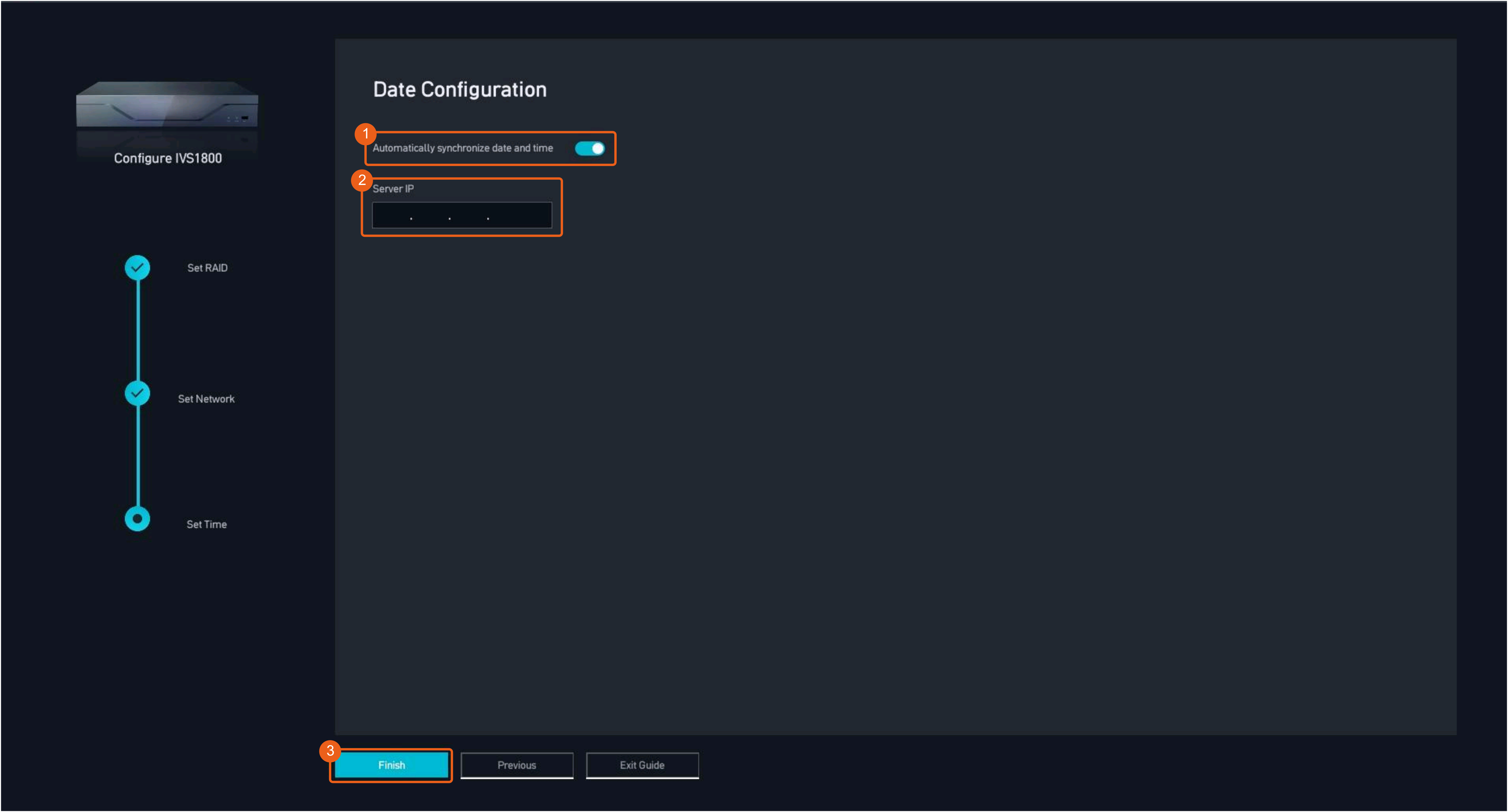
- If an NTP server is configured onsite, synchronize the time from the NTP server, as shown in Figure 3-21.
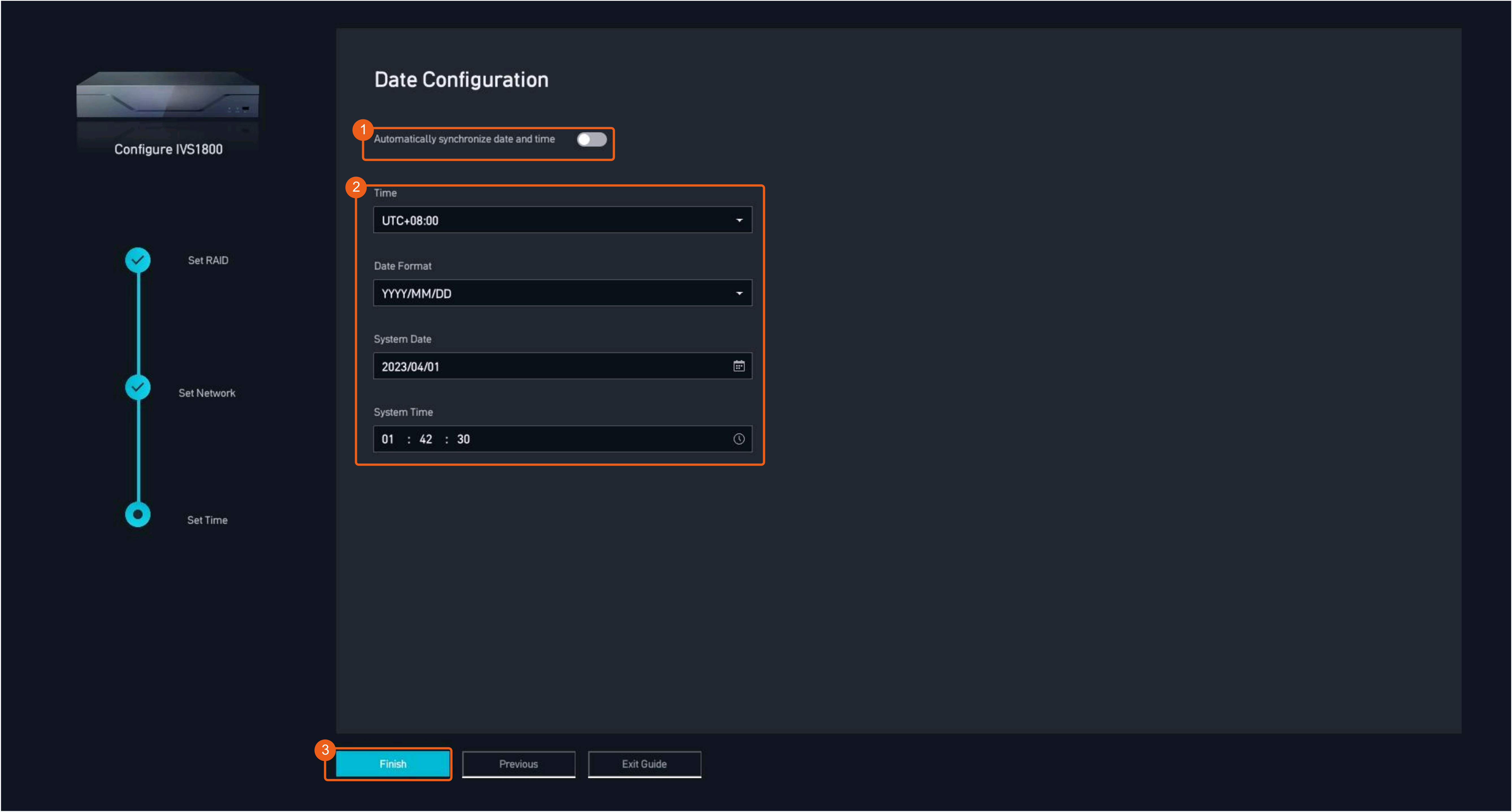
- If no NTP server is configured onsite, manually configure the time, as shown in Figure 3-22.
After the system automatically restarts, the device initialization is complete.
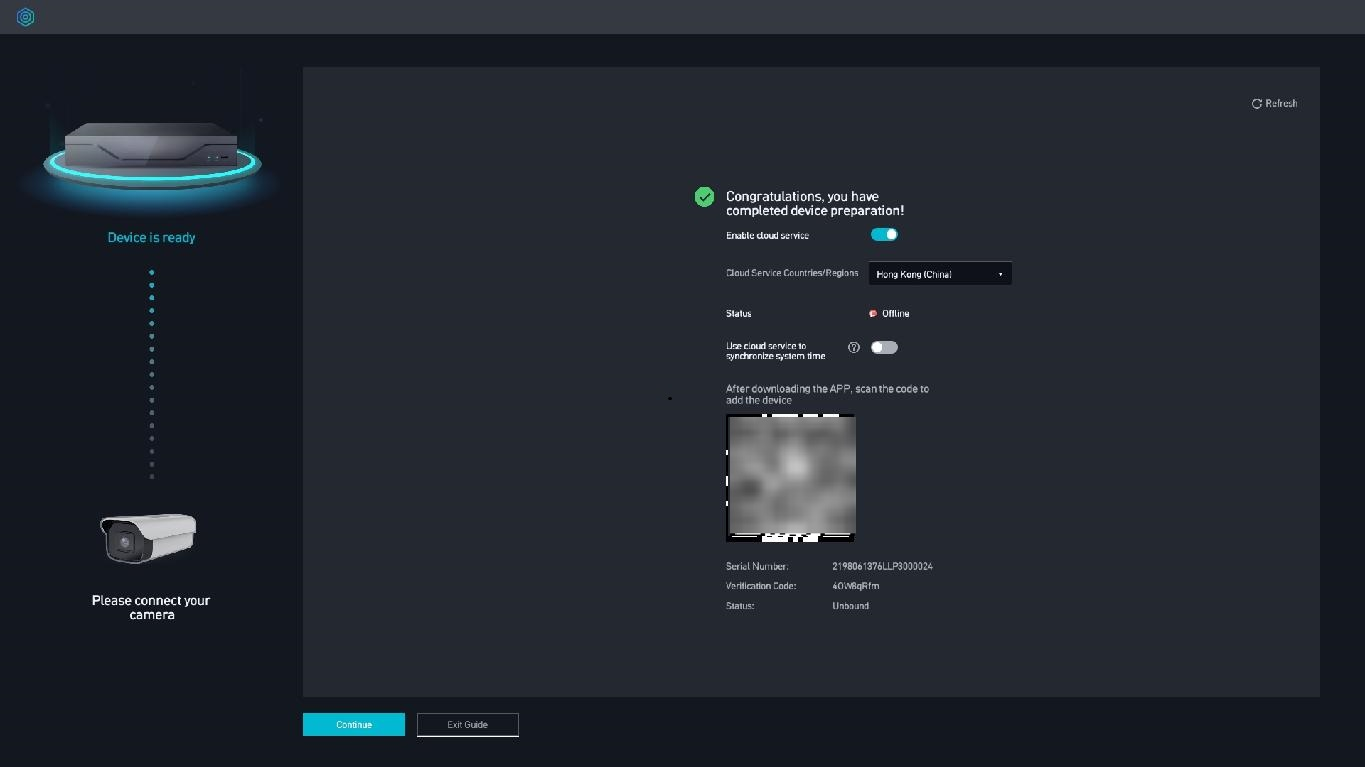
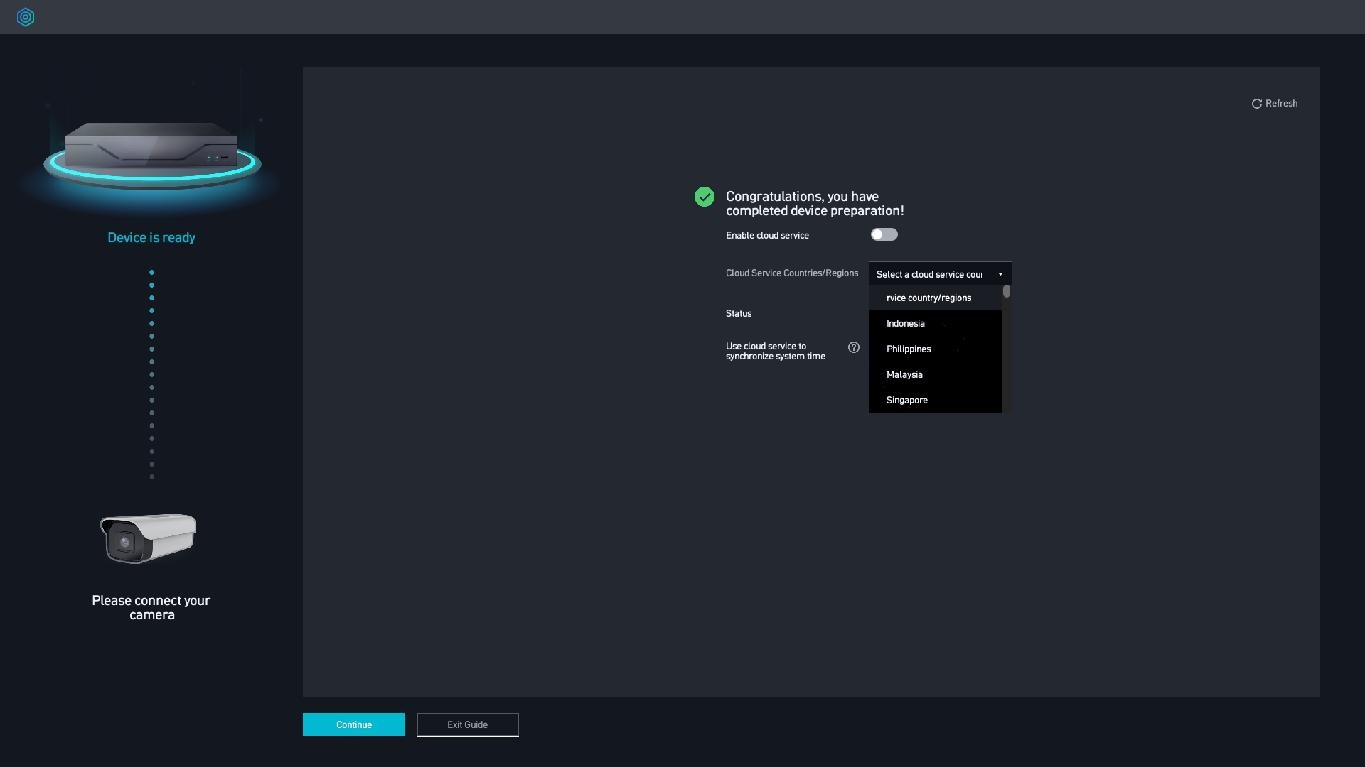
- (Optional) Enable the cloud service, as shown in Figure 3-23.
- Toggle on Enable cloud service and agree to the service agreement and privacy policy.
- (Optional) Toggle on Use cloud service to synchronize system time.
The function of synchronizing system time with the cloud service system and the function of synchronizing system time with the NTP server cannot be enabled at the same time.
- Download the HoloSens app on your phone, and scan the QR code to add the current device.Figure 3-24 Scanning the QR code to add the current device
Connecting Common Cameras
- After cameras are connected, you are advised to configure the cameras on the LDU or iClient S100. If you configure the cameras in the camera web system, camera configurations on the iClient S100 and in the camera web system may be inconsistent.
- Only compatible cameras can be connected. For details about compatible cameras, see the HWT-IVS1800 Compatibility List.
HWSDK-based Access
Context
- Currently, only cameras connected to the HWT-IVS1800 through HWSDK support frontend intelligence configuration.
- HWSDK-compliant cameras can be connected in any of the modes illustrated in Table 3-9.
Table 3-9 Application scenarios
Mode
Application Scenario
Remarks
Plug-and-play
The network cables of the device and cameras are connected to the network ports on the same VLAN on the switch.
- The camera version must be 10.0.0 or later.
- Before connecting a camera for the first time, you do not need to log in to the camera web system to configure the camera IP address. The HWT-IVS1800 can directly discover the camera based on the MAC address.
- After cameras are connected to the HWT-IVS1800, a static IP address is automatically assigned to each camera.If DHCP is deployed on the network where the cameras are located:
- It is recommended that the static IP addresses of the cameras be not in the DHCP address pool.
- If the static IP addresses of the cameras need to be in the DHCP address pool, you need to bind a fixed IP address to the MAC address of each camera.
For details about how to bind a fixed IP address, see the router product documentation provided by the vendor.
By search
The network cables of the device and cameras are connected to the network ports on the same VLAN on the switch.
- Before connecting a camera for the first time, you do not need to log in to the camera web system to configure the camera IP address. The HWT-IVS1800 can directly discover the camera based on the MAC address.
- After cameras are connected to the HWT-IVS1800, you need to assign a static IP address to each camera.If DHCP is deployed on the network where the cameras are located:
- It is recommended that the static IP addresses of the cameras be not in the DHCP address pool.
- If the static IP addresses of the cameras need to be in the DHCP address pool, you need to bind a fixed IP address to the MAC address of each camera.
For details about how to bind a fixed IP address, see the router product documentation provided by the vendor.
By network segment
If the IP addresses of the device and camera can successfully ping each other, the network cables can be connected to the network ports on the same VLAN or different VLANs.
Before connecting cameras for the first time, you need to log in to the camera web system and configure static IP addresses for these cameras.
If DHCP is deployed on the network where the cameras are located:- It is recommended that the static IP addresses of the cameras be not in the DHCP address pool.
- If the static IP addresses of the cameras need to be in the DHCP address pool, you need to bind a fixed IP address to the MAC address of each camera.
For details about how to bind a fixed IP address, see the router product documentation provided by the vendor.
By IP address
If IP addresses have been planned for a large number of cameras to be connected to the HWT-IVS1800, you can add the cameras by importing the template file.
- By default, the docker0 process of the device occupies the 172.17.0.0/16 network segment. If the camera and docker0 IP addresses are in the same network segment, the cameras will fail to be discovered or added due to IP address conflict.
You are advised to plan the camera IP addresses in a network segment other than 172.17.0.0/16.
Prerequisites
The network connection between the HWT-IVS1800 and cameras is normal.
For details about how to check the network connection between the HWT-IVS1800 and cameras, see How Do I Check Whether the HWT-IVS1800 Is Properly Connected to the Target Network Environment?.
Plug-and-Play
Only inactive cameras are supported.
- Log in to the LDU as the admin user. (
 Logging In to the LDU)
 - Right-click on the desktop and choose Camera Management > Camera List.
- Click
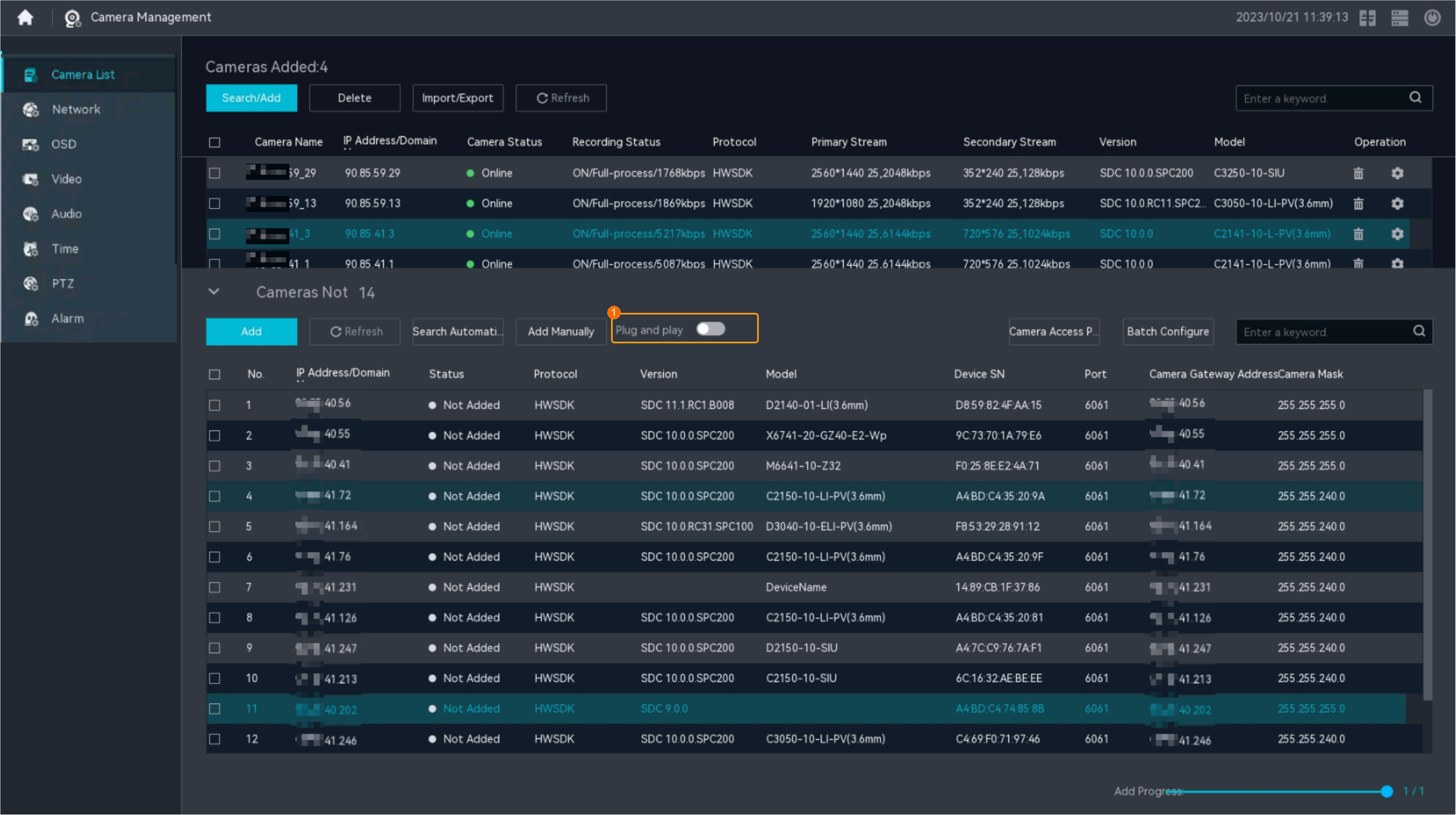
 . The list of cameras that are not added is displayed. Toggle on Plug and play, as shown in Figure 3-25. The device automatically searches for and adds cameras in the same VLAN as the device at the background.
By Search Automatically
- Log in to the LDU as the admin user. ( Logging In to the LDU)
- Right-click on the desktop and choose Camera Management > Camera List.
- Click
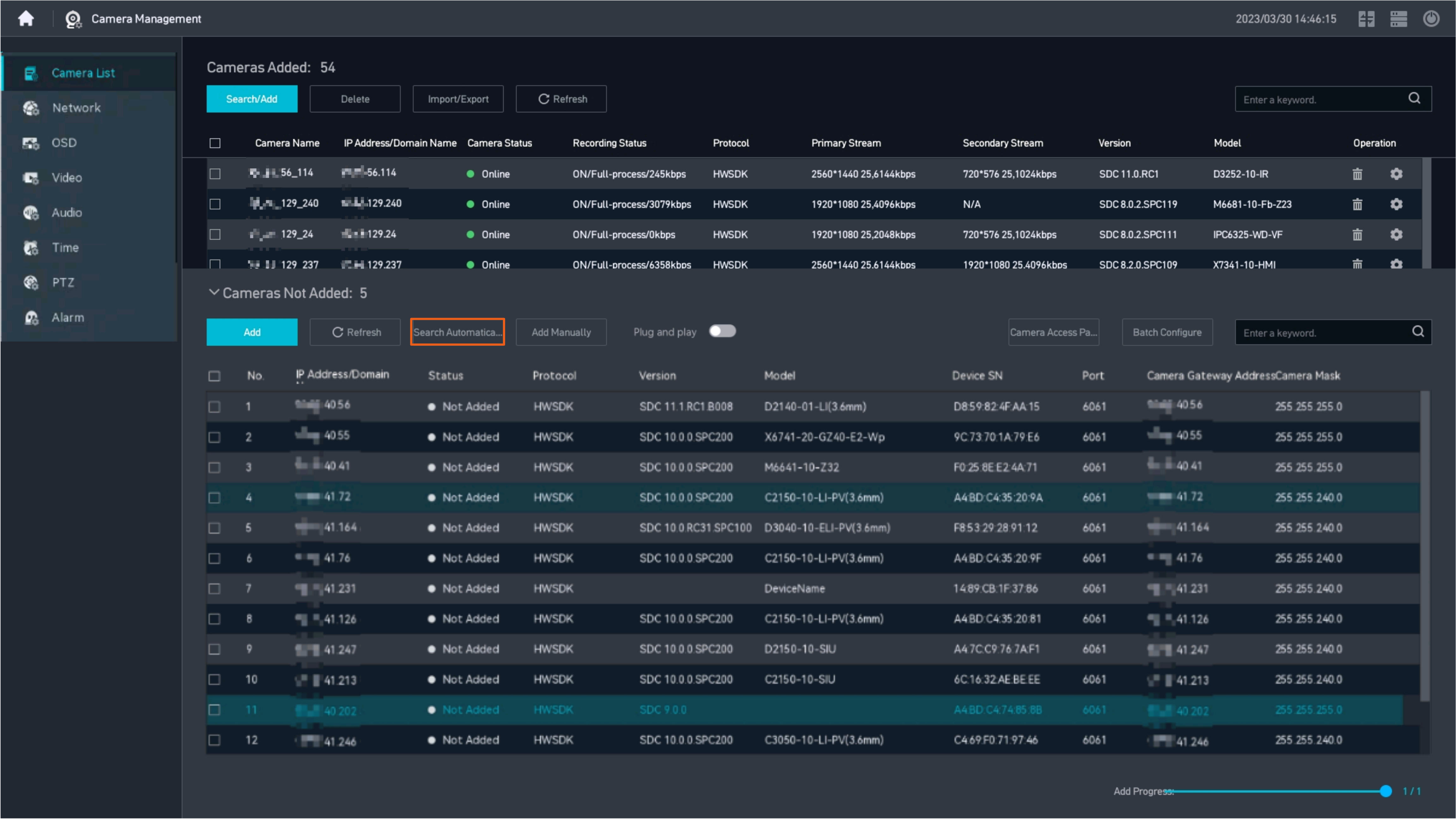
 . The list of cameras that are not added is displayed. Click Search Automatically. The device automatically searches for cameras on the same VLAN, as shown in Figure 3-26.
- Connect cameras.
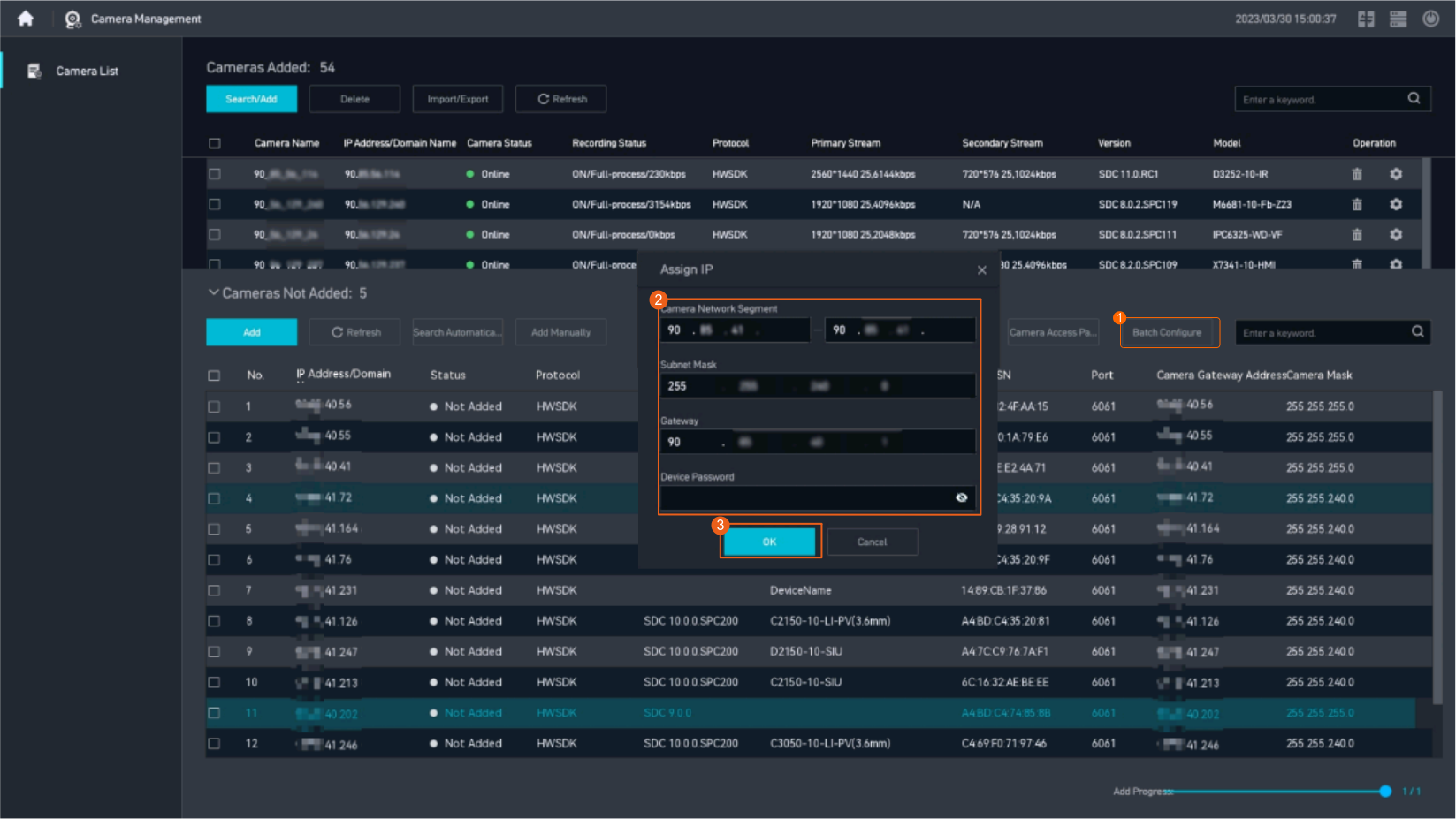
- (Optional) Assign IP addresses in batches, as shown in Figure 3-27. Select cameras, click Batch Configure, select Assign IP, and assign IP addresses in batches.
- The Camera Network Segment parameter is automatically set to the southbound network segment of the current camera by default. You need to manually specify the last field of the camera network segment.
- During the setting, you need to enter the password for registering a camera through the HWSDK protocol. The user name is fixed to admin. If an IP address in the assigned network segment has been occupied by another device, this IP address will be automatically ignored during the IP address assignment to cameras.
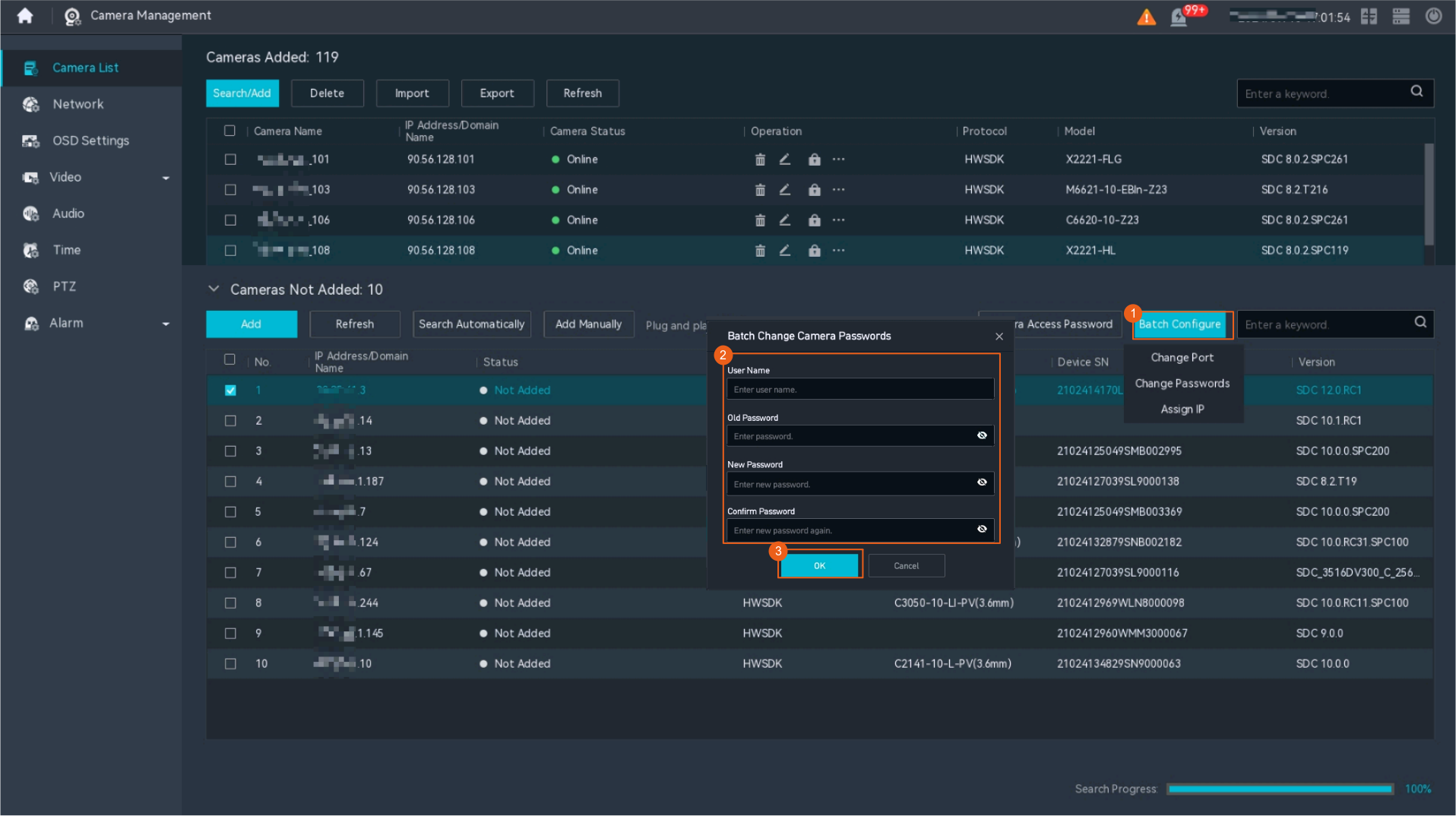
- (Optional) Change camera passwords in batches as required, as shown in Figure 3-28. Select cameras, click Batch Configure, select Change Passwords, and change passwords for the selected cameras. The default user name is admin.
- (Optional) Change port numbers, as shown in the following figure. Select cameras, click Batch Configuration, select Change Port, and change camera port numbers in batches.
If you connect cameras by searching for cameras, the default port number is 6061.
Figure 3-29 Change Port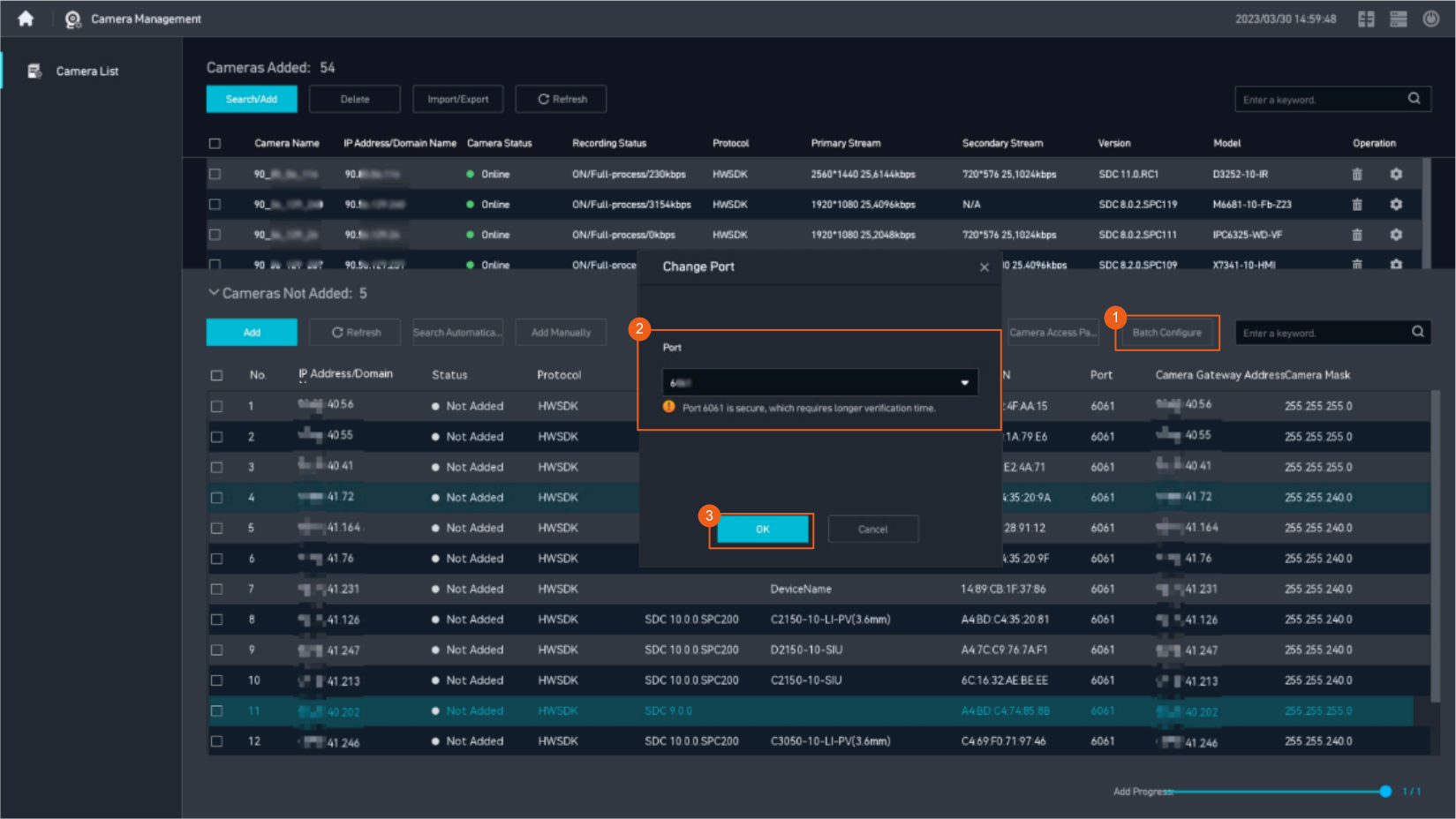
- Select cameras and click Add.Figure 3-30 Adding a camera
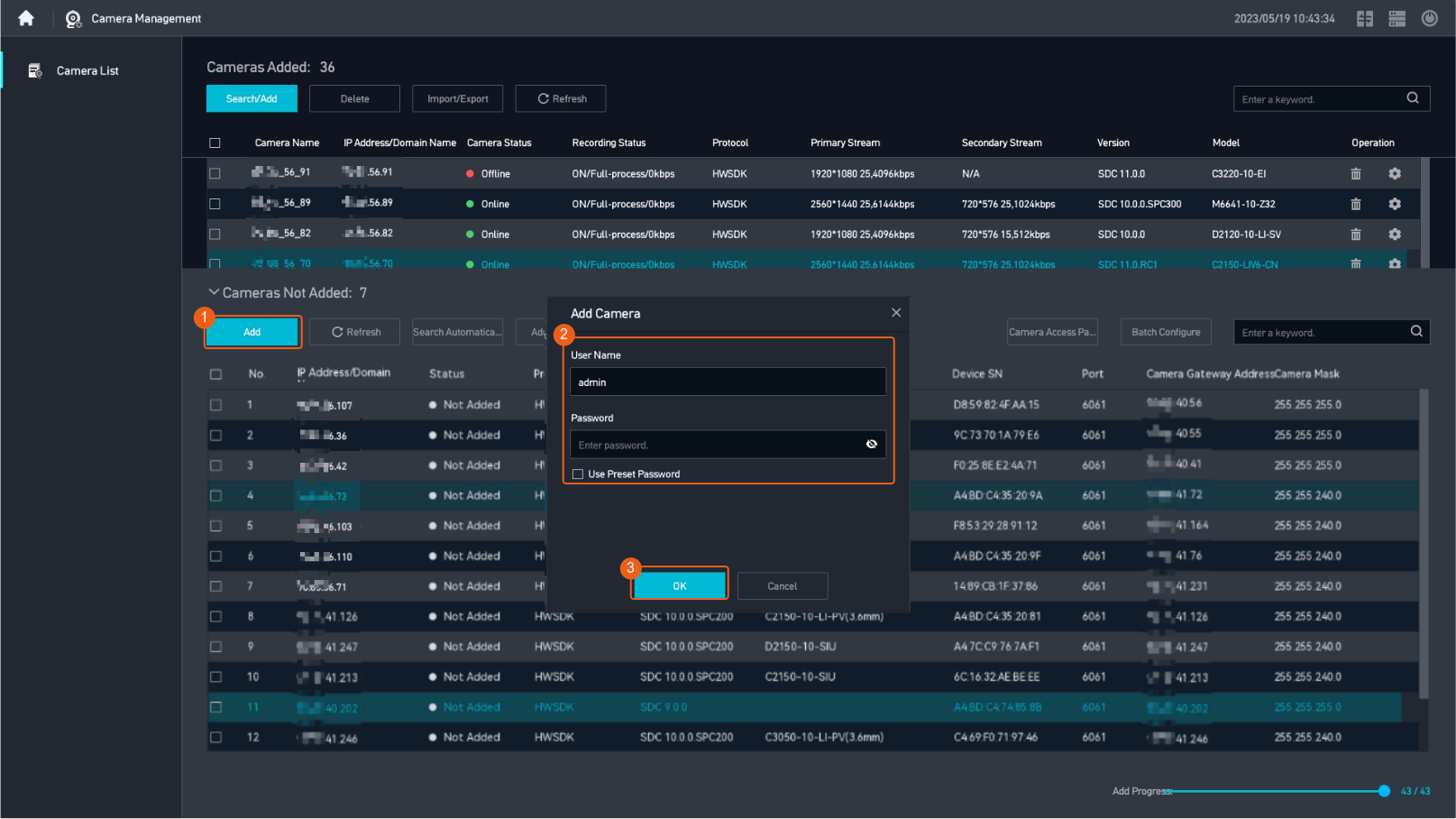
- After you click Add, if the camera status is Adding failed (Need to activate), change the port number (6061 by default) to 6060 and add the camera again.
- You cannot perform operations on other pages when adding cameras in batches.
- (Optional) Assign IP addresses in batches, as shown in Figure 3-27. Select cameras, click Batch Configure, select Assign IP, and assign IP addresses in batches.
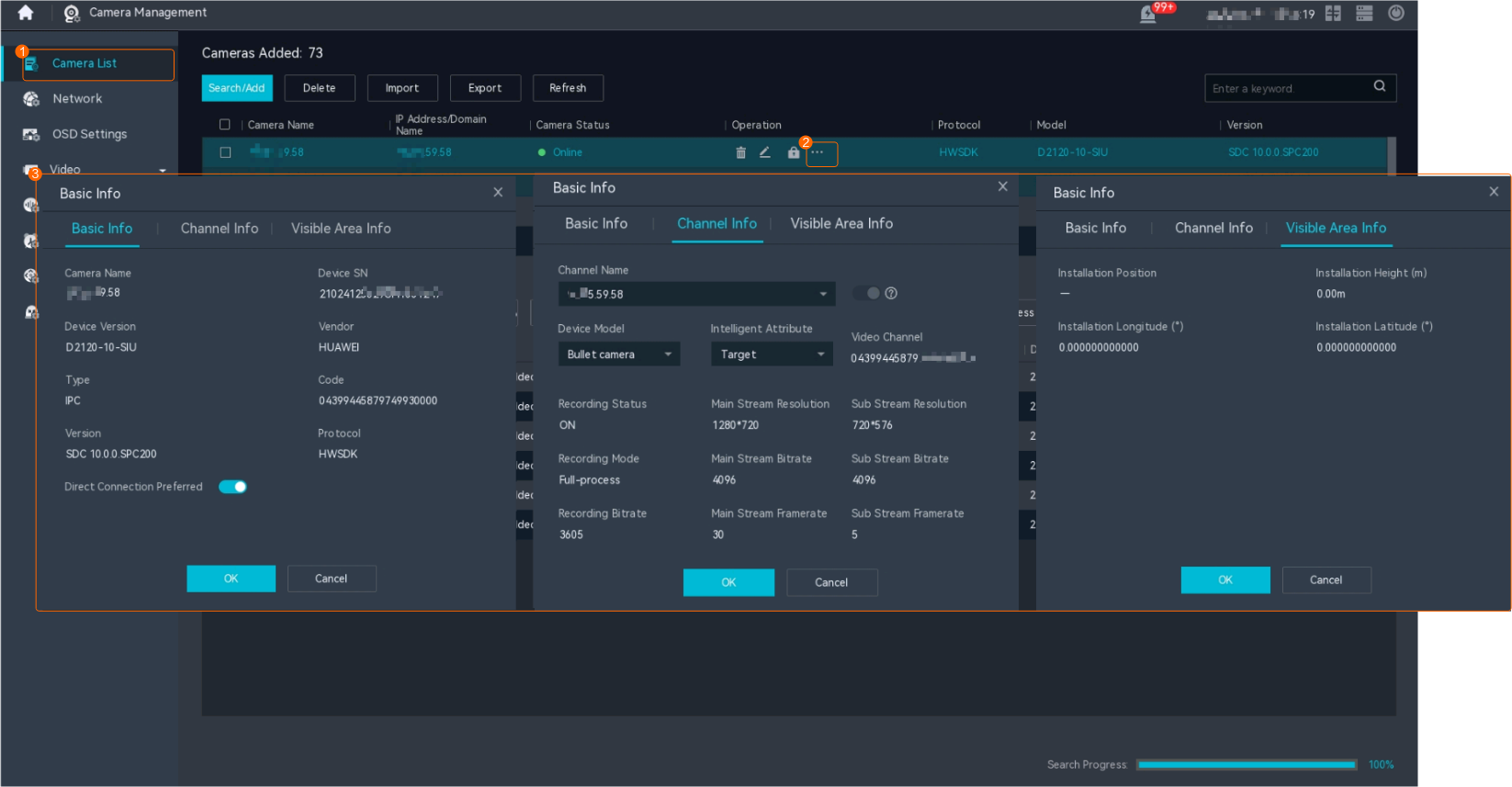
- Set the type and intelligent attribute of cameras.
- Right-click on the desktop and choose Camera Management > Camera List.
- Click
 next to the camera for which you want to set the intelligent attribute.
 - Set basic parameters, as shown in Figure 3-31.
Table 3-10 describes the mandatory parameters.
Table 3-10 Parameter descriptionParameter
Description
Direct Connection Preferred
Indicates whether direct connection takes precedence. After this function is enabled, the system directly obtains video streams from a camera and displays the video. The direct connection mode does not occupy the forwarding bandwidth of the server but has high requirements on the network quality. You can enable this function based on the site requirements.
Channel Name
Video channel status (enabled or disabled). The video channel is enabled by default.
NOTE:The disabled video channel is not displayed on the live video viewing and recording playback pages of the LDU, and is not reported to the cloud service or upper-level video and image management platform. You can enable or disable only the sub-channels of multi-channel cameras.
Device Model
Camera type. You can set this parameter based on the site requirements.
- Fixed box camera
- PTZ box camera
- PTZ dome camera
- Fixed dome camera
- Bullet camera
The value of this parameter must be the same as the actual camera type. Otherwise, some basic functions of the camera will be unavailable. For example, if you set this parameter to Fixed box camera or Fixed dome camera for a PTZ dome camera, the PTZ function of the camera will be unavailable.
Intelligent Attribute
Intelligent attribute of a camera. The intelligent attribute of a checkpoint camera must be the same as the actual one. Otherwise, snapshots taken by the checkpoint camera cannot be uploaded to the HWT-IVS1800.
This parameter does not need to be set for generic cameras.
Common (default value)
Target
Plate analysis
Object classification
- Person detection
- Target detection and plate analysis
- Target and person recognition
- Target detection and object classification
- OthersNOTE:
For details about the image access specifications supported by the HWT-IVS1800, see the software specifications of the corresponding models in the product specifications section.
By Network Segment
- Log in to the LDU as the admin user. ( Logging In to the LDU)
- Right-click on the desktop and choose Camera Management > Camera List.
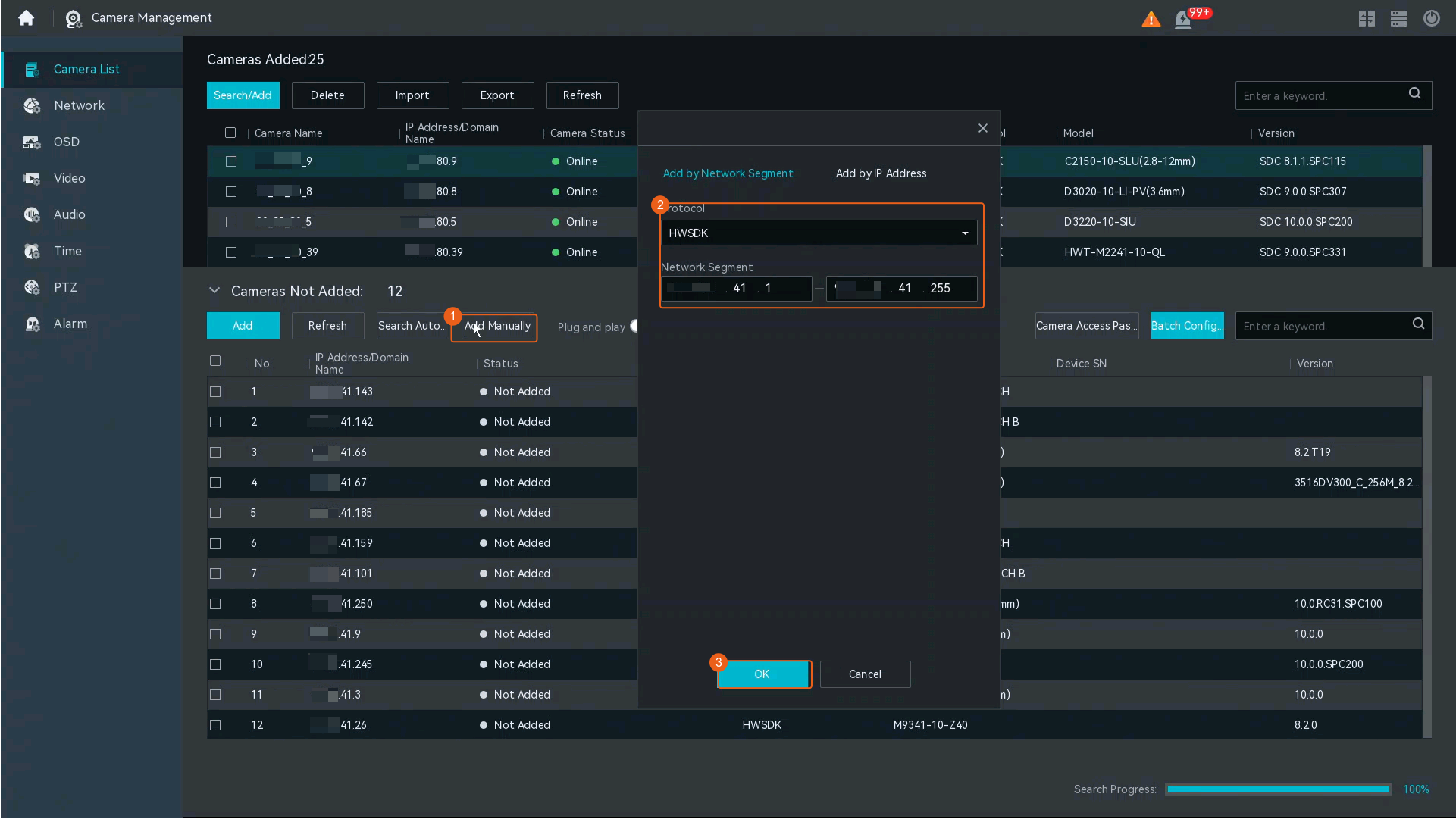
- Click Add Manually and choose Add by Network Segment. The page shown in Figure 3-32 is displayed.
Table 3-11 describes the parameters.
- (Optional) Change camera passwords in batches as required, as shown in Figure 3-33. Select cameras, click Batch Configure, select Change Passwords, and change passwords for the selected cameras. The default user name is admin.
- (Optional) Change port numbers, as shown in the following figure. Select cameras, click Batch Configuration, select Change Port, and change camera port numbers in batches.
If you connect cameras by searching for cameras, the default port number is 6061.
Figure 3-34 Change Port - Select cameras and click Add.Figure 3-35 Adding a camera
- After you click Add, if the camera status is Adding failed (Need to activate), change the port number (6061 by default) to 6060 and add the camera again.
- You cannot perform operations on other pages when adding cameras in batches.
- Set the type and intelligent attribute of cameras.
- Right-click on the desktop and choose Camera Management > Camera List.
- Click next to the camera for which you want to set the intelligent attribute.
- Set basic parameters, as shown in Figure 3-36.
Table 3-12 describes the mandatory parameters.
Table 3-12 Parameter descriptionParameter
Description
Direct Connection Preferred
Indicates whether direct connection takes precedence. After this function is enabled, the system directly obtains video streams from a camera and displays the video. The direct connection mode does not occupy the forwarding bandwidth of the server but has high requirements on the network quality. You can enable this function based on the site requirements.
Channel Name
Video channel status (enabled or disabled). The video channel is enabled by default.
NOTE:The disabled video channel is not displayed on the live video viewing and recording playback pages of the LDU, and is not reported to the cloud service or upper-level video and image management platform. You can enable or disable only the sub-channels of multi-channel cameras.
Device Model
Camera type. You can set this parameter based on the site requirements.
- Fixed box camera
- PTZ box camera
- PTZ dome camera
- Fixed dome camera
- Bullet camera
The value of this parameter must be the same as the actual camera type. Otherwise, some basic functions of the camera will be unavailable. For example, if you set this parameter to Fixed box camera or Fixed dome camera for a PTZ dome camera, the PTZ function of the camera will be unavailable.
Intelligent Attribute
Intelligent attribute of a camera. The intelligent attribute of a checkpoint camera must be the same as the actual one. Otherwise, snapshots taken by the checkpoint camera cannot be uploaded to the HWT-IVS1800.
This parameter does not need to be set for generic cameras.
Common (default value)
Target
Plate analysis
Object classification
- Person detection
- Target detection and plate analysis
- Target and person recognition
- Target detection and object classification
- OthersNOTE:
For details about the image access specifications supported by the HWT-IVS1800, see the software specifications of the corresponding models in the product specifications section.
By IP Address
- Log in to the LDU as the admin user. ( Logging In to the LDU)
- Right-click on the desktop and choose Camera Management > Camera List.
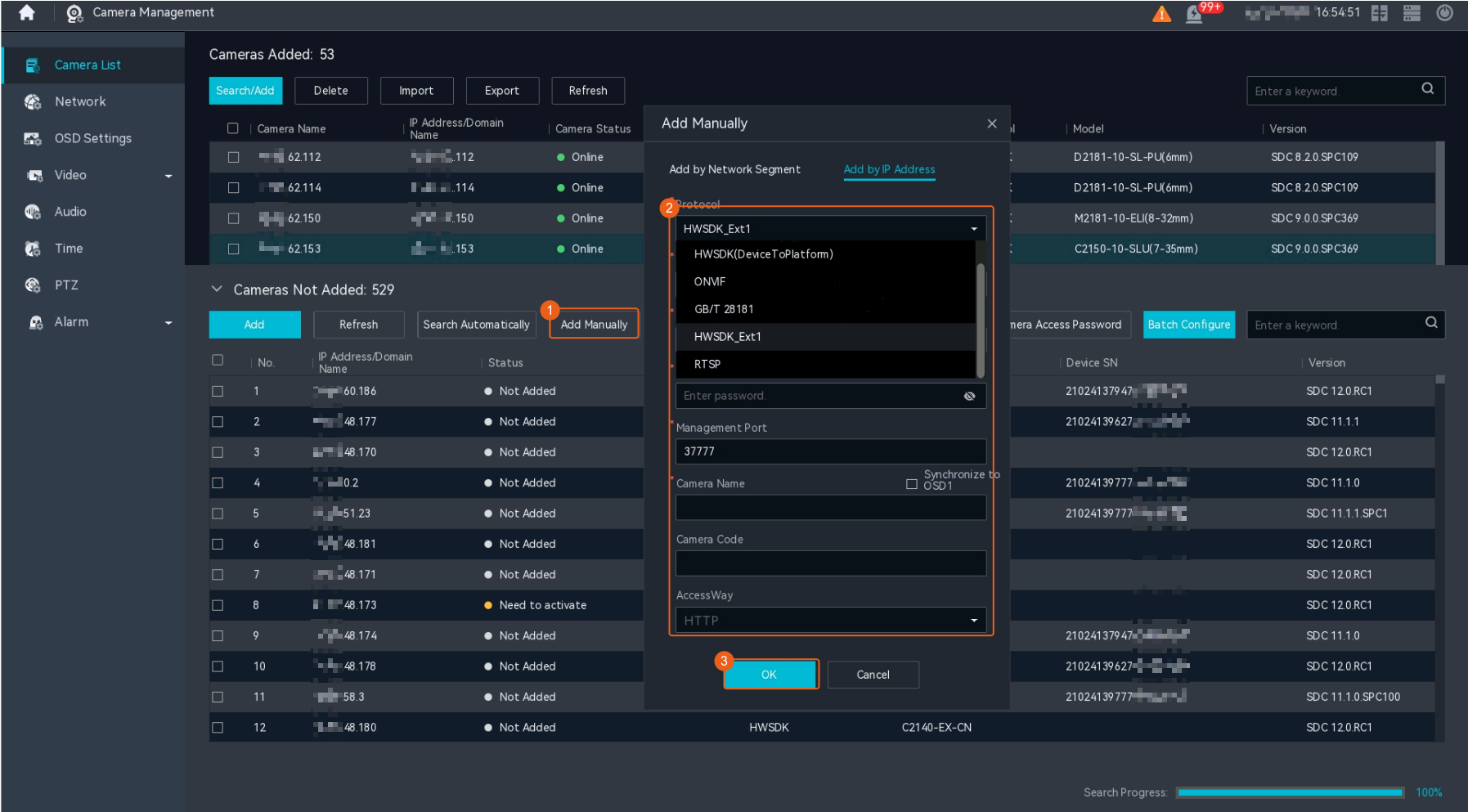
- Click Add Manually and choose Add by IP Address. The page shown in Figure 3-37 is displayed.
Table 3-13 describes the parameters you need to set. Parameters marked with an asterisk (*) in the figure are mandatory.
Table 3-13 Parameter descriptionParameter
Description
Protocol
Protocol. Select HWSDK(DeviceToPlatform).
IP Address
IP address of a camera.
User Name/Password
User name and password for registering a camera through the HWSDK protocol.
Management Port
If the cameras use the encrypted transmission protocol TLS, set the port number to 5062.
If the camera uses a non-encrypted transmission protocol, set the port number to 5060.
Non-encrypted transmission protocols may cause security risks. You are advised to use an encrypted transmission protocol.
If a camera fails to be connected, rectify the fault by referring to Failure to Verify a Camera When You Follow the Wizard to Add It.
Camera Name
User-defined camera name.
Camera Code
Camera ID. The value must be the same as the device ID in Figure 3-39.
AccessWay
Transmission protocol.
- HTTP
- HTTPS
- HTTP/HTTPS
HTTP is an insecure protocol. Exercise caution on data security when using it. HTTPS is recommended.
- Set the type and intelligent attribute of cameras.
- Right-click on the desktop and choose Camera Management > Camera List.
- Click next to the camera for which you want to set the intelligent attribute.
- Set basic parameters, as shown in Figure 3-38.
Table 3-14 describes the mandatory parameters.
Table 3-14 Parameter descriptionParameter
Description
Direct Connection Preferred
Indicates whether direct connection takes precedence. After this function is enabled, the system directly obtains video streams from a camera and displays the video. The direct connection mode does not occupy the forwarding bandwidth of the server but has high requirements on the network quality. You can enable this function based on the site requirements.
Channel Name
Video channel status (enabled or disabled). The video channel is enabled by default.
NOTE:The disabled video channel is not displayed on the live video viewing and recording playback pages of the LDU, and is not reported to the cloud service or upper-level video and image management platform. You can enable or disable only the sub-channels of multi-channel cameras.
Device Model
Camera type. You can set this parameter based on the site requirements.
- Fixed box camera
- PTZ box camera
- PTZ dome camera
- Fixed dome camera
- Bullet camera
The value of this parameter must be the same as the actual camera type. Otherwise, some basic functions of the camera will be unavailable. For example, if you set this parameter to Fixed box camera or Fixed dome camera for a PTZ dome camera, the PTZ function of the camera will be unavailable.
Intelligent Attribute
Intelligent attribute of a camera. The intelligent attribute of a checkpoint camera must be the same as the actual one. Otherwise, snapshots taken by the checkpoint camera cannot be uploaded to the HWT-IVS1800.
This parameter does not need to be set for generic cameras.
Common (default value)
Target
Plate analysis
Object classification
- Person detection
- Target detection and plate analysis
- Target and person recognition
- Target detection and object classification
- OthersNOTE:
For details about the image access specifications supported by the HWT-IVS1800, see the software specifications of the corresponding models in the product specifications section.
Proactive Registration
- Enable the proactive registration function for cameras.
- Log in to the camera web system as the admin user. (
 Logging in to the Camera Web System)
 - Choose .
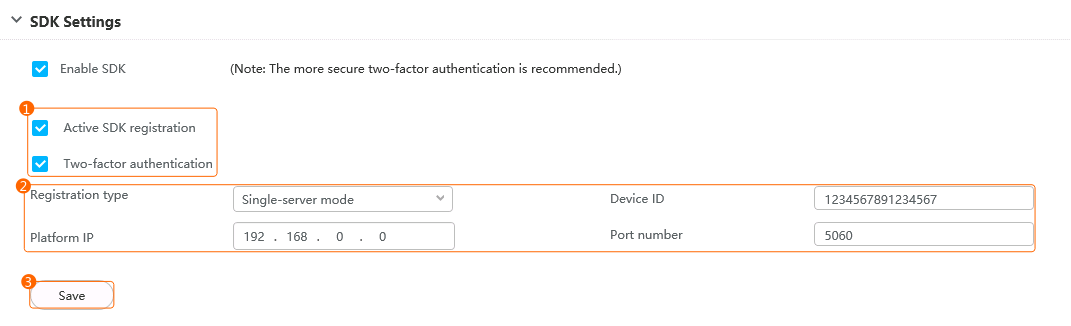
- Set platform connection parameters, as shown in Figure 3-39.
Table 3-15 describes the parameters.
Table 3-15 Parameter descriptionParameter
Description
Active SDK registration
Indicates whether to enable proactive registration for the camera. If this check box is selected, the camera will proactively register with the HWT-IVS1800 through HWSDK.
Two-factor authentication
Indicates whether to enable the authentication mode between the camera and the platform. If this check box is selected, TLS authentication is used. If this check box is not selected, password authentication is used.
You are advised to select this check box to improve system security.
Registration type
Registration type. Select Single-server mode.
Device ID
Camera ID used to connect to the HWT-IVS1800. Enter a 20-digit decimal number. The value is padded with zeros if there are not enough digits. The ID of each camera must be unique.
NOTE:The 20-digit decimal number you entered must be the same as the connection code configured on the HWT-IVS1800. Otherwise, the connection fails.
Platform IP
IP address of the HWT-IVS1800.
Port number
- If Two-factor authentication is selected, set Port number to 5062.
- If Two-factor authentication is not selected, set Port number to 5060.
If a camera fails to be connected, rectify the fault by referring to Failure to Verify a Camera When You Follow the Wizard to Add It.
Enable SDK
Indicates whether to enable SDK. Select this check box when the camera is passively registered with the device through the HWSDK protocol. In addition, you do not need to set all the preceding parameters.
- Log in to the camera web system as the admin user. (
- Connect cameras to the HWT-IVS1800.
- Log in to the LDU as the admin user. ( Logging In to the LDU)
- Right-click on the desktop and choose Camera Management > Camera List.
- Click Add Manually and choose Add by IP Address. The page shown in Figure 3-40 is displayed.
Table 3-16 describes the parameters you need to set. Parameters marked with an asterisk (*) in the figure are mandatory.
Table 3-16 Parameter descriptionParameter
Description
Protocol
Protocol. Select HWSDK(DeviceToPlatform).
IP Address
IP address of a camera.
User Name/Password
User name and password for registering a camera through the HWSDK protocol.
Management Port
If the cameras use the encrypted transmission protocol TLS, set the port number to 5062.
If the camera uses a non-encrypted transmission protocol, set the port number to 5060.
Non-encrypted transmission protocols may cause security risks. You are advised to use an encrypted transmission protocol.
If a camera fails to be connected, rectify the fault by referring to Failure to Verify a Camera When You Follow the Wizard to Add It.
Camera Name
User-defined camera name.
Camera Code
Camera ID. The value must be the same as the device ID in Figure 3-39.
AccessWay
Transmission protocol.
- HTTP
- HTTPS
- HTTP/HTTPS
HTTP is an insecure protocol. Exercise caution on data security when using it. HTTPS is recommended.
- Set the type and intelligent attribute of cameras.
- Right-click on the desktop and choose Camera Management > Camera List.
- Click next to the camera for which you want to set the intelligent attribute.
- Set basic parameters, as shown in Figure 3-41.
Table 3-17 describes the mandatory parameters.
Table 3-17 Parameter descriptionParameter
Description
Direct Connection Preferred
Indicates whether direct connection takes precedence. After this function is enabled, the system directly obtains video streams from a camera and displays the video. The direct connection mode does not occupy the forwarding bandwidth of the server but has high requirements on the network quality. You can enable this function based on the site requirements.
Channel Name
Video channel status (enabled or disabled). The video channel is enabled by default.
NOTE:The disabled video channel is not displayed on the live video viewing and recording playback pages of the LDU, and is not reported to the cloud service or upper-level video and image management platform. You can enable or disable only the sub-channels of multi-channel cameras.
Device Model
Camera type. You can set this parameter based on the site requirements.
- Fixed box camera
- PTZ box camera
- PTZ dome camera
- Fixed dome camera
- Bullet camera
The value of this parameter must be the same as the actual camera type. Otherwise, some basic functions of the camera will be unavailable. For example, if you set this parameter to Fixed box camera or Fixed dome camera for a PTZ dome camera, the PTZ function of the camera will be unavailable.
Intelligent Attribute
Intelligent attribute of a camera. The intelligent attribute of a checkpoint camera must be the same as the actual one. Otherwise, snapshots taken by the checkpoint camera cannot be uploaded to the HWT-IVS1800.
This parameter does not need to be set for generic cameras.
Common (default value)
Target
Plate analysis
Object classification
- Person detection
- Target detection and plate analysis
- Target and person recognition
- Target detection and object classification
- OthersNOTE:
For details about the image access specifications supported by the HWT-IVS1800, see the software specifications of the corresponding models in the product specifications section.
- Log in to the LDU as the admin user. (
ONVIF-based Access
Context
- ONVIF-compliant cameras can be connected to the IVS1800 in either of the modes illustrated in Table 3-18.
Table 3-18 Application scenarios
Mode
Application Scenario
Remarks
By network segment
If the IP addresses of the device and camera can successfully ping each other, the network cables can be connected to the network ports on the same VLAN or different VLANs.
Before connecting cameras for the first time, you need to log in to the camera web system and configure static IP addresses for these cameras.
If DHCP is deployed on the network where the cameras are located:- It is recommended that the static IP addresses of the cameras be not in the DHCP address pool.
- If the static IP addresses of the cameras need to be in the DHCP address pool, you need to bind a fixed IP address to the MAC address of each camera.
For details about how to bind a fixed IP address, see the router product documentation provided by the vendor.
By IP address
If IP addresses have been planned for a large number of cameras to be connected to the HWT-IVS1800, you can add the cameras by importing the template file.
- Cameras with the same IP address and port number cannot be connected.
- Currently, only cameras connected to the HWT-IVS1800 through HWSDK support frontend intelligence configuration.
- By default, the docker0 process of the device occupies the 172.17.0.0/16 network segment. If the camera and docker0 IP addresses are in the same network segment, the cameras will fail to be discovered or added due to IP address conflict.
You are advised to plan the camera IP addresses in a network segment other than 172.17.0.0/16.
- Only IPv6 cameras connected through ONVIF are supported. You can request streams from such cameras.
- NVR devices cannot be connected through ONVIF. If NVR devices need to be connected, you are advised to connect them through RTSP.
Prerequisites
The network connection between the HWT-IVS1800 and cameras is normal.
For details about how to check the network connection between the HWT-IVS1800 and cameras, see How Do I Check Whether the HWT-IVS1800 Is Properly Connected to the Target Network Environment?.
By Network Segment
- Enable the ONVIF protocol on the camera side.
- Log in to the camera web system as the admin user. ( Logging in to the Camera Web System)
- Choose .
- Select Enable ONVIF.
- Log in to the camera web system as the admin user. (
- Confirm with the camera vendor whether only the MD5 algorithm is supported for ONVIF connection.
- If not, go to the next step.
- If so, check whether the MD5 algorithm is enabled.
- Log in to the OMU portal as the admin user. (
 Logging In to the OMU portal)
 - Choose .
- Select Advanced. In the MD5 Algorithm area, select Enable MD5 when RTSP requests media stream from cameras and Enable MD5 for connection to camera through ONVIF.
Using the MD5 algorithm may cause cyber security risks. Therefore, perform cyber security controls after enabling this algorithm.
- Log in to the OMU portal as the admin user. (
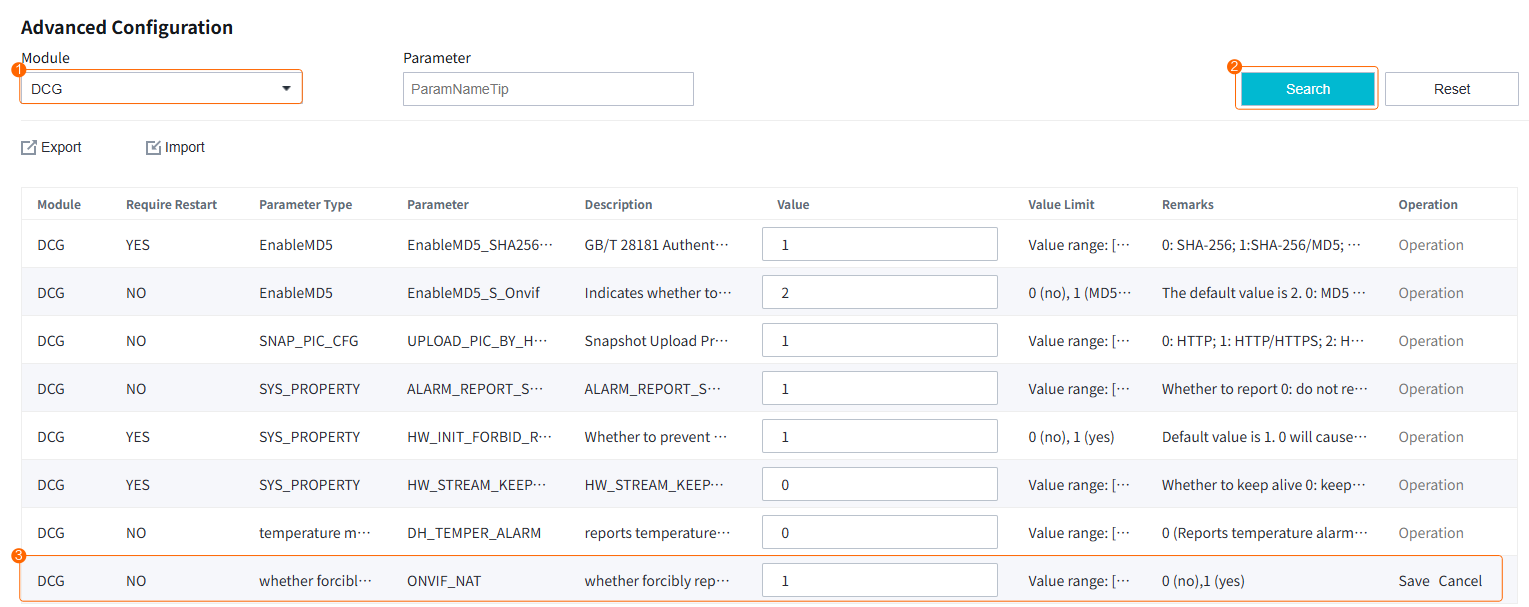
- (Optional) If NAT networking is used between the HWT-IVS1800 and camera, set advanced parameter ONVIF_NAT to 1.
- Log in to the OMU portal as the admin user. ( Logging In to the OMU portal)
- Choose System > Advanced Configuration.
- Set ONVIF_NAT to 1, as shown in Figure 3-42.
If the HWT-IVS1800 is on the public network and the camera is on the private network, in the port mapping on the firewall, the external RTSP port must be the same as the internal RTSP port. (You need to change the camera's RTSP port to the post-NAT port.)
- Log in to the OMU portal as the admin user. (
- Log in to the LDU as the admin user. ( Logging In to the LDU)
- Right-click on the desktop and choose Camera Management > Camera List.
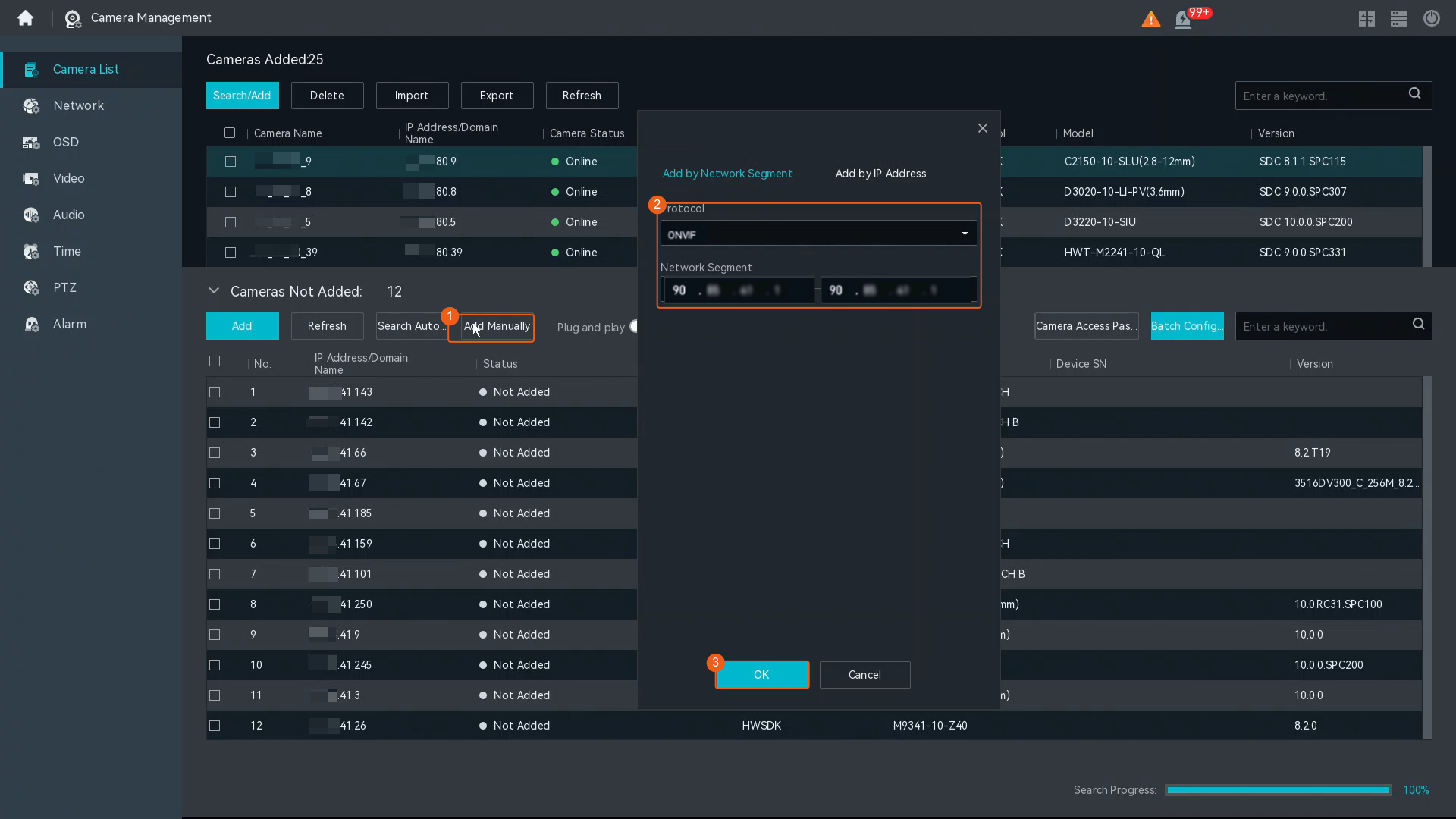
- Click Add Manually and select Add by Network Segment. The page shown in Figure 3-43 is displayed.
Table 3-19 describes the parameters.
- Select cameras and click Add.Figure 3-44 Adding a camera
- After you click Add, if the camera status is Adding failed (Need to activate), change the port number (6061 by default) to 6060 and add the camera again.
- You cannot perform operations on other pages when adding cameras in batches.
- (Optional) Determine whether to import the ONVIF connection certificate based on the site requirements.
If necessary, import it by referring to Replacing the Certificate for Southbound Connection.
By IP Address
- Enable the ONVIF protocol on the camera side.
- Log in to the camera web system as the admin user. ( Logging in to the Camera Web System)
- Choose .
- Select Enable ONVIF.
- Log in to the camera web system as the admin user. (
- Confirm with the camera vendor whether only the MD5 algorithm is supported for ONVIF connection.
- If not, go to the next step.
- If so, check whether the MD5 algorithm is enabled.
- Log in to the OMU portal as the admin user. ( Logging In to the OMU portal)
- Choose .
- Select Advanced. In the MD5 Algorithm area, select Enable MD5 when RTSP requests media stream from cameras and Enable MD5 for connection to camera through ONVIF.
Using the MD5 algorithm may cause cyber security risks. Therefore, perform cyber security controls after enabling this algorithm.
- Log in to the OMU portal as the admin user. (
- (Optional) If NAT networking is used between the HWT-IVS1800 and camera, set advanced parameter ONVIF_NAT to 1.
- Log in to the OMU portal as the admin user. ( Logging In to the OMU portal)
- Choose System > Advanced Configuration.
- Set ONVIF_NAT to 1, as shown in Figure 3-45.
If the HWT-IVS1800 is on the public network and the camera is on the private network, in the port mapping on the firewall, the external RTSP port must be the same as the internal RTSP port. (You need to change the camera's RTSP port to the post-NAT port.)
- Log in to the OMU portal as the admin user. (
- Log in to the LDU as the admin user. ( Logging In to the LDU)
- Right-click on the desktop and choose Camera Management > Camera List.
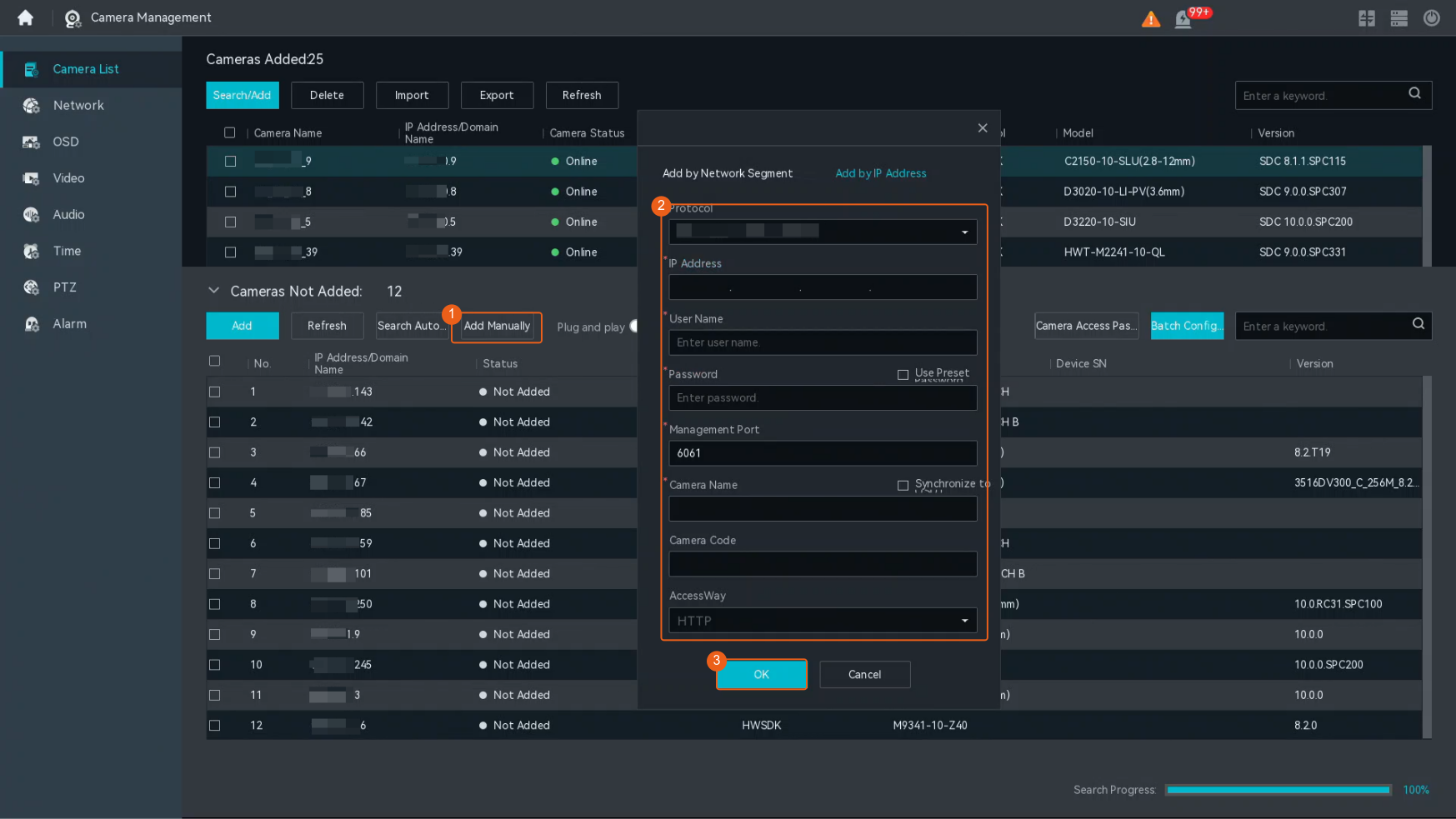
- Click Add Manually and choose Add by IP Address. The page shown in Figure 3-46 is displayed.
Table 3-20 describes the parameters you need to set. Parameters marked with an asterisk (*) in the figure are mandatory.
Table 3-20 Parameter descriptionParameter
Description
Protocol
Protocol. Select ONVIF.
IP Address
Camera IP address. You can set this parameter based on the site requirements.
Camera Name
User-defined camera name.
User Name/Password
User name and password for registering a camera.
Management Port
Default port generated after you select a protocol. You can also customize a port ranging from 1 to 65535.
AccessWay
Transmission protocol. You can set this parameter as required.
- HTTP
- HTTPS
- HTTP/HTTPS
HTTP is an insecure protocol. Exercise caution on data security when using it. HTTPS is recommended.
NOTE:If NAT networking is used between the HWT-IVS1800 and cameras, this parameter must be set to HTTP/HTTPS.
- Set the camera type.
- Right-click on the desktop and choose Camera Management.
- On the page that is displayed, choose Camera List.
- Click
 next to the camera for which you want to set the intelligent attribute.
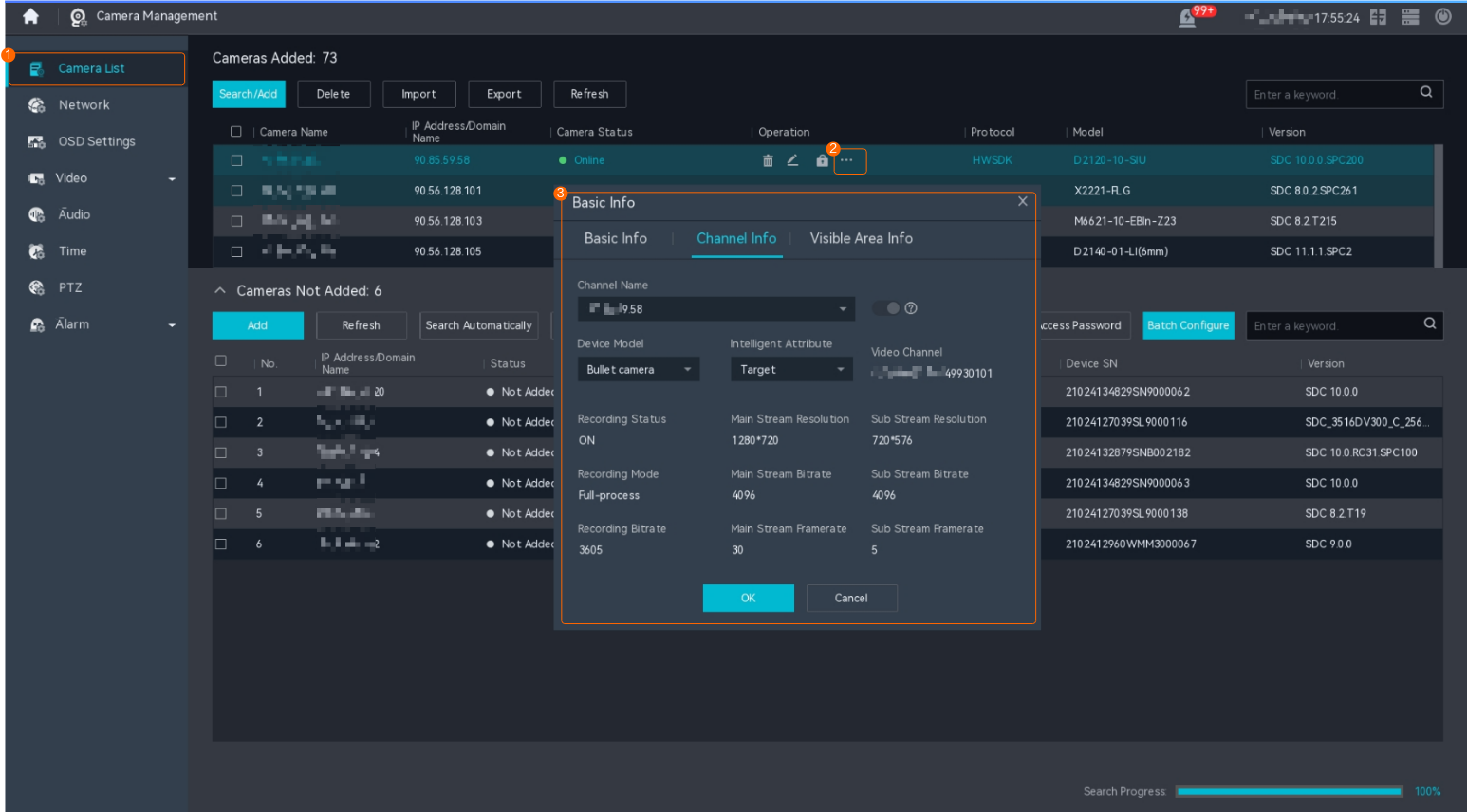
 - Set basic parameters, as shown in Figure 3-47.
Table 3-21 describes the mandatory parameters.
Table 3-21 Parameter descriptionParameter
Description
Device Model
Camera type. You can set this parameter based on the site requirements.
- Fixed box camera
- PTZ box camera
- PTZ dome camera
- Fixed dome camera
- Bullet camera
The value of this parameter must be the same as the actual camera type. Otherwise, some basic functions of the camera will be unavailable. For example, if you set this parameter to Fixed box camera or Fixed dome camera for a PTZ dome camera, the PTZ function of the camera will be unavailable.
Intelligent Attribute
Intelligent attribute of a camera. The intelligent attribute of a checkpoint camera must be the same as the actual one. Otherwise, snapshots taken by the checkpoint camera cannot be uploaded to the HWT-IVS1800.
This parameter does not need to be set for generic cameras.
Common (default value)
Target
Vehicle
Object classification
- Person
- Target+Vehicle
- Target+Person
- Target+Object classification
- Others
- (Optional) Determine whether to import the ONVIF connection certificate based on the site requirements.
If necessary, import it (which must be the same as that used by the camera) by referring to Replacing the Certificate for Southbound Connection.
GB/T 28181-based Access
Context
- GB/T 28181-compliant cameras can be connected to the device in only one mode illustrated in Table 3-18.
Table 3-22 Application scenarios
Mode
Application Scenario
Remarks
By IP address
If the IP addresses of the IVS device and camera can successfully ping each other, the network cables can be connected to the network ports on the same VLAN or different VLANs.
Log in to the camera web system and configure camera IP addresses.
If IP addresses have been planned for a large number of cameras to be connected to the HWT-IVS1800, you can add the cameras by importing the template file.
- Currently, only cameras connected to the HWT-IVS1800 through HWSDK support frontend intelligence configuration.
- OSD cannot be configured for third-party cameras connected through GB/T 28181.
- By default, the docker0 process of the device occupies the 172.17.0.0/16 network segment. If the camera and docker0 IP addresses are in the same network segment, the cameras will fail to be discovered or added due to IP address conflict.
You are advised to plan the camera IP addresses in a network segment other than 172.17.0.0/16.
- When the southbound network port is used for connecting to the IVS1800 through GB/T 28181, single-channel cameras can be connected but multi-channel cameras and NVR devices cannot. If NVR devices need to be connected through the southbound network port, you are advised to use RTSP to add the NVR devices.
Prerequisites
The network connection between the HWT-IVS1800 and cameras is normal.
For details about how to check the network connection between the HWT-IVS1800 and cameras, see How Do I Check Whether the HWT-IVS1800 Is Properly Connected to the Target Network Environment?.
Procedure
- (Optional) Disable strong password verification on the IVS1800. Perform this step only when a weak password is used for a camera to be connected through GB/T 28181.
- Log in to the OMU portal as the admin user. ( Logging In to the OMU portal)
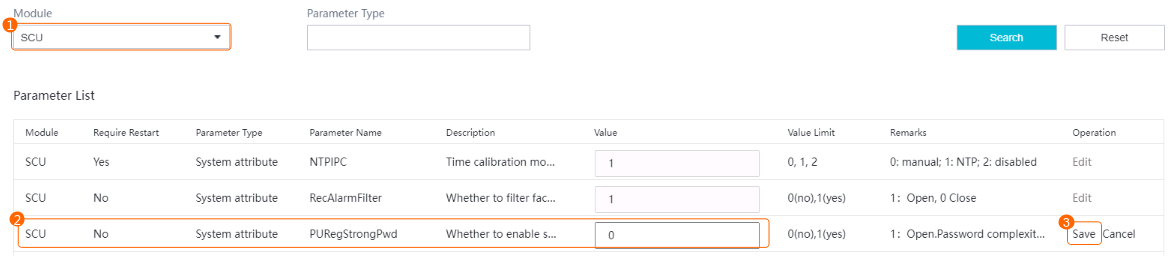
- Choose System > Advanced Configuration and set Module to SCU.
- Set PURegStrongPwd to 0 to disable strong password verification, as shown in Figure 3-48.
- Log in to the OMU portal as the admin user. (
- Enable the GB/T 28181 protocol on the camera side.
- Log in to the camera web system as the admin user. ( Logging in to the Camera Web System)
- Choose Configuration > Network > Advanced Settings > Platform Connection > Second Protocol Parameters > T28181.
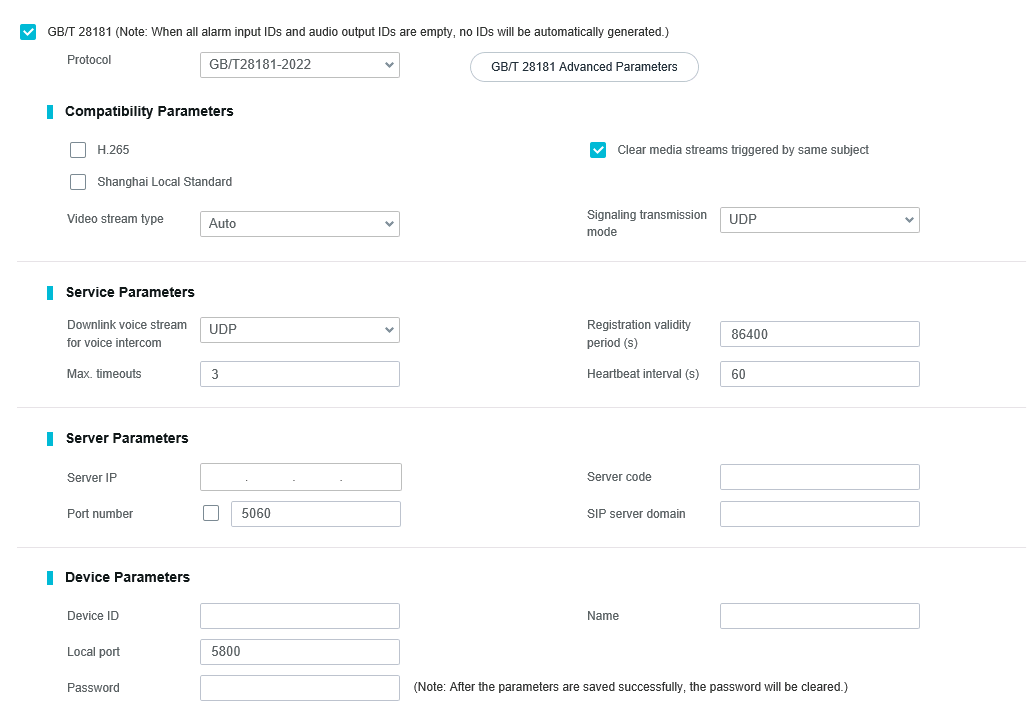
- Set GB/T 28181 parameters, as shown in Figure 3-49.
Table 3-23 describes the key parameters.
Table 3-23 GB/T 28181 parametersParameter
Description
GB/T 28181
If this parameter is selected, the GB/T 28181 protocol is enabled.
Protocol
Protocol. You can select a value from the drop-down list box.
NOTE:If TCC-VMS-2020 is selected, the active and standby servers can be configured. When the active (standby) server fails, services are automatically switched to the standby (active) server.
GB/T 28181 Advanced Parameters
Max recordings can be queried
Maximum number of recordings carried in a packet during recording query when GB/T 28181 is used for platform connection.
The value is an integer ranging from 1 to 20. The default value is 10. If the HWT-IVS1800 limits the packet size, you can properly adjust the value of this parameter. Adjusting the value of this parameter affects the recording query speed.
Compatibility Parameters
H.265
If this parameter is selected, the H.265 and H.264 encoding protocols are supported when the camera is connected to the HWT-IVS1800 through the GB/T 28181 protocol.
If this parameter is not selected, only the H.264 encoding protocol is supported when the camera is connected to the HWT-IVS1800 through the GB/T 28181 protocol.
Clear media streams triggered by same subject
If this parameter is selected, only one channel of video streams can be obtained if the HWT-IVS1800 requests video streams with the same subject ID.
If this parameter is not selected, multiple channels of video streams can be obtained if the HWT-IVS1800 requests video streams with the same subject ID.
Shanghai Local Standard
If this parameter is selected, the Shanghai local protocol is supported.
NOTE:If the Shanghai local standard is enabled, the image capture function of the HWT-IVS1800 does not take effect.
Video stream type
Video stream type. You can select a value from the drop-down list box.
- Auto: Sends media streams based on the request of the HWT-IVS1800.
- Video stream: Sends only video streams.
- Hybrid stream: Sends video and audio streams.
Signaling transmission mode
Signaling transmission mode. The options include UDP and TCP. Only UDP can be selected for cameras to be connected to the HWT-IVS1800.
Service Parameters
Downlink voice stream for voice intercom
Protocol of downlink voice streams for voice intercom. The value can be UDP or TCP.
NOTE:If a camera and the HWT-IVS1800 are on different network segments, you are advised to set this parameter to TCP.
Max. timeouts
If the number of consecutive heartbeat timeouts reaches the value specified by this parameter, the camera cannot connect to the HWT-IVS1800.
The default value 3 is recommended.
NOTE:The maximum number of timeouts for the camera and HWT-IVS1800 must be the same.
Registration validity period (s)
Validity period of the camera registration with the HWT-IVS1800. The default value is 86400 (one day).
NOTE:- If the camera fails to be registered within 86400s, the registration fails. You are advised to use the default value.
- Before the validity period expires, the camera initiates a registration request to the HWT-IVS1800 again.
Heartbeat interval (s)
Time interval at which the camera sends heartbeat messages. The default value 60 is recommended.
NOTE:The camera and the HWT-IVS1800 must have the same heartbeat interval.
Server Parameters
Server IP
HWT-IVS1800 IP address.
Port number
Port used by the HWT-IVS1800 to listen on cameras connecting to the HWT-IVS1800 through GB/T 28181. The default value is 5060.
Before selecting the Port number check box, ensure that the configured port is within the range of 1 to 65535.
Server code
GB/T 28181 server code. The value is a string of 1 to 64 characters, including letters and digits.
NOTE:If a camera is to be connected to the HWT-IVS1800, the eleventh to thirteenth digits of the server code must be 200. The local domain code does not need to be configured for the HWT-IVS1800.
SIP server domain
Domain name, which is a string of up to 127 digits.
Device Parameters
Device ID
Unique ID of a camera. The value contains 1–64 characters, including letters and digits. The value must be the same as the camera ID configured on the HWT-IVS1800.
NOTE:- This parameter is mandatory. If this parameter is not set, service alarms cannot be reported to the HWT-IVS1800.
- If a camera is to be connected to the HWT-IVS1800, the eleventh to thirteenth digits of the device ID must be 132. Besides, the device ID must be different from the lens ID. Otherwise, you cannot view live video from the camera on the HWT-IVS1800.
Password
Password used by a camera to register with the HWT-IVS1800.
NOTE:The value of this parameter must be the same as the registration password configured on the HWT-IVS1800. If they are different, the camera will fail to connect to the HWT-IVS1800.
Name
Login name used for registering a camera with the HWT-IVS1800. The value can contain digits or other characters.
Local port
Port number of the camera for connecting to the SIP server.
NOTE:The value is an integer ranging from 1024 to 65535.
Alarm input ID
Alarm input ID of the camera. The value is a string of 0 to 64 characters, including letters and digits.
NOTE:You need to manually enter the value. The eleventh to thirteenth digits must be 134. Otherwise, the HWT-IVS1800 cannot report alarms properly.
Audio output ID
Audio output ID of the camera. The value is a string of 0 to 64 characters, including letters and digits.
NOTE:You need to manually enter the value. The eleventh to thirteenth digits must be 137. Otherwise, the HWT-IVS1800 cannot transmit uplink or downlink audio streams properly.
Authentication mode
- SHA256: Only the SHA256 authentication method is supported.
- MD5/SHA256: Both MD5 and SHA256 authentication methods are supported.
NOTE:- The MD5 authentication method has security risks. Therefore, you are advised to use the SHA256 authentication method.
- The value of this parameter must be the same as that configured on the HWT-IVS1800. Otherwise, the registration fails.
Channel Parameters
Channel
Channel type of the camera.
Stream index
Type of streams to be sent to the platform. You can select the primary stream or a secondary stream. The default value Primary stream is recommended.
Lens ID
Lens ID. The value is a string of 0 to 64 characters, including letters and digits.
For a multi-lens camera, you need to select a channel type from the drop-down list box and set a unique ID for each lens.
NOTE:If a camera is to be connected to the HWT-IVS1800, the eleventh to thirteenth digits of the lens ID must be 131 or 132. Besides, the device ID must be different from the lens ID. Otherwise, live video from the camera cannot be viewed on the HWT-IVS1800.
- Log in to the camera web system as the admin user. (
- Confirm with the camera vendor whether only the MD5 algorithm is supported for GB/T 28181 connection.
- If not, go to the next step.
- If so, check whether the MD5 algorithm is enabled.
- Log in to the OMU portal as the admin user. ( Logging In to the OMU portal)
- Choose .
- Select Advanced.
- In the MD5 Algorithm area, select Enable MD5 for connection to camera through GB/T 28181.
To enable the MD5 algorithm for a camera of 8.0.0, 8.1.0, or 8.2.RCx (excluding 8.2.0 and later patch versions), log in to the OMU portal, choose System > Advanced Configuration, and set EnableMD5_SHA256_S_28181 to 2.
Using the MD5 algorithm may cause cyber security risks. Therefore, perform cyber security controls after enabling this algorithm.
- Log in to the OMU portal as the admin user. (
- Log in to the LDU as the admin user. ( Logging In to the LDU)
- Right-click on the desktop and choose Camera Management > Camera List.
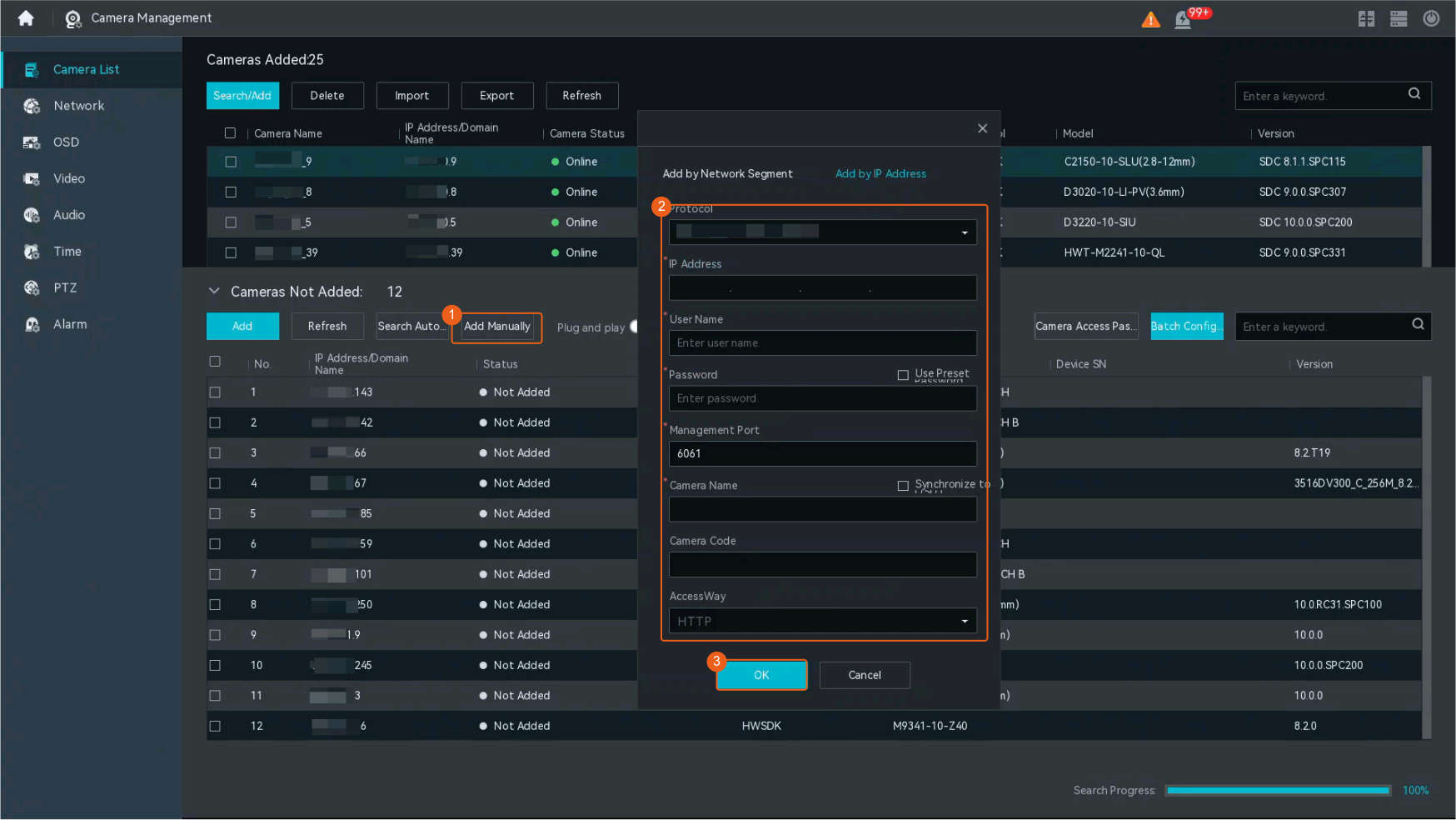
- Click Add Manually and choose Add by IP Address. The page shown in Figure 3-50 is displayed.
Table 3-24 describes the parameters you need to set. Parameters marked with an asterisk (*) in the figure are mandatory.
Table 3-24 Parameter descriptionParameter
Description
Protocol
Protocol. Select T28181.
Password
Password of the camera to be connected.
Camera Name
User-defined camera name.
Camera Code
ID and password of a camera. The camera ID and password must be the same as the device ID and password configured in Figure 3-49.
AccessWay
Transmission protocol.
- HTTP
- HTTPS
- HTTP/HTTPS
HTTP is an insecure protocol. Exercise caution on data security when using it. HTTPS is recommended.
- Set the camera type.
- Right-click on the desktop and choose .
- Click
 next to the camera for which you want to set the intelligent attribute.
 - Set basic parameters, as shown in Figure 3-51.
Table 3-25 describes the mandatory parameters.
Table 3-25 Parameter descriptionParameter
Description
Device Model
Camera type. You can set this parameter based on the site requirements.
- Fixed box camera
- PTZ box camera
- PTZ dome camera
- Fixed dome camera
- Bullet camera
The value of this parameter must be the same as the actual camera type. Otherwise, some basic functions of the camera will be unavailable. For example, if you set this parameter to Fixed box camera or Fixed dome camera for a PTZ dome camera, the PTZ function of the camera will be unavailable.
Intelligent Attribute
Intelligent attribute of a camera. The intelligent attribute of a checkpoint camera must be the same as the actual one. Otherwise, snapshots taken by the checkpoint camera cannot be uploaded to the HWT-IVS1800.
This parameter does not need to be set for generic cameras.
Common (default value)
Target
Vehicle
Object classification
- Person
- Target+Vehicle
- Target+Person
- Target+Object classification
- Others
RTSP-based Access
Context
The Real Time Streaming Protocol (RTSP) is an application-layer real-time stream transmission protocol in the TCP/IP protocol suite. It defines how applications transmit multi-media data effectively over network IP networks. RTSP allows operations (such as play, pause, and fast-forward) on streaming media, and defines specific control messages, operation methods, and status codes.
Restrictions
- RTSP-compliant cameras can be connected to the device in only one mode illustrated in Table 3-26.
Table 3-26 Application scenarios
Mode
Application Scenario
Remarks
By IP address
If the IP addresses of the IVS device and camera can successfully ping each other, the network cables can be connected to the network ports on the same VLAN or different VLANs.
Log in to the camera web system and configure camera IP addresses.
If IP addresses have been planned for a large number of cameras to be connected to the HWT-IVS1800, you can add the cameras by importing the template file.
- When a camera is connected to the HWT-IVS1800 through RTSP, the video parameters modified on the LDU or iClient S100 do not take effect. You need to modify the video parameters on the camera side.
- Cameras with the same URL cannot be added.
- Currently, only cameras connected to the HWT-IVS1800 through HWSDK support frontend intelligence configuration.
- By default, the docker0 process of the device occupies the 172.17.0.0/16 network segment. If the camera and docker0 IP addresses are in the same network segment, the cameras will fail to be discovered or added due to IP address conflict.
You are advised to plan the camera IP addresses in a network segment other than 172.17.0.0/16.
Prerequisites
The network connection between the HWT-IVS1800 and cameras is normal.
For details about how to check the network connection between the HWT-IVS1800 and cameras, see How Do I Check Whether the HWT-IVS1800 Is Properly Connected to the Target Network Environment?.
Procedure
- Enable the MD5 algorithm on the OMU portal.
- Log in to the OMU portal as the admin user. (
 Logging In to the OMU portal)
 - Choose .
- Select Advanced. In the MD5 Algorithm area, select Enable MD5 when RTSP requests media streams from cameras.
Using the MD5 algorithm may cause cyber security risks. Therefore, perform cyber security controls after enabling this algorithm.
- Log in to the OMU portal as the admin user. (
- Add cameras on the HWT-IVS1800.
- Log in to the LDU as the admin user. (
 Logging In to the LDU).
 - Right-click on the desktop and choose Camera Management > Camera List.
- Click Add Manually and choose Add by IP Address. The page shown in Figure 3-52 is displayed.
Table 3-27 describes the parameters. Parameters marked with an asterisk (*) in the figure are mandatory.
Table 3-27 Parameter descriptionParameter
Description
Protocol
Protocol. Select RTSP.
User Name/Password
User name and password of the camera to be connected.
IP Address
IP address of the camera to be connected.
Management Port
Management port number, which can be customized but must be the same as the port number of the camera to be connected. The default port number is 554.
Camera Name
Name of the camera to be connected.
Primary Stream Resource Path/Secondary Stream Resource Path
-
URL for obtaining streams from the camera to be connected through RTSP. The URL varies depending on the camera vendor.
If the connected camera is always displayed online but the video image shot by the camera appears abnormal, stream pulling fails. In this case, check whether the camera is properly connected. If the camera is disconnected, perform the connection steps in this section to reconnect the camera.
- Log in to the LDU as the admin user. (
Template-based Access
This section describes how to add cameras by importing the template file on the LDU and OMU portal.
Before adding cameras, you need to fill in the template file as required. The template file can be exported or downloaded. The following uses downloading the template file as an example to describe how to add cameras. For details about how to add cameras by exporting the template file, see How Do I Connect Cameras by Importing a Template File?.
Restrictions
- In the HWSDK-compliant (passive registration), ONVIF-compliant, and Dahua camera access scenarios, cameras with the same IP address and port number cannot be added.
- If NAT networking is used between the HWT-IVS1800 and camera, you need to set advanced parameter ONVIF_NAT to 1 before importing ONVIF-compliant cameras. For details, see Setting Advanced Parameter ONVIF_NAT.
- In the RTSP-compliant access scenario, cameras with the same URL cannot be added.
- OSD cannot be configured for third-party cameras connected through GB/T 28181.
Procedure (on the LDU)
- Log in to the LDU as the admin user. ( Logging In to the LDU)
- Right-click on the desktop and choose Camera Management > Camera List.
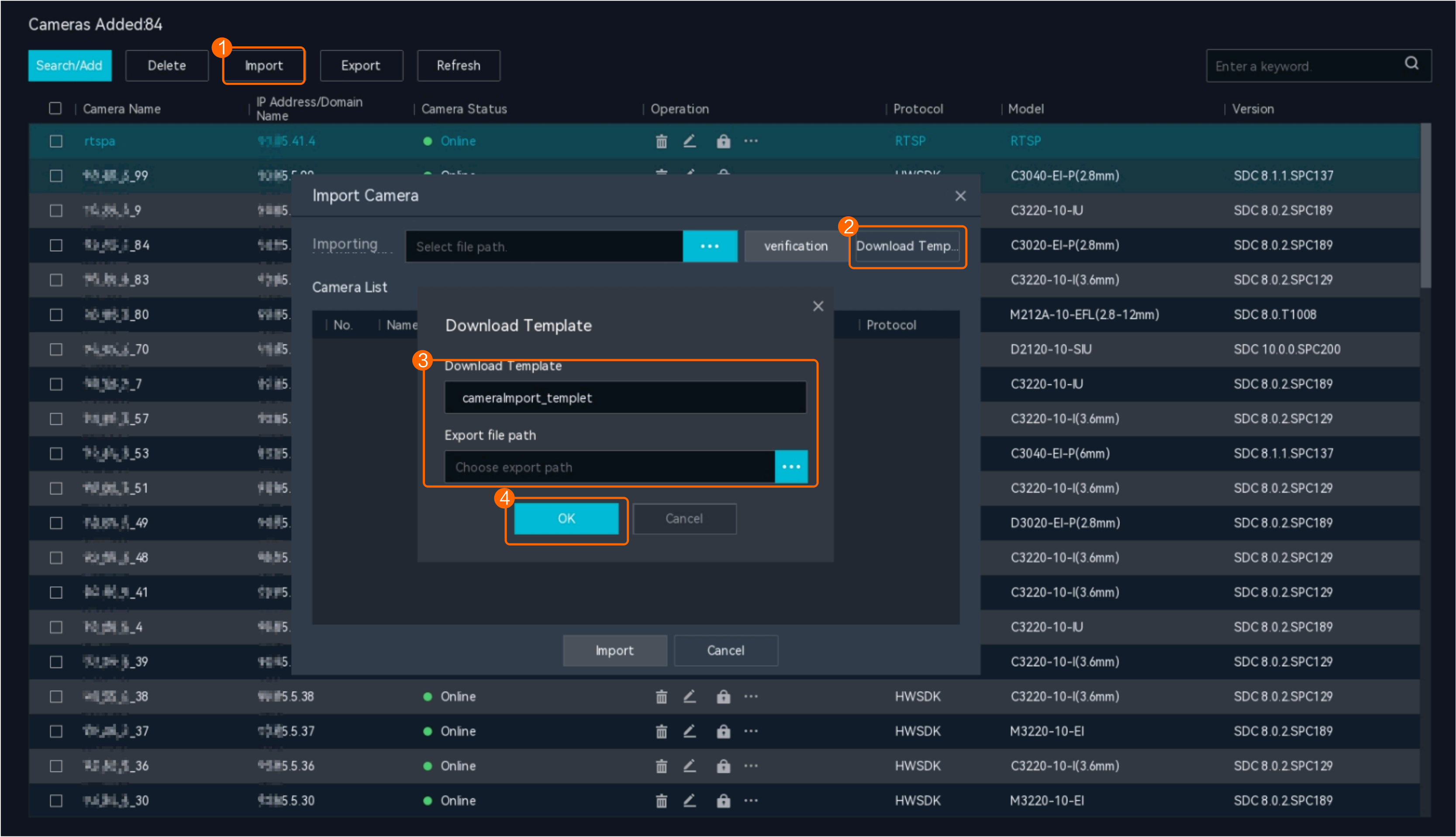
- Download the template file for adding cameras. If the template file has been filled in, go to 5.Click Import. On the page that is displayed, click Download Template, edit the template name, select the export path, and click OK to download the template file to the local computer, as shown in Figure 3-53.
- Fill in the template file. For details about how to set parameters, see Table 3-28. Table 3-29 describes the parameters.
Table 3-28 Parameter requirements in the template
Parameter/Protocol
HWSDK(PlatformToDevice)
HWSDK(DeviceToPlatform)
ONVIF
T28181
HWSDK_Ext1
RTSP
Device Name
M
M
M
M
M
M
IP
M
O
M
O
M
M
Port
M
M
M
M
M
M
User Name
M
M
M
M
M
M
Password
M
M
M
M
M
M
Transport Protocol
O
O
M
O
O
O
RTSP Port
O
O
O
O
O
M
Device ID
O
M
O
M
O
O
RTSP Primary Stream Resource Path
O
O
O
O
O
M
RTSP Secondary Stream Resource Path
O
O
O
O
O
O
Main Device Code
O
O
O
O
O
O
Table 3-29 Parameters in the templateParameter
Description
Device Name
Camera name displayed on the HWT-IVS1800. You are advised to set this parameter to the installation location or area of the camera.
IP
IP address of a camera. You can enter a single IP address or a network segment.
Port
Port number for camera access. The value must be the same as that set on the camera side. You are advised to use the default port number. If the port number is changed on the camera, set this parameter based on the site requirements.
User Name
User name for registering a camera with the HWT-IVS1800. The default user name is admin.
Password
Password for registering a camera with the HWT-IVS1800.
Transport Protocol
Transmission protocol for connecting cameras to the HWT-IVS1800. The value must be the same as the transmission protocol configured for the HWT-IVS1800.
- HTTP: unencrypted transmission.
- HTTPS: encrypted transmission. You are advised to select HTTPS to ensure data security during transmission.
- HTTP/HTTPS: If the device supports the HTTPS transmission protocol (the device needs to respond to the HWT-IVS1800 within a specified period), HTTPS is preferentially used for connection.
RTSP Port
To enable the RTSP stream obtaining function, you must set the same port (default port: 554) for the client and the frontend device.
Device ID
Camera ID used to connect to the HWT-IVS1800. Enter a 20-digit decimal number. The value is padded with zeros if there are not enough digits. The ID of each camera must be unique.
NOTE:The 20-digit decimal number you entered must be the same as the connection code configured on the HWT-IVS1800. Otherwise, the connection fails.
RTSP Primary Stream Resource Path
URL of the RTSP primary stream.
RTSP Secondary Stream Resource Path
URL of the RTSP secondary stream.
Main Device Code
Device code of the camera. The code of each camera must be unique.
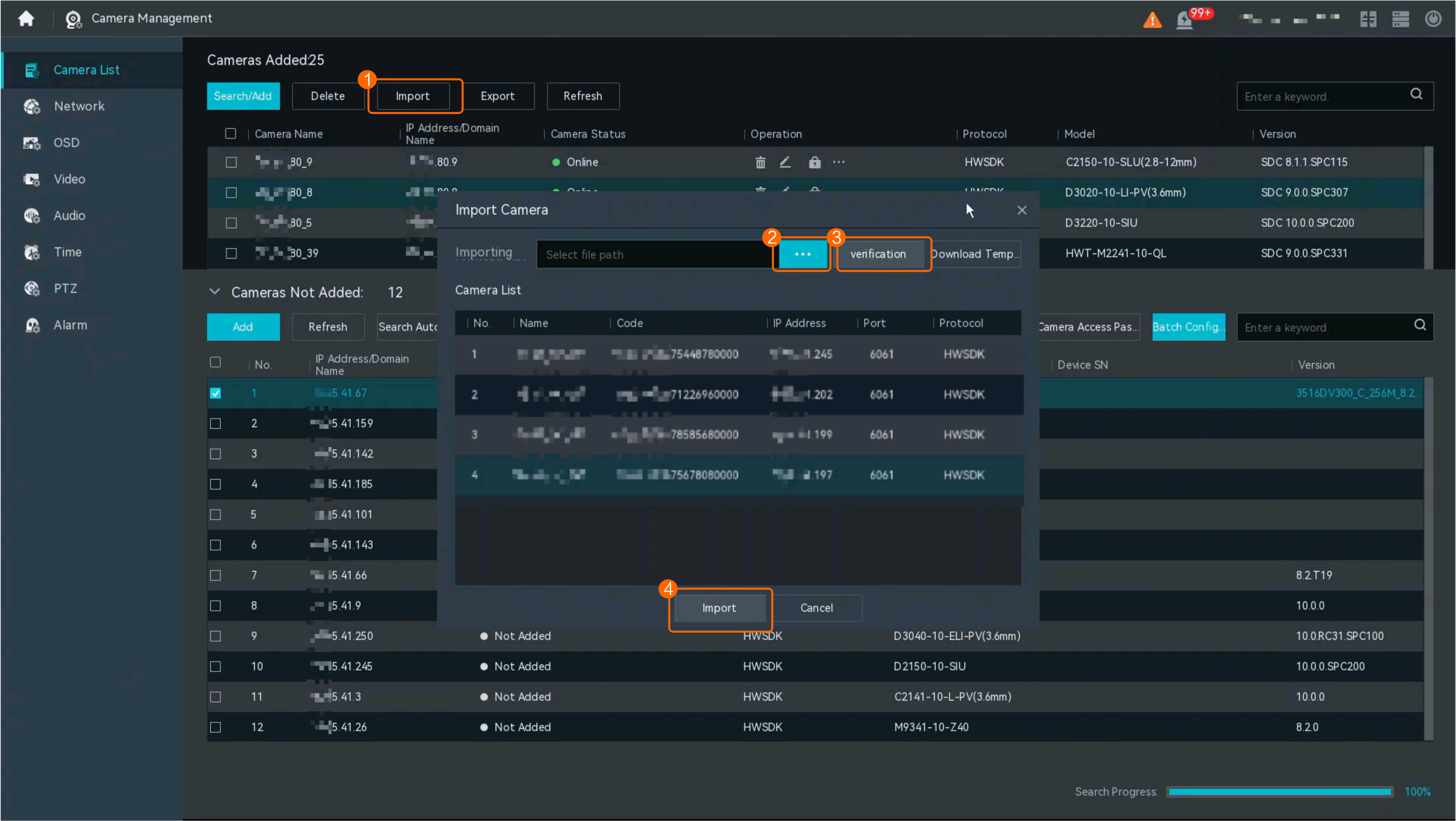
- Import the template file, as shown in Figure 3-54.
- Click Import. On the page that is displayed, click
 and import the template file that has been filled in from the local computer.
 The template file to be uploaded must be in CSV format, and the file size cannot exceed 10 MB.
- Click verification to verify the camera information in the template file.
- If all camera information passes the verification, the list of cameras imported is displayed. Then, go to c.
- If any camera information fails to pass the verification, the list of failed cameras is displayed. You can modify the template file according to the verification failure cause and import the template file again.
- Click Import to add cameras in batches.
- Click Import. On the page that is displayed, click
Procedure (on the OMU Portal)
- Log in to the OMU portal as the admin user. ( Logging In to the OMU portal)
- Choose .
- Click Download Template to download the template file for importing cameras. If the template file has been filled in, go to 5.
- Fill in the template file for importing cameras. For details about how to set parameters, see Table 3-30. Table 3-31 describes the parameters.
Table 3-30 Parameter requirements in the template
Parameter/Protocol
HWSDK(PlatformToDevice)
HWSDK(DeviceToPlatform)
ONVIF
T28181
HWSDK_Ext1
RTSP
Device Name
M
M
M
M
M
M
IP
M
O
M
O
M
M
Port
M
M
M
M
M
M
User Name
M
M
M
M
M
M
Password
M
M
M
M
M
M
Transport Protocol
O
O
M
O
O
O
RTSP Port
O
O
O
O
O
M
Device ID
O
M
O
M
O
O
RTSP Primary Stream Resource Path
O
O
O
O
O
M
RTSP Secondary Stream Resource Path
O
O
O
O
O
O
Main Device Code
O
O
O
O
O
O
Table 3-31 Parameters in the templateParameter
Description
Device Name
Camera name displayed on the HWT-IVS1800. You are advised to set this parameter to the installation location or area of the camera.
IP
IP address of a camera. You can enter a single IP address or a network segment.
Port
Port number for camera access. The value must be the same as that set on the camera side. You are advised to use the default port number. If the port number is changed on the camera, set this parameter based on the site requirements.
User Name
User name for registering a camera with the HWT-IVS1800. The default user name is admin.
Password
Password for registering a camera with the HWT-IVS1800.
Transport Protocol
Transmission protocol for connecting cameras to the HWT-IVS1800. The value must be the same as the transmission protocol configured for the HWT-IVS1800.
- HTTP: unencrypted transmission.
- HTTPS: encrypted transmission. You are advised to select HTTPS to ensure data security during transmission.
- HTTP/HTTPS: If the device supports the HTTPS transmission protocol (the device needs to respond to the HWT-IVS1800 within a specified period), HTTPS is preferentially used for connection.
RTSP Port
To enable the RTSP stream obtaining function, you must set the same port (default port: 554) for the client and the frontend device.
Device ID
Camera ID used to connect to the HWT-IVS1800. Enter a 20-digit decimal number. The value is padded with zeros if there are not enough digits. The ID of each camera must be unique.
NOTE:The 20-digit decimal number you entered must be the same as the connection code configured on the HWT-IVS1800. Otherwise, the connection fails.
RTSP Primary Stream Resource Path
URL of the RTSP primary stream.
RTSP Secondary Stream Resource Path
URL of the RTSP secondary stream.
Main Device Code
Device code of the camera. The code of each camera must be unique.
- Import the template file, as shown in Figure 3-55.
- Click Import. The Import Camera dialog box is displayed.
- Click
 and select the camera template file stored from the local computer.
 The template file to be uploaded must be in CSV format, and the file size cannot exceed 10 MB.
- Click Check to verify the information of cameras to be imported. If any camera information already exists, the verification fails.
- If all camera information passes the verification, the list of cameras to be imported is displayed. Then, go to 4.
- If any camera information fails to pass the verification, the list of failed cameras is displayed. You can modify the template file according to the verification failure cause and import the template file again.
- Click Start Import.
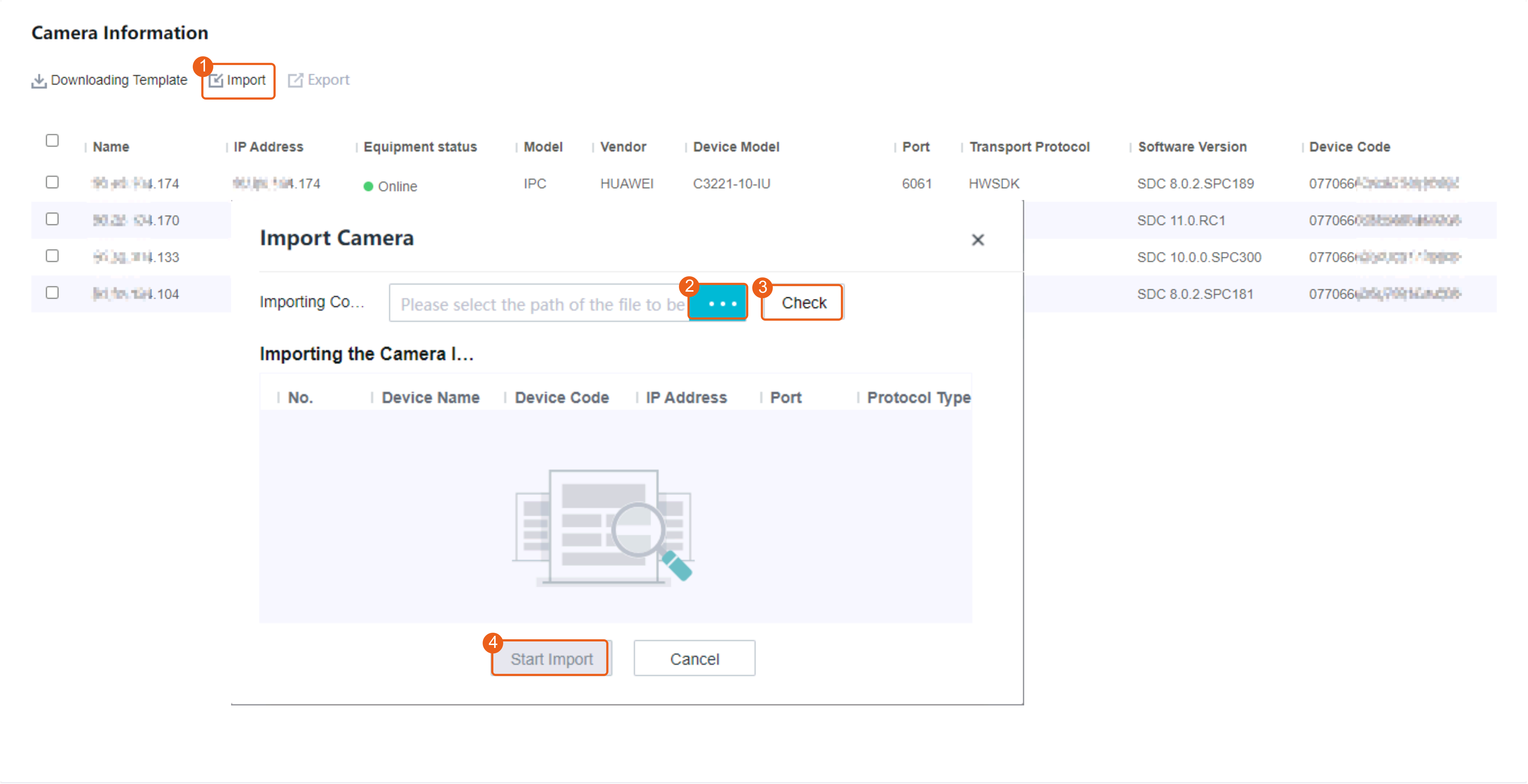
Connecting an Intelligent Camera
- After cameras are connected, you are advised to configure the cameras on the LDU or iClient S100. If you configure the cameras in the camera web system, camera configurations on the iClient S100 and in the camera web system may be inconsistent.
- Only compatible cameras can be connected. For details about compatible cameras, see the HWT-IVS1800 Compatibility List.
Connecting a Dual-Lens PTZ Dome Camera
Context
A dual-lens PTZ dome camera consists of a prime lens and a zoom lens. After the camera is connected, each lens occupies one channel.
Procedure
- Add a dual-lens PTZ dome camera on the LDU. For details about the connection modes, see HWSDK-based Access or Template-based Access.
Connecting a Compound-Eye Camera
Context
A compound-eye camera consists of a prime lens and one or two zoom lenses. After the camera is connected, each lens occupies one channel.
Procedure
- Add a compound-eye camera on the LDU. For details about the connection modes, see HWSDK-based Access or Template-based Access.
Connecting a 5G Camera
Prerequisites
NAT has been configured.
- If the camera is on an intranet and the HWT-IVS1800 is on an extranet, see Cameras on an Intranet and HWT-IVS1800 on an Extranet.
- If the camera and HWT-IVS1800 are on different intranets, see Cameras and HWT-IVS1800 on Different Intranets.
Procedure
- Add a 5G camera on the LDU. For details about the connection modes, see HWSDK-based Access or Template-based Access.
Connecting 1 + N Cameras
Context
The high-performance camera (primary camera) performs intelligent analysis on video from generic cameras (secondary cameras) and generates intelligent analysis results.
Prerequisites
The 1 + N cameras have been configured in the camera web system.
Procedure
Connect 1 + N cameras on the LDU. For details about the connection modes, see HWSDK-based Access or Template-based Access.
Connecting a Thermal Camera
Model Restrictions
Only DH-TPC-BF5421, U1-4R(4)A-Th, U6-4R(40x)A-Th, and DHI-TPC-SD5441-T thermal cameras are supported.
Context
- A thermal camera consists of a common lens and an infrared lens. After the camera is connected, each lens occupies one channel.
- In the Dahua camera access scenario, cameras with the same IP address and port number cannot be added.
- Cameras connected through HWSDK_EXt1 do not support automatic camera type identification. You need to manually change the camera type.
Prerequisites
You have obtained the SDK files libdhnetsdk.so and libdhconfigsdk.so of the thermal camera.
You can click here to obtain them.
Procedure
- Enable the temperature reporting and snapshot taking functions of the thermal camera.
For details about how to enable the functions, see the camera documentation.
- Load the SDK files.
- Log in to the operating system as the root user. (
 How Do I Log In to the Operating System Through a Network Port?)
 - Upload the SDK files libdhnetsdk.so and libdhconfigsdk.so to the /tmp directory.
- Move the SDK files to the specified directory.
mv /tmp/libdhnetsdk.so /home/lib/ivs_dcg/third/lib/Dahua/arm/
mv /tmp/libdhconfigsdk.so /home/lib/ivs_dcg/third/lib/Dahua/arm/
- Change the SDK file owner group and permissions.
chown ivs_dcg:ivs /home/lib/ivs_dcg/third/lib/Dahua/arm/*
chmod 440 /home/lib/ivs_dcg/third/lib/Dahua/arm/*
- Re-load the library path.
ldconfig
- Restart the DCG process.
sh /home/ivstool/bin/service.sh restart dcg
- Log in to the operating system as the root user. (
- Enable the Basic authentication and the MD5 algorithm.
- Log in to the OMU portal as the admin user. ( Logging In to the OMU portal)
- Choose .
- Select Advanced.
- In the MD5 Algorithm area, select Enable MD5 when RTSP requests media streams from cameras.
Using the MD5 algorithm may cause cyber security risks. Therefore, perform cyber security controls after enabling this algorithm.
- Enable Basic authentication.
- Log in to the OMU portal as the admin user. (
- Add a camera.
- Right-click on the desktop and choose Camera Management > Camera List.
- Click Add Manually and select Add by IP Address. The page shown in Figure 3-56 is displayed.
Table 3-32 Parameter description
Parameter
Description
Protocol
Access protocol of the camera. Set this parameter to HWSDK_Ext1.
IP Address
IP address of a camera.
User Name
User name and password used to register a camera with the device.
Password
Management Port
Camera access port. The port configured on the HWT-IVS1800 must be the same as that on the device. You are advised to use the default port number. If the port number is changed on the camera, set this parameter based on the site requirements.
Camera Name
Camera name displayed on the HWT-IVS1800. You are advised to enter the installation location or detection area.
- Set the type and intelligent attribute of cameras.
- Right-click on the desktop and choose Camera Management.
- On the page that is displayed, choose Camera List.
- Click
 next to the camera for which you want to set the intelligent attribute.
 - Set Intelligent Attribute to Target and Device Model to Fixed box camera, as shown in Figure 3-57.
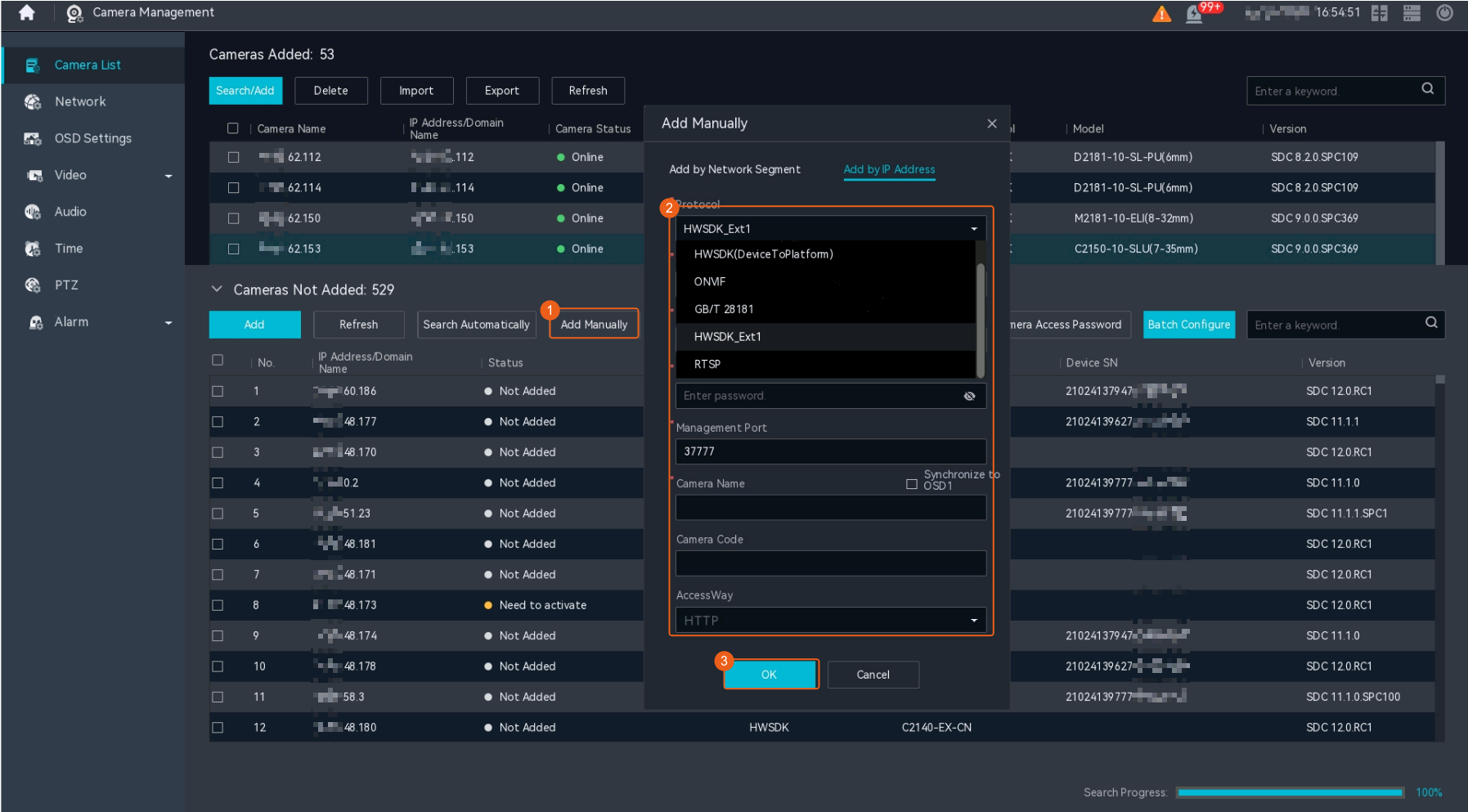
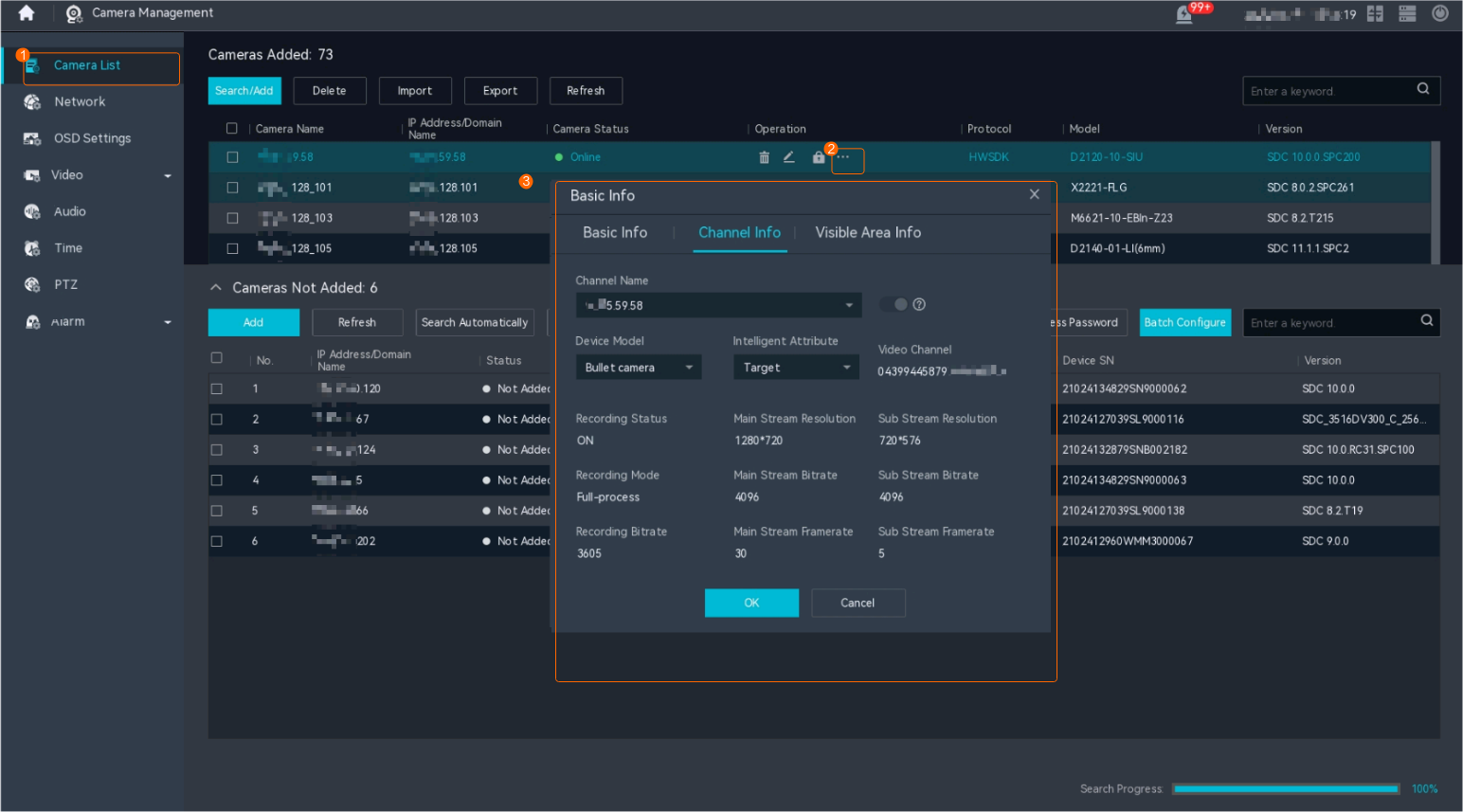
Verification
- Right-click on the desktop and choose Camera Management.
- Check the camera connection status.Two video channels are displayed in the device list of the HWT-IVS1800, and the camera is connected successfully.
- Common video channel: The channel name is Device access name.
- Thermal video channel: The channel name is in Device access name0102 format.
Connecting a Thermal Camera
Model Restrictions
Only the IPC6021-TH06-DU, U1-4R(4)A-Th, U6-4R(40x)A-Th, and DHI-TPC-SD5441-T thermal cameras are supported.
Context
- A thermal camera consists of a common lens and an infrared lens. After the camera is connected, each lens occupies one channel.
- In the Dahua camera access scenario, cameras with the same IP address and port number cannot be added.
- Cameras connected through HWSDK_EXt1 do not support automatic camera type identification. You need to manually change the camera type.
Prerequisites
- U6-4R(40x)A-Th, U1-4R(4)A-Th, IPC6021-TH06-DU, and DHI-TPC-SD5441-T cameras can be connected through HWSDK_EXt1. Before the connection, you have obtained the SDK files libdhnetsdk.so and libdhconfigsdk.so of the camera to connect. You can click here to obtain them.
- U1-4R(4)A-Th cameras can be connected through ONVIF.
HWSDK_EXt1-based Access
- Enable the temperature reporting function of the thermal imaging camera.
- Log in to the thermal camera's web system.
- Choose .
- Configure a temperature measurement rule, as shown in Figure 3-58.
On the Heat page, you need to set Snapshot to 1. Otherwise, alarms cannot be reported.
- Load the SDK files.
- Log in to the operating system as the root user. ( How Do I Log In to the Operating System Through a Network Port?)
- Upload the SDK files libdhnetsdk.so and libdhconfigsdk.so to the /tmp directory.
- Move the SDK files to the specified directory.
mv /tmp/libdhnetsdk.so /home/lib/ivs_dcg/third/lib/Dahua/arm/
mv /tmp/libdhconfigsdk.so /home/lib/ivs_dcg/third/lib/Dahua/arm/
- Change the SDK file owner group and permissions.
chown ivs_dcg:ivs /home/lib/ivs_dcg/third/lib/Dahua/arm/*
chmod 440 /home/lib/ivs_dcg/third/lib/Dahua/arm/*
- Re-load the library path.
ldconfig
- Restart the DCG process.
sh /home/ivstool/bin/service.sh restart dcg
- Log in to the operating system as the root user. (
- Enable the Basic authentication and the MD5 algorithm.
- Log in to the OMU portal as the admin user. ( Logging In to the OMU portal)
- Choose .
- Select Advanced.
- In the MD5 Algorithm area, select Enable MD5 when RTSP requests media streams from cameras.
Using the MD5 algorithm may cause cyber security risks. Therefore, perform cyber security controls after enabling this algorithm.
- Enable Basic authentication.
- Log in to the OMU portal as the admin user. (
- Add a camera.
- Right-click on the desktop and choose Camera Management > Camera List.
- Click Add Manually and choose Add by IP Address. The page shown in Figure 3-59 is displayed.
Table 3-33 describes the key parameters.
Table 3-33 Parameter descriptionParameter
Description
Protocol
Access protocol of the camera. Set this parameter to HWSDK_EXt1.
IP Address
IP address of a camera.
User Name
User name and password used to register a camera with the device.
Password
Camera Name
Camera name displayed on the HWT-IVS1800. You are advised to enter the installation location or detection area.
Management Port
Camera access port. The port configured on the HWT-IVS1800 must be the same as that on the device. You are advised to use the default port number. If the port number is changed on the camera, set this parameter based on the site requirements.
- Set the type and intelligent attribute of cameras.
- Right-click on the desktop and choose Camera Management.
- On the page that is displayed, choose Camera List.
- Click
 next to the camera for which you want to set the intelligent attribute.
 - Set Intelligent Attribute and Device Model based on the actual camera model, as shown in Figure 3-60.
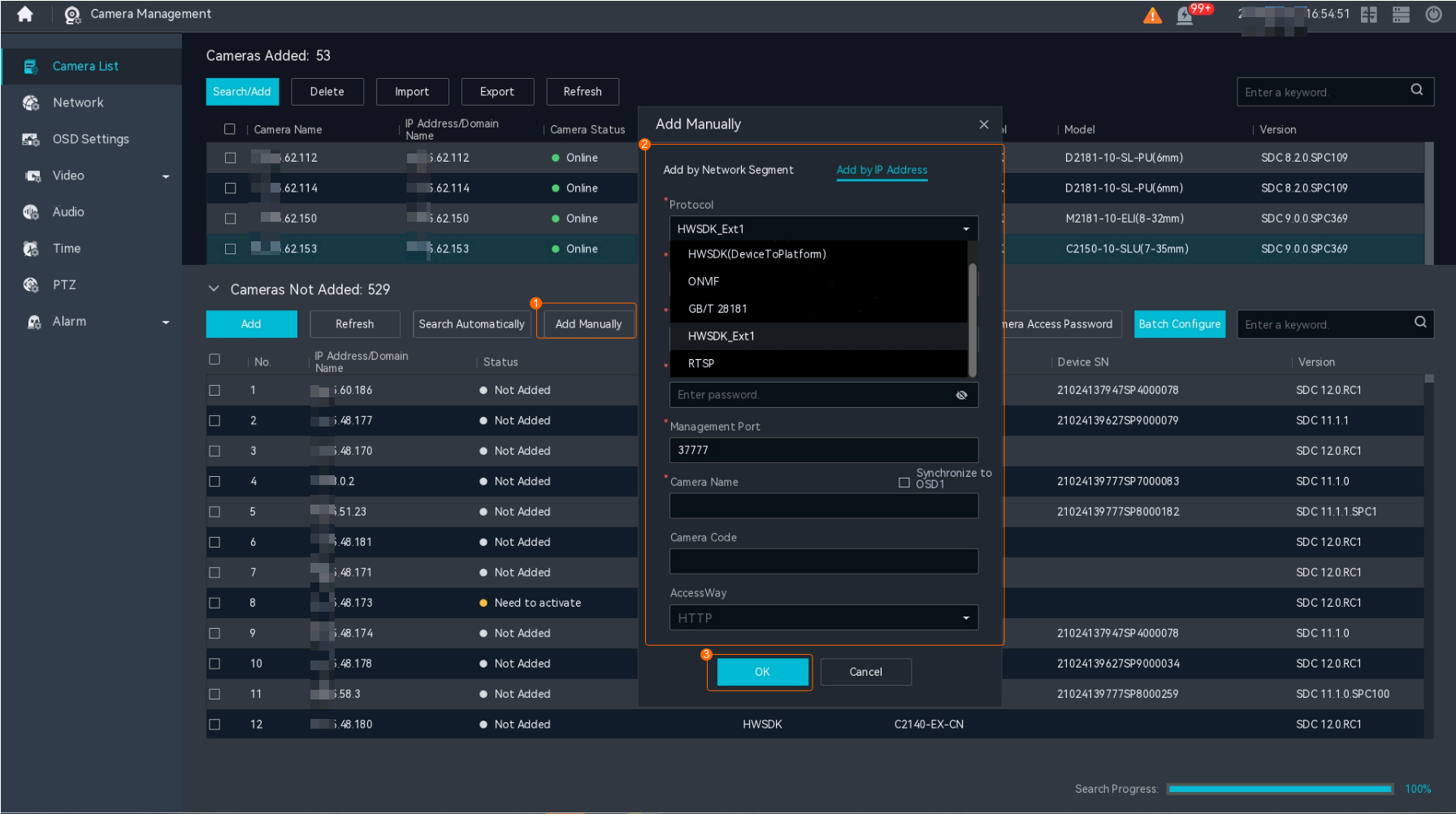
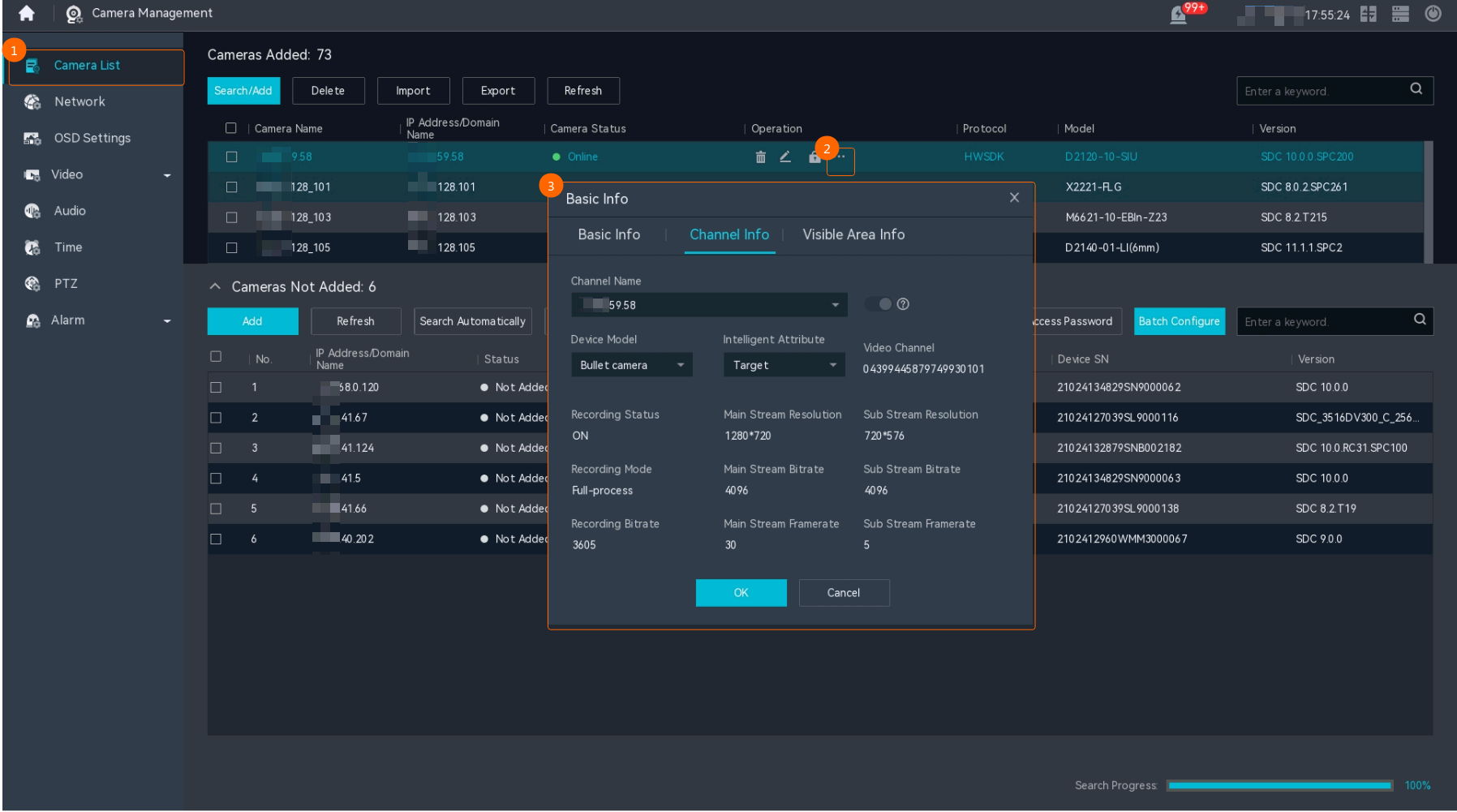
ONVIF-based Access
TPC cameras can be connected through ONVIF. For details about the connection method, see ONVIF-based Access.
Verification
- Right-click on the desktop and choose Camera Management.
- Check the camera connection status.Two video channels are displayed in the device list of the HWT-IVS1800, and the camera is connected successfully.
- Common video channel: The channel name is Device access name.
- Thermal video channel: The channel name is in Device access name0102 format.
Connecting a Panoramic Camera
Model Restrictions
- Only IPC6091-P180-Z40, IPC6092-P360-Z40, and P4-4R(1.4)A panoramic cameras are supported.
- IPC6091-P180-Z40 and IPC6092-P360-Z40 do not support the home position.
Context
- P4-4R(1.4)A is a fisheye camera. IPC6091-P180-Z40 or IPC6092-P360-Z40 consists of one PTZ dome camera and one panoramic camera. After such devices are connected, each lens occupies a channel.
- In the Dahua camera access scenario, cameras with the same IP address and port number cannot be added.
- Cameras connected through HWSDK_EXt1 do not support automatic camera type identification. You need to manually change the camera type.
Prerequisites
- P4-4R(1.4)A, IPC6091-P180-Z40, and IPC6092-P360-Z40 cameras can be connected through HWSDK_EXt1. Before the connection, you have obtained the SDK files libdhnetsdk.so and libdhconfigsdk.so of the camera to connect. You can click here to obtain them.
- P4-4R(1.4)A, IPC6091-P180-Z40, and IPC6092-P360-Z40 cameras can be connected through ONVIF.
HWSDK_EXt1-based Access
- Load the SDK files.
- Log in to the operating system as the root user. ( How Do I Log In to the Operating System Through a Network Port?)
- Upload the SDK files libdhnetsdk.so and libdhconfigsdk.so to the /tmp directory.
- Move the SDK files to the specified directory.
mv /tmp/libdhnetsdk.so /home/lib/ivs_dcg/third/lib/Dahua/arm/
mv /tmp/libdhconfigsdk.so /home/lib/ivs_dcg/third/lib/Dahua/arm/
- Change the SDK file owner group and permissions.
chown ivs_dcg:ivs /home/lib/ivs_dcg/third/lib/Dahua/arm/*
chmod 440 /home/lib/ivs_dcg/third/lib/Dahua/arm/*
- Re-load the library path.
ldconfig
- Restart the DCG process.
sh /home/ivstool/bin/service.sh restart dcg
- Log in to the operating system as the root user. (
- Add a camera.
- Right-click on the desktop and choose Camera Management > Camera List.
- Click Add Manually and choose Add by IP Address. The page shown in Figure 3-61 is displayed.
Table 3-34 describes the key parameters.
Table 3-34 Parameter descriptionParameter
Description
Protocol
Access protocol of the camera. Set this parameter to HWSDK_EXt1.
IP Address
IP address of a camera.
User Name
User name and password used to register a camera with the device.
Password
Camera Name
Camera name displayed on the HWT-IVS1800. You are advised to enter the installation location or detection area.
Management Port
Camera access port. The port configured on the HWT-IVS1800 must be the same as that on the device. You are advised to use the default port number. If the port number is changed on the camera, set this parameter based on the site requirements.
- Set the type and intelligent attribute of cameras.
- Right-click on the desktop and choose Camera Management.
- On the page that is displayed, choose Camera List.
- Click next to the camera for which you want to set the intelligent attribute.
- Set Device Model to PTZ dome camera and Intelligent Attribute to Others, as shown in Figure 3-62.
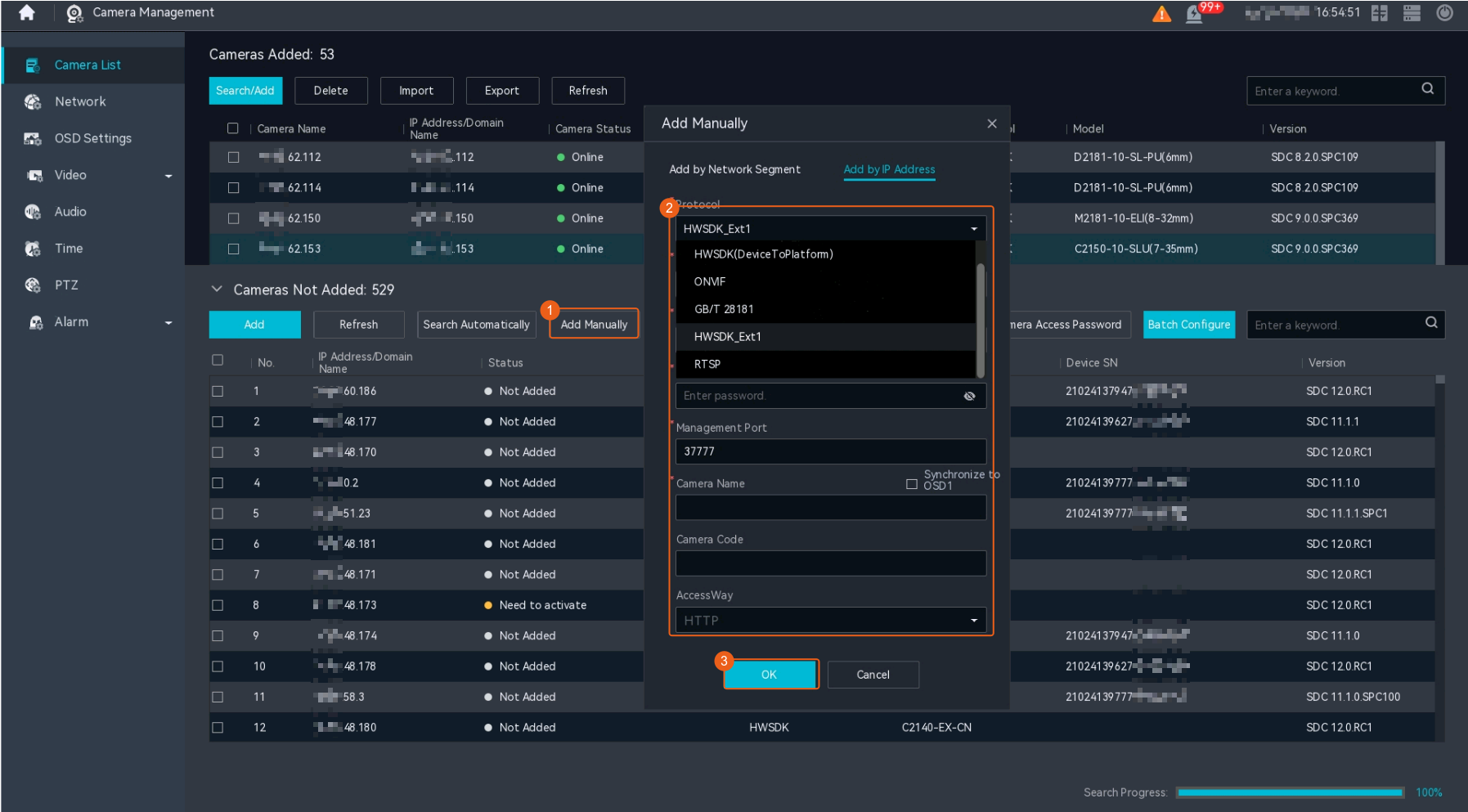
ONVIF-based Access
- For details about the connection method, see ONVIF-based Access.
Verification
Right-click on the desktop and choose Camera Management.
- If the connected camera is of the IPC6091-P180-Z40 or IPC6092-P360-Z40 model, two video channels are displayed in the device list of the HWT-IVS1800, and the camera status is connected.
Video channel of panoramic camera 1: The channel name is Device access name0102, and IPC is displayed in the lower left corner of the live video image.
Video channel of the PTZ dome camera: The channel name is Device access name, and IP PTZ Dome is displayed in the lower left corner of the live video image.
By default, a recording plan is configured for the video channel of panoramic camera 1. For details about how to configure recording plans for other channels, see Configuring the Recording Function.
Connecting a China Forestry Star Camera
Model Restrictions
Only high-rise dual-spectrum cameras of the FW-500-ET-C10 model are supported.
Context
An FW-500-ET-C10 camera consists of a visible-light optical lens and an infrared lens. After the camera is connected, each lens occupies a channel.
Procedure
Add a China Forestry Star camera on the LDU. For details about the connection method, see GB/T 28181-based Access.
Connecting a Dahua Common PTZ Dome Camera
Model Restrictions
- Only P5-4RV(4x)A PTZ dome cameras are supported.
- In the Dahua camera access scenario, cameras with the same IP address and port number cannot be added.
- Cameras connected through HWSDK_EXt1 do not support automatic camera type identification. You need to manually change the camera type.
Prerequisites
P5-4RV(4x)A cameras can be connected only through HWSDK_EXt1. You have obtained the SDK files libdhnetsdk.so and libdhconfigsdk.so of the camera to connect. You can click here to obtain them.
Procedure
- Load the SDK files.
- Log in to the operating system as the root user. ( How Do I Log In to the Operating System Through a Network Port?)
- Upload the SDK files libdhnetsdk.so and libdhconfigsdk.so to the /tmp directory.
- Move the SDK files to the specified directory.
mv /tmp/libdhnetsdk.so /home/lib/ivs_dcg/third/lib/Dahua/arm/
mv /tmp/libdhconfigsdk.so /home/lib/ivs_dcg/third/lib/Dahua/arm/
- Change the SDK file owner group and permissions.
chown ivs_dcg:ivs /home/lib/ivs_dcg/third/lib/Dahua/arm/*
chmod 440 /home/lib/ivs_dcg/third/lib/Dahua/arm/*
- Re-load the library path.
ldconfig
- Restart the DCG process.
sh /home/ivstool/bin/service.sh restart dcg
- Log in to the operating system as the root user. (
- Add a camera.
- Right-click on the desktop and choose Camera Management > Camera List.
- Click Add Manually and choose Add by IP Address. The page shown in Figure 3-63 is displayed.
Table 3-35 describes the key parameters.
Table 3-35 Parameter descriptionParameter
Description
Protocol
Access protocol of the camera. Set this parameter to HWSDK_EXt1.
IP Address
IP address of a camera.
User Name
User name and password used to register a camera with the device.
Password
Camera Name
Camera name displayed on the HWT-IVS1800. You are advised to enter the installation location or detection area.
Management Port
Camera access port. The port configured on the HWT-IVS1800 must be the same as that on the device. You are advised to use the default port number. If the port number is changed on the camera, set this parameter based on the site requirements.
- Set the type and intelligent attribute of cameras.
- Right-click on the desktop and choose Camera Management.
- On the page that is displayed, choose Camera List.
- Click next to the camera for which you want to set the intelligent attribute.
- Set Device Model to PTZ dome camera and Intelligent Attribute to Others, as shown in Figure 3-64.
Configuring the Video and Image Services
Configuring Live Video Viewing
Procedure
- Right-click on the desktop and choose Live from the shortcut menu.
- Drag a camera from the camera list to a live video pane, as shown in Figure 3-65.
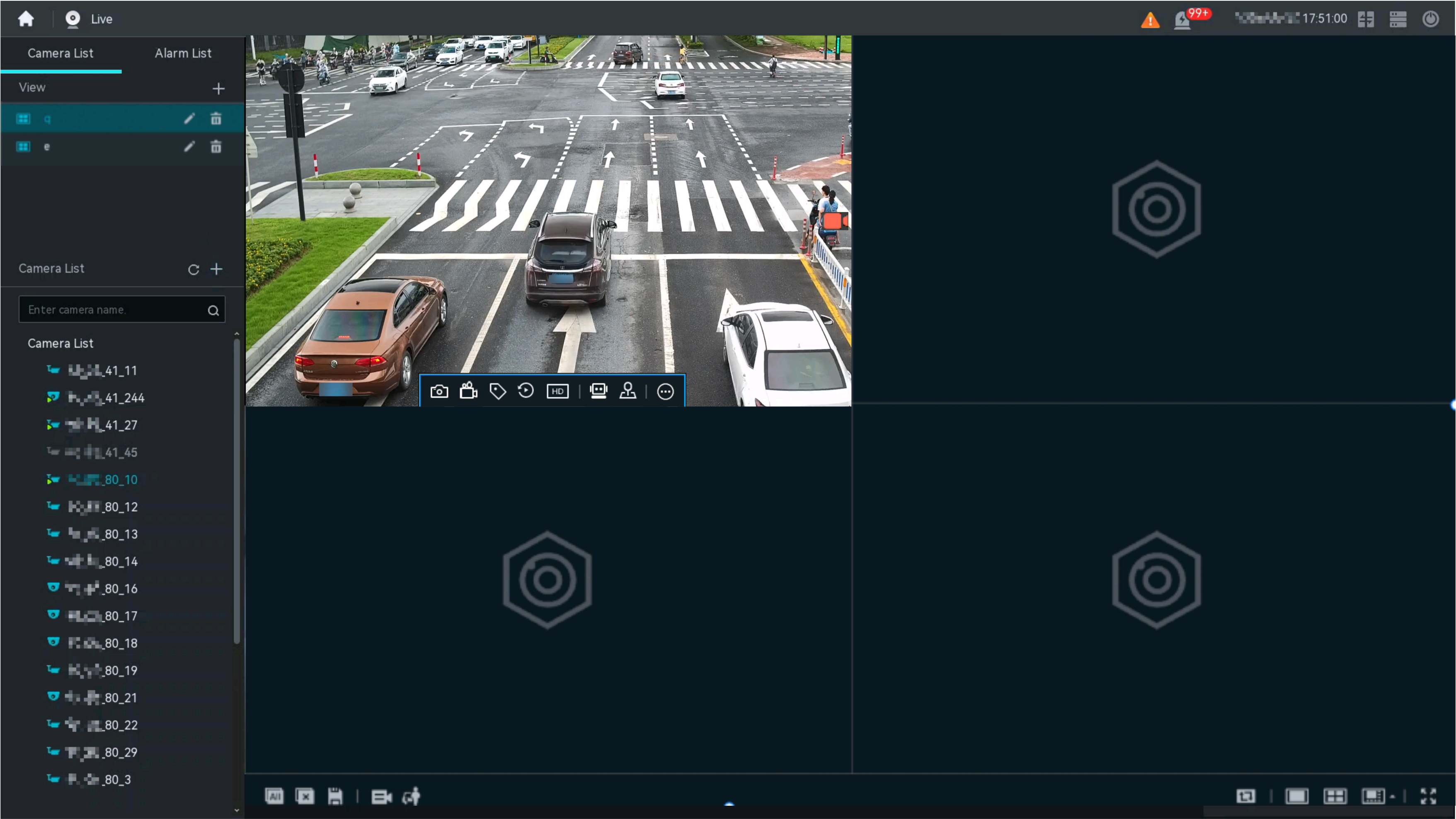
- If the number of live video panes on the LDU is greater than or equal to 9, secondary streams are obtained by default. If the stream type of a camera is set only to primary stream, the camera cannot obtain secondary streams. As a result, live video fails to be enabled.
- You are advised not to play video from the same camera in different video panes at the same time.
- If live video cannot be viewed after you drag a camera to a live video pane, click
 to manually refresh the camera list and drag the camera to the live video pane again.
Related Operations
Icon |
Function Description |
|---|---|
|
Switches between the primary and secondary screens. After the switchover on a dual-screen device, the original primary screen becomes the secondary screen and supports only live video viewing. The original secondary screen becomes the primary screen and supports operations such as parameter setting. NOTE:
After the switchover on a single-screen device, no video signal is displayed on the screen. After 20s, video will be displayed properly. |
|
Displays the disk status and disk list.
|
|
After logging in to the LDU, the live video operator, recording operator, and recording administrator can change the gesture password on the live video viewing page. |
|
Views camera alarms. |


Icon |
Function Description |
|---|---|
|
Switches to recording playback. For details about how to configure video recording, see Setting Recording Parameters. |
|
Adds a view layout to favorites. For details, see Feature Configuration. |
|
Manages camera cycling. For details, see Feature Configuration. |
|
Pauses and stops camera cycling. |
|
Enables object classification. For details, see Object Classification. |
|
Plays live video from all online cameras. After you click this icon, live video from all online cameras is automatically played. A maximum of 32 cameras are supported. |
|
Closes all live video panes. After you click this icon, all live video panes on the page will be closed. |
|
Adjusts the live video pane layout. |



Table 3-38 describes the icons in the live video pane.
Button/Icon |
Description |
|---|---|
|
Enables you to hear sounds, if any, from the sites being observed by the camera whose live video is being viewed, through audio output devices. To use this function, the camera whose live video is being viewed must support the audio function or is configured with a microphone. |
|
Enables voice intercom. For details, see Feature Configuration. This function can be enabled only when the following conditions are met:
|
|
Controls the PTZ device. For details, see Feature Configuration. This function requires that the camera support PTZ controls. Otherwise, the icon is unavailable. |
|
Sets the video mode.
|
|
Switches the stream type. The following stream types are supported:
If the image quality of the live video is poor, you can switch the stream to ensure the image quality. For details, see Feature Configuration. |
|
Plays back the recording within the previous 1 minute. This function is available only for cameras that are recording video. |
|
Adds a recording bookmark. After you click this icon and customize the bookmark name, the system automatically records video for 1 minute. You can search for recordings by bookmark name on the recording playback page. Bookmarked recordings cannot be downloaded. |
|
Enables manual recording. After manual recording is enabled, the system records the video. The default recording duration is 300s. To change the manual recording duration, choose System Management > System Settings > Manual Recording Configuration on the LDU and set Manual Recording Duration. |
|
Manually takes a snapshot. After you click this icon, the system automatically takes a snapshot of the live video and the message "View snapshots in alarm center." is displayed. Right-click the live video image, choose Alarm Center from the shortcut menu, set the alarm type to manual snapshot, select the corresponding camera from the camera list, and view the manual snapshot. |
|
Displays the real-time statistics. After you click this icon, the intelligent analysis task information is displayed on the live video image in real time. To disable this function, click this icon again. NOTE:
|






Configuring the Recording Function
If intermittent network disconnection occurs frequently, recording storage period may be affected. If the network is intermittently disconnected for more than 30 seconds each time, recording indexes will be reallocated. A maximum of 20,000 recording indexes are supported. If the number of recording indexes exceeds 20,000, the indexes will be recycled. As a result, recordings will be deleted.
Configuring a Server Storage Policy
Procedure
- Log in to the OMU portal as the admin user. ( Logging In to the OMU portal)
- Choose Storage > Storage Space.
- Configure a server storage policy, as shown in Figure 3-66.
Table 3-39 describes the parameters.
Table 3-39 Parameter descriptionParameter
Description
Insufficient Recording Space Policy
Policy used when the recording space is insufficient. The options are as follows:
Stop: Only recordings whose retention period expires are recycled. The system stops recording when the storage space is used up.
Overwrite: Recordings are recycled based on the following sequence until the available storage space is greater than the threshold: recordings whose retention period expires > recordings whose retention period is not configured > earliest recordings in the retention period.
Recording Recycle Policy
Policy for recycling recordings. The options are as follows:
By storage space: Recordings are recycled only when the size of the storage space is less than or equal to the threshold.
By expiration time: Recordings are recycled when the size of the storage space is less than or equal to the threshold or the retention period elapses.
Threshold (GB) = Number of connected cameras x 2
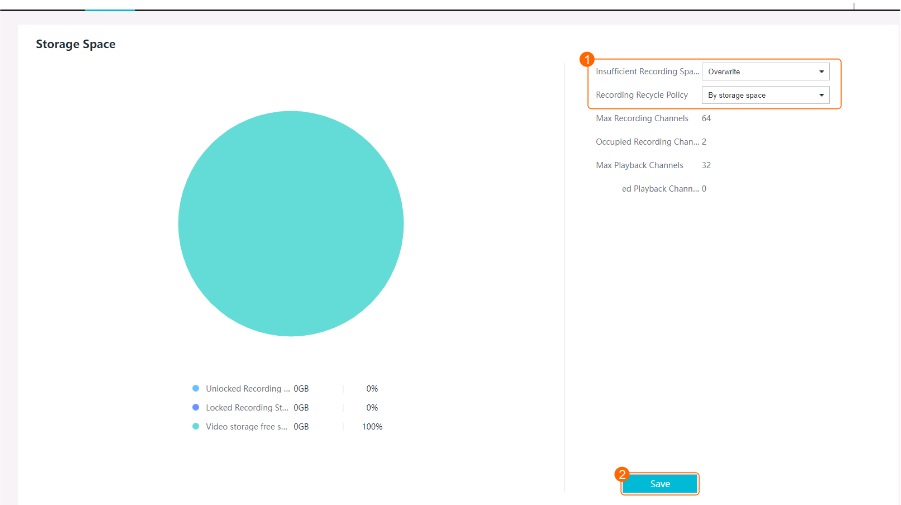
Setting Recording Parameters
Context
- By default, the recording function is enabled for cameras, the primary stream is used for recording, and all-day recording is used.
- By default, the recording function is enabled only for the first channel of a multi-channel camera. You can manually enable the recording function for other channels by referring to this section.
Procedure
- Log in to the LDU as the admin user. ( Logging In to the LDU)
- Right-click on the desktop and choose Recording.
- Configure recording management, as shown in Figure 3-67.
Table 3-40 describes the key parameters.
Table 3-40 Key parameter descriptionParameter
Description
Recording
Indicates whether to enable video recording.
Intelligence: indicates whether to enable intelligent recording. You are advised to enable this function in scenarios with a small flow of people or vehicles.
Intelligent recordings can be classified into pedestrian recordings, motor vehicle recordings, non-motorized vehicle recordings, and common recordings. Different types of intelligent recordings are marked with different colors on the recording playback timeline. In this way, users can quickly search for objects (pedestrians, motor vehicles, and non-motorized vehicles) in recordings.
NOTE:It takes 10s to switch between different types of recordings. In scenarios with a large flow of people or vehicles, more time may be required.
Period
Period for recording video. A camera records video only in the specified period.
Storage Mode
Storage mode. Select All frames in this example.
All frames: Recordings are stored completely within a specified period. After the period expires, the system gradually deletes the earliest recordings.
Scheduled Recording Storage (days)
Period for storing all frames of recordings, in days.
The default value 0 indicates that the storage period is not fixed and the storage priority is low. When the storage space is full, the recording is preferentially recycled.
CAUTION:Shortening of the retention period will cause the loss of content stored in the period that is in the original retention period but is not in the new retention period.
Alarm-triggered Recording Storage (days)
Period for storing alarm-triggered recordings, in days.
The default value 0 indicates that the storage period is not fixed and the storage priority is low. When the storage space is full, the recording is preferentially recycled.
CAUTION:Shortening of the retention period will cause the loss of content stored in the period that is in the original retention period but is not in the new retention period.
Server Recording Stream
Select a stream type for scheduled recording as required.
Primary: The primary stream of the camera is used. The primary stream features a high bit rate, definition, and bandwidth usage.
Secondary X: Secondary streams of the camera are used. Secondary streams feature a low bit rate, definition, and bandwidth usage.
If the camera has multiple secondary streams, the parameter will have multiple secondary stream options such as Secondary 1 and Secondary 2.
The system automatically selects a stream type based on the bandwidth and network quality.
Alarm-triggered Recording Stream
Type of the stream used for scheduled alarm-triggered recording when a camera generates an alarm.
Pre-recording Stream
Policy for the system to pre-record the video generated 10s (maximum) before the time when an alarm is generated by a camera. Only onboard pre-recording is supported.
Onboard pre-recordings are saved on the camera side. Therefore, if Pre-recording Stream is set to PU pre-recording, ensure that an SD card has been inserted into the camera.
Store Image
Indicates whether to store the intelligent images captured during scheduled recording. Set this parameter as required.
- Enable
- Disable
Image Storage (days)
Period for storing captured intelligent images as required.
The default value is 90. After the image storage period elapses, images are automatically deleted. However, the alarm records corresponding to the images may not be deleted. Therefore, found alarm records may not contain related images.
To avoid this problem, you can set the image storage period to a larger value based on the number of service alarms.
CAUTION:- After the storage period settings are modified, you must pay attention to the storage data changes. Shortening the storage period will cause loss of the content that is stored in the original storage period but not in the new storage period.
- You are advised to configure the storage period during software deployment.
- You are advised not to change the storage period during the upgrade, key assurance period, or important events.
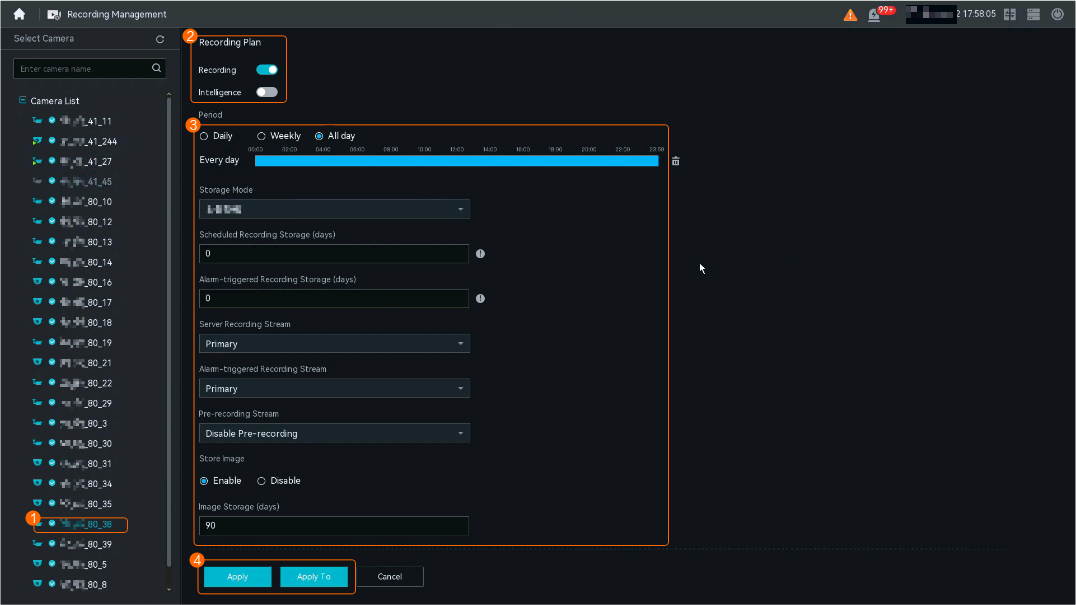
Verification
Procedure
After the recording plan is enabled, wait 10 minutes to generate camera recording files.
- On the live video viewing page, check whether the recording plan is successfully enabled.
- Log in to the LDU as the admin user. ( Logging In to the LDU)
- Right-click on the desktop and choose Live from the shortcut menu.
- Drag a camera whose recording parameters have been set from the camera list to a live video pane, as shown in Figure 3-68.
- Log in to the LDU as the admin user. (
- View the recording result on the recording playback page.
- Log in to the LDU as the admin user. ( Logging In to the LDU)
- Right-click on the desktop and choose Playback.
- Play back a recording, as shown in Figure 3-69. You can select criteria to search for the recordings generated during intelligent behavior analysis.
- If Intelligence is enabled on the Recording Management page, you can view or filter objects (pedestrians, motor vehicles, and non-motorized vehicles) in recordings by color on the Playback page.
- When you move the cursor to the progress bar, a video thumbnail is displayed.
Table 3-41 describes the key parameters.
Table 3-41 Parameter descriptionParameter
Description
Search By
Select a search mode as required.
- Time
- Bookmark
Select Date
Click the date for search.
The date, on which there is video recorded, is displayed in green.
Table 3-42 describes the icons.
Table 3-42 Icon descriptionIcon
Function Description

Adds bookmarks for recording files. Then you can search for recordings by bookmark.
Bookmarked recordings cannot be downloaded.

Enables the channel-associated voice function. Then you can hear voice from detection areas in real time through audio output devices.

Displays the real-time statistics.
After you click this icon, the intelligent analysis task information is displayed on the live video image in real time. To disable this function, click this icon again.
NOTE:- In the scenario of video decoding and display on video walls, the target detection frame cannot be superimposed on the video walls in real time.
- In infrared mode, the mask detection frame cannot be properly superimposed.
- A single channel can superimpose analysis results of a single intelligent analysis function on the video image in the same period.

Views media stream information about recordings.

Closes the pane that plays video currently.

Simultaneously plays back recordings of multiple cameras from the same time point. For details, see Feature Verification.

Adjusts the recording playback speed.

Selects a recording playback layout.

Downloads recordings. For details, see Feature Verification.
You can click this icon to view the recording download status.

Zooms out or in on the timeline.

After Intelligence is enabled on the Recording Management page, different types of intelligent recordings are marked with different colors. You can click the icons to filter required recordings. If an icon is highlighted, the corresponding type of recordings is selected. If an icon is dimmed, the corresponding type of recordings is filtered out.
- The icon in yellow indicates pedestrian recordings. The icon in red indicates motor vehicle recordings. The icon in blue indicates non-motorized vehicle recordings.
- If Skip normal recording is selected, the recording segments that do not contain objects (pedestrians, motor vehicles, and non-motorized vehicles) are not displayed.
NOTE:It takes 10s to switch between different types of recordings. In scenarios with a large flow of people or vehicles, more time may be required.



- Log in to the LDU as the admin user. (
 is displayed on the live video viewing page. If so, the camera is recording video.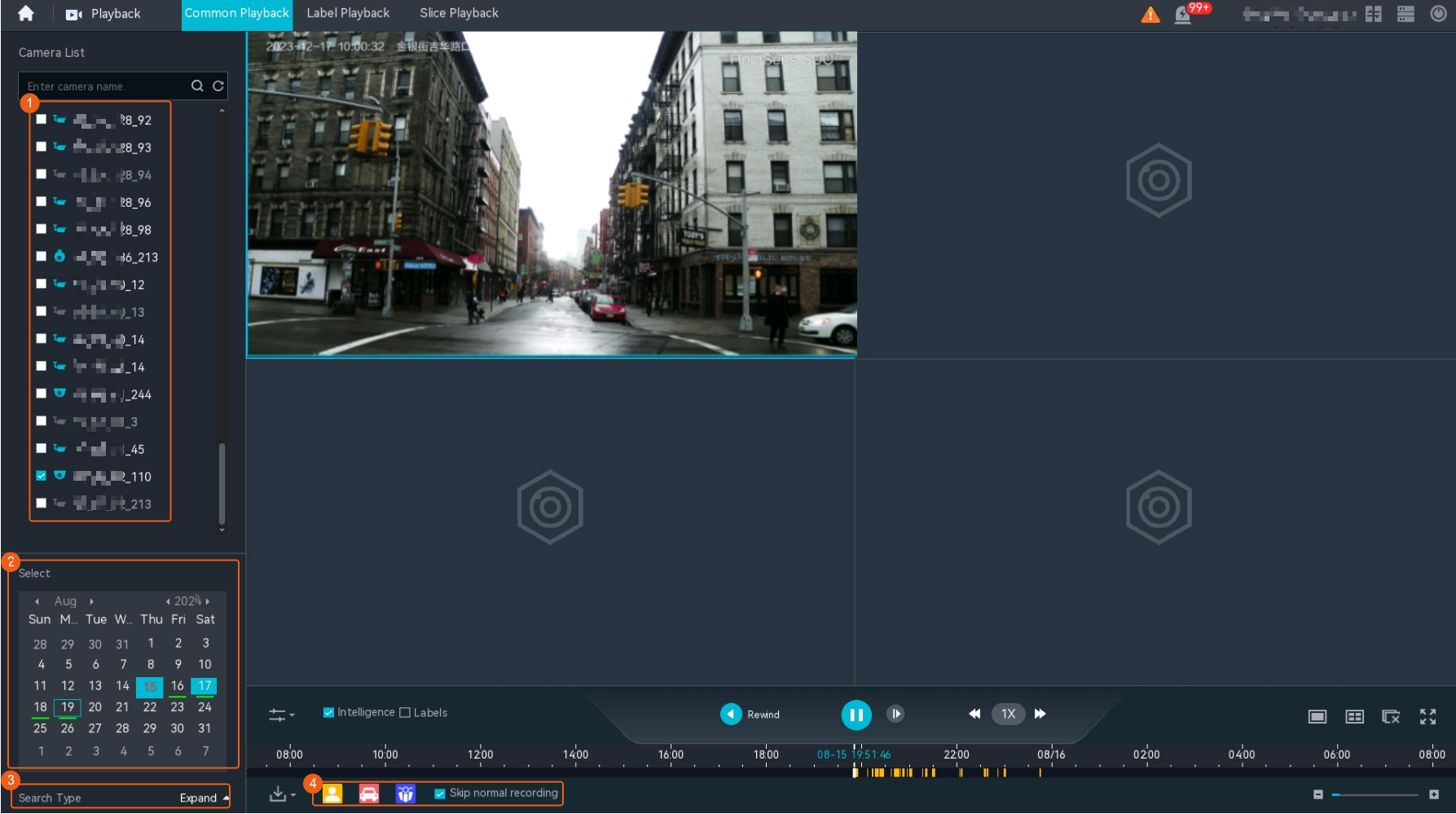
Configuring OSD for Cameras
Restrictions
OSD cannot be configured for third-party cameras connected through GB/T 28181.
Procedure
- Log in to the LDU as the admin user. ( Logging In to the LDU)
- Click
 in the upper left corner to access the main menu.
 - Choose and select the camera to be configured.
- Set the OSD1 parameters and date format, as shown in Figure 3-70. Table 3-43 describes the parameters.
- Click Apply to Camera Name to synchronize the configured OSD1 content to the names of multiple cameras in batches, as shown in Figure 3-71.
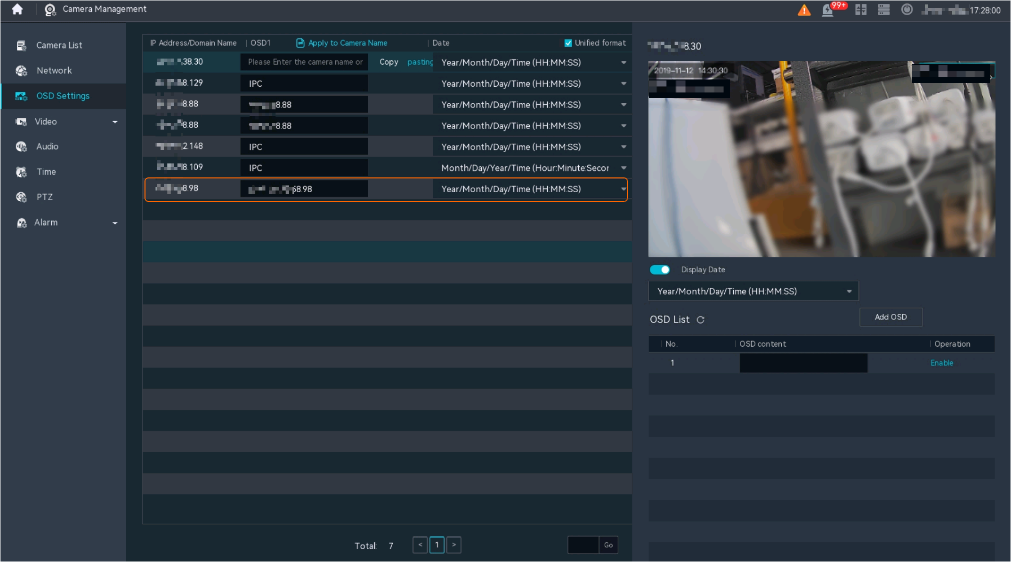
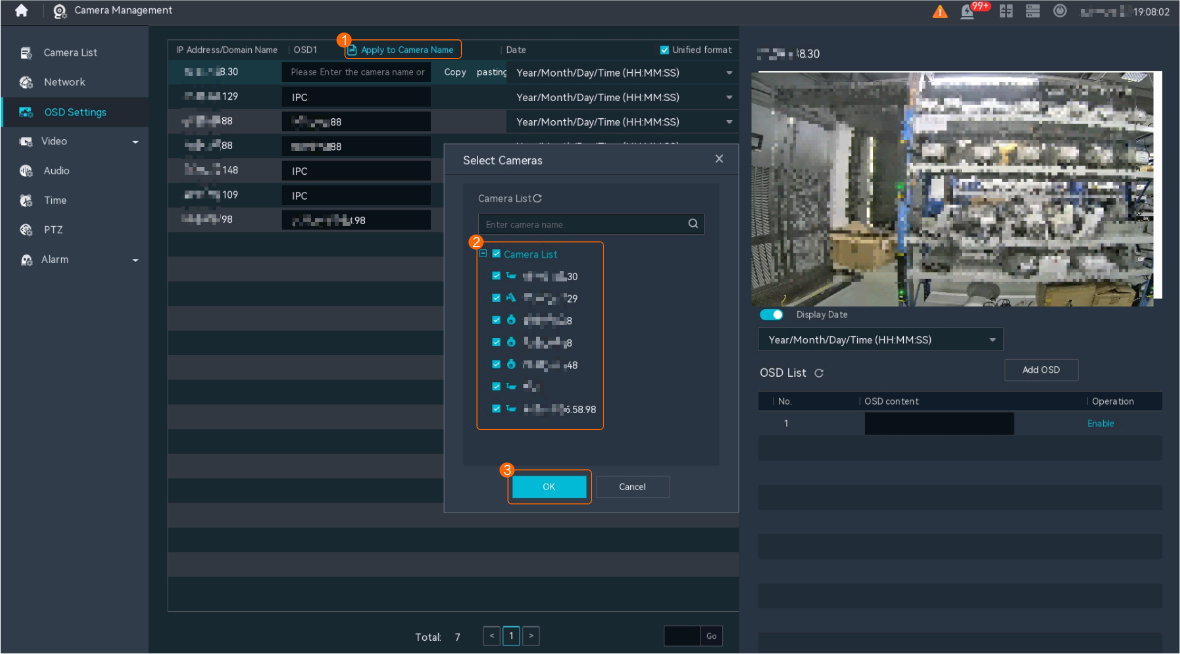
Parameter |
Description |
|---|---|
Apply to Camera Name |
Used to synchronize the configured OSD1 content to the names of multiple cameras in batches. The camera name can contain 1 to 40 characters and cannot contain special characters. |
Unified format |
Indicates whether to apply the same date format to all cameras. This check box is selected by default. After this check box is selected, you need to set a date format. |
Copy |
Used to copy the OSD content of the selected camera. |
pasting |
Used to paste the copied OSD content to the current camera. |
Add OSD |
Used to add an OSD record. NOTE:
A maximum of nine OSD records can be added for a camera connected through the HWSDK protocol. |