LDU
- How Do I Change the GUI Language?
- How Do I Cancel Logout upon Timeout?
- How Do I Configure Screen Lock upon Timeout for Live Video Viewing or Recording Playback?
- How Do I Change the Maximum Number of Favorited Layouts?
- How Do I Change the Pointer Movement Speed?
- How Do I Enable Camera Go-online and Go-offline Alarm Emails?
- How Do I Modify the IP address of the System?
- How Do I Configure a Specified Route Network Segment?
- How Do I Configure NTP Time Synchronization?
- How Do I Manually Configure the System Time?
- How Do I Set or Modify the Gesture Password?
- How Do I Change the Account Password?
- How Do I Change the Password Validity Period?
- How Do I Modify Password Recovery Configurations?
- How Do I Set My Password to Be Permanently Valid?
- How Do I Change the Password for Connecting a Camera?
- How Do I View the System Version?
- How Do I Set Direct Connection Priority for a Camera?
- How Do I Enable Alert Deployment?
- How Do I Change the Camera IP Address and Time?
- How Do I Modify Audio Settings of a Camera?
- How Do I Modify Image Settings of a Camera?
- How Do I Configure an External PTZ Device?
- How Do I Configure Privacy Mask?
- How Do I Log Out of the LDU?
- How Do I Restart the LDU?
- What Do I Do When a Blank Screen Occurs During Live Video Viewing on the LDU?
- What Do I Do When My LDU Account Is Locked?
- What Do I Do When a Camera Goes Offline Unexpectedly?
- Why Does a Camera Rotate to Another Position After I Set a Home Position?
- What Do I Do When the Home Position Button Is Unavailable?
- What Do I Do When the Message "Network error. Check client and server networks." Is Displayed?
- How Do I Retrieve the System Password?
- What Do I Do When the LDU GUI Cannot Be Displayed on the MAXHUB After the IVS1800 Restart?
- How Do I Configure SuperCoding for Cameras on the LDU?
- What Can I Do If the USB Flash Drive List Is Displayed Abnormally or There Is No Response When I Download Recordings on the LDU?
- How Do I Connect Cameras by Importing a Template File?
- How Do I Set Advanced Parameters by Importing a Template File?
- How Do I Upgrade a Camera Using a USB Flash Drive?
- What Do I Do If a Blank Screen Occurs When Decoding Exceeded the Maximum Specification of the HWT-IVS1800?
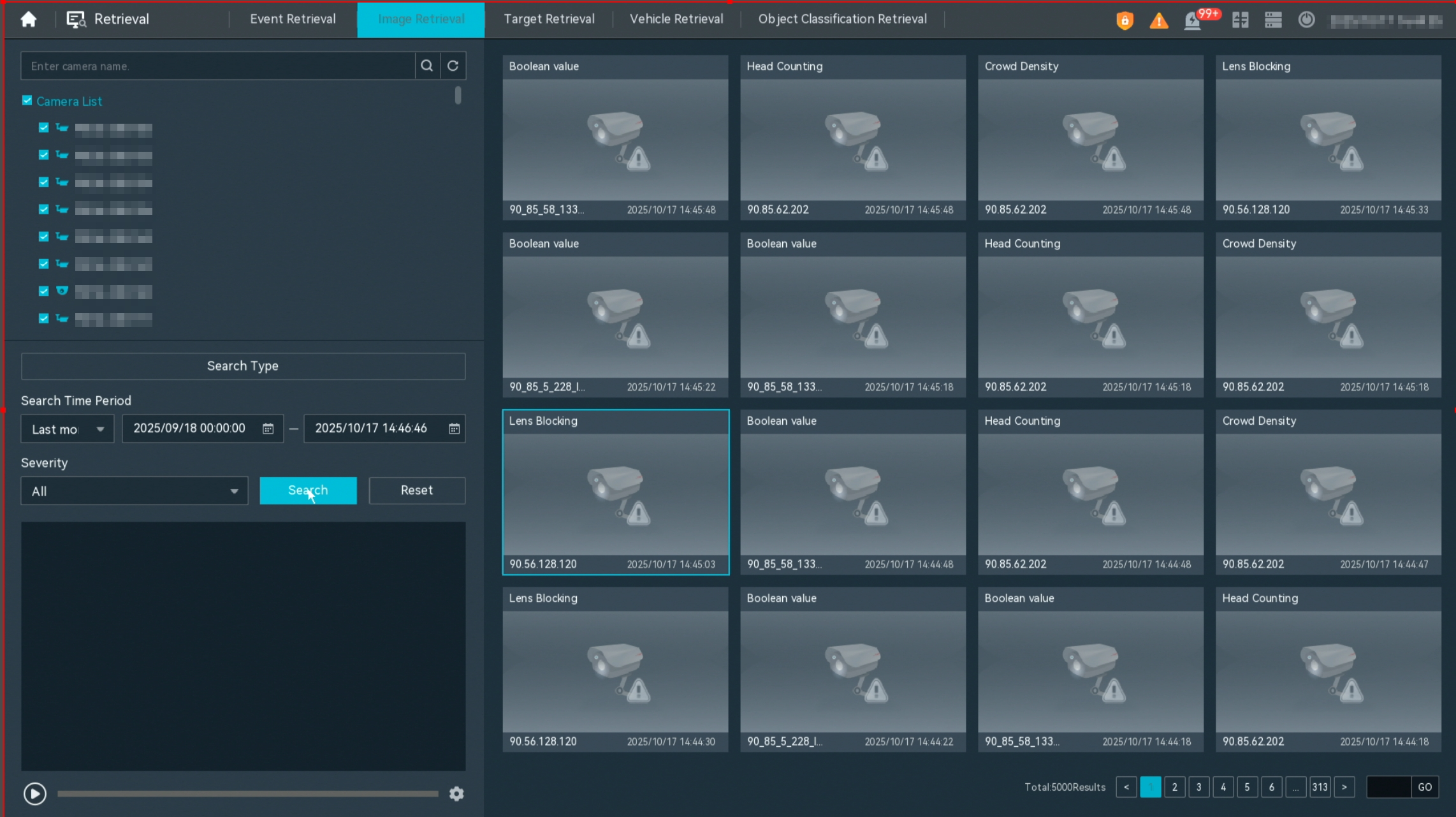
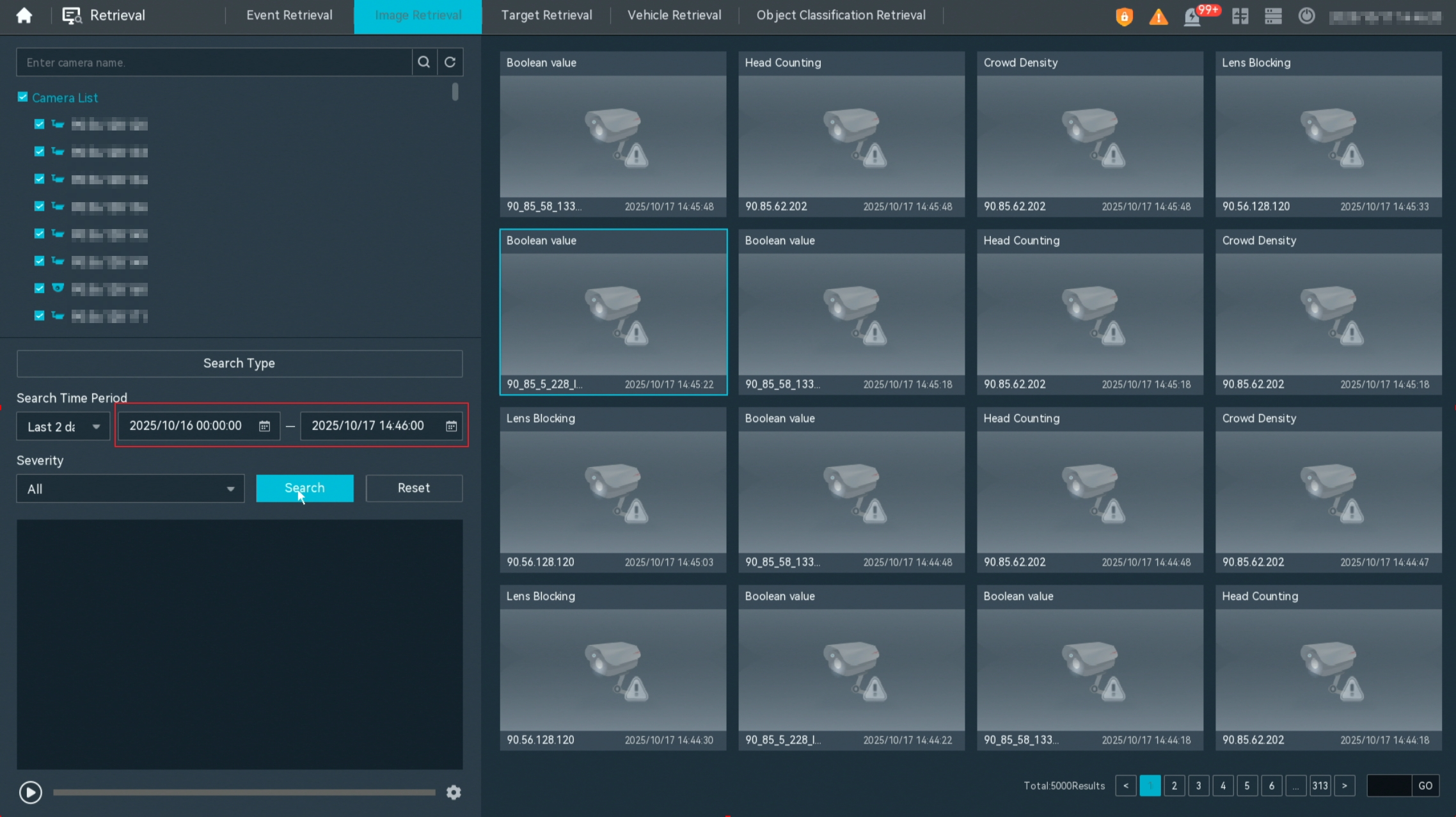
- What Do I Do When I Fail to Query Historical Alarms Generated One Week Ago or Earlier?
How Do I Change the GUI Language?
Procedure
- Log in to the LDU as the admin user. (
 Logging In to the LDU)
 - Click
 in the upper left corner to access the main menu.
 - Choose System Management > System Settings > General.
- Change the GUI language.
The LDU supports two languages: English and Chinese.
How Do I Cancel Logout upon Timeout?
Context
By default, the LDU will log you out if you do not perform any keyboard or mouse operations within 5 minutes.
Procedure
- Log in to the LDU as the admin user. ( Logging In to the LDU)
- Click in the upper left corner to access the main menu.
- Choose System Management > System Settings > General.
- Set Session Timeout (mins) to Never and click Save.
How Do I Configure Screen Lock upon Timeout for Live Video Viewing or Recording Playback?
Procedure
- Log in to the LDU as the admin user. ( Logging In to the LDU)
- Click in the upper left corner to access the main menu.
- Choose System Management > System Settings > General.
- Set Session Timeout (mins) based on the site requirements.
- Select Live/Playback Page Lock Time.Table 6-26 describes the processing mechanisms in different scenarios.Table 6-26 Scenario description
Scenario
Processing Mechanism
No operation on the live video viewing or recording playback page for a specified period of time
- The Live/Playback Page Lock Time parameter is selected:
If no operation is performed within the specified period, the system automatically locks the screen, but the live video viewing or recording playback continues. You can click any area on the GUI and enter the login password to unlock the screen.
- The Live/Playback Page Lock Time parameter is not selected:
If no operation is performed within the specified period, the system automatically redirects you to the login page.
No operation on other pages for a specified period of time.
No matter the Live/Playback Page Lock Time is selected or not, the system automatically redirects you to the login page if no operation is performed within the specified period.
- The Live/Playback Page Lock Time parameter is selected:
How Do I Change the Maximum Number of Favorited Layouts?
Procedure
- Log in to the LDU as the admin user. ( Logging In to the LDU)
- Click in the upper left corner to access the main menu.
- Choose System Management > System Settings > General.
- Change the maximum number of favorited layouts.
The LDU supports 0 to 16 favorited layouts.
How Do I Change the Pointer Movement Speed?
Procedure
- Log in to the LDU as the admin user. ( Logging In to the LDU)
- Click in the upper left corner to access the main menu.
- Choose System Management > System Settings > General.
- Change the pointer movement speed.
Drag
 to adjust the pointer movement speed.
How Do I Enable Camera Go-online and Go-offline Alarm Emails?

Only one alarm of the same type can be generated and sent by email within 30s.
Procedure
- Log in to the LDU as the admin user. ( Logging In to the LDU)
- Click in the upper left corner to access the main menu.
- Choose System Management > System Settings > General.
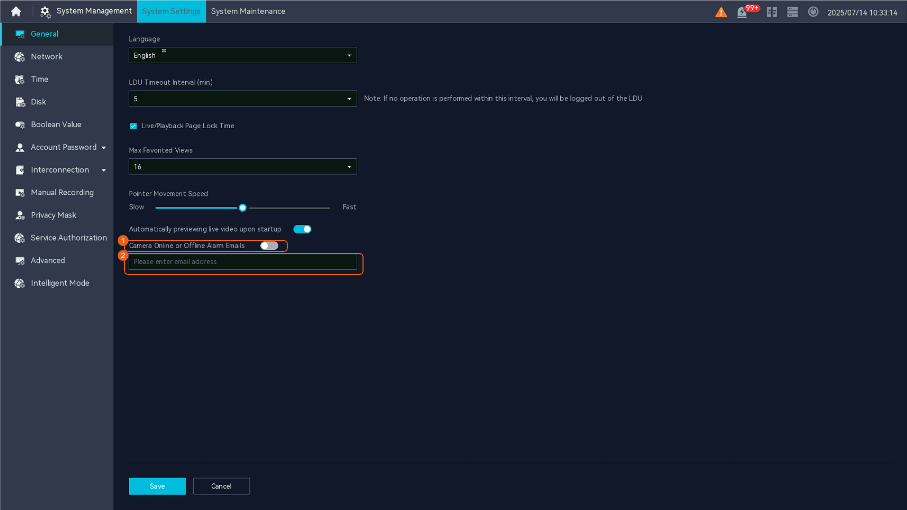
- Configure camera go-online and go-offline alarm emails, as shown in Figure 6-66.
How Do I Modify the IP address of the System?
Procedure
- Log in to the LDU as the admin user. ( Logging In to the LDU)
- Click in the upper left corner to access the main menu.
- Choose System > System Configuration > Network.
- Change the device IP address based on the actual address mode. After the IP address is changed, the system will automatically restart some modules, which takes 2 minutes.
How Do I Configure a Specified Route Network Segment?
Scenario Description
If the IP address of the computer running the northbound device (for example, the iClient S100) and the IP address of the northbound network adapter are in different network segments, and the IP addresses of the southbound device (for example, a camera) and southbound network adapter are also in different network segments, you are advised to set the default route to the northbound network adapter and specify a route network segment.
Configuring a Specified Route Network Segment
- Log in to the LDU as the admin user. ( Logging In to the LDU)
- Click in the upper left corner to access the main menu.
- Choose System > System Settings > Network.
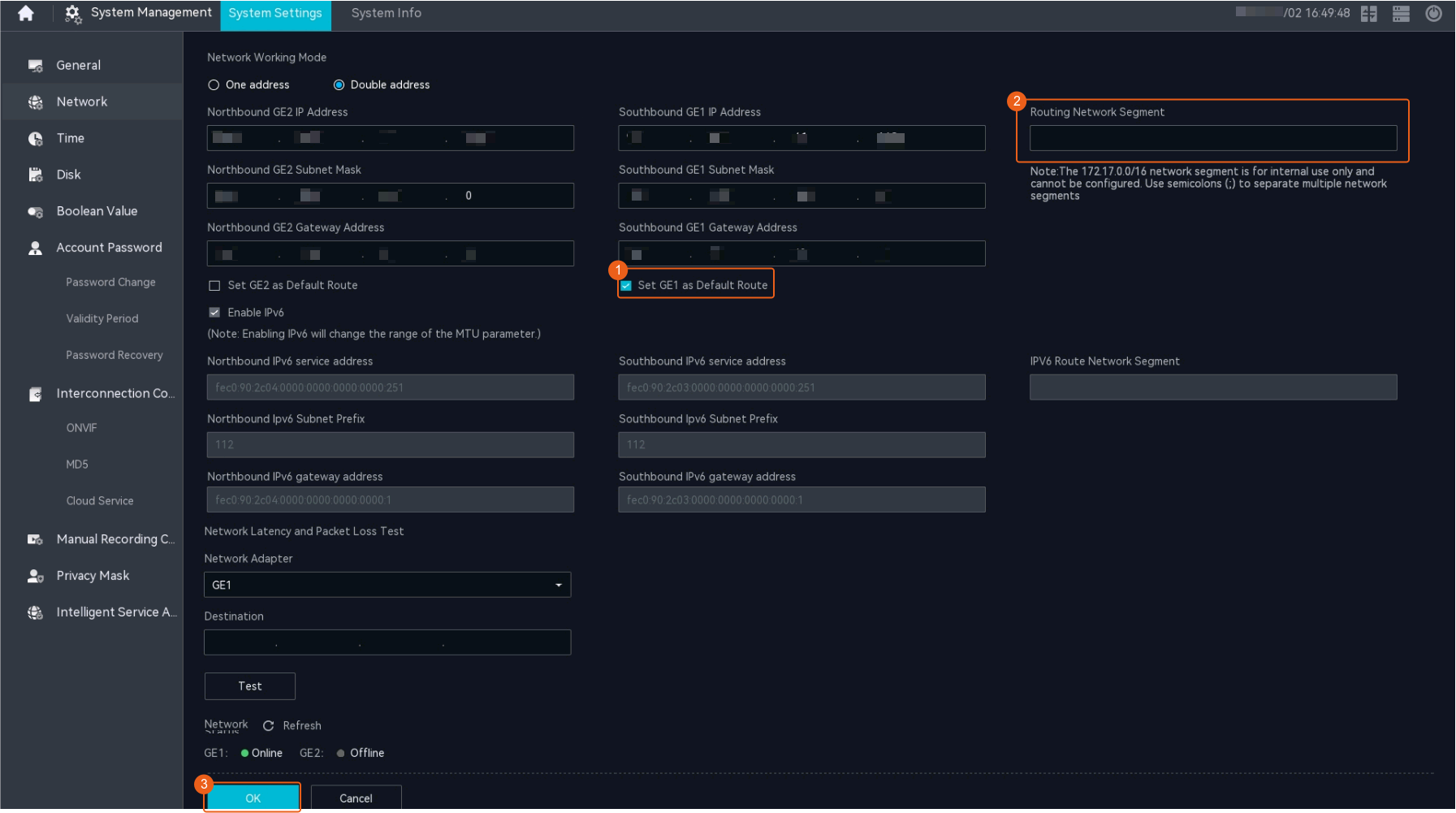
- Configure a specified network segment, as shown in Figure 6-67.
Table 6-27 describes the parameters.
Table 6-27 Parameter descriptionParameter
Description
Set GE1 as Default Route
The rules for setting the default route vary depending on whether the IP address of the computer running the northbound device (for example, the iClient S100) and the IP address of the northbound network adapter are in the same network segment.
- They are in the same network segment.
- If the IP addresses of the southbound device (for example, a camera) and southbound network adapter are in the same network segment, set the default route to the southbound or northbound network adapter.
- If the IP addresses of the southbound device (for example, a camera) and southbound network adapter are in different network segments, set the default route to the southbound network adapter.
- They are in different network segments.
- If the IP addresses of the southbound device (for example, a camera) and southbound network adapter are in the same network segment, set the default route to the northbound network adapter.
- If the IP addresses of the southbound device (for example, a camera) and southbound network adapter are in different network segments, you are advised to set the default route to the northbound network adapter. In this case, you also need to set Routing Network Segment.
Set GE2 as Default Route
Routing Network Segment
Network segment to which the southbound device belongs. If there are multiple network segments, separate them with semicolons (;).
If the iClient S100 and VMS are connected through the southbound network, you also need to add the network segments to which the iClient S100 and VMS belong.
Enable IPv6
Indicates whether to enable IPv6. By default, this parameter is deselected.
NOTE:- IPv6 does not support TLS encryption.
- The RESTful interface for server recording playback does not support IPv6.
- IPv6 does not support NAT networking.
- Only IPv6 cameras connected through ONVIF are supported. You can request streams from such cameras.
- Cameras that comply with other protocols, such as HWSDK and GB/T 28181, cannot be connected.
- If the HWT-IVS1800 is connected to the upper-level video and image management platform through GB/T 28181-2016, the HWT-IVS1800 does not support both IPv4 and IPv6 addresses.
Northbound service IPv6 address/Southbound IPv6 service address
Network information of the northbound or southbound service. Set these parameters based on the site requirements.
NOTE:- The service IP address and gateway IP address must be in the same network segment.
- Changing the IP address will interrupt services. Exercise caution when performing this operation. The restart takes about 1 to 2 minutes.
Northbound subnet prefix/Southbound Subnet Prefix
IPv6 address of the northbound gateway/Southbound IPv6 gateway address
IPv6 specified route network segment
Information about the IPv6 network segment where the northbound device is located.
If multiple network segments are involved, separate them with semicolons (;) and do not end with a semicolon (;). A maximum of 13 network segments can be configured, and a maximum of 200 characters are supported.
- They are in the same network segment.
How Do I Configure NTP Time Synchronization?
Procedure
- Log in to the LDU as the admin user. ( Logging In to the LDU)
- Click in the upper left corner to access the main menu.
- Choose .
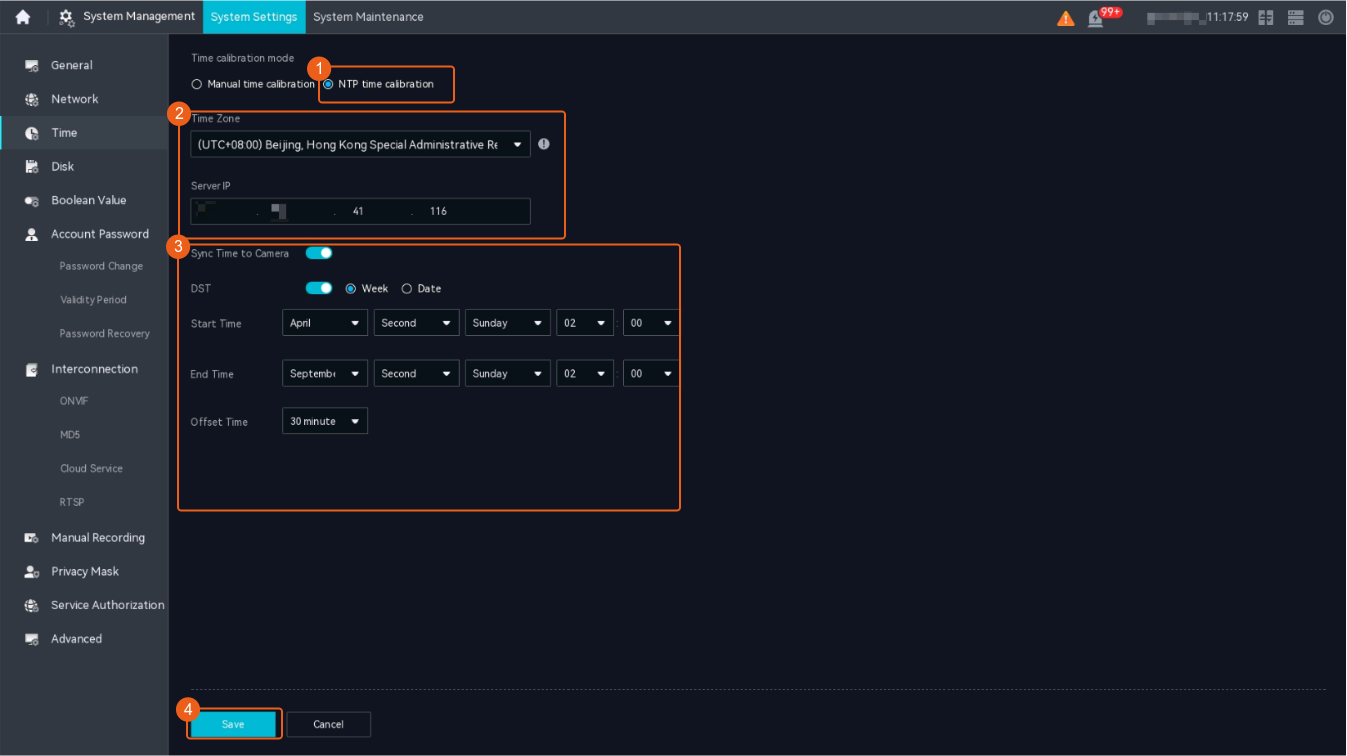
- Configure NTP time synchronization, as shown in Figure 6-68.
The function of synchronizing system time with the cloud service system and the function of synchronizing system time with the NTP server cannot be enabled at the same time.
How Do I Manually Configure the System Time?

Changing the time zone and system time may restart services. Exercise caution when performing this operation.
Procedure
- Log in to the LDU as the admin user. ( Logging In to the LDU)
- Click in the upper left corner to access the main menu.
- Choose .
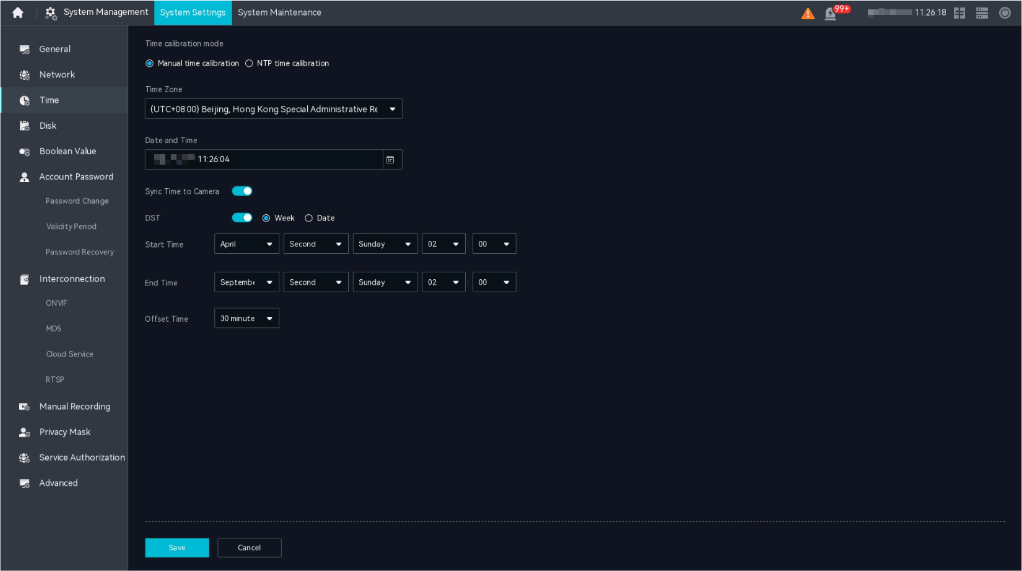
- Set Time calibration mode to Manual time calibration and configure the system time, as shown in Figure 6-69.
How Do I Manually Configure the System Time? describes the parameters.
Table 6-28 Parameters/Buttons for manual time configurationParameter/Button
Description
Time Zone
Current time zone of the device.
Date and Time
Date and time of the device.
Sync Time to Camera
Indicates whether to synchronize time to the camera connected to the device. If this function is enabled, the camera will time-synchronize with the server.
The function takes effect only after the SCU module is restarted.
DST
Indicates whether to enable DST. If DST is used locally, toggle on this parameter.
After DST is configured, the time zone cannot be changed. Therefore, set the time zone before setting DST. If you need to change the time zone after setting DST, disable DST first.
Week
DST mode.
Date
Start Time
Start time of DST.
End Time
End time of DST.
Offset Time
Offset time of DST.
Save
Button for saving settings.
Cancel
Button for restoring data to the state last saved.
How Do I Set or Modify the Gesture Password?
- Log in to the LDU as the admin user. ( Logging In to the LDU)
- Click in the upper left corner to access the main menu.
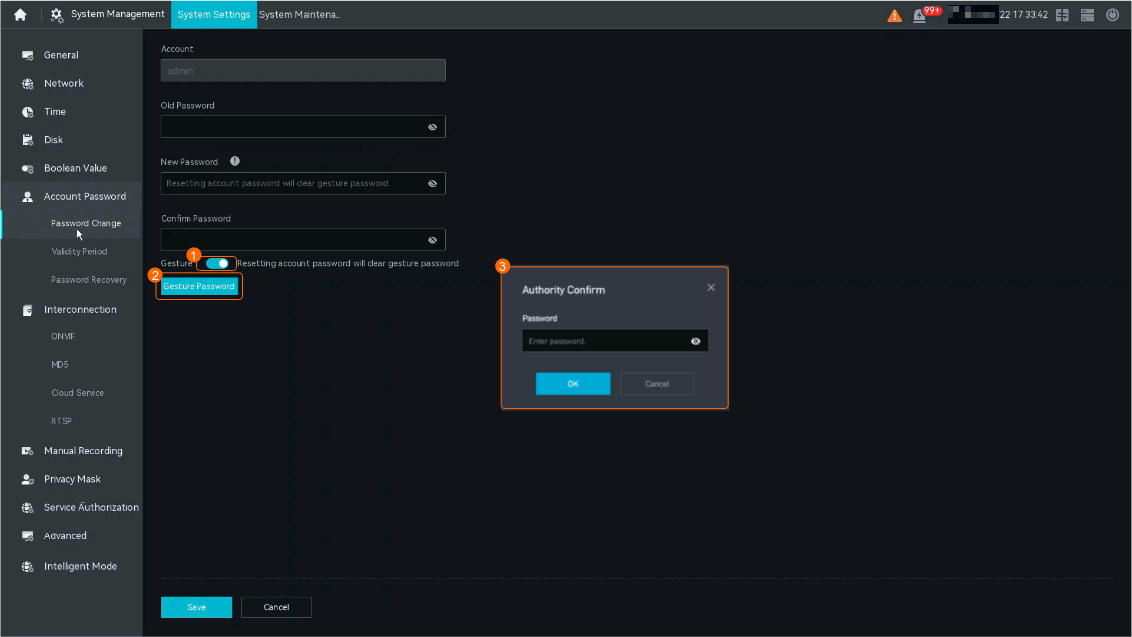
- Choose System Management > System Settings > Account Password > Password Change.
- Confirm the permission, as shown in Figure 6-70.
Table 6-29 describes the mandatory parameters.
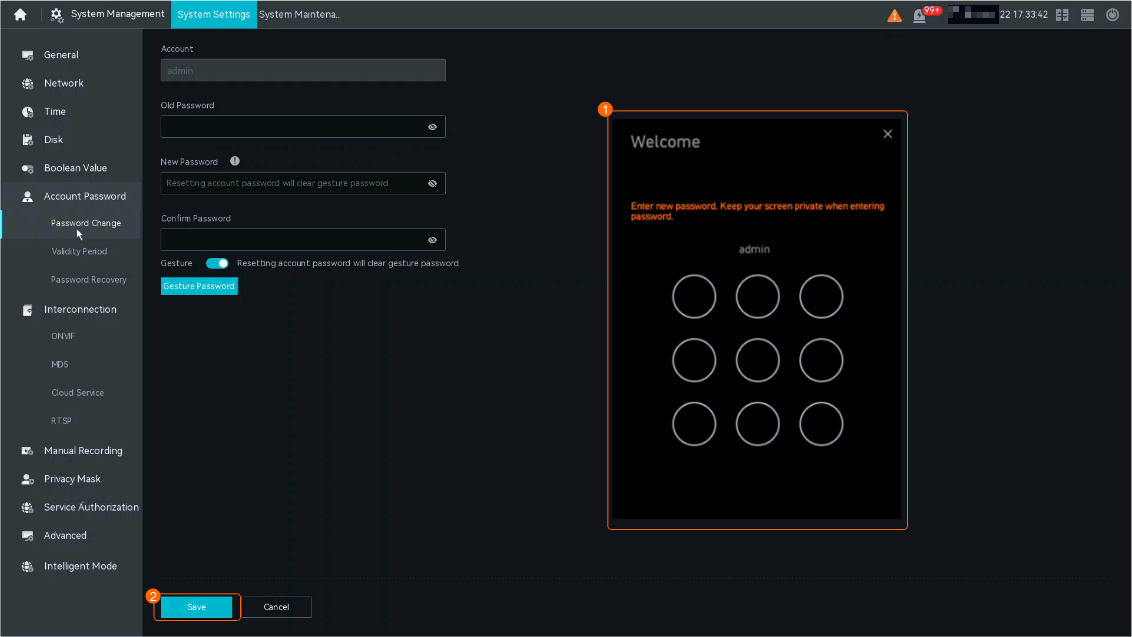
- Set the gesture password, as shown in Figure 6-71.
How Do I Change the Account Password?
Procedure
- Log in to the LDU as the admin user. ( Logging In to the LDU)
- Click in the upper left corner to access the main menu.
- Choose System Management > System Settings > Account and Password > Password Change.
How Do I Change the Password Validity Period?
Procedure
- Log in to the LDU as the admin user. ( Logging In to the LDU)
- Click in the upper left corner to access the main menu.
- Choose System Management > System Settings > Account and Password > Validity Period.
- Select Enable Validity and set Password Validity Period (Days).
How Do I Modify Password Recovery Configurations?
Procedure
- Log in to the LDU as the admin user. ( Logging In to the LDU)
- Click in the upper left corner to access the main menu.
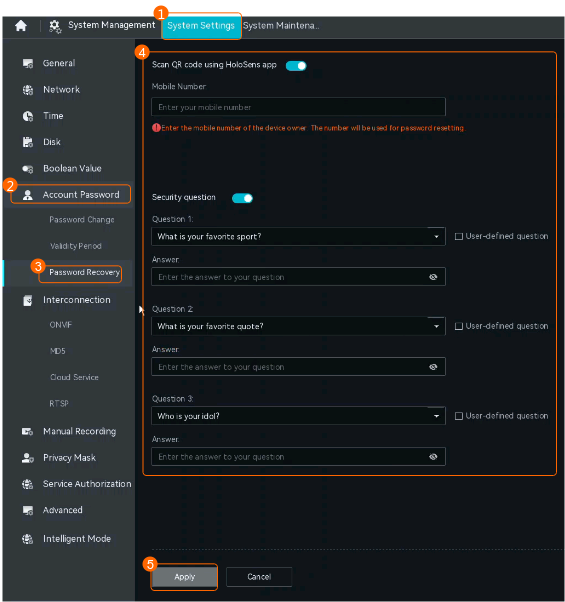
- Choose .
- Set password recovery parameters, as shown in Figure 6-72.
Table 6-30 describes the parameters.
Table 6-30 Parameter descriptionParameter
Operation
Description
Scan QR code using HoloSens app
Set mobile number
- You can toggle on Scan QR code using HoloSens app and change the mobile number in the Mobile Number text box.
- If you toggle off Scan QR code using HoloSens app, the mobile number cannot be changed.
Security question
Set security question
- You can toggle on Security question and change the security questions and answers.
- If you toggle off Security question, the security questions and answers cannot be changed.
NOTE:- You can select preset questions or customize questions. A customized question must contain 1 to 80 bytes and cannot contain the following special characters: ~ ` ! ^ = { } | \ [ ] < > '
- For customized questions, their answers (excluding the space at the beginning) must contain 2 to 128 bytes.
- You need to set three security questions and their answers. All the security questions and their answers must be unique.
Apply
-
After the preceding parameters are set, the system automatically verifies the validity of the settings. If the verification is successful, you can click Apply to apply the settings.
After you click Apply, the settings take effect only after the admin account passes authentication.
Cancel
-
You can click Cancel to cancel the preceding settings.
How Do I Set My Password to Be Permanently Valid?
Procedure
- Log in to the LDU as the admin user. ( Logging In to the LDU)
- Click in the upper left corner to access the main menu.
- Choose System Management > System Settings > Account and Password > Validity Period.
- Deselect Enable Validity.
How Do I Change the Password for Connecting a Camera?
Procedure
- Log in to the LDU as the admin user. ( Logging In to the LDU)
- Click in the upper left corner to access the main menu.
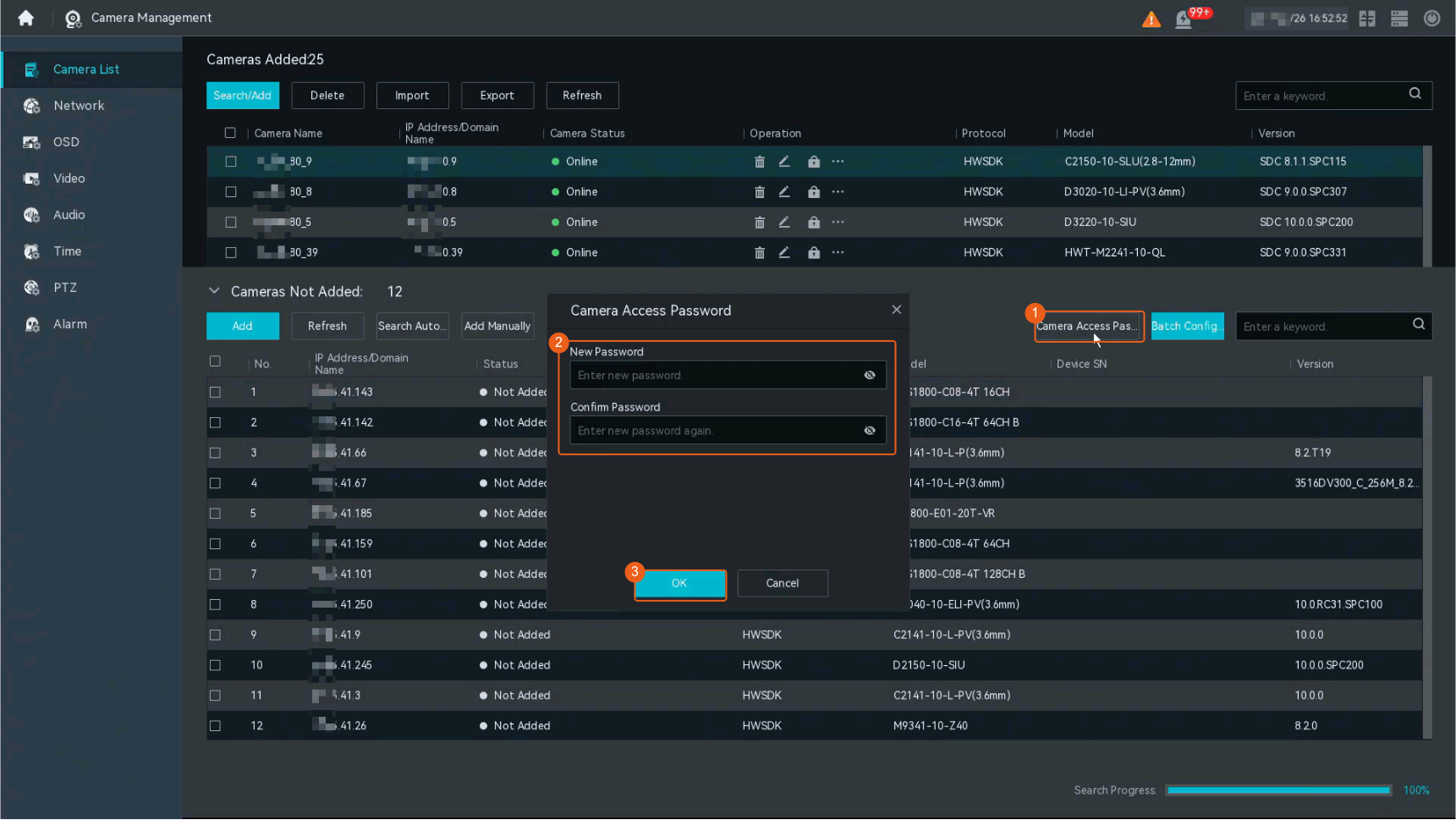
- Choose Camera Management > Camera List.
- Change the password for connecting a camera, as shown in Figure 6-73.
How Do I View the System Version?
Procedure
- Log in to the LDU as the admin user. ( Logging In to the LDU)
- Click in the upper left corner to access the main menu.
- Choose System Management > System Information.
How Do I Set Direct Connection Priority for a Camera?
Procedure
- Log in to the LDU as the admin user. ( Logging In to the LDU)
- Click in the upper left corner to access the main menu.
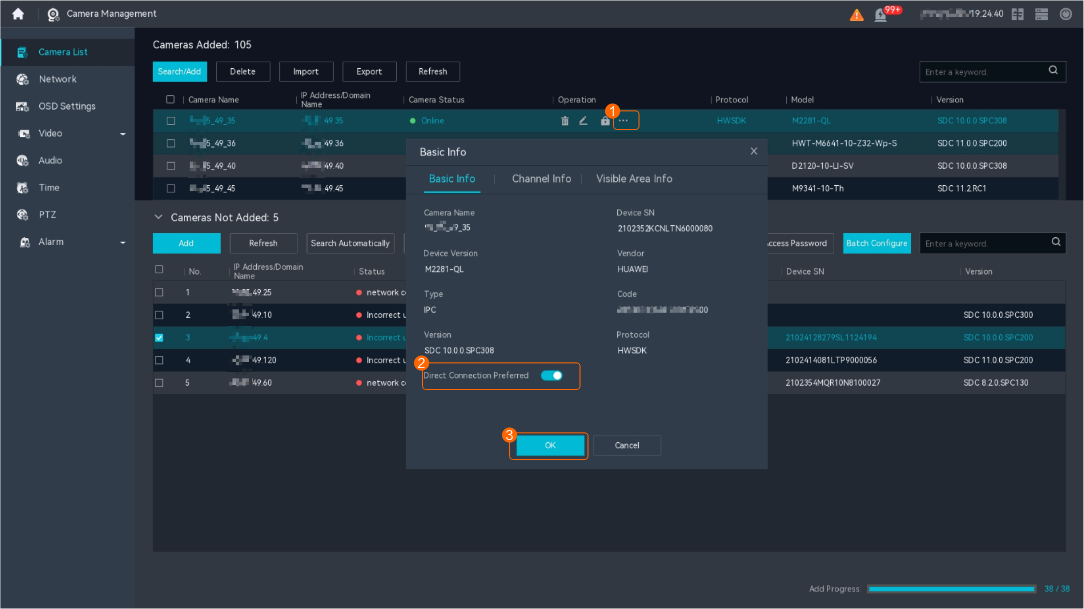
- Choose Camera Management > Camera List.
- Toggle on Direct Connection Preferred, as shown in Figure 6-74.
- In direct connection mode, the system directly obtains video streams from a camera and plays the video. Direct connection does not occupy the forwarding bandwidth of servers but has high requirements on the network quality.
- The Direct Connection Preferred parameter is toggled off by default. You can set this parameter based on the site requirements.
How Do I Enable Alert Deployment?
Procedure
- Log in to the LDU as the admin user. ( Logging In to the LDU)
- Click in the upper left corner to access the main menu.
- Choose Camera Management.
- Choose .
- Select the camera to be configured from the camera list.
- Click
 below Whether to deploy alarms and select Yes to enable alert deployment.
- The default value is No. Set this parameter based on the site requirements.
- Alarm information on a camera can be uploaded to the system only after alert deployment is enabled.
How Do I Change the Camera IP Address and Time?
Change the Camera IP Address
- Log in to the LDU as the admin user. ( Logging In to the LDU)
- Click in the upper left corner to access the main menu.
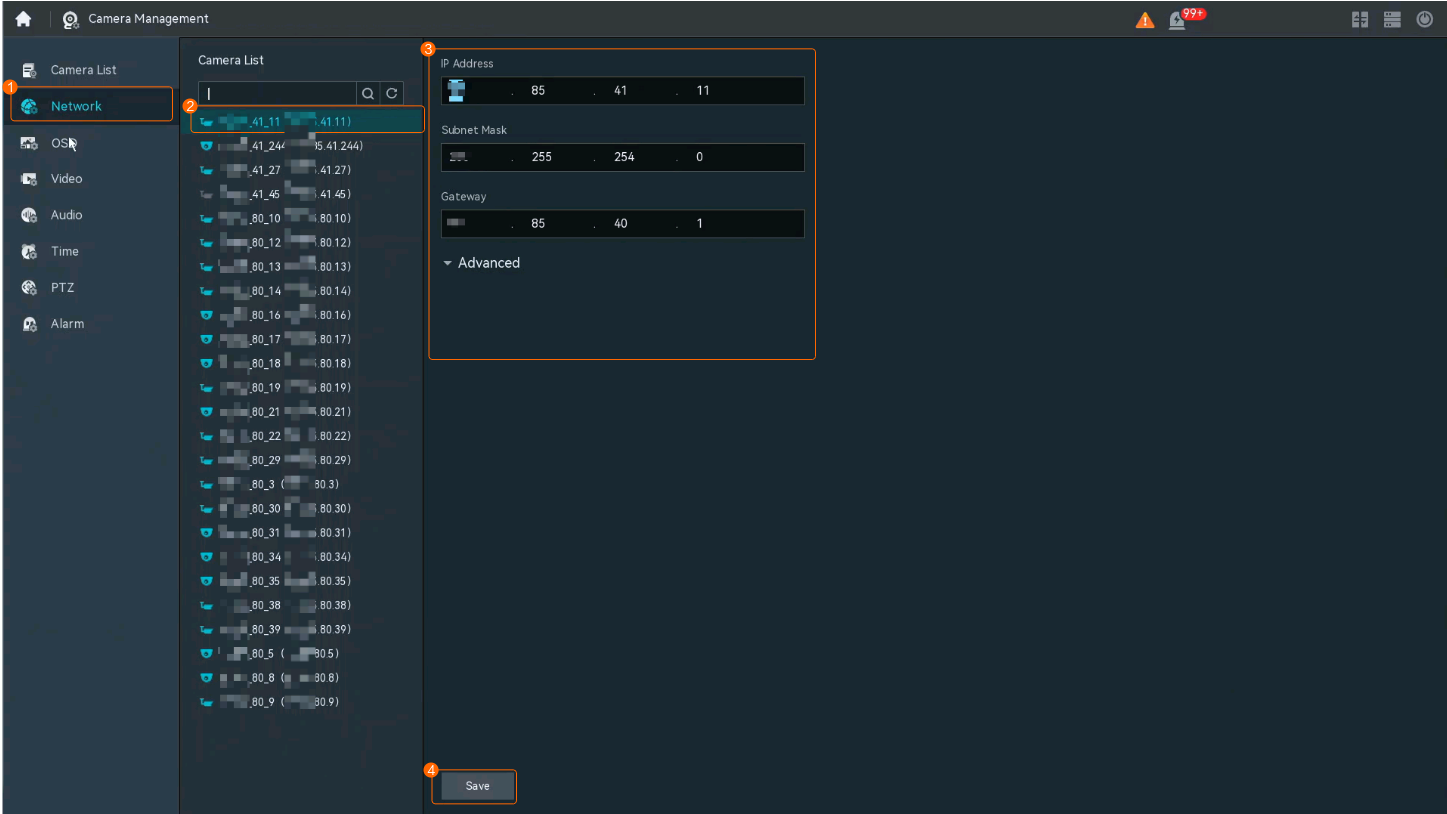
- Choose .
- Select the camera to be configured, change the IP address and port number of the camera, and click Save, as shown in Figure 6-75.
Change the Camera Time
- Log in to the LDU as the admin user. ( Logging In to the LDU)
- Click in the upper left corner to access the main menu.
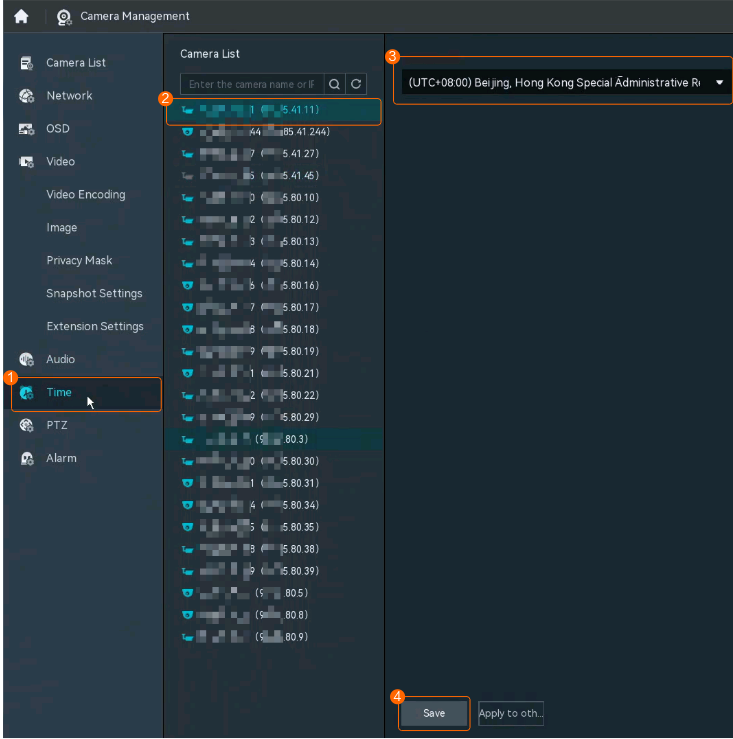
- Choose .
- Select the camera to be configured, change the time zone of the camera, and click Save, as shown in Figure 6-76.
- (Optional) Click Apply to other, select cameras to which the current camera's time zone is to be copied, and click OK.
How Do I Modify Audio Settings of a Camera?
Procedure
- Log in to the LDU as the admin user. ( Logging In to the LDU)
- Click in the upper left corner to access the main menu.
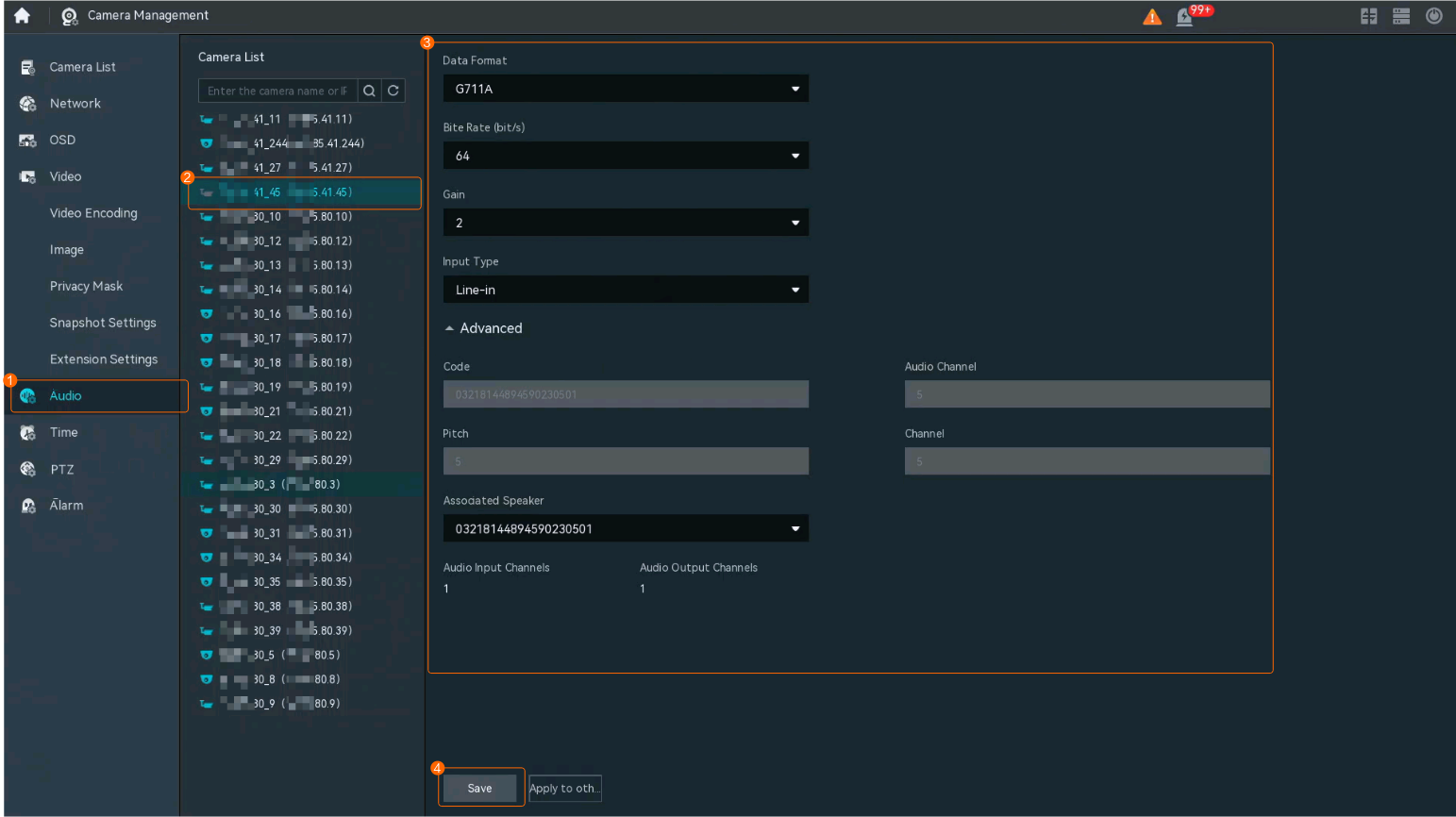
- Choose .
- Select the camera whose audio settings need to be modified, modify the parameters as needed, and click Save, as shown in Figure 6-77.
- (Optional) Click Apply to other, select cameras to be configured, and click OK to apply the modified parameters to the selected cameras in batches.
How Do I Modify Image Settings of a Camera?
Procedure
- Log in to the LDU as the admin user. ( Logging In to the LDU)
- Click in the upper left corner to access the main menu.
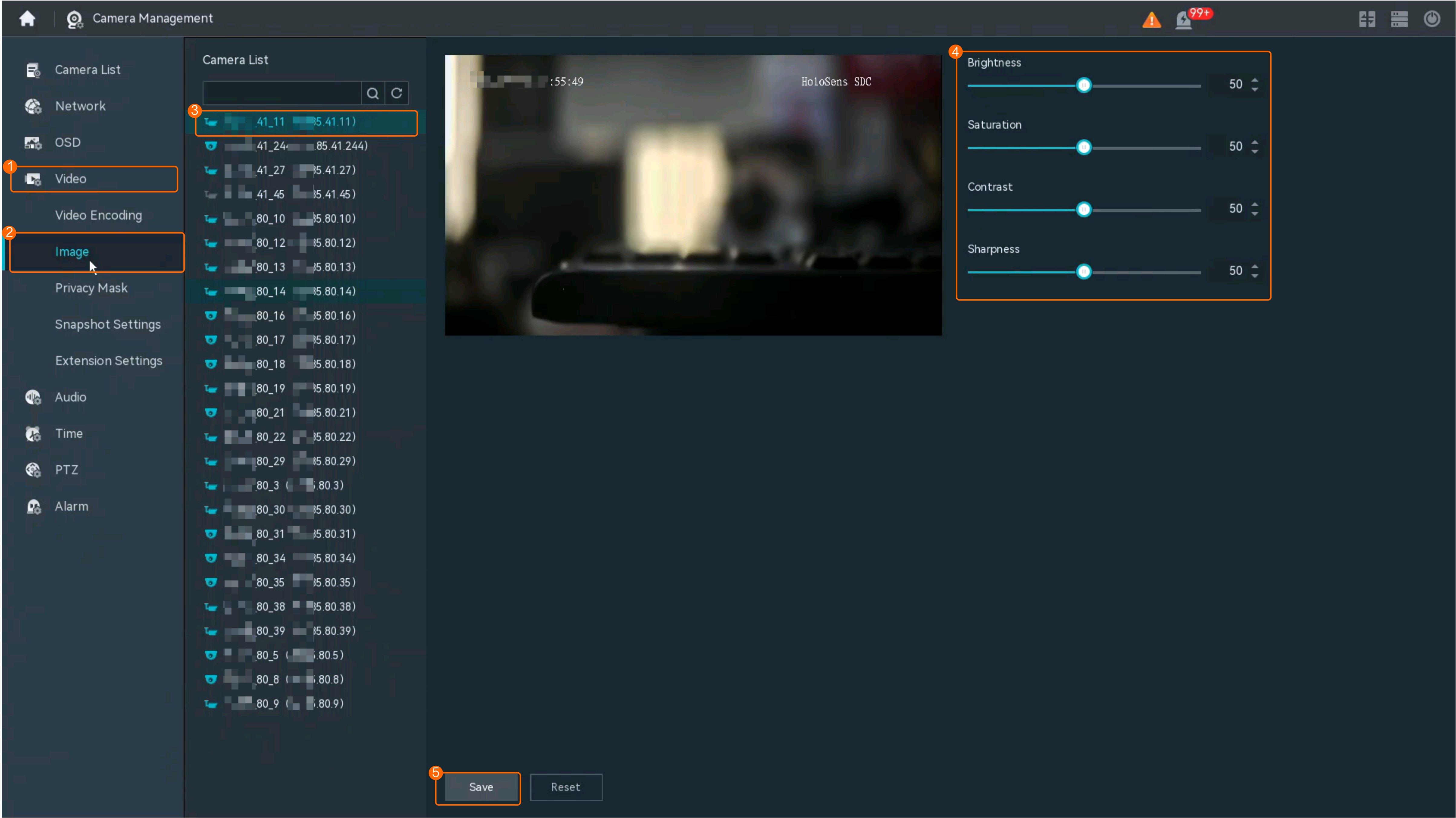
- Choose Camera Management.
- Choose Video > Image.
- Configure the brightness, contrast, sharpness, and saturation for a camera, as shown in Figure 6-78.
- Click Save.
How Do I Configure an External PTZ Device?
- Log in to the LDU as the admin user. ( Logging In to the LDU)
- Click in the upper left corner to access the main menu.
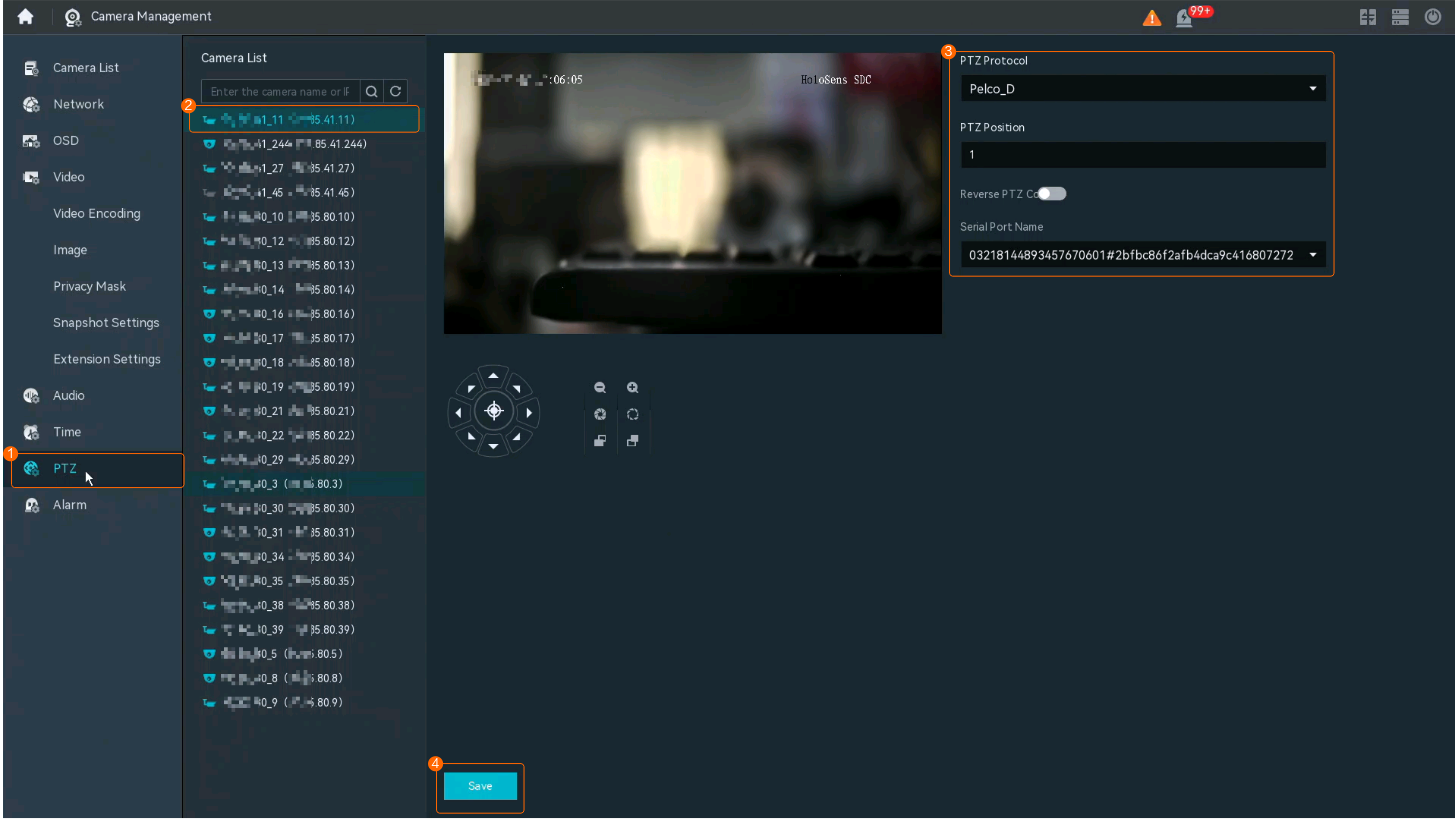
- Choose .
- Set PTZ device parameters and click Save, as shown in Figure 6-79.
Table 6-31 describes the PTZ device parameters.
Table 6-31 Parameter descriptionParameter
Description
PTZ Protocol
Protocol type of the PTZ device.
PTZ Position
Unique ID of the PTZ device.
Reverse PTZ Control
Indicates whether to enable reverse control of the PTZ device. After this function is enabled, the arrow direction on the page is opposite to the actual rotation direction of the PTZ device. For example, if you click the right arrow button (
 ), the PTZ device rotates leftward (
 ).
).Serial Port Name
Name displayed after the PTZ device connects to the serial port.

Buttons used to rotate the PTZ device to adjust the camera's viewing angle.

Buttons used to zoom out or in on the live video image.

Buttons used to adjust the aperture of the lens to let in more or less light.
 : used to decrease the aperture of the lens to let in less light.
 : used to increase the aperture of the lens to let in more light.

Buttons used to manually adjust the focal length of the camera to focus on the object to be shot.

Button used to automatically adjust the focus of the camera.
How Do I Configure Privacy Mask?
Context
You can draw an area on the video image and enable privacy mask. Unauthorized users cannot view the privacy mask area.
- Live video privacy mask, which applies only to live video. If you enable live video recording, privacy mask is not supported during recording playback.
- Live/Recorded video privacy mask, which applies to both live and recorded video. If you enable live video recording, privacy mask is supported during recording playback.
Prerequisites
You have rotated a camera to the specified position (to observe an area for which privacy mask needs to be enabled). For details, see Feature Configuration.
The privacy mask function is not supported during PTZ device rotation and lens zooming.
Configuring Live/Recorded Video Privacy Mask
- Log in to the LDU as the admin user. ( Logging In to the LDU)
- Click in the upper left corner to access the main menu.
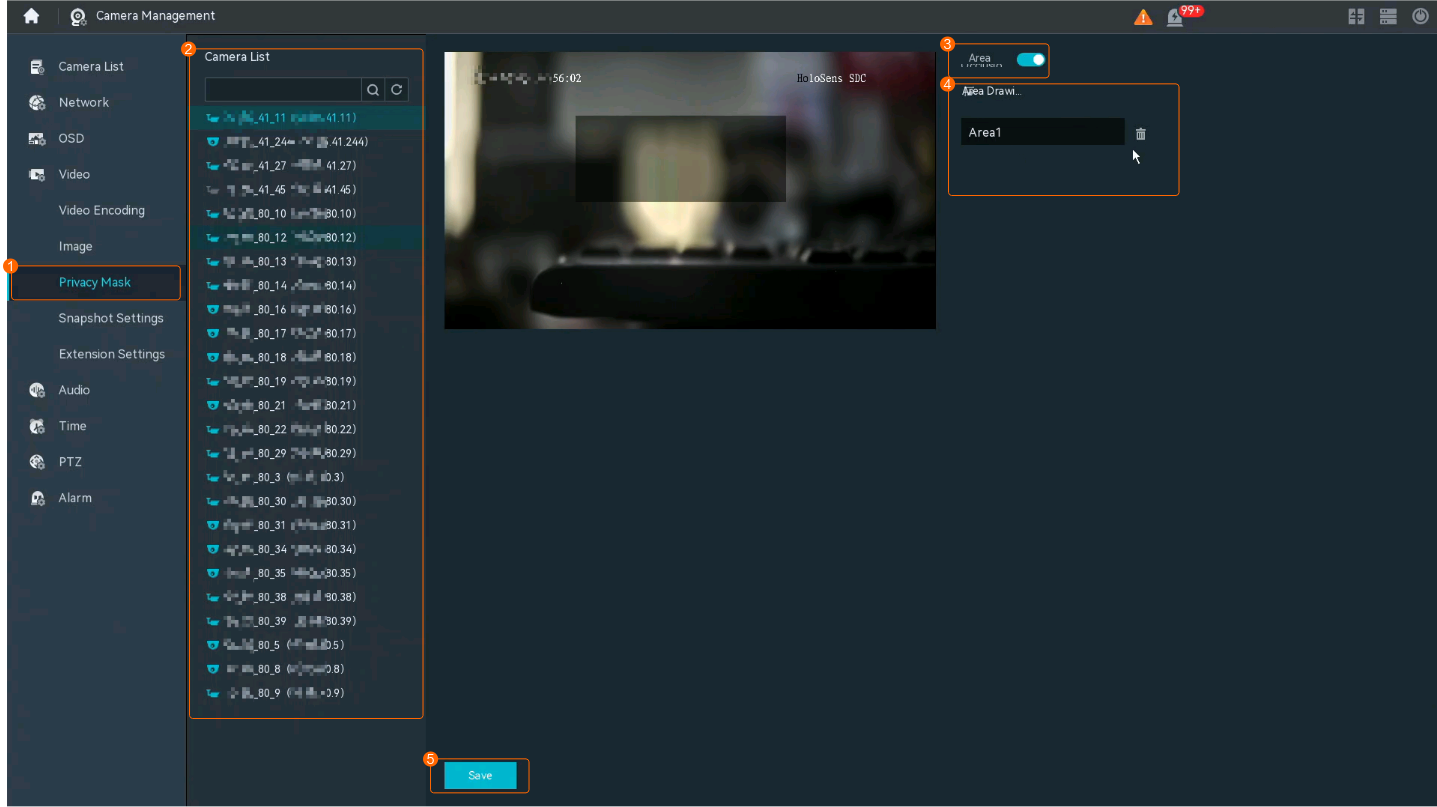
- Choose .
- Select the camera to be configured.
- Configure privacy mask, as shown in Figure 6-80.
- The minimum length of a selected area is 50 pixels by default, and the total length is 480 pixels. If the distance from the start position of a privacy mask area to the right border of the video image is less than the minimum length, the area cannot be drawn.
- After privacy mask is enabled, users cannot view live video in the privacy mask area. The privacy mask area is fixed. It will not change if you rotate the camera through PTZ control but may change when you move the camera.
Configuring Live Video Privacy Mask
- Log in to the LDU as the admin user. ( Logging In to the LDU)
- Click in the upper left corner to access the main menu.
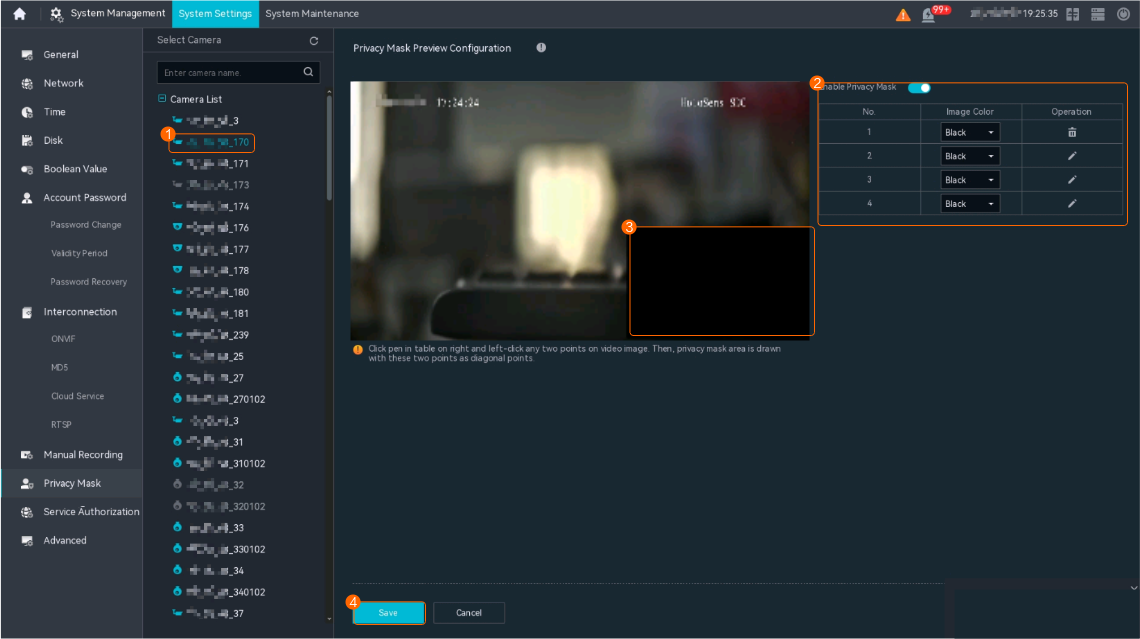
- Choose System Management > System Settings > Privacy Mask.
- Configure a privacy mask area, as shown in Figure 6-81.
How Do I Log Out of the LDU?
Procedure
- Log in to the LDU as the admin user. ( Logging In to the LDU)
- Click
 in the upper right corner of the page.
 - Select Log Out.
How Do I Restart the LDU?
Procedure
- Log in to the LDU as the admin user. ( Logging In to the LDU)
- Click in the upper right corner of the page.
- Select Restart.
What Do I Do When a Blank Screen Occurs During Live Video Viewing on the LDU?
Symptom
A blank screen occurs when a user attempts to view live video from a camera on the LDU.
Possible Causes
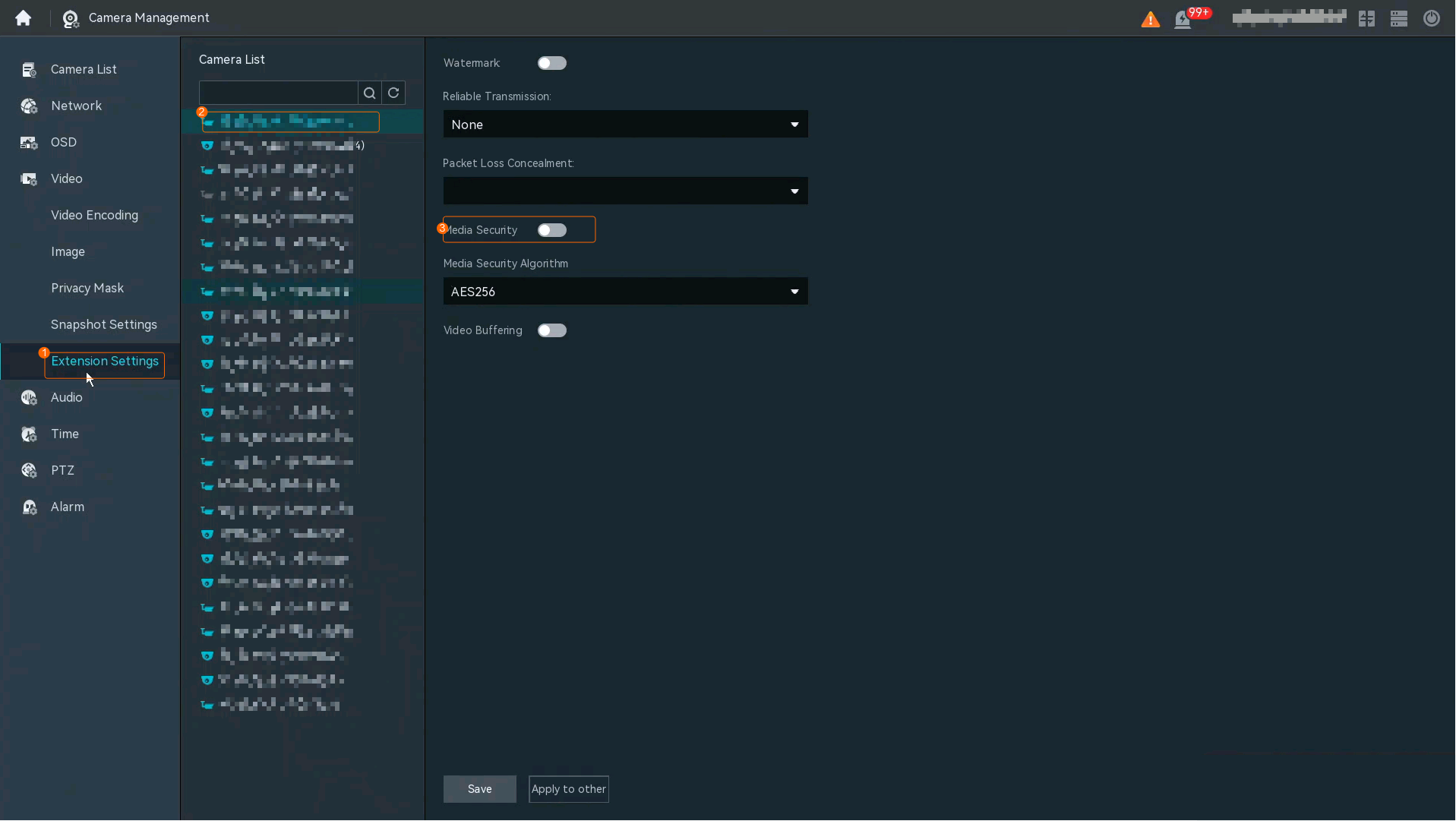
Media security has been enabled for the camera.
Solution
- Log in to the LDU as the admin user. ( Logging In to the LDU)
- Click in the upper left corner to access the main menu.
- Choose .
- Select the camera to be configured from the camera list.
- Toggle off Media Security and click Save, as shown in Figure 6-82.
What Do I Do When My LDU Account Is Locked?
Account Locked Due to Too Many Attempts of Incorrect Gesture Passwords
A message is displayed on the LDU login page, indicating that account is locked due to too many attempts of incorrect gesture passwords.
Possible Causes
If you enter incorrect gesture passwords for three consecutive times, the system locks your account.
Solution
Use the user name and password to log in.
Account Locked Due to Too Many Incorrect Password Inputs
A message is displayed on the LDU login page, indicating that the account is locked.
Possible Causes
If you enter incorrect passwords for the admin user account for five consecutive times, the account is locked.
Solution
Wait for 5 minutes and enter the correct password to log in.
What Do I Do When a Camera Goes Offline Unexpectedly?
Procedure
- Check whether the network connection between the HWT-IVS1800 and the camera is normal by referring to How Do I Check Whether the HWT-IVS1800 Is Properly Connected to the Target Network Environment?.
- If not, rectify the network fault.
- If so, go to the next step.
- Check whether the parameter settings (for example, IP address, port number, vendor, and model) in the camera web system are the same as those on the LDU.
- Log in to the LDU as the admin user. ( Logging In to the LDU)
- Click
 in the upper left corner to access the main menu.
 - Choose Camera Management > Camera List.
- Select the camera to be configured and view basic information about the camera.Figure 6-83 Viewing basic information
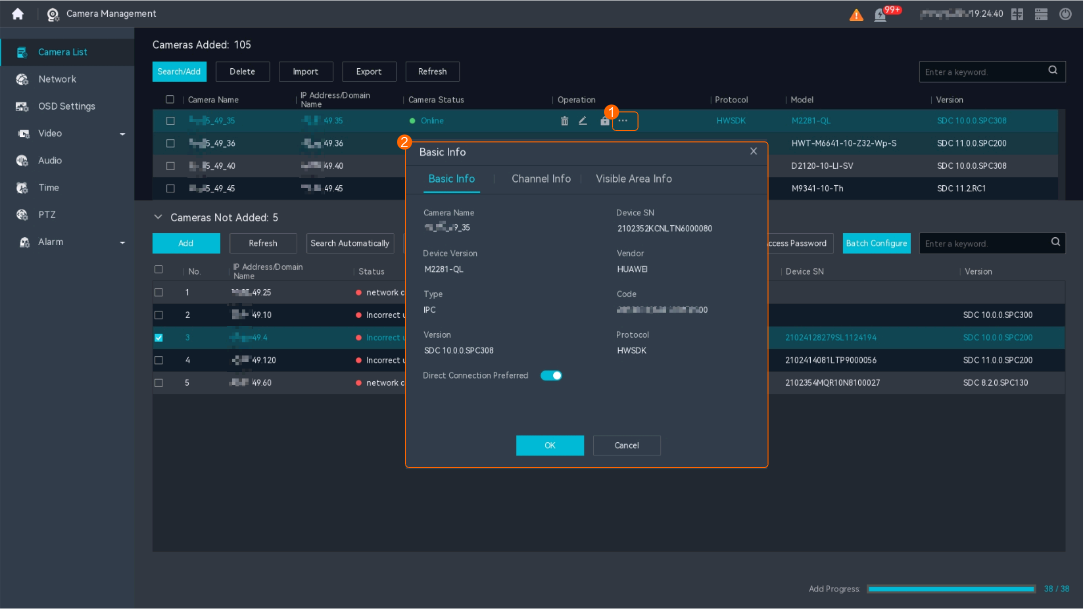
- Ensure that the values of Vendor and Device Version on the LDU are the same as those in the camera web system.
- Choose .
- Ensure that the values of Camera IP Address and Device Login Port on the LDU are the same as those in the camera web system.
- Check whether the camera goes online.
- If so, no further action is required.
- If not, go to the next step.
- Log in to the LDU as the admin user. (
- Ensure that the registration user name and password in the camera web system are the same as those on the LDU.
- Change the registration user name and password in the camera web system.
- Log in to the camera web system as the admin user. (
 Logging in to the Camera Web System)
 - Change the registration user name and password.
- Log in to the camera web system as the admin user. (
- Change the registration user name and password on the LDU.
- Log in to the LDU as the admin user. ( Logging In to the LDU)
- Choose Camera Management > Camera List.
- Change the registration user name and password to be the same as those in the camera web system.
- Log in to the LDU as the admin user. (
- Check whether the camera goes online.
- If so, no further action is required.
- If not, go to the next step.
- Change the registration user name and password in the camera web system.
- Collect DCG logs and contact the device vendor.
For details about how to collect DCG logs, see Collecting Run Logs.
Why Does a Camera Rotate to Another Position After I Set a Home Position?
Question
Why does a camera rotate to another position after I set a home position?
Answer
After you set the home position, another user may reset the home position. As a result, the home position information changes.
When different users set home positions in sequence, the system saves the home position information sets by the last user.
What Do I Do When the Home Position Button Is Unavailable?
Question
I have set a home position for a camera. However, the home position button becomes unavailable after I exited the client and logged in to it again. What can I do?
Answer
After you set the home position, another user may disable the home position. As a result, the home position button becomes unavailable.
You can view the operation logs to check which user has disabled the home position.
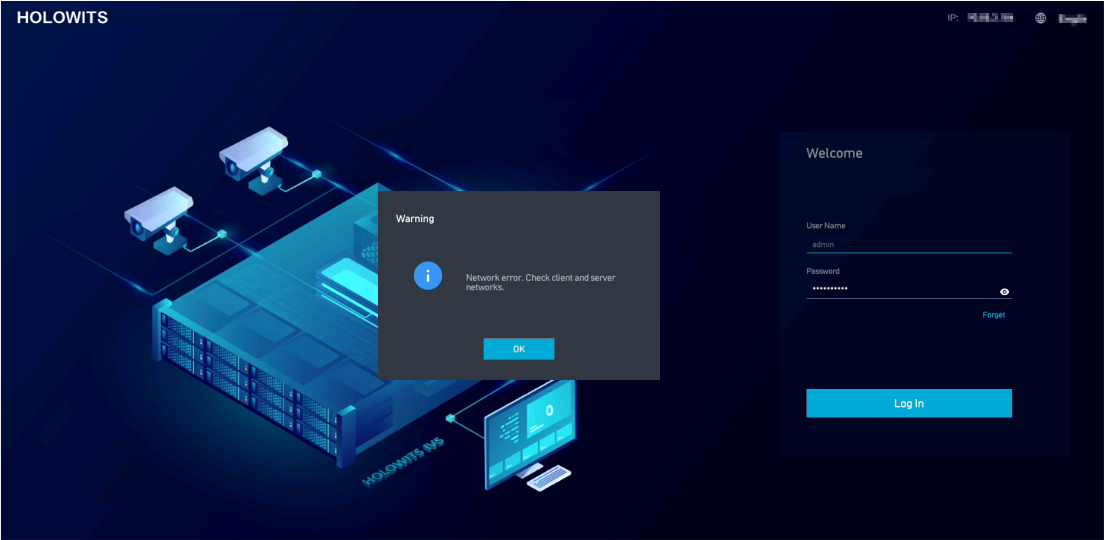
What Do I Do When the Message "Network error. Check client and server networks." Is Displayed?
Symptom
Possible Causes
- The network process of the device is not started properly.
- The IP address of the device conflicts with the current network environment.
Solution
- Remove the network cable from the network port of the device to ensure that the device is disconnected from the current network environment.
- Power off the device. After the device stops running, power on the device.
- Change the IP address of the device to one that does not conflict with the current network environment.
For details about how to change the IP address of the device, see How Do I Modify the IP address of the System?.
How Do I Retrieve the System Password?
Procedure (Security Question-based Authentication)
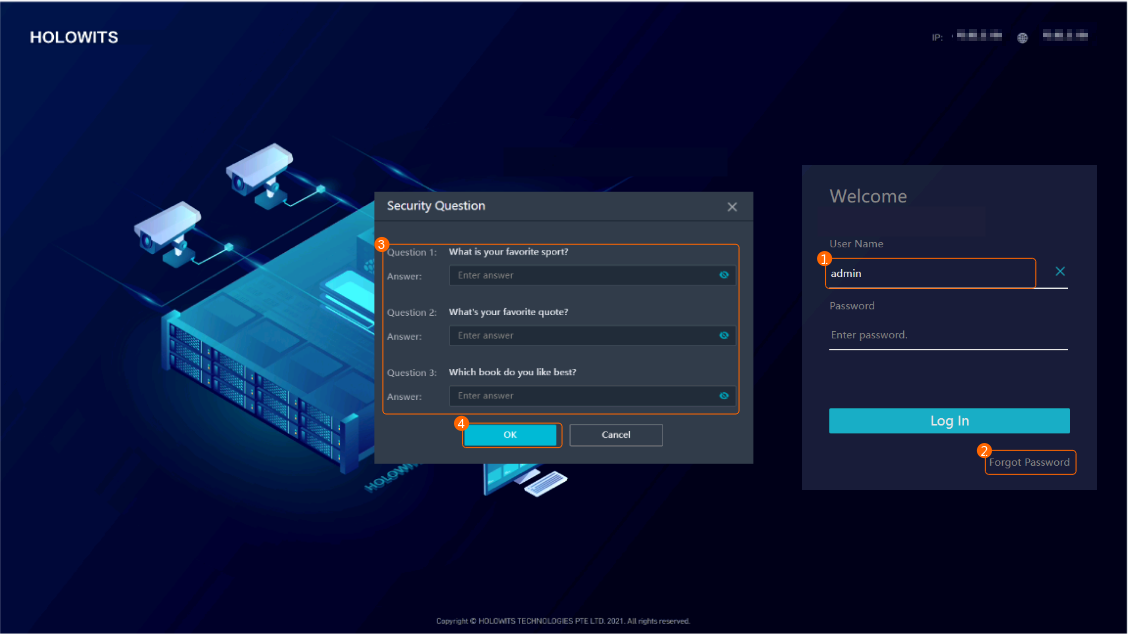
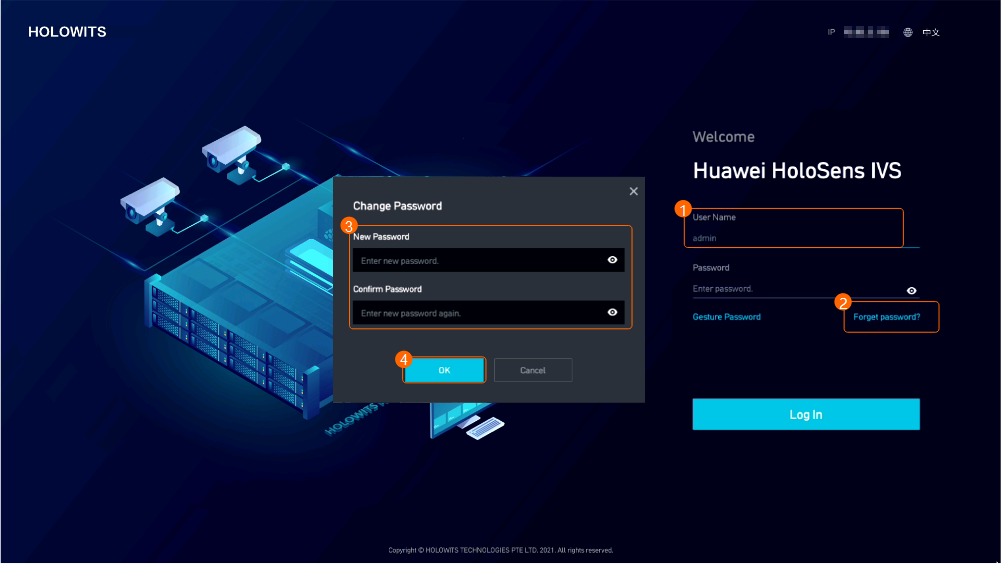
- Log in as the admin user and click Forgot Password. The Security Question page is displayed, as shown in Figure 6-85.
Enter the correct answers to the preset security questions and click OK.
- Reset the password, as shown in Figure 6-86.
Enter a new password and confirm the password. You are advised to use a password with high complexity. For details, see Suggestions on Password Maintenance.
After the new password is set successfully, use it to log in to the system.
If no password recovery method is set, you need to reset the password by restoring factory settings. For details about how to restore factory settings, see How Do I Restore a Device to Factory Settings?.
What Do I Do When the LDU GUI Cannot Be Displayed on the MAXHUB After the IVS1800 Restart?
Symptom
After the IVS1800 is restarted, the LDU GUI cannot be displayed on the MAXHUB.
Solution
If the IVS1800 whose video source has been connected to the MAXHUB is restarted, the input source may not be automatically switched. In this case, you need to manually switch the input source.
How Do I Configure SuperCoding for Cameras on the LDU?
Context
In scenarios where a large amount of video and image data needs to be stored or the uplink bandwidth is limited, you can configure SuperCoding for cameras to save the storage capacity and uplink bandwidth occupied by live video viewing without degrading video image quality.
Application Limitations
- This function applies only to cameras connected through the HWSDK protocol.
- Only cameras of version 11.0 or later and that support SuperCoding are supported.
- SuperCoding is not supported for live or recorded video from 1 + N cameras.
Application Scenarios
- The uplink bandwidth of the site is less than the total uplink bandwidth required by the camera.
- The storage capacity of the site is greater than the storage capacity supported by the current disk.
Procedure
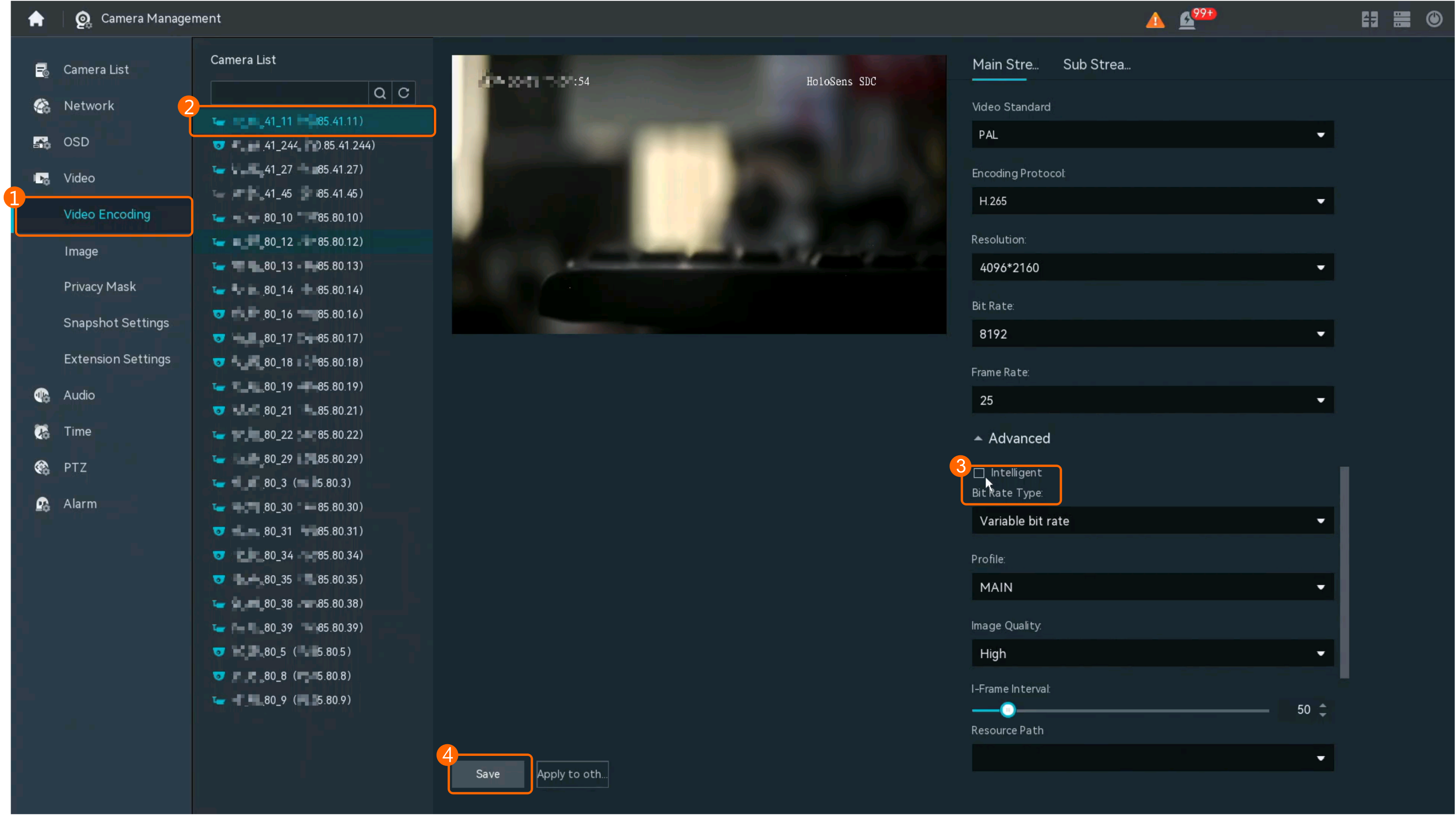
- Log in to the LDU as the admin user. ( Logging In to the LDU) Right-click a camera and choose Camera Management > Video > Video Encoding.
- Set video encoding parameters of the camera on the LDU, as shown in Figure 6-87.
- (Optional) Click Apply to other to apply the configuration to other cameras in batches.
What Can I Do If the USB Flash Drive List Is Displayed Abnormally or There Is No Response When I Download Recordings on the LDU?
Symptom
When the device is running, insert a USB flash drive (in NTFS or exFAT format) and download recordings on the LDU. The inserted USB flash drive is not displayed in the drive list, or there is no response after the user selects the USB flash drive and clicks the download icon.
Possible Causes
The built-in partitions of the USB flash drive affect the mount directory of the underlying driver.
Prerequisites
You have backed up important data in the USB flash drive, because deleting partitions may cause data loss.
Solution
- Format the USB flash drive.
- Insert the USB flash drive into a computer running the Windows operating system.
- Open File Explorer, right-click the USB flash drive, and choose Format from the shortcut menu.
- In the File system drop-down list, select NTFS or exFAT.
- Click Start.
- Delete the partitions on the USB flash drive.
- Right-click the This PC (Windows 10/11) or My Computer (Windows 7/8) icon.
- Choose Manage from the shortcut menu. In the window that is displayed, choose Disk Management in the navigation pane on the left.
- In the Disk Management window, find the disk corresponding to the USB flash drive.
Generally, the disk property of the USB flash drive is displayed as Removable or Unallocated.
- Right-click the disk corresponding to the USB flash drive and choose Delete Volume from the shortcut menu to delete all partitions on the USB flash drive and restore the partitions to unallocated space.
- In the confirm dialog box that is displayed, click Yes.
- Create a volume.
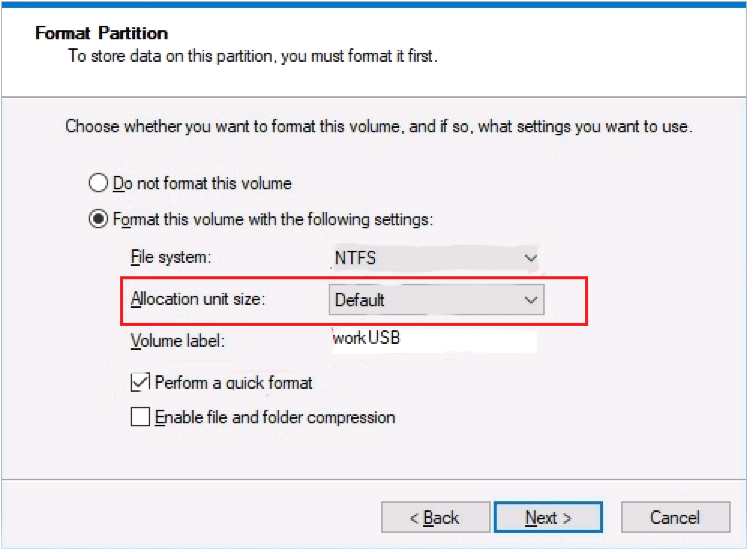
- Right-click the unallocated space and choose New Simple Volume from the shortcut menu. Set Allocation unit size to Default, as shown in Figure 6-88.
- After the preceding operation is complete, the volume is created and the USB flash drive does not have any partitions.
How Do I Connect Cameras by Importing a Template File?
Procedure
- Log in to the LDU as the admin user. ( Logging In to the LDU)
- Right-click on the desktop and choose Camera Management > Camera List.
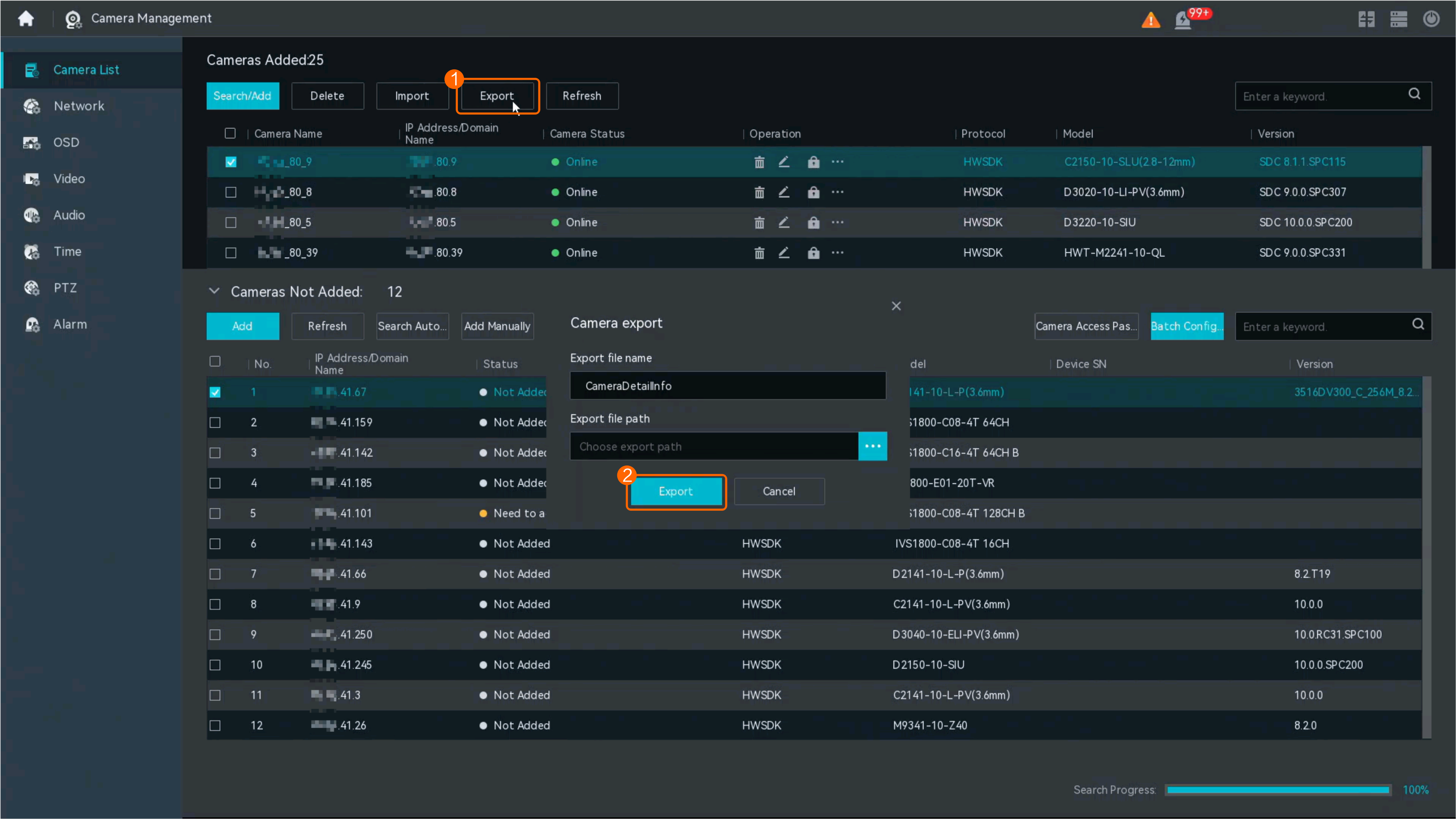
- Click Export. On the Camera export page that is displayed, edit the template name, select the export path, and click Export to download the template file to the local computer, as shown in Figure 6-89.
- Fill in the template file.Open the template file downloaded to the local computer, and enter the camera password.
- For cameras connected through GB/T 28181, you need to enter the user name.
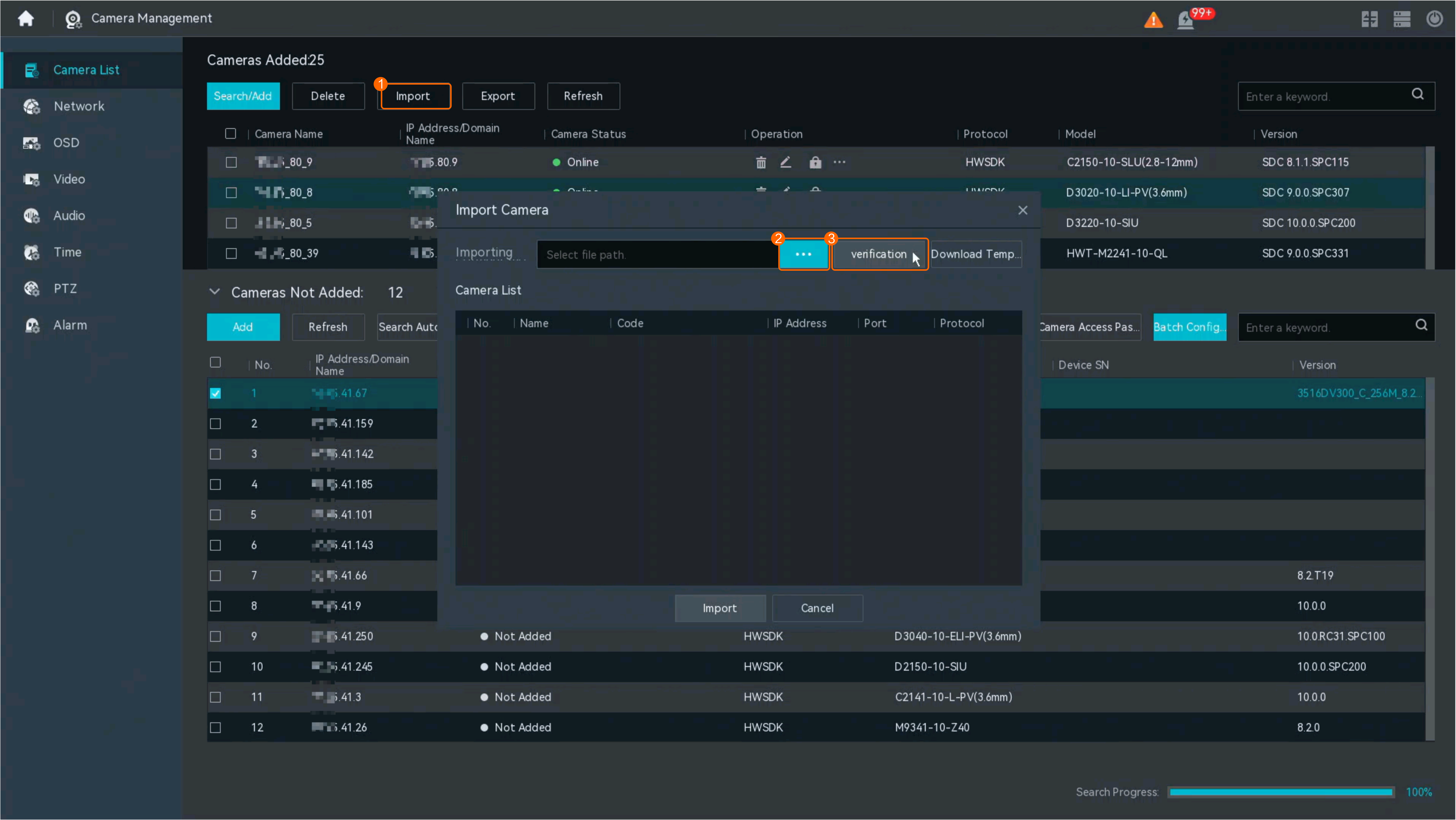
- Import the template file, as shown in Figure 6-90.
- Click Import. On the page that is displayed, click
 and import the prepared template file from the local computer.
 The template file to be uploaded must be in CSV format, and the file size cannot exceed 10 MB.
- Click verification to verify the camera information in the template file.
- If all camera information passes the verification, the list of cameras imported is displayed. Then, go to c.
- If any camera information fails to pass the verification, the list of failed cameras is displayed. You can modify the template file according to the verification failure cause and import the template file again.
- Click Import to add cameras in batches.
- Click Import. On the page that is displayed, click
How Do I Set Advanced Parameters by Importing a Template File?
Procedure
- Log in to the LDU as the admin user. ( Logging In to the LDU)
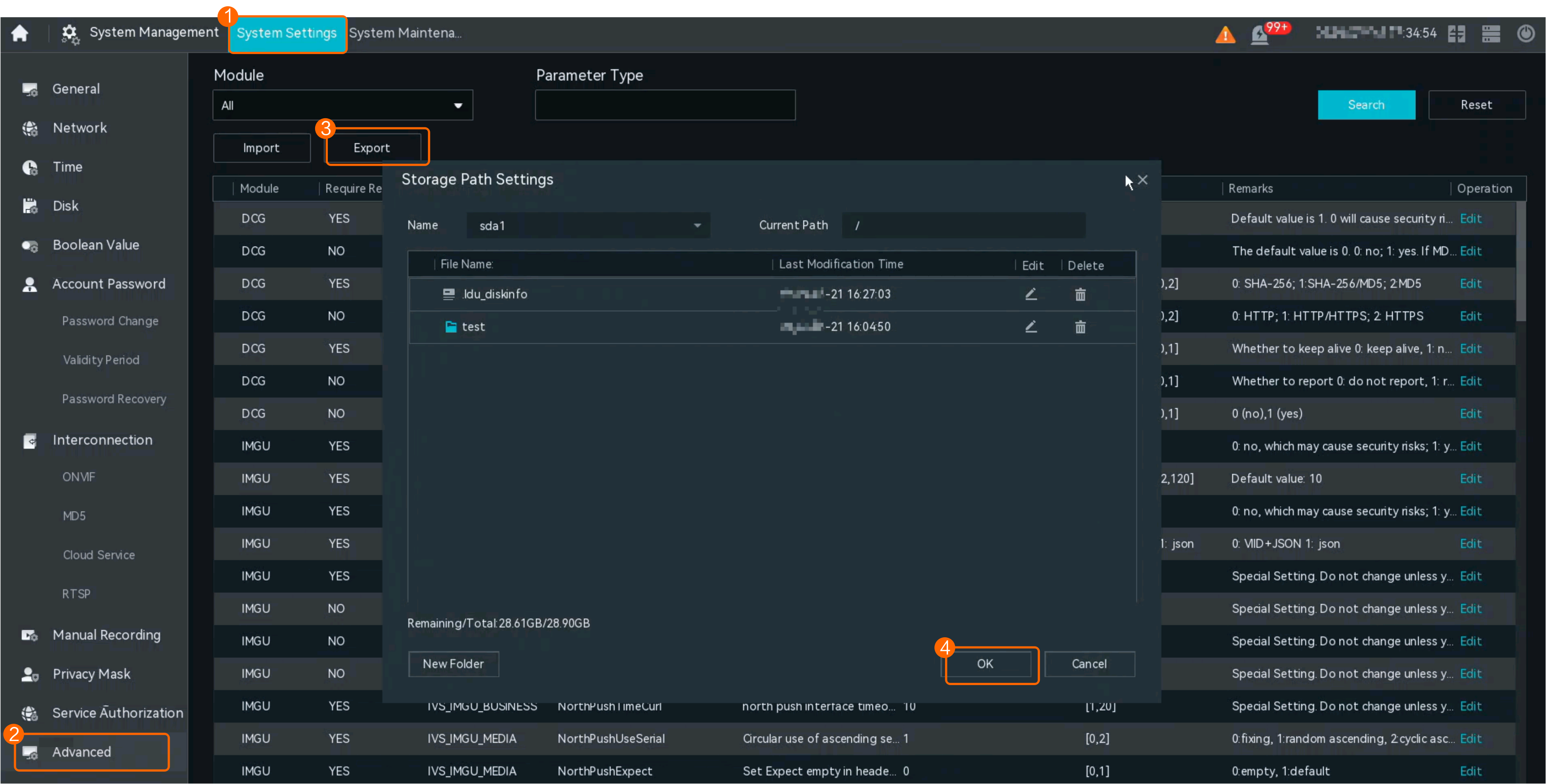
- Export the template file, as shown in Figure 6-91.
- Choose System Management > System Settings > Advanced.
- Click Export and save the configuration template file in .csv format to the local computer.
- Import the template file.
- Modify the configuration file following instructions in the table header of the template file.
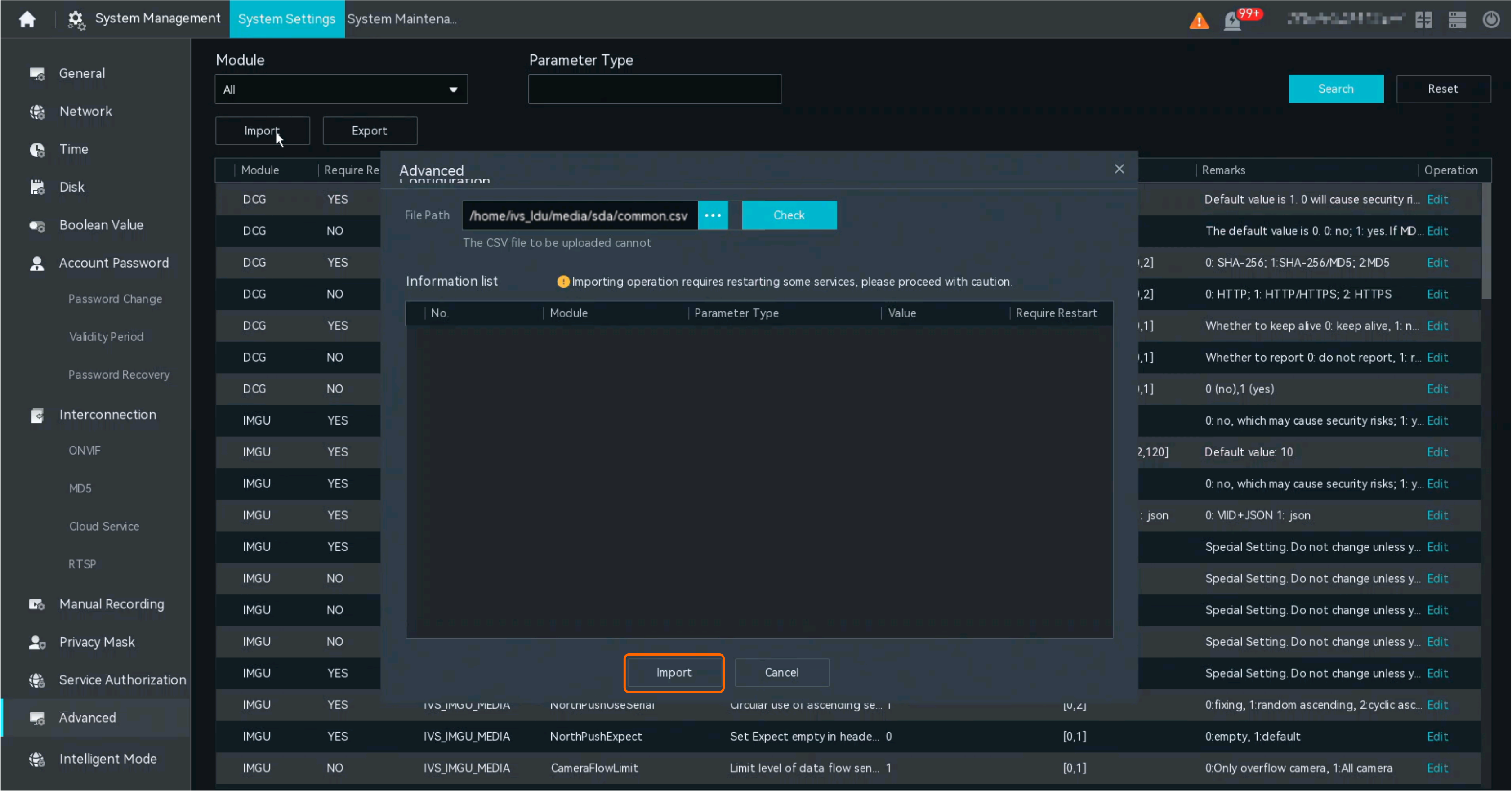
- Click Import. On the page that is displayed, click
 and import the prepared template file from the local computer.
 The template file to be uploaded must be in CSV format, and the file size cannot exceed 10 MB.
- Click verification to verify the advanced configuration information in the template file. If any advanced configuration information already exists, the verification fails.
- If all information passes the verification, the advanced configuration information list is displayed. Then, go to d.
- If any information fails to pass the verification, the list of failed advanced configuration information is displayed. You can modify the template file according to the verification failure cause and import the template file again.
- Click Import. On the page that is displayed, click OK to import the advanced configuration information, as shown in Figure 6-92.
Some service modules need to be restarted after advanced configuration information is imported.
How Do I Upgrade a Camera Using a USB Flash Drive?
Prerequisites
You have obtained the camera upgrade package from the official website of related products, and saved the package to a USB flash drive.
Procedure
- Insert the USB flash drive into the IVS1800.
- Log in to the LDU as the admin user. ( Logging In to the LDU)
- Choose Configuration > Camera Maintenance > Camera Upgrade.
- Upgrade the camera.
- Select the installation package.
The path to the installation package can contain a maximum of 255 characters.
- Select the required installation package type.
Upgrade the basic package and then the algorithm package.
- Confirm the upgrade file and click Upgrade.
The upgrade takes about 2 to 3 minutes.
During the upgrade, do not power off the IVS1800 or camera or remove the USB flash drive from the IVS1800. Otherwise, the camera program may be damaged and cannot be started again.
- Select the installation package.
What Do I Do If a Blank Screen Occurs When Decoding Exceeded the Maximum Specification of the HWT-IVS1800?
Context
The decoding resources of the HWT-IVS1800 are limited. The number of resources required by a camera that is pulling streams varies depending on the resolution of the camera. When the number of remaining resources is insufficient, a message is displayed in the lower right corner, indicating that decoding exceeded the maximum specification.
The following table lists the number of decoding resources required for each resolution.
Resolution (Width x Height) |
Number of Decoding Resources Required |
|---|---|
(4096 x 1260, 7680 x 4320] |
64 |
(1920 x 1080, 4096 x 1260] |
16 |
(1280 x 720, 1920 x 1080] |
4 |
(720 x 576, 1280 x 720] |
2 |
[288 x 288, 720 x 576] |
1 |
Other resolutions |
1 |
Symptom
The HWT-IVS1800 fails to pull streams due to an unstable network. After the network recovers, if too many streams are pulled at the same time, a blank screen occurs in some live video panes, and an error message is displayed in the lower right corner of the page, indicating that decoding exceeded the maximum specification.
Solution
- Switch the primary or secondary stream.
If the primary stream is played, switch to a secondary stream, which has a lower resolution. If a secondary stream is played, or decoding still exceeds the maximum specification after you switch the stream, go to Step 2 or Step 3 as required.
- Change the resolution of the camera.
- Log in to the LDU as the admin user. ( Logging In to the LDU)
- Click
 in the upper left corner to access the main menu.
 - Choose .
- Select a desired camera, and set Resolution to a smaller value on the Main Stream tab page (and then the Sub Stream1 tab page if required).
- Click Save.
- Log in to the LDU as the admin user. (
- Close other streams to free up decoding resources.
Close the live video pane where the blank screen occurred. Close one or more live video panes where streams are properly played. Select the camera that exceeded the decoding specifications to play the stream from the camera again.
What Do I Do When I Fail to Query Historical Alarms Generated One Week Ago or Earlier?
Symptom
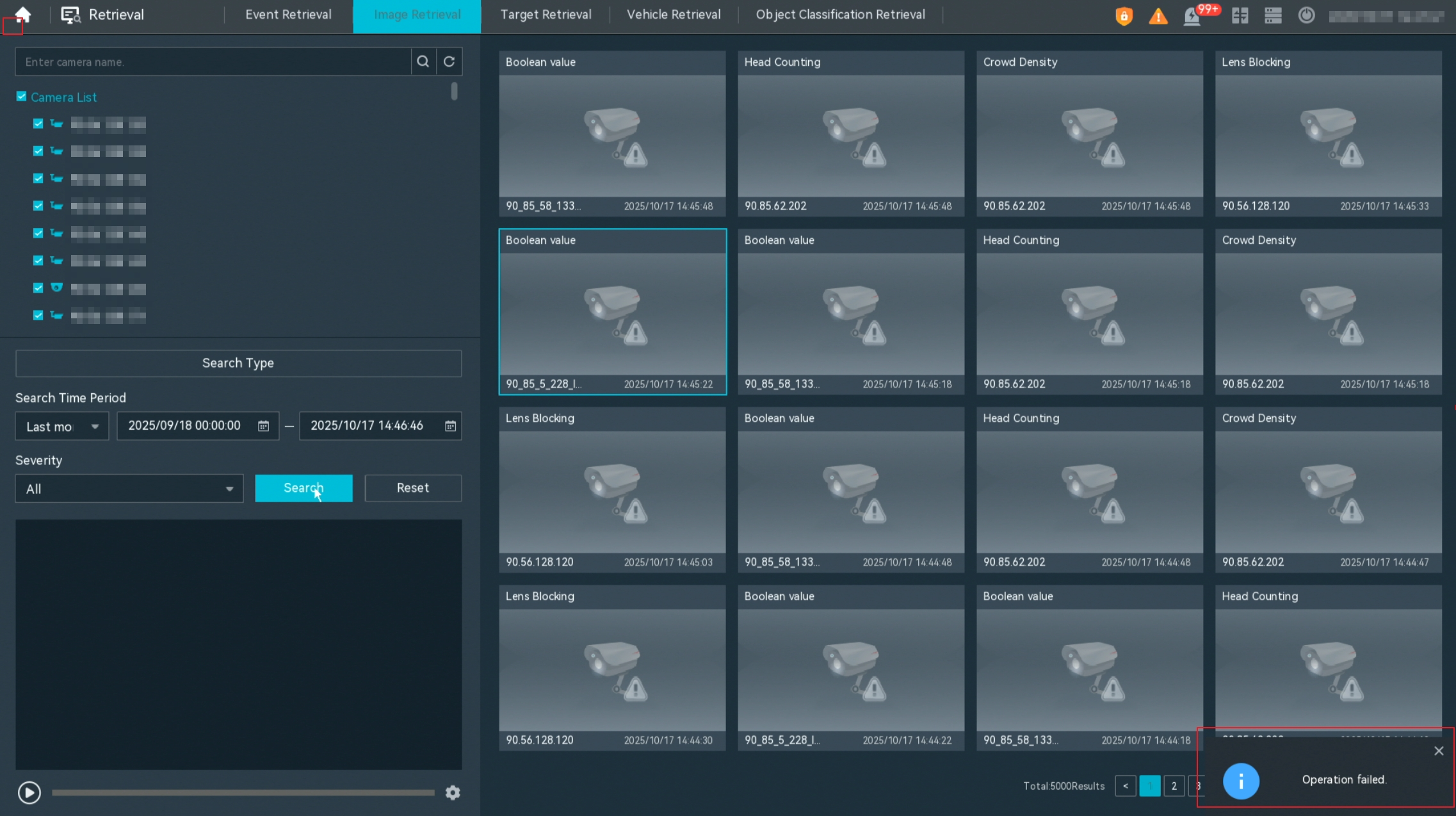
When you query historical alarms generated one week ago or earlier by cameras on the LDU, there is a possibility that the query fails, as shown in Figure 6-93.
Possible Causes
The volume of historical alarm data is too large. When you query historical alarms based on filter criteria, the data volume is too large, and the query takes 60 to 80 seconds, which exceeds the timeout interval specified for the query interface.
Solution
- If the first query fails, wait for 2 to 3 minutes and then perform the query again under the same search criteria, as shown in Figure 6-94.
- Narrow down the alarm query scope and perform the query again, as shown in Figure 6-95.
- How Do I Change the GUI Language?
- How Do I Cancel Logout upon Timeout?
- How Do I Configure Screen Lock upon Timeout for Live Video Viewing or Recording Playback?
- How Do I Change the Maximum Number of Favorited Layouts?
- How Do I Change the Pointer Movement Speed?
- How Do I Enable Camera Go-online and Go-offline Alarm Emails?
- How Do I Modify the IP address of the System?
- How Do I Configure a Specified Route Network Segment?
- How Do I Configure NTP Time Synchronization?
- How Do I Manually Configure the System Time?
- How Do I Set or Modify the Gesture Password?
- How Do I Change the Account Password?
- How Do I Change the Password Validity Period?
- How Do I Modify Password Recovery Configurations?
- How Do I Set My Password to Be Permanently Valid?
- How Do I Change the Password for Connecting a Camera?
- How Do I View the System Version?
- How Do I Set Direct Connection Priority for a Camera?
- How Do I Enable Alert Deployment?
- How Do I Change the Camera IP Address and Time?
- How Do I Modify Audio Settings of a Camera?
- How Do I Modify Image Settings of a Camera?
- How Do I Configure an External PTZ Device?
- How Do I Configure Privacy Mask?
- How Do I Log Out of the LDU?
- How Do I Restart the LDU?
- What Do I Do When a Blank Screen Occurs During Live Video Viewing on the LDU?
- What Do I Do When My LDU Account Is Locked?
- What Do I Do When a Camera Goes Offline Unexpectedly?
- Why Does a Camera Rotate to Another Position After I Set a Home Position?
- What Do I Do When the Home Position Button Is Unavailable?
- What Do I Do When the Message "Network error. Check client and server networks." Is Displayed?
- How Do I Retrieve the System Password?
- What Do I Do When the LDU GUI Cannot Be Displayed on the MAXHUB After the IVS1800 Restart?
- How Do I Configure SuperCoding for Cameras on the LDU?
- What Can I Do If the USB Flash Drive List Is Displayed Abnormally or There Is No Response When I Download Recordings on the LDU?
- How Do I Connect Cameras by Importing a Template File?
- How Do I Set Advanced Parameters by Importing a Template File?
- How Do I Upgrade a Camera Using a USB Flash Drive?
- What Do I Do If a Blank Screen Occurs When Decoding Exceeded the Maximum Specification of the HWT-IVS1800?
- What Do I Do When I Fail to Query Historical Alarms Generated One Week Ago or Earlier?