Procedure
OMU Portal
Prerequisites
- Required tools such as an electrostatic discharge (ESD) bag and a PH2 screwdriver, are available.
- New disks are available.
If a disk has been used or residual data exists on the disk, format the disk first. The disk file system must be in the format of XFS or ext4.
Limitations
If one non-RAID disk needs capacity expansion, the system partition exists in RAID 0 mode on the disk. After the disk capacity expansion is successful, the system partition still exists in RAID 0 mode. When the disk where the system partition is located fails, the device cannot run properly.
For details about the partition distribution on the disk, see How Do I Distinguish Disk Partitions?.

- When replacing a failed disk or performing online disk capacity expansion, do not change the slot of another member disk unless necessary. In RAID mode, changing the slot of a member disk in use will cause the member disk to be formatted.
- It is recommended that the interval between two hot swap operations be greater than 40s. You are advised not to perform hot swap operations repeatedly within a short period of time.
Procedure
- Install the new disk.
During online capacity expansion, ensure that the capacity of the new disk is the same as that of the original disk. Otherwise, online capacity expansion fails.
- Wear insulation gloves and connect the ground terminal of the ESD wrist strap into the ESD jack in the cabinet or on the workbench.
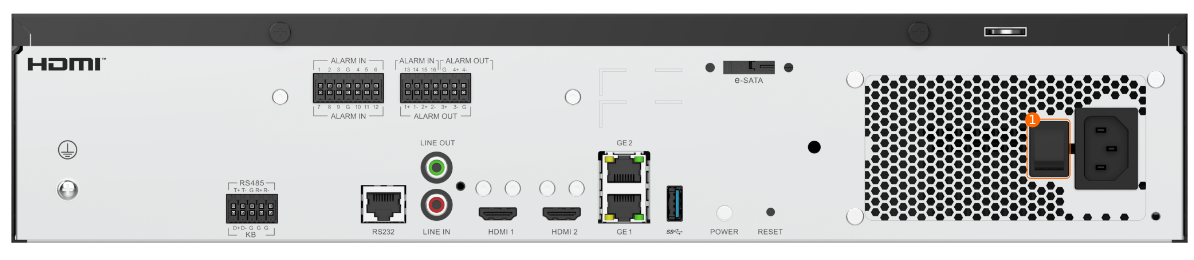
- Power off the device, as shown in Figure 6-23.
- Install the new disk.
For details about how to install a disk, see HWT-IVS1800-D08.
- Power on the device.
- Check whether the disk status is normal through the indicator on the front panel.
- If the disk status indicator is steady green, the disks are running properly.
- If the disk status indicator is steady red, at least one disk fails.
If the new disk is abnormal, contact technical support.
- Add the new disk to the original RAID group.The following describes how to add disks in RAID 5 mode.
- Log in to the OMU portal as the admin user. (
 Logging In to the OMU portal)
 - Choose Storage > Disks.
The disk status will be displayed on the OMU portal 2 minutes after the new disk is installed.
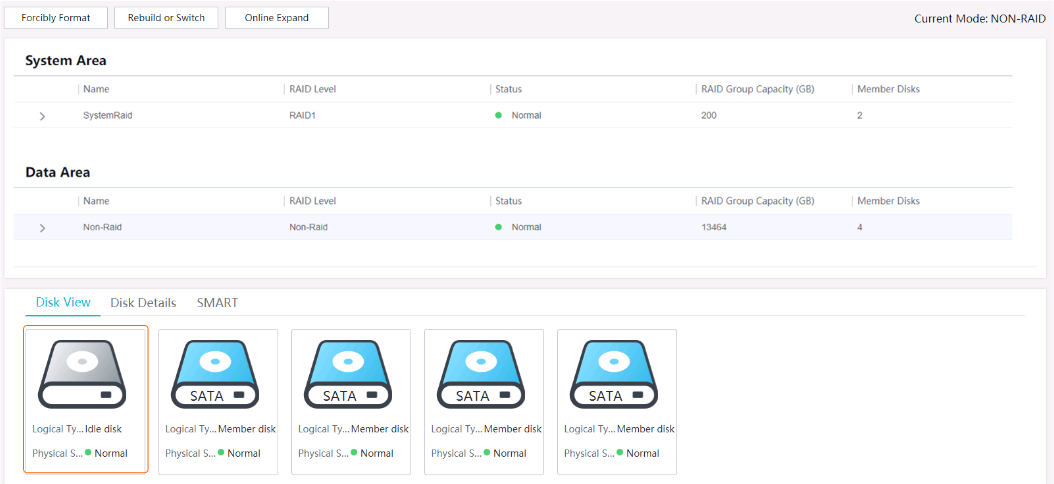
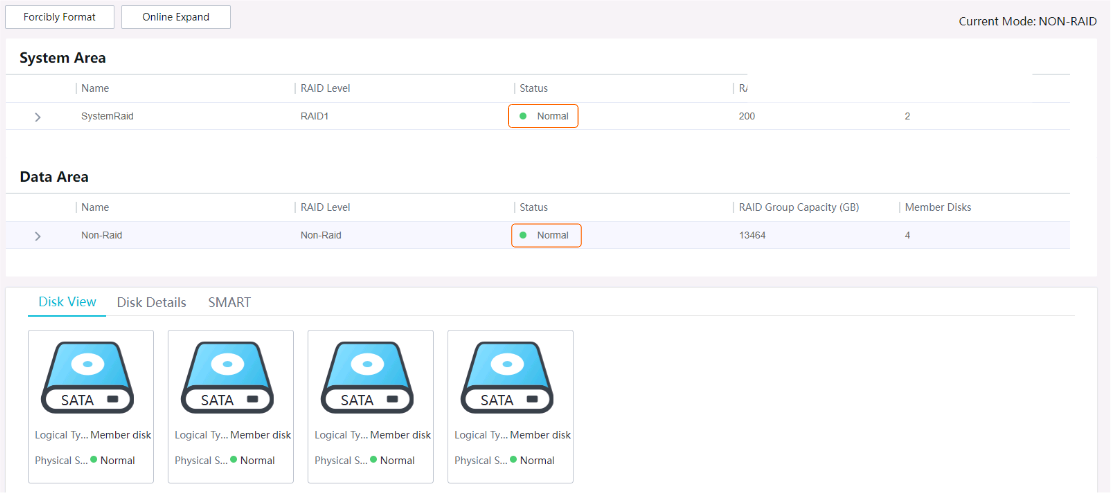
The drive letter in gray shading is the newly added disk, as shown in Figure 6-24.
- Click Online Expand to add the new disk to the original RAID.
- Capacity expansion (by adding disks) will interrupt services for 1 minute. If you perform capacity expansion in RAID mode, you are advised to add enterprise-level disks. During capacity expansion, do not power off or restart the device, or remove or insert disks. The number of disks and the total capacity determine the capacity expansion duration.
- If Insufficient Recording Space Policy is set to Stop and you expand the RAID group when the storage space is full and video recording stops, you need to restart the device 10 minutes after the capacity expansion is complete.
After the capacity expansion is complete, the status of the new disk changes from Idle disk to Member disk, and the capacity expansion result is displayed, as shown in Figure 6-25.
- Log in to the OMU portal as the admin user. (
LDU
Prerequisites
- Required tools such as an electrostatic discharge (ESD) bag and a PH2 screwdriver, are available.
- New disks are available.
If a disk has been used or residual data exists on the disk, format the disk first. The disk file system must be in the format of XFS or ext4.
Limitations
If one non-RAID disk needs capacity expansion, the system partition exists in RAID 0 mode on the disk. After the disk capacity expansion is successful, the system partition still exists in RAID 0 mode. When the disk where the system partition is located fails, the device cannot run properly.
For details about the partition distribution on the disk, see How Do I Distinguish Disk Partitions?.
- When replacing a failed disk or performing online disk capacity expansion, do not change the slot of another member disk unless necessary. In RAID mode, changing the slot of a member disk in use will cause the member disk to be formatted.
- It is recommended that the interval between two hot swap operations be greater than 40s. You are advised not to perform hot swap operations repeatedly within a short period of time.
Procedure
The method of expanding the capacity of non-RAID disks is similar to that of expanding the capacity of RAID 5 disks. The following describes how to expand the capacity of non-RAID disks as an example.
- Install the new disk.
During online capacity expansion, ensure that the capacity of the new disk is the same as that of the original disk. Otherwise, online capacity expansion fails.
- Wear insulation gloves and connect the ground terminal of the ESD wrist strap into the ESD jack in the cabinet or on the workbench.
- Power off the device, as shown in Figure 6-26.
- Install the new disk.
For details about how to install a disk, see HWT-IVS1800-D08.
- Power on the device.
- Check whether the disk status is normal through the indicator on the front panel.
- If the disk status indicator is steady green, the disks are running properly.
- If the disk status indicator is steady red, at least one disk fails.
If the new disk is abnormal, contact technical support.
- Add the new disk to the original RAID group.
- Log in to the LDU as the admin user. (
 Logging In to the LDU)
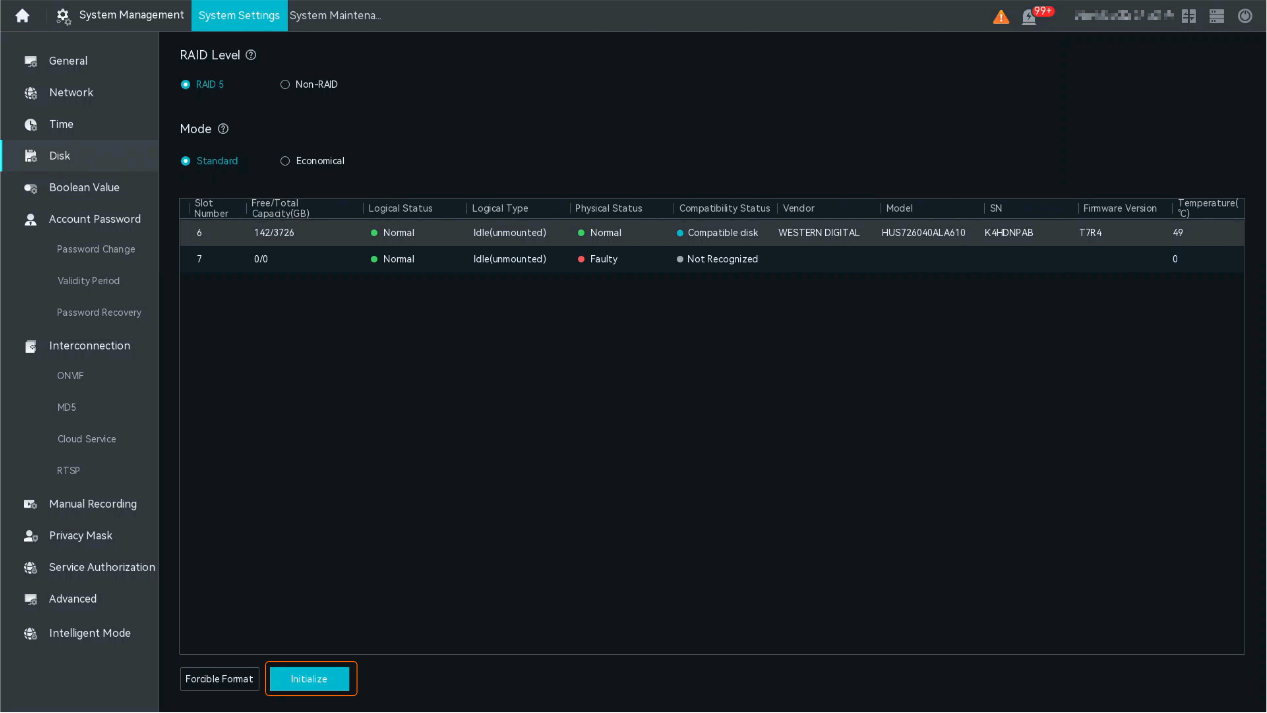
 - Click
 in the upper left corner to access the main menu.
 - Choose System Management > Disk Configuration.
It takes about 2 minutes for the LDU to read the disk status after the new disk is installed.
- Click
 in the upper right corner of the page and find the disk whose Attribute is Idle disk (namely the new disk).
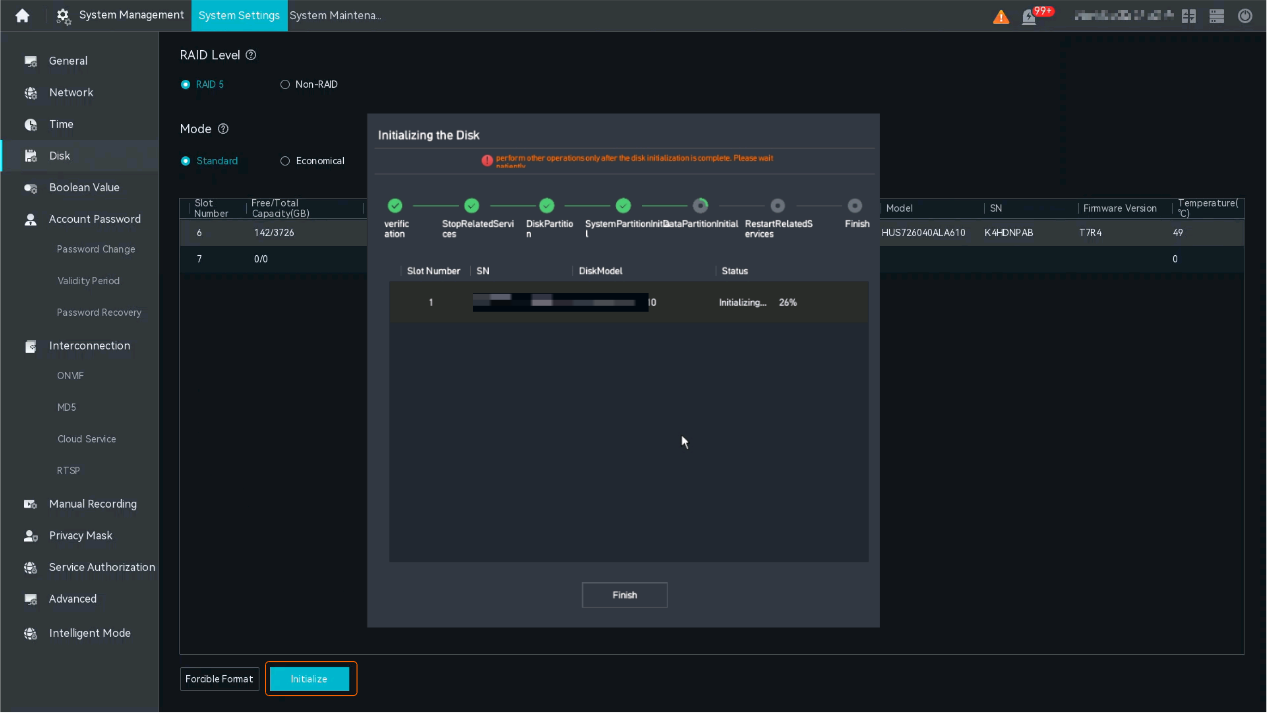
 - Add the new disk to the original RAID, as shown in Figure 6-27.
- In capacity expansion scenario, the system adds disks based on the existing RAID type. The RAID Mode and RAID Configuration Mode parameters do not need to be set.
- If Insufficient Recording Space Policy is set to Stop and you expand the RAID group when the storage space is full and video recording stops, you need to restart the device 10 minutes after the capacity expansion is complete.
- Capacity expansion (by adding disks) will interrupt services for 1 minute. If you perform capacity expansion in RAID mode, you are advised to add enterprise-level disks. During capacity expansion, do not power off or restart the device, or remove or insert disks. The number of disks and the total capacity determine the capacity expansion duration.
It takes about 5 to 10 minutes for disk capacity expansion.
- After the capacity expansion is complete, click
 in the upper right corner of the page, and check whether the Attribute of the new disk in the disk list changes from Idle disk to Data disk.
- Log in to the LDU as the admin user. (