Recording
Recording Management
Feature Description
Definition
Users can set recording plans and storage policies for one or more cameras so that the cameras record video in a specified period.
Customer Benefits
Users can record video in a specified period in key areas and store valuable video clips for future video analysis and evidence collection.
Application Scenario
This feature is applicable when users need to save the video of detection areas for later viewing to analyze incidents or abnormal situations.
Requirements
NE |
Version Requirement |
License Requirement |
Function |
|---|---|---|---|
HWT-IVS1800 |
11.1.0 and later versions |
N/A |
Provides the recording management and policy configuration functions. |
iClient S100 |
V1.6.0 and later versions |
N/A |
Provides the recording management function. |
Application Limitations
None
Feature Configuration
Scenario Description
Client |
Feature Support |
Reference Document |
|---|---|---|
LDU (only HWT-IVS1800-D/HWT-IVS1800-E) |
Supported |
For details about how to configure video recording, see Setting Recording Parameters. |
iClient S100 |
Supported |
For details about how to configure video recording, see Recording Configuration. |
Feature Verification
For details about verification on the LDU, see Verification in Configuring the Recording Function.
Recording Playback
Feature Description
Definition
Users can view recordings to analyze incidents or abnormal situations that have occurred in detection areas.
Customer Benefits
Users can analyze recordings during playback.
Application Scenario
After an incident occurs, users can view the video recorded on the previous day to quickly locate the suspect.
Requirements
NE |
Version Requirement |
License Requirement |
Function |
|---|---|---|---|
HWT-IVS1800 |
11.1.0 and later versions |
N/A |
Provides the recording playback function. |
iClient S100 |
V1.6.0 and later versions |
N/A |
Provides the recording playback function. |
Application Limitations
- Users cannot play recordings in MJPEG encoding format on the LDU.
- Only I-frames (key frames) are played during recording rewinding.
Feature Configuration
Scenario Description
Client |
Feature Support |
Reference Document |
|---|---|---|
LDU (only HWT-IVS1800-D/HWT-IVS1800-E) |
Supported |
For details about how to commission video recording, see Configuring the Recording Function. |
iClient S100 |
Supported |
For details about how to play back recordings, see Recording Playback. |
Simultaneous Playback of Multiple Recordings
Feature Description
Definition
Users can play video from different cameras in multiple video panes concurrently, and simultaneously play back recordings from the same time point.
Customer Benefits
- Users can simultaneously play back video clips recorded at the same time.
- Users can detect the association between multiple recordings in a timely manner.
Application Scenario
A user simultaneously plays back multiple recordings to view the association between the recordings.
Requirements
NE |
Version Requirement |
License Requirement |
Function |
|---|---|---|---|
HWT-IVS1800 |
11.1.0 and later versions |
N/A |
Provides the function of simultaneous playback of recordings from multiple cameras. |
iClient S100 |
V1.6.0 and later versions |
N/A |
Provides the function of simultaneous playback of recordings from multiple cameras. |
Application Limitations
- A maximum of four recordings can be played back on the LDU at the same time.
- The network bandwidth needs to support simultaneous playback of multiple recordings.
- Users can control the simultaneous playback, including pause, resume, and quick locating.
- When a channel of recording playback fails or has no recording, other recording playback channels are not affected.
- Only I-frames (key frames) are played during recording rewinding.
Feature Configuration
Scenario Description
Client |
Feature Support |
Reference Document |
|---|---|---|
LDU (only HWT-IVS1800-D/HWT-IVS1800-E) |
Supported |
For details about how to set recording parameters, see Setting Recording Parameters. |
iClient S100 |
Supported |
in the iClient S100 User Manual |
Feature Verification
Procedure
- Log in to the LDU as the admin user. (
 Logging In to the LDU)
 - Right-click on the desktop and choose Playback.
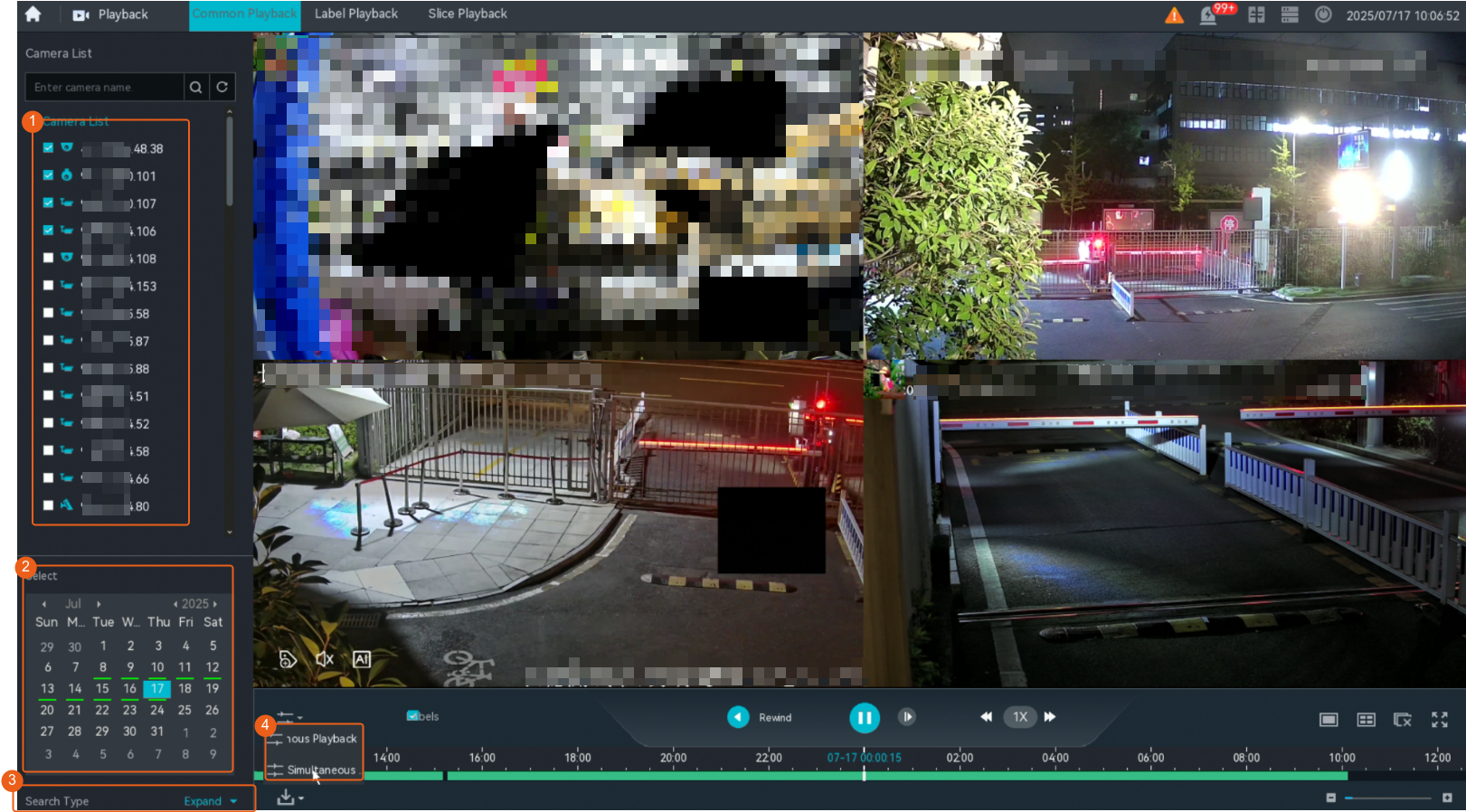
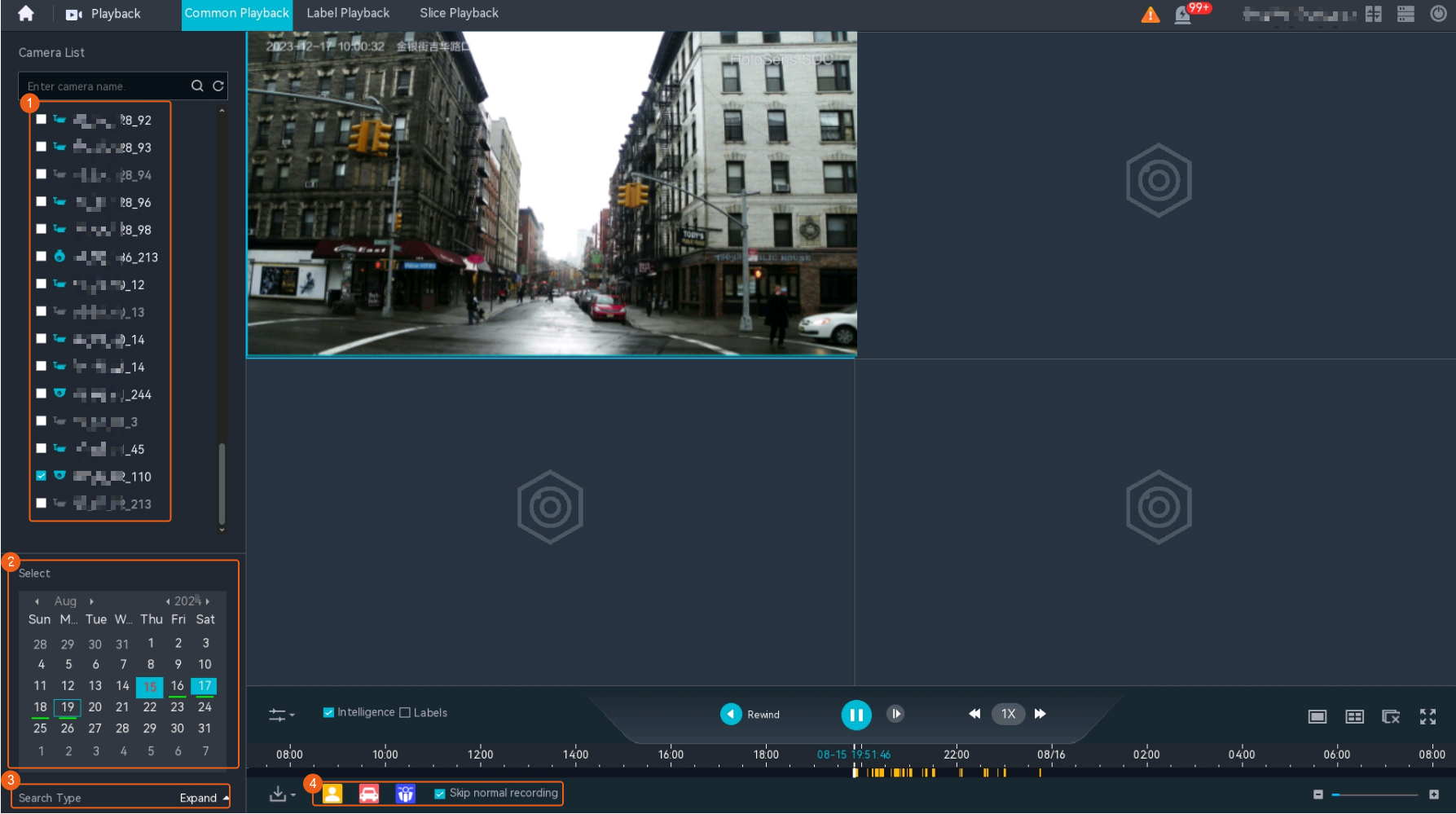
- Simultaneously play back multiple recordings, as shown in Figure 4-37.
Table 4-30 describes the parameters.
Table 4-30 Parameter descriptionParameter
Setting
Search Type
Select a search mode as required.
- Time
- Bookmark
Select
Select a date to query recordings.
The date, on which there is video recorded, is displayed in green.
Simultaneous Playback/Asynchronous Playback
Plays recordings of multiple cameras from the same time point or from different time points.
Segment Playback
Feature Description
Definition
Users can segment a recording of a long period into multiple video clips and play the video clips in multiple video panes simultaneously.
Customer Benefits
Users can quickly locate the incident time when checking a long video clip.
Application Scenario
A user plays back a recording by segment to quickly locate the time segment when an incident occurs.
Requirements
NE |
Version Requirement |
License Requirement |
Function |
|---|---|---|---|
HWT-IVS1800 |
11.1.0 and later versions |
N/A |
Provides the recording playback function. |
iClient S100 |
V1.6.0 and later versions |
N/A |
Provides the function of playing back a recording by segment. |
Application Limitations
- A recording can be segmented into a maximum of 16 video clips.
- Only I-frames (key frames) are played during recording rewinding.
- Only the iClient S100 supports this feature.
Feature Configuration
Scenario Description
Slice Playback
Feature Configuration
Scenario Description
Client |
Feature Support |
Reference |
|---|---|---|
LDU (only HWT-IVS1800-D/HWT-IVS1800-E) |
Supported |
Configure recording by referring to Setting Recording Parameters. NOTE:
This feature is not for commercial use. |
iClient S100 |
Not supported |
- |
Feature Verification
Procedure
- Log in to the LDU as the admin user. ( Logging In to the LDU)
- Right-click on the desktop and choose .
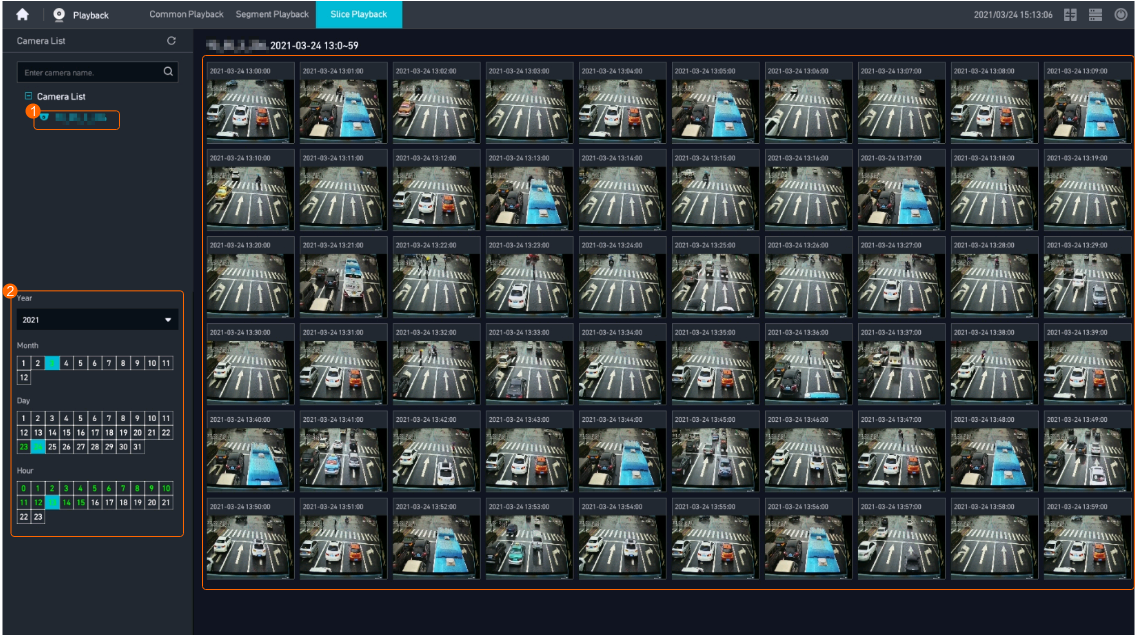
- Select the slice recording to be played back, as shown in Figure 4-38.
Table 4-33 describes the parameters.
Table 4-33 Parameter descriptionMethod
Setting
Search By
Select a year from the drop-down list box and select a month, day, and hour.
The recording is sliced into 60 video clips every hour, and each video clip is played back every minute.
Select Date
Select the time point to be queried in a single-node system.
The icon of a recording is gray, and the icon of the slice recording playback on the current node is green.
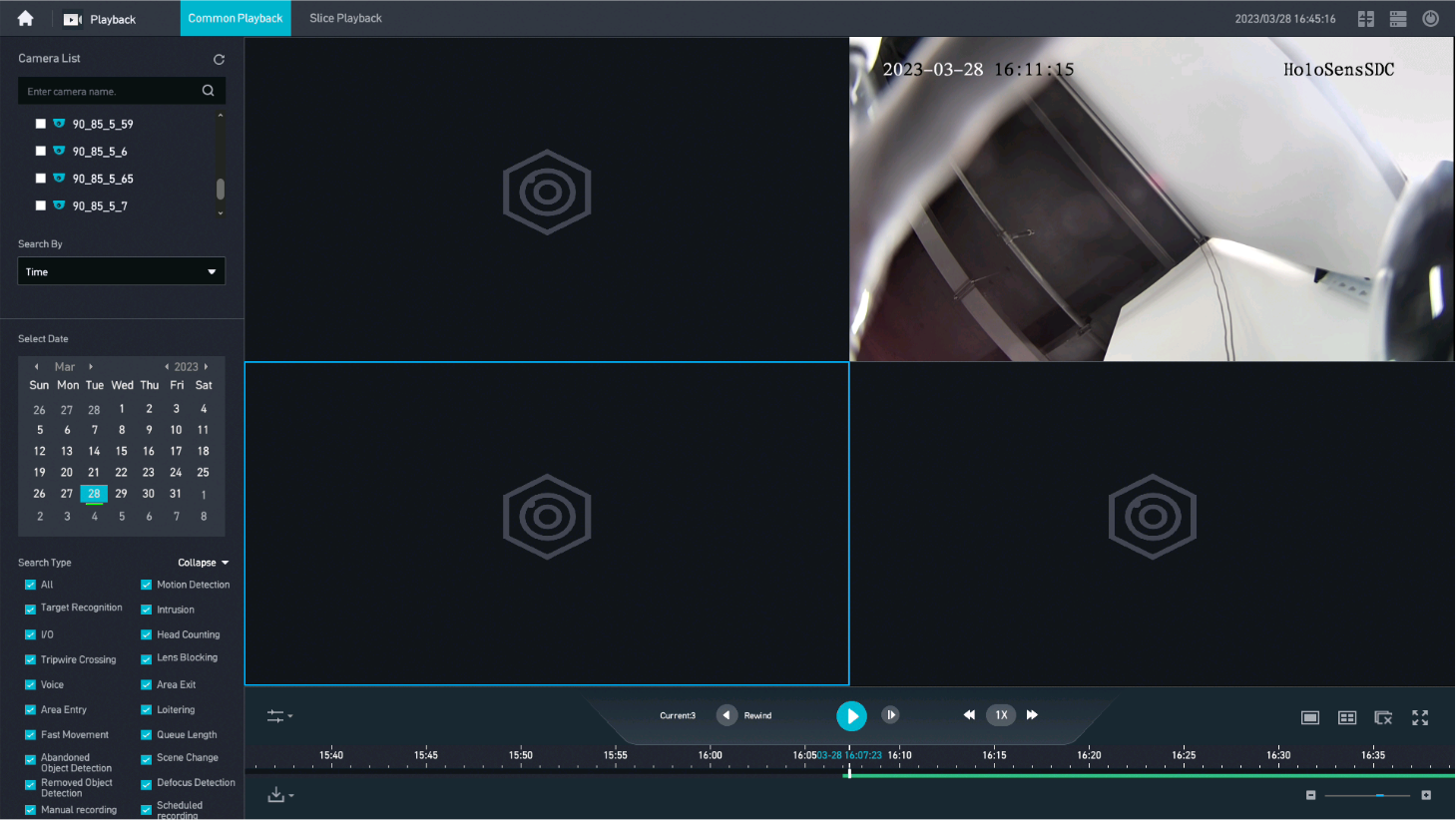
- Double-click the slice recording for playback, as shown in Figure 4-39.
Bookmark Playback
Feature Configuration
Scenario Description
Client |
Feature Support |
Reference |
|---|---|---|
LDU (only HWT-IVS1800-D/HWT-IVS1800-E) |
Supported |
For details about how to configure recording bookmarks, see Configuring Live Video Viewing. |
iClient S100 |
Supported |
For details, see the iClient S100 User Manual that can be obtained by referring to Obtaining Reference Documentation. |
Feature Verification
Procedure
- Log in to the LDU as the admin user. ( Logging In to the LDU)
- Right-click on the desktop and choose .
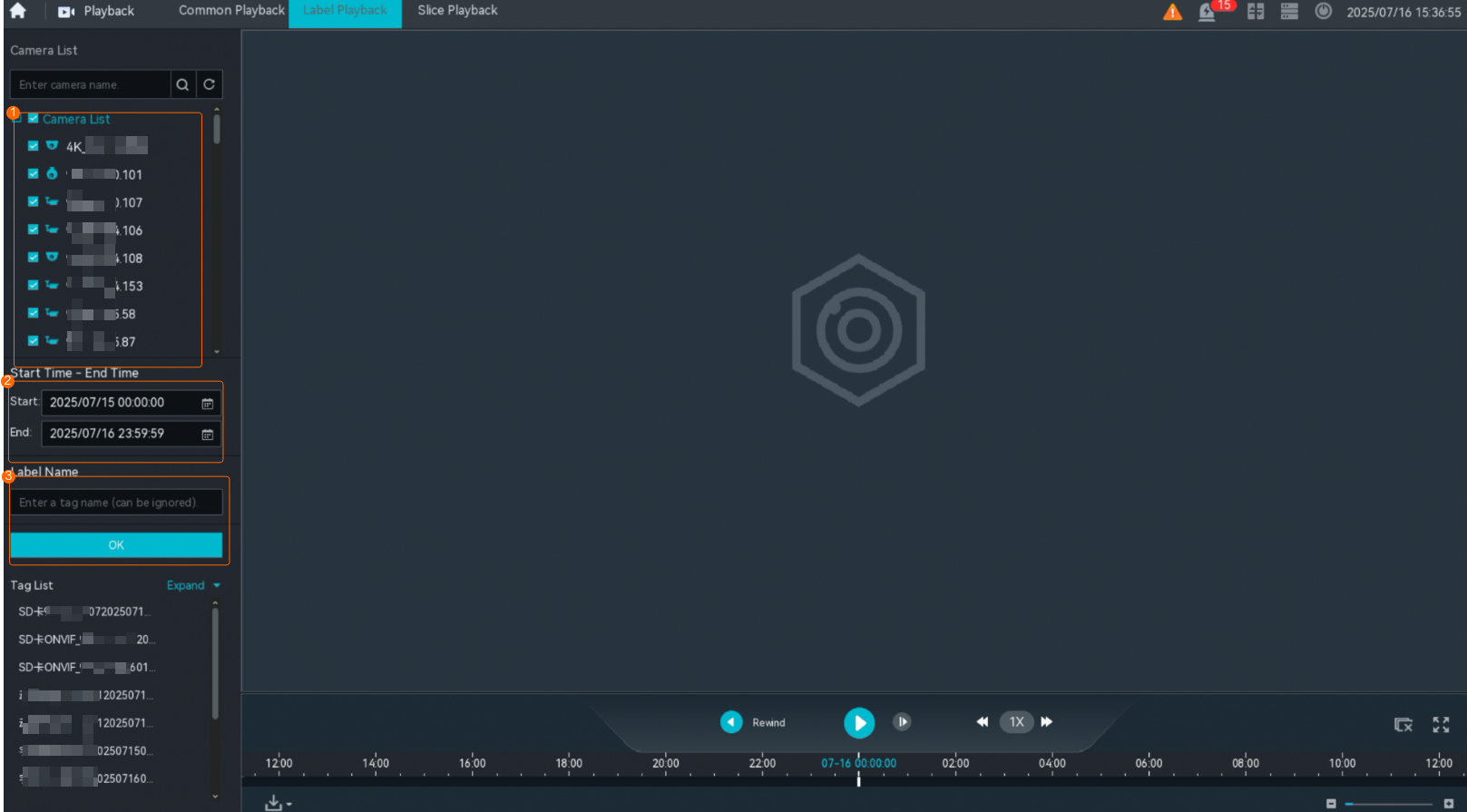
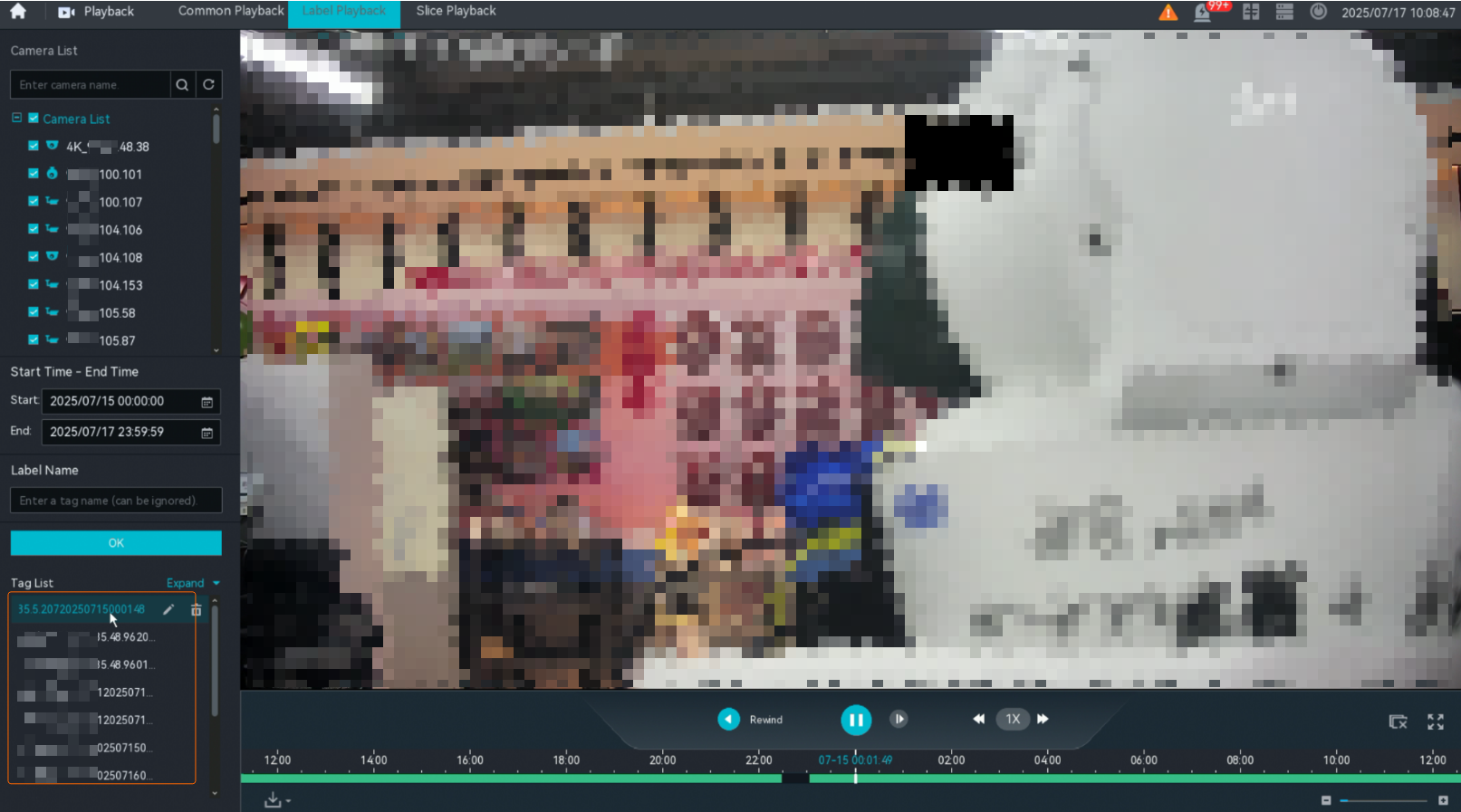
- Select a camera and set search criteria to search for the bookmarked recording to be played, as shown in Figure 4-40.

You can search for recordings by bookmark name.
- Double-click a recording to play, as shown in Figure 4-41.
Recording Download
Feature Description
Definition
Users can download recording files to a local computer.
Customer Benefits
Users can collect recordings as evidence and process recordings remotely.
Application Scenario
A user downloads recordings to a local computer for further processing.
Requirements
NE |
Version Requirement |
License Requirement |
Function |
|---|---|---|---|
HWT-IVS1800 |
11.1.0 and later versions |
N/A |
Provides the recording download function. |
iClient S100 |
V1.6.0 and later versions |
N/A |
Provides the recording download function. |
Application Limitations
- Downloaded recordings are saved in MP4 format.
- Server recordings can be downloaded at full speed (highest download speed provided by the system based on available resources).
- Onboard recordings cannot be downloaded.
- The downloaded recordings can be segmented by size that ranges from 200 MB to 3072 MB. The default size is 2048 MB.
- The downloaded recordings can be segmented by length that ranges from 5 minutes to 720 minutes. The default length is 30 minutes.
Feature Configuration
Scenario Description
Client |
Feature Support |
Reference Document |
|---|---|---|
LDU (only HWT-IVS1800-D/HWT-IVS1800-E) |
Supported |
For details about how to configure video recording, see Configuring the Recording Function. |
iClient S100 |
Supported |
For details about how to download recordings, see Recording Download. |
Feature Verification
Prerequisites
A removable disk (such as a removable hard disk or USB flash drive) that uses the FAT32, NTFS, or exFAT file system is available.
To check the file system of a removable disk, perform the following steps:
Insert the removable disk into the USB port of the computer.
Right-click the removable disk and choose Properties from the shortcut menu.
Choose General.
Check whether the file system is FAT32, NTFS, or exFAT.
Application Limitations
- Recordings downloaded from the LDU cannot be played back using the Media Player or Xunlei player. You are advised to use the Storm Player, PotPlayer, or VLC.
- Removable disks in NTFS format do not support recording names or paths containing Chinese characters.
Procedure
- Insert the removable disk into the USB port of the device.
- Log in to the LDU as the admin user. ( Logging In to the LDU)
- Right-click on the desktop and choose .
- Play back a recording, as shown in Figure 4-42.
Table 4-36 describes the parameters.
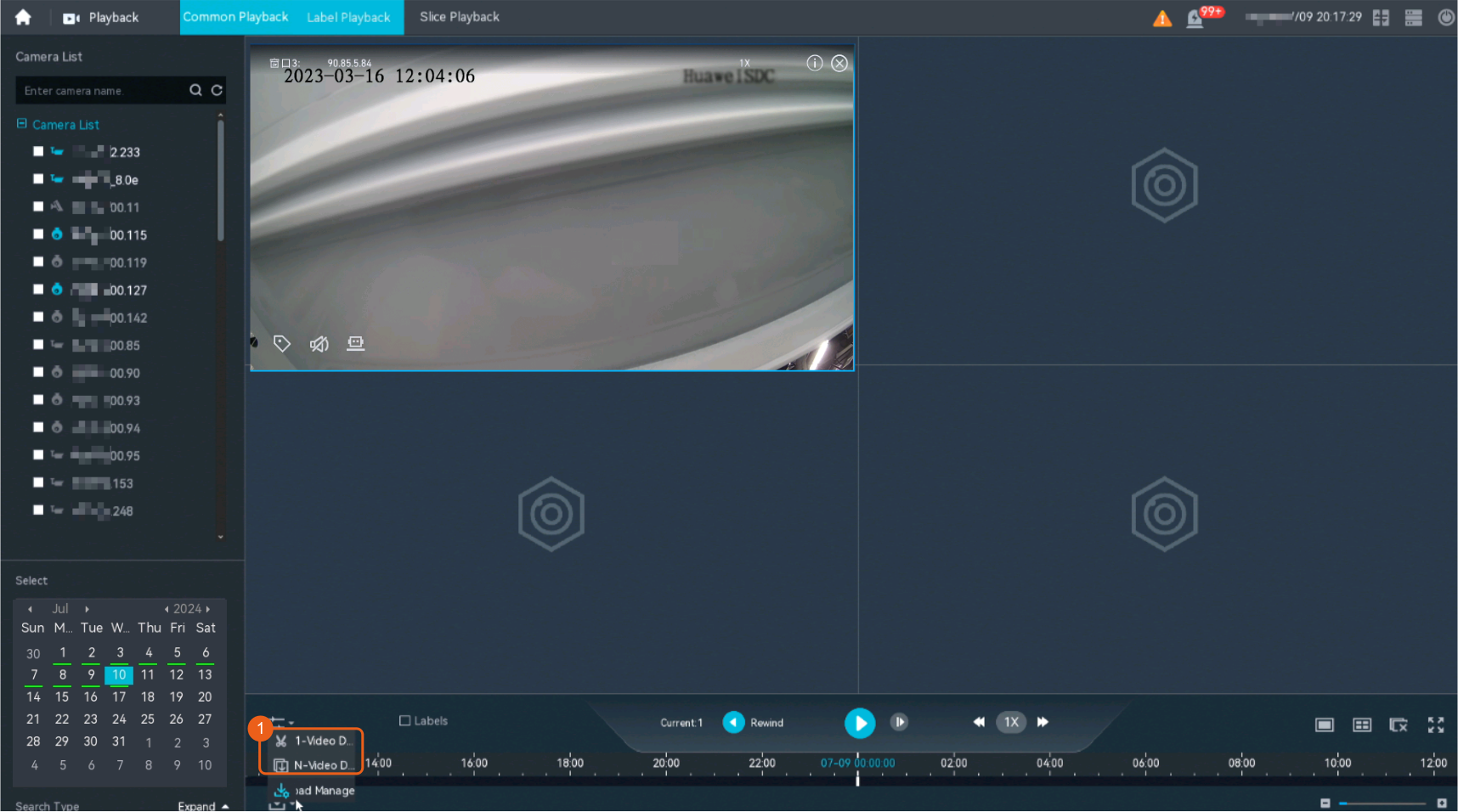
- Select the recording to be downloaded. Click
 and choose 1-Video Download or N-Video Download from the displayed shortcut menu, as shown in Figure 4-43.
- 1-Video Download: Downloads recordings of the current camera whose recording is being played.
- On the timeline of the camera whose recordings are to be downloaded, click to select the start time and drag the timeline to select the end time.
- In the Video Download dialog box, set File Name, Download Time, Download Path, and Encrypted Download, and click OK.
Figure 4-44 Downloading recordings of a camera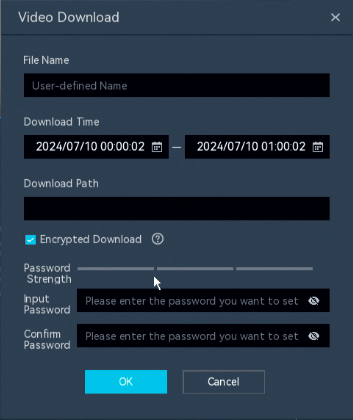
- N-Video Download: Downloads recordings of multiple cameras in batches.
- In the Multi-video Download dialog box, select cameras whose recordings are to be downloaded and set Download Time.
- Set Download Path and Encrypted Download, and click OK.
Figure 4-45 Downloading recordings of multiple cameras in batches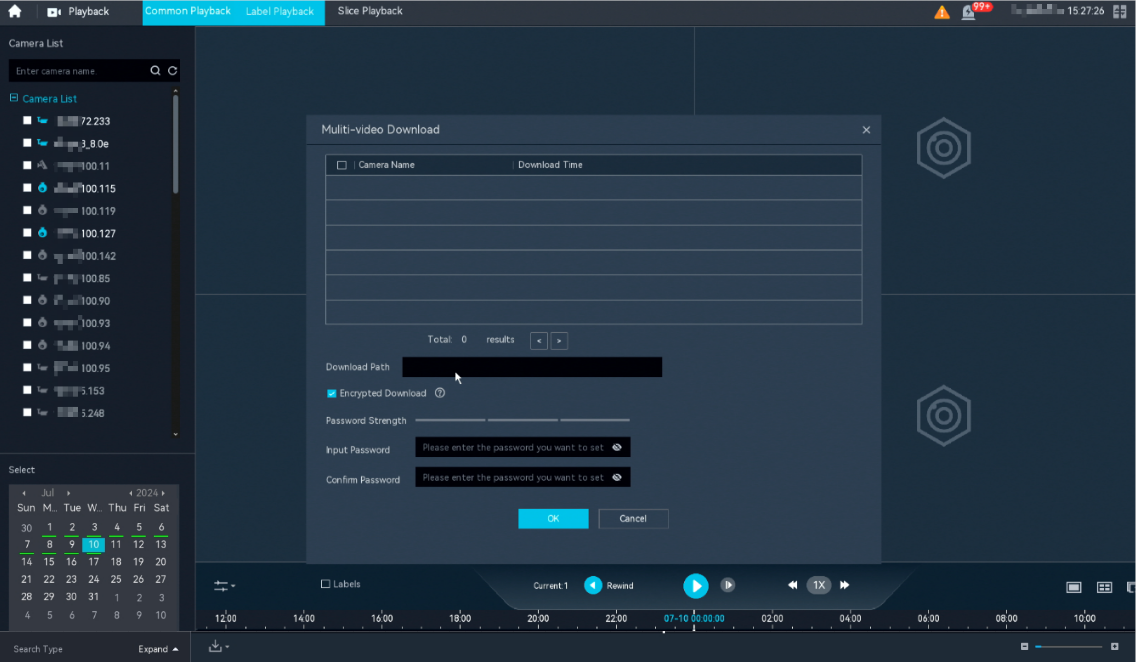
For security purposes, you are advised to encrypt recording files.
- Encrypted recording files are stored in ZIP format on removable disks. Non-encrypted recording files are stored in MP4 format on removable disks and can be opened using a player on a computer.
- Before downloading a recording file, you need to enter the password. The password is used to decompress the .zip package of the encrypted recording file on the computer.
The password must meet the following requirements:
- The password must contain 8 to 32 characters.
- The password must contain at least two types of the following characters: digits, uppercase letters, lowercase letters, and special characters (! @ # $ % ^ & * ( ) + ~).
- 1-Video Download: Downloads recordings of the current camera whose recording is being played.
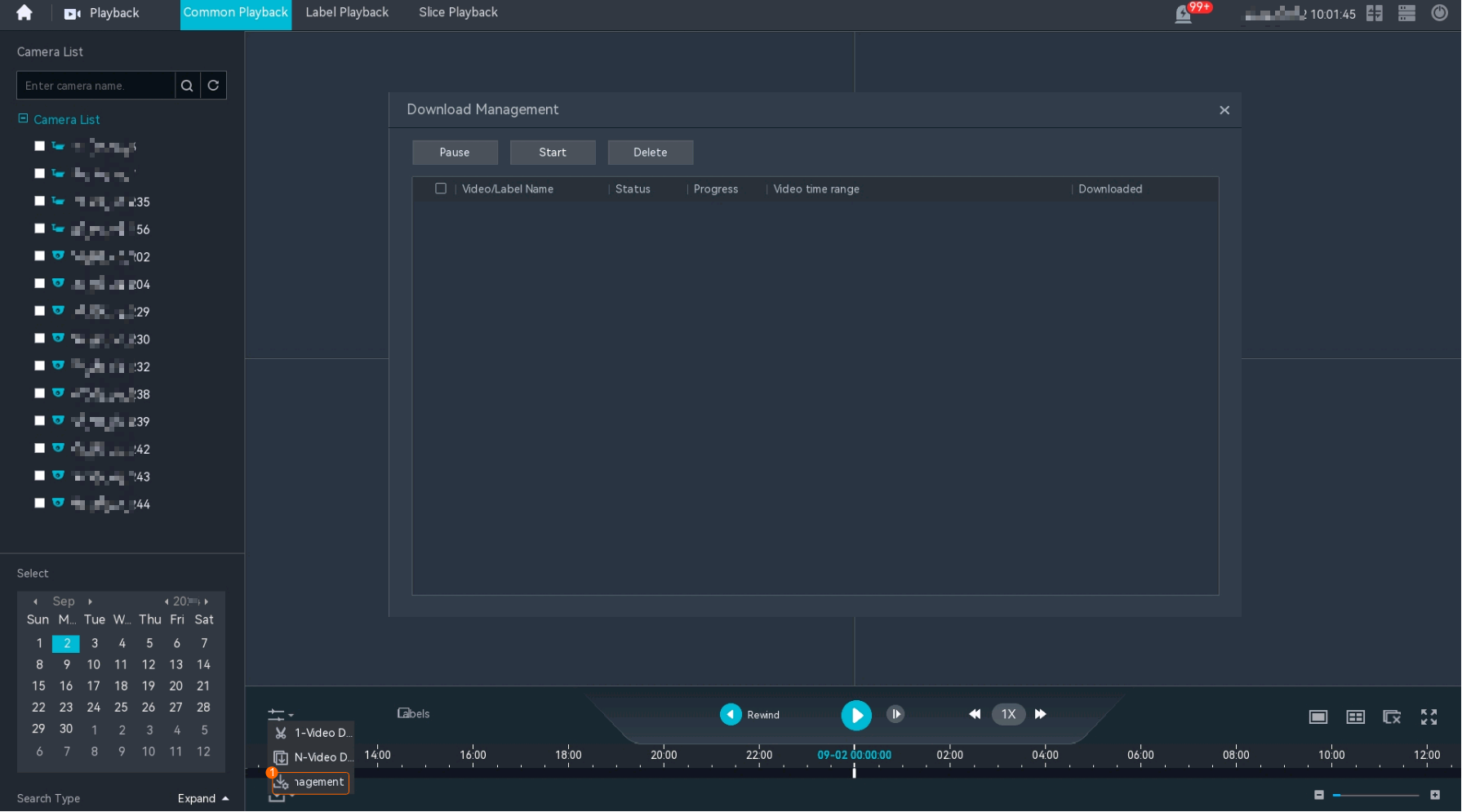
- Manage the recording download, for example, viewing the recording download progress, as shown in Figure 4-46.
Do not remove the removable disk during recording download. Otherwise, recording files will be lost.
Recording Playback on a Video Wall
Feature Description
Definition
If an abnormality occurs in an area, the team or multiple departments need to coordinate in handling the onsite affairs. The video wall displays historical recordings on a large screen, enabling users to view video more clearly and coordinate the onsite affairs more conveniently.
Customer Benefits
The video wall displays video clearly and makes observation convenient. Video security personnel can detect exceptions on the video wall in a timely manner.
Application Scenario
When a major incident occurs, an operator pushes related recordings to a video wall to provide reference for decision making.
Requirements
NE |
Version Requirement |
License Requirement |
Function |
|---|---|---|---|
HWT-IVS1800 |
11.1.0 and later versions |
N/A |
Provides recording files. |
iClient S100 |
V1.6.0 and later versions |
N/A |
Provides the function of viewing video on a video wall. |
Application Limitations
None
Feature Configuration
Scenario Description
Simultaneous Recording Playback on a Client and a Video Wall
Feature Description
Definition
Users can drag recordings from multiple channels to multiple video panes on a video wall and simultaneously play back the recordings.
Customer Benefits
Users can simultaneously play back multiple recordings on a video wall to explore the association between these recordings.
Application Scenario
A user simultaneously plays back multiple recordings on a video wall to view the association between the recordings.
Requirements
NE |
Version Requirement |
License Requirement |
Function |
|---|---|---|---|
HWT-IVS1800 |
11.1.0 and later versions |
N/A |
Provides the recording playback function. |
iClient S100 |
V1.6.0 and later versions |
N/A |
Provides the function of simultaneously playing back recordings in multiple video panes of a video wall. |
Application Limitations
None
Feature Configuration
Scenario Description
Table 4-38 describes the support for this feature in different client scenarios.