Replacing HWT-IVS1800-D08/D16/E08/E16/LLM Disks
Prerequisites
- Required tools such as an electrostatic discharge (ESD) bag and a PH2 screwdriver, are available.
- New disks are available.
If a disk has been used or residual data exists on the disk, format the disk first. The disk file system must be in the format of XFS or ext4.
- You are advised to replace the disk with a tested and verified one by referring to the HWT-IVS1800 Compatibility List. If you choose to use the disk with unknown compatibility, exceptions such as system instability and data loss may occur. In this case, no technical support may be provided.
Context
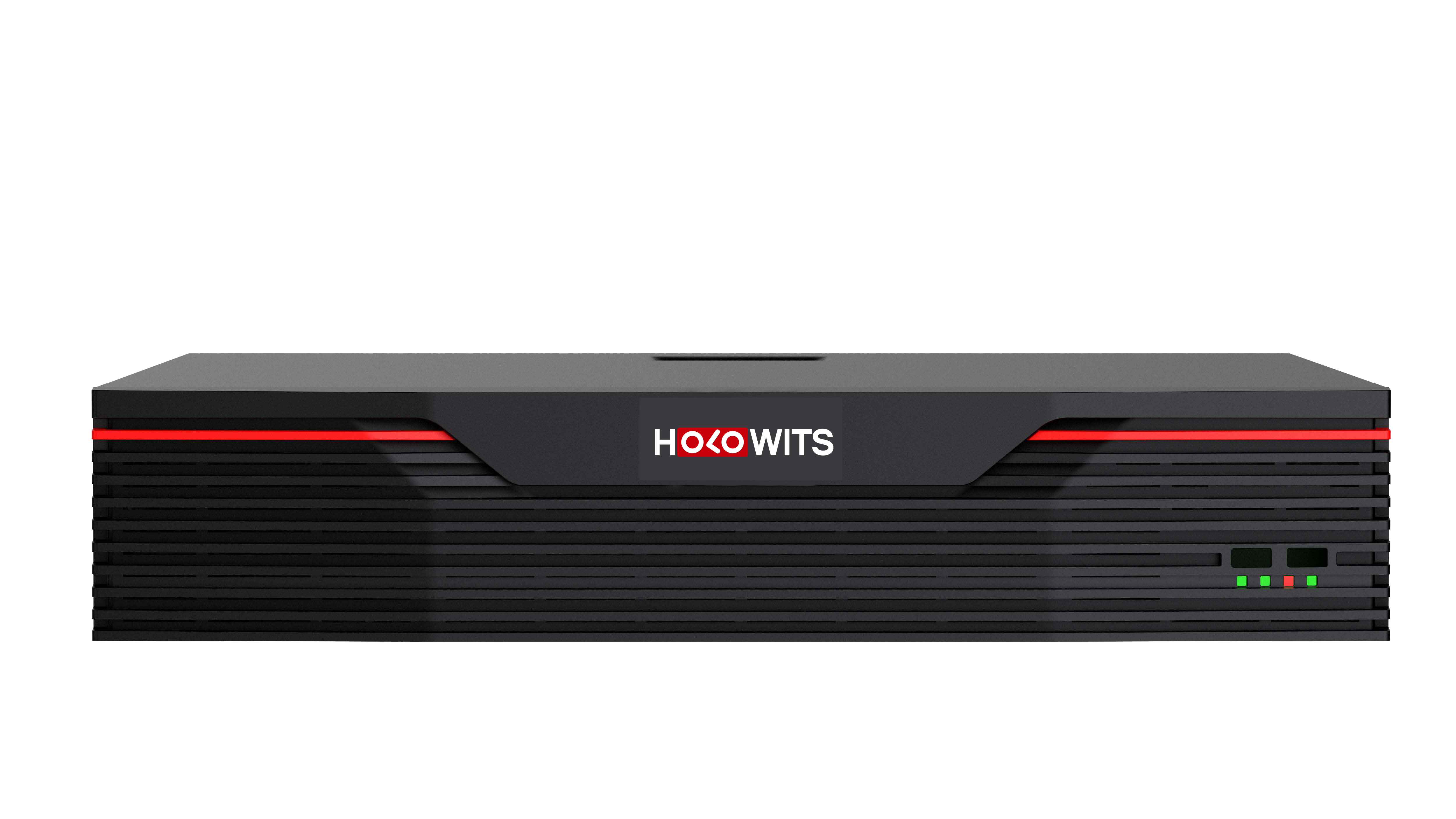
When any disk fails, the disk status indicator (HDD) on the front panel of the device is steady red, as shown in Figure 6-15.
Impact and Severity
There are three types of disks on the device: idle disks, data disks, and system disks.
- Idle disks: disks that have not been added to any RAID groups. The device does not store data on idle disks. Therefore, replacing idle disks does not affect services.
- Data disks: all disks in RAID mode. The device stores data such as recording files on data disks.
Table 6-6 describes the impact of replacing a failed data disk.
Table 6-6 Impact of replacing data disksDisk Mode
Number of Failed Disks
Impact
Non-RAID mode
≥ 1
Data on the failed disks will be lost.
RAID 5 (recommended configuration)
1
The system automatically reconstructs the RAID group to restore data on the failed disk.
2
- If two disks fail at the same time, data on the failed disks will be lost after they are replaced.
- If two disks fail in sequence: After a disk fails, the hot backup disk replaces the failed disk to store recordings. After another disk fails and the two failed disks are replaced with new ones, the system automatically reconstructs the RAID group to restore data on the failed disks.
> 2
Data on the failed disks will be lost.
RAID 5 (economical configuration)
1
After the failed disk is replaced, the system automatically reconstructs the RAID group to restore data on the failed disk.
> 1
Data on the failed disks will be lost.

- When replacing a failed disk or performing online disk capacity expansion, do not change the slot of another member disk unless necessary. In RAID mode, changing the slot of a member disk in use will cause the member disk to be formatted.
- It is recommended that the interval between two hot swap operations be greater than 40s. You are advised not to perform hot swap operations repeatedly within a short period of time.
- System disks: In non-RAID or RAID 5 mode, the two data disks with the smallest slot IDs have system RAID partitions in RAID 1 mode. The device backs up data such as configuration files to the system disks.
The impact of replacing a failed system disk is as follows:
- If the disks where the two system RAID partitions reside fail at the same time, the system RAID partitions cannot be restored after the failed disks are replaced. The impact on services is as follows:
- RAID 5: The system cannot run properly. You need to format all disks and reconfigure RAID for the disks.
- Non-RAID mode: The live video service is still available, but the Data Safe cannot be used to restore services.
- If the disks where the two system RAID partitions reside fail in sequence, the system automatically backs up the system RAID partitions to the disk with the smallest slot ID.
For example, the system RAID partitions reside on the disks in slots 0 and 1. If the disk in slot 0 fails, the system RAID partition is automatically backed up to the disk in slot 2.
- If only one disk is available, the system RAID partition is degraded. After the failed disks are replaced, the system RAID partition is automatically restored to RAID 1.
- If all the disks where the system RAID partition resides fail, the impact on services is as follows:
- RAID 5: The system cannot run properly. You need to format all disks and reconfigure RAID for the disks.
- Non-RAID mode: The live video service is still available, but the Data Safe cannot be used to restore services.
- For a disk group deployed in non-RAID mode, the system RAID partition exists in RAID 0 mode.

- The device needs to be configured with two or more disks. 200 GB is allocated from each disk as the system partition to store data such as logs, Data Safe backup data, and third-party application data. The remaining space is used as the data partition to store recordings and images.
- If the device has two or more disks, the system disks are configured in RAID 1 mode.
- During data restoration, data needs to be synchronized among disks in the RAID 1 group (system partition). Do not perform hot swapping on system disks during data synchronization. Otherwise, it may cause data loss. Before initializing disks, you need to format disks. It takes about 30 hours to synchronize data among disks in the RAID group of the system partition.
- After data is restored, do not perform hot swapping on two or more system disks at the same time. Doing this may cause system exceptions.
- If the device has only one disk, the system disk is configured in RAID 0 mode.
Do not perform hot swapping on the disk at any time. Doing this may cause system exceptions.
- Replacing a disk in RAID 5 mode
- Ensure that the models of the old and new disks are the same.
- If all system disks are removed, some services will be abnormal and the restart duration will increase by 10 minutes.
- If the disks where the two system RAID partitions reside fail at the same time, the system RAID partitions cannot be restored after the failed disks are replaced. The impact on services is as follows:
Procedure
- Locate the failed disks.
- Log in to the OMU portal as the admin user. (
 Logging In to the OMU portal)
 - Choose Storage > Disks > View.
- Check each partition and record the slot numbers of the failed disks.
- Log in to the OMU portal as the admin user. (
- Replace the failed disks (applicable to the HWT-IVS1800-E08 models).
- Wear insulation gloves and connect the ground terminal of the ESD wrist strap into the ESD jack in the cabinet or on the workbench.
- Power off the device and remove the power cable.
If the server is not powered off, some recordings may be lost or system exceptions may occur.
- Replace the failed disks with new disks by slot ID. Replacing a disk involves removing the failed disk and installing a new disk.
For details about how to remove and install a disk, see Installing the Hardware.
- Power on the device.
You need to turn on the power switch, and do not need to press the Power button.
- Replace the failed disks (applicable to the HWT-IVS1800-E16 models).
- Wear insulation gloves and connect the ground terminal of the ESD wrist strap into the ESD jack in the cabinet or on the workbench.
- Press the latch on the disk module to release the handle, remove the failed disk, insert the new disk, and close the handle. For details, see Installing the Hardware.
- Check whether the disk status indicator on the front panel of the device is normal.
- If the disk status indicator is steady green, all disks are normal.
- If the disk status indicator is steady red, at least one disk fails. In this case, further check for failed disks and replace them.
If the running status of new disks is abnormal, contact technical support.
- If disks work in non-RAID mode, expand disk capacity. For details, see Disk Capacity Expansion.
- Check whether the service is normal.
- If only one system disk fails, the system can still run properly after the failed disk is replaced. Perform the following steps to check services:
- Check whether the RAID group status and disk status are normal. For details, see 1.
- Check whether the recording service is normal. For details, see:
- If both system disks fail, the system cannot run properly after the failed disks are replaced. Perform the following steps to reconfigure the RAID group:
- Log in to the OMU portal as the admin user. ( Logging In to the OMU portal)
- Choose Storage > Disks.
- Click Forcibly Format.After formatting is complete, the device automatically restarts.
- Disk formatting will delete all data from hard disks and removable disks (such as removable hard disks and USB flash drives). Before performing this operation, remove removable hard disks from USB ports to prevent data loss.
- Some data is stored on the device. Therefore, after this operation, some data can still be found, but the associated images or recordings cannot be viewed.
If you want to clear the data stored on the device, you are advised to press Reset on the device to restore the device to factory settings.
- Log in to the OMU portal again and initialize disks.
- Log in to the OMU portal as the admin user. (
- If only one system disk fails, the system can still run properly after the failed disk is replaced. Perform the following steps to check services:
- (Optional) If all disks are to be replaced, perform the following operations.

- Before removing two system disks at the same time, power off the device. Otherwise, the file system may be corrupted, causing system exceptions.
- If all system disks are removed, some services will be abnormal and the restart duration will increase by 10 minutes.
If all disks are replaced, no data exists on the new disks by default. Therefore, the system does not perform automatic backup for these disks. To prevent possible disk faults, you are advised to manually back up data.- Log in to the OMU portal as the admin user. ( Logging In to the OMU portal)
- Choose .
- Click Full Backup.
- Power off the device.